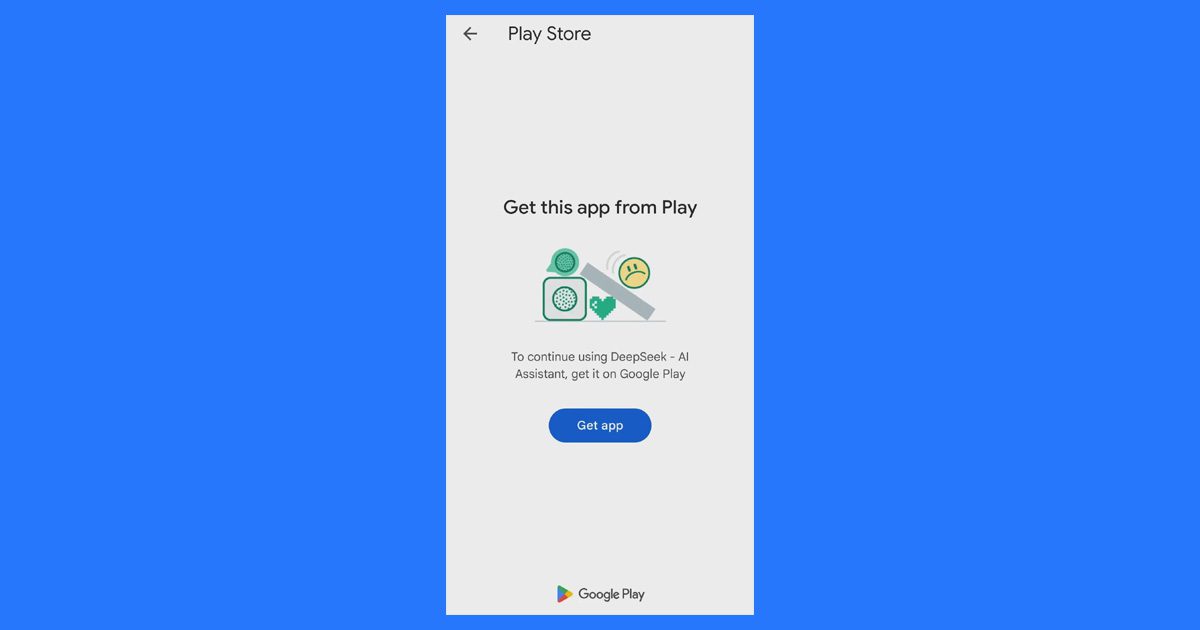
Sometimes, an Android app shows the message “Get this app from Play” when you try to install or open an app. This usually happens when the app checks whether it is connected to Google Play and whether your Google account has access to it.
The app may install successfully but still refuse to open. The solution depends on whether your phone has the Google Play Store.
In this tutorial, you will learn the common causes behind this “Get App from Play Store” error and how to solve it.
Common Causes for “Get this app from the Play” Error
The “Get This App from Play Store” usually appears when your phone tries to open an app or link from the Google Play Store but cannot open it properly.
This may happen for different reasons. Finding the main cause is the first step to fixing the problem. Here are some common reasons why this error occurs:
- Incorrect App Link: Your phone may not know which app should open a link. Because of this, it may show an error.
- Cache and Data Problem: The Google Play Store saves temporary files. If these files get damaged, the app may not work properly.
- Google Account Problems: If your Google Account is not syncing properly with your phone, you may face problems while using the Play Store.
- VPN or Proxy Issues: A VPN or Proxy may cause connection problems with the Play Store.
- Outdated Software: If your Play Store or Android system is not updated, some apps may not work correctly.
- Other App Problems: Sometimes, another app on your phone may affect how the Play Store works.
How to fix the “Get This App from Play” Error
The “Get This App from Play Store” error can stop you from installing or opening an app on your Android phone. You can fix this error by clearing the Play Store cache, updating Google Play Services, or reinstalling the app.
So, now let’s dive into the fixes that can help you to solve this error.
Fix 1. By Registering the App
To fix the “Get this app from Play Store” error when using a sideloaded app, you can try opening the Free Codecs Guide to register the app against your Google account by simply loading its official store listing.
- Keep the app installed on your phone.
- Open the Google Play Store.
- Search for the same app and open its official page.
- Wait for the page to load completely.
- Close the Play Store and open the app again.
Fix 2. Clear Google Play Store Cache and data
You can try clearing the Google Play Store cache and data to fix this error. Sometimes, old or damaged files can stop the app from working properly.
Follow these steps:
- Open your phone’s settings.
- Go to Apps or App Management.
- Open Storage.
- Tap Clear cache and Clear Data.
After completing these steps, open the Play Store again and reinstall the app.
Fix 3. Install the App from Google Play Store
Sometimes, apps downloaded from other Websites may show this error. To avoid this problem, install the app directly from the Google Play Store.
Follow these steps:
- Open the Google Play Store.
- Search for the app you want to install.
- Tap Install.
- After the installation is complete, open the app.
If this method does not work, try the next solution.
Fix 4. Update Google Play Store
Google Play Services helps your phone check apps and install them safely. If it is outdated, you may face app installation problems. Updating it may help fix the error.
Follow these steps:
- Open the Google Play Store.
- Search for Google Play Services.
- If an Update option is available, tap it.
After the update is complete, restart your device.
Fix 5. Check if your Device supports the App
Some apps work only on certain devices or in specific regions. If your phone does not support the app, you may see this error.
Follow these steps:
- Open the Google Play Store.
- Search for the app.
- Check if the app supports your device.
- If your device is not supported, look for a compatible version a trusted source.
Fix 6. Enable Google Play Protect
Google Play Protect checks apps to help keep your phone safe. Turning it on may help fix this error.
- Open the Google Play Store.
- Tap your profile icon, then tap the Settings (Gear) icon at top-right-corner.
- Turn on Scan apps with Play Protect.
- After turning it on, reinstall the app.
Fix 7. Fixing The “Get This App from Play Store” Error by Enabling App Permissions
When an app doesn’t have the standard permissions, it needs to run, it often causes errors and warnings. You can easily fix this by giving the app the right permissions using these steps:
- Open your Phone’s Settings.
- Go to Apps or App Management.
- Select the specific app you want to fix and tap on Permissions.
- Turn on(allow) the necessary permission.
Fix 8. Uninstall and Reinstall the App
If all the above-mentioned solutions did not work, then try Uninstalling and reinstalling the app. This may fix the problem.
Follow these steps:
- Open Settings.
- Go to App or Apps Management.
- Select the app that is causing the problem.
- Tap Uninstall.
- After uninstalling, install the app again from Google Play Store.
Important Note: Uninstalling and reinstalling the app can help fix the error when other methods do not work.
Conclusion
The “Get this App from Play” error is usually related to installing the app from unknown sources, Play Store, compatibility issues, or temporary system problems. Installing the app from the official Play Store, clearing the Play Store cache, updating Google services, and restarting the phone often fix the issue.
So, I hope that by following the fixes mentioned in this guide, helped you to fix “Get This App from Play Store” error on Android devices.