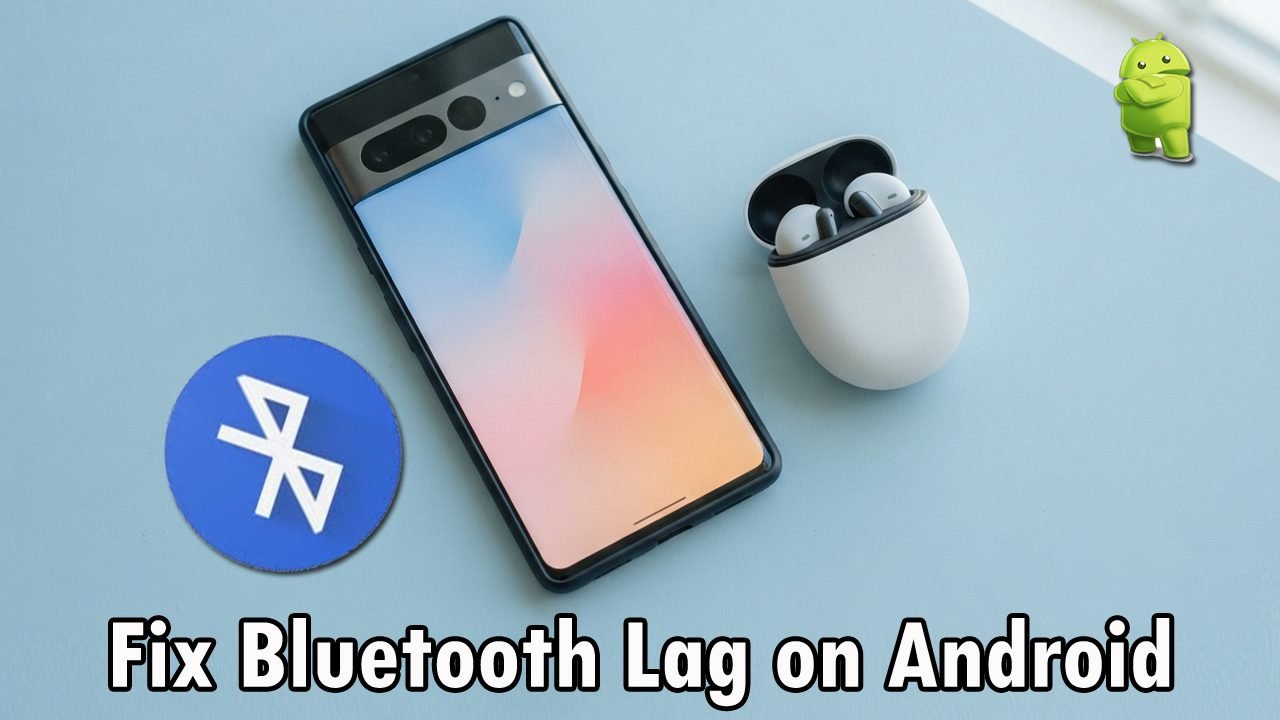
Bluetooth headphones are useful for watching videos, listening to music, and playing games. However, sometimes the sound does not match the video or actions on the screen.
This problem may become noticeable after installing an Android update.
If you are experiencing Bluetooth audio lag after an Android update, the issue may be related to software changes, Bluetooth connection problems, or audio processing.
This guide explains how to test the delay, identify common causes, and follow simple fixes before considering new headphones or a wired connection.
Why Bluetooth Headphone Audio Lag Happens After an Android Update
Bluetooth audio delay happens when there is a lag between the moment sound is generated on your device and when it reaches your headphones. The audio passes through several stages—the Android system, the app, the Bluetooth connection, and the headphones’ internal processing. Each stage can add a small delay, which is often tied to the specific audio codec (like SBC or AAC) your devices are using to compress and transmit data.
After an Android update, temporary software issues or changed settings may affect how your phone handles Bluetooth audio.
Some common reasons include:
- Software glitches: Temporary issues after an update may affect Bluetooth performance.
- Corrupted system cache: Leftover temporary files from the old Android version can conflict with the new system, slowing down wireless connections.
- Reset Developer Settings: Major updates often reset hidden parameters like A2DP Hardware Offload or default audio channel bandwidth.
- Over-aggressive battery optimization: The new update might limit background power to your media player or Bluetooth system to save battery, throttling performance.
- Bluetooth connection problems: A weak signal or wireless interference can increase audio delay.
- Audio processing: Extra sound effects and enhancements can add processing time.
- App-related issues: Some apps may handle audio and video synchronization differently.
- Device compatibility: Older headphones may not support the same low-latency features as newer devices.
Bluetooth connections usually have slightly more delay than wired headphones because audio needs to be encoded, transmitted, and decoded. The main goal is to reduce noticeable lag rather than expect completely zero delay.
Fixes to Resolve Bluetooth Audio Lag After Android Update
Bluetooth audio delay can happen because of a weak connection, temporary software glitches, or compatibility issues after an update. Try the following fixes one by one to improve audio synchronization between your Android phone and Bluetooth headphones.
Fix 1: Restart Your Phone and Bluetooth Headphones
A temporary software glitch after an Android update can affect the Bluetooth connection. Restarting both devices may refresh the connection and fix minor audio delays.
- Turn off your Bluetooth headphones.
- Restart your Android phone.
- Turn the headphones back on.
- Connect them again and play a video to check the audio.
Fix 2: Keep Your Phone Close to the Headphones
A weak Bluetooth signal can make audio playback unstable. Walls, metal objects, and nearby wireless devices may also interfere with the connection.
- Keep your phone close to your headphones.
- Avoid placing objects between both devices.
- Move away from wireless routers and other sources of interference.
- Play a video again to check whether the delay improves.
Fix 3: Disconnect Other Connected Devices
Some headphones support multipoint connections, which allow them to connect to two devices at the same time. Audio switching between devices may sometimes cause playback delays.
- Open the Bluetooth settings on your phone.
- Check whether your headphones are connected to another device.
- Temporarily disconnect them from the other device.
- Play audio using only your Android phone.
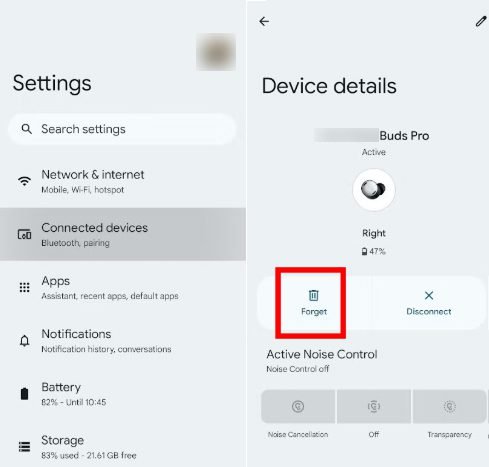
Fix 4: Forget and Reconnect Your Headphones
Old pairing information may sometimes cause connection problems after a software update. Removing the headphones and pairing them again can help create a fresh Bluetooth connection.
- Open Settings on your phone.
- Go to Bluetooth or Connected devices.
- Select your connected headphones.
- Tap Forget or Unpair.
- Put your headphones in pairing mode and connect them again.
Fix 5: Update or Clear the Affected App’s Cache
If the audio delay happens only in one app, the problem may be related to that app rather than the Bluetooth connection. Updating the app or clearing its temporary cache may help.
- Open the Google Play Store.
- Search for the affected app.
- Install an update if one is available.
- If the issue continues, open Settings and go to Apps.
- Select the affected app and open Storage.
- Tap Clear cache, if available, and test the app again.
Fix 6: Update Your Android Phone and Headphones
An outdated software version may cause compatibility problems between your phone and Bluetooth headphones. Installing available updates can help fix known bugs.
- Open Settings on your Android phone.
- Go to System or Software update.
- Check for available updates and install them if available.
- Open your headphone’s companion app, if available.
- Check for a firmware update for your headphones.
Fix 7: Turn On Gaming or Low-Latency Mode
Some Bluetooth headphones include a Gaming Mode or Low-Latency Mode that helps reduce the delay between sound and video. This option is not available on every headphone model.
- Open the companion app for your headphones, if available.
- Look for Gaming Mode or Low-Latency Mode.
- Turn it on if your headphones support it.
- Play a game or video and check whether the sound is better synchronized.
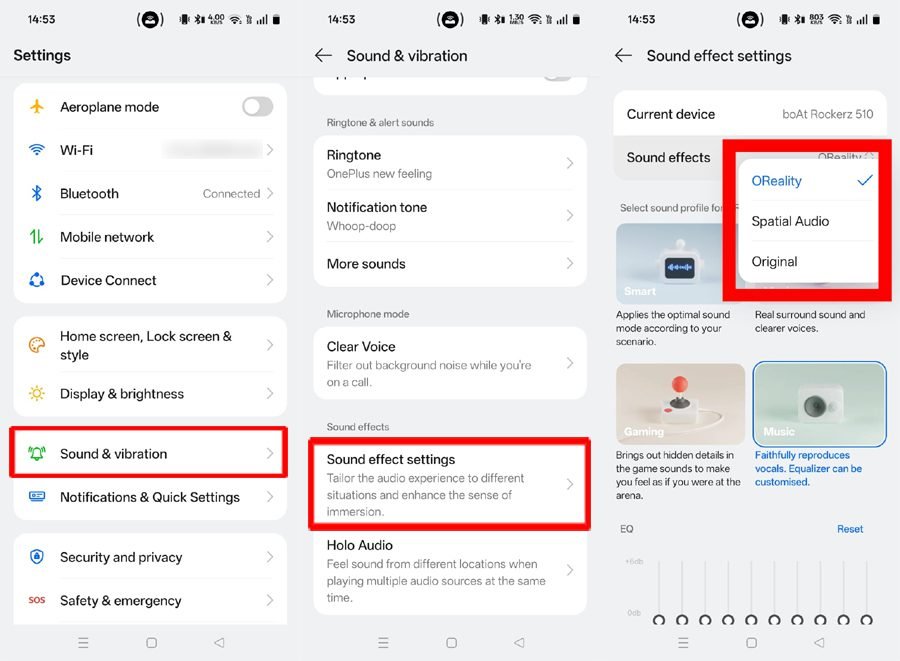
Fix 8: Turn Off Spatial Audio or Dolby Atmos
System updates often turn on audio enhancements by default. Processing multi-dimensional sound takes extra time, which can create a noticeable delay between your screen and headphones.
- Open Settings and select Sound & vibration.
- Tap on Sound quality and effects or Spatial audio.
- Temporarily turn off Dolby Atmos or Spatial Audio.
- Test your video playback again.
Fix 9: Exclude Bluetooth from Battery Optimization
Android updates introduce strict background power rules. Sometimes the system throttles power to the Bluetooth process or your media app to save battery, delaying the stream.
- Open Settings and go to Apps.
- Search for Battery optimization or tap Special app access permissions.
- Switch the filter list to show All apps.
- Locate Bluetooth (and your video streaming app) and change it to Don’t optimize or Unrestricted.
Fix 10: Disable LE Audio or Switch Bluetooth Codecs
Modern Android systems force-enable LE Audio (Low Energy Audio) by default. If your headphones face compatibility issues with this format, it creates sync delays.
- Open Settings and go to Bluetooth/Connected devices.
- Tap the Gear Icon next to your paired headphones.
- Turn off the toggle for LE Audio.
- Alternative: Go to Settings > About Phone and tap Build Number 7 times to unlock the hidden advanced menu. You can safely configure these advanced transmission protocols by referencing the official Android Developer Options Guide to manually switch your codec from SBC to AAC or aptX for a more stable audio stream.
Fix 11: Reset Bluetooth or Network Settings
If the previous steps do not work, resetting network settings may help clear deep Bluetooth connection problems. Use this option as a last resort because it removes saved Wi-Fi networks and paired Bluetooth devices.
- Open Settings on your phone.
- Search for Reset network settings or Reset Wi-Fi, mobile and Bluetooth.
- Read the warning shown on your phone.
- Confirm the reset if you are comfortable reconnecting your devices.
- Pair your headphones again and test the audio.
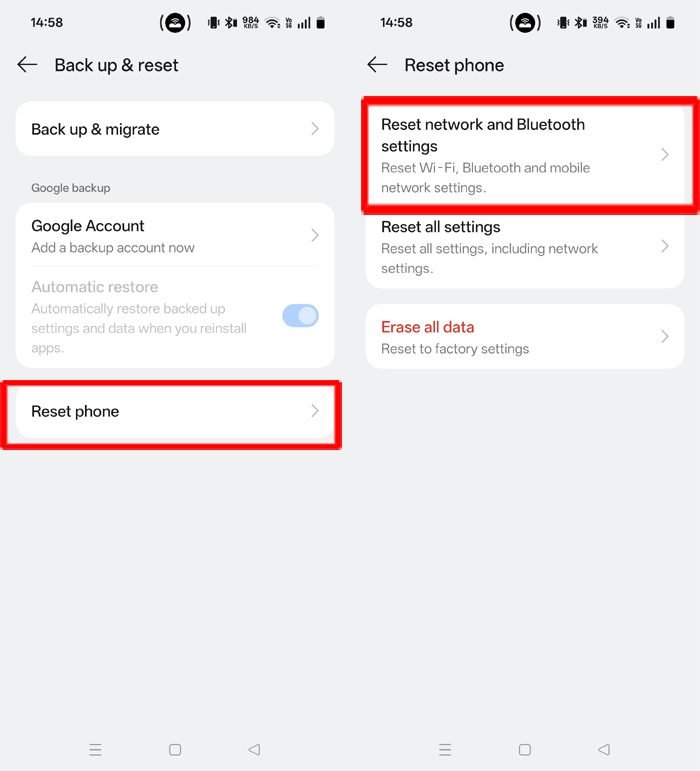
On a OnePlus Phone, the steps are as follows:
- Navigate to Settings > System & update > Back up & reset.
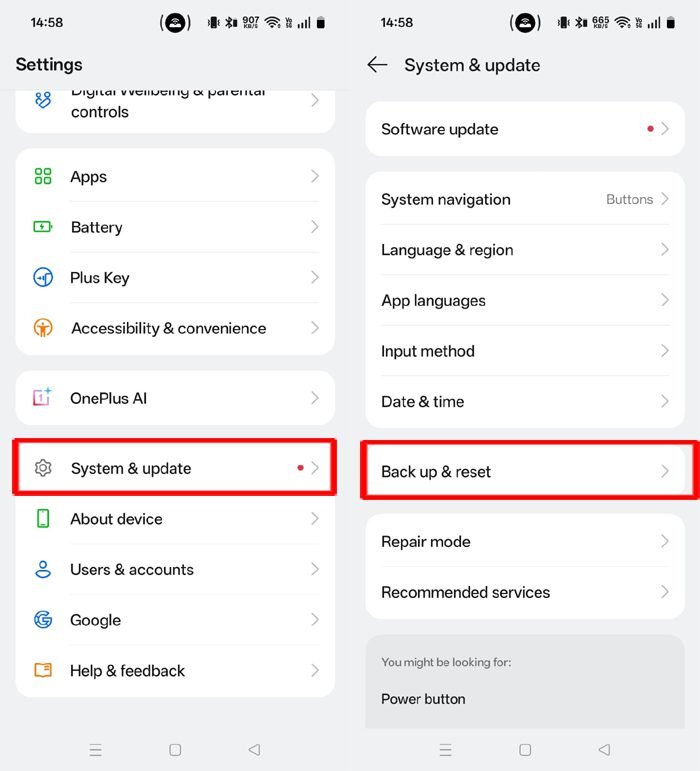
- Tap on “Reset phone” and then tap on “Reset network and Bluetooth“.
- And finally, confirm it by entering your screen lock password.
- Now, try to pair your phone again to your Bluetooth headphones and check.
Special Cases: Gaming, Videos, and Music Apps
Bluetooth audio delay may not affect every activity in the same way. Some apps and games process sound differently, so the delay can be more noticeable in certain situations.
- Gaming: Sound timing is critically important while playing games. Check whether your headphones support Gaming Mode or Low-Latency Mode.
- Video streaming: If the problem happens in only one streaming app, update the app and check its internal playback settings.
- Music apps: A small delay may be less noticeable when listening to music, but repeated connection stutters should still be checked.
- Emulators: Some emulators have specific audio-sync or latency settings. Check the app’s settings if the delay happens only while using an emulator.
When to Use Settings Tweaks or Wired Headphones
The fixes above may reduce Bluetooth audio lag, but they cannot entirely remove every bit of delay. Bluetooth audio naturally takes some time to travel from the phone to the headphones.
If the delay is small and improves after changing settings, you can comfortably continue using your Bluetooth headphones. However, if you need perfectly accurate, real-time sound (such as for competitive gaming or professional audio editing), wired headphones may provide a better experience.
Low-Latency Bluetooth features can also help, but both your phone and headphones must support the same compatible technology.
Tips to Prevent Bluetooth Audio Delay
Follow these simple tips to avoid repeated Bluetooth connection problems and maintain a stable audio stream:
- Keep your Android phone and headphones updated: Regularly installing system updates and headphone firmware patches ensures compatibility with the latest wireless standards.
- Install app updates when available: Keep your media streaming and gaming apps updated, as developers frequently release patches to fix known audio-video desync bugs.
- Keep your headphones’ battery charged: Low battery levels on either your phone or headphones can cause the device to throttle power, weakening the Bluetooth connection and increasing lag.
- Clean up your paired devices list: Unpair older, unused Bluetooth accessories from your phone to prevent the background wireless system from wasting resources searching for them.
- Disconnect devices you are not using: Turn off multipoint connections or disconnect your headphones from secondary devices (like laptops or tablets) when streaming from your phone.
- Avoid using Bluetooth headphones from too far away: Maintain a clear line of sight and stay within close physical proximity to your phone to ensure a strong signal.
- Watch out for 2.4GHz Wi-Fi interference: Bluetooth operates on the same 2.4GHz frequency as many older routers and microwaves; switching your home Wi-Fi to a 5GHz or 6GHz band can dramatically reduce interference.
- Use Gaming Mode only when playing games: Turn off low-latency or Gaming Mode when watching videos or listening to music, as it drains battery faster and can occasionally cause audio stutters.
- Choose the right hardware codecs: When buying new headphones, check if they support advanced low-latency formats like LE Audio (LC3) or aptX Adaptive that natively match your phone’s capabilities.
- Avoid changing advanced developer settings without knowing their purpose: Modifying hidden Bluetooth protocols without understanding them can destabilise your connection.
Conclusion
Experiencing Bluetooth audio lag after an Android update can be incredibly frustrating, especially when you are trying to enjoy videos or play games.
Fortunately, this system glitch can often be resolved by using simple troubleshooting steps, such as restarting your phone, reconnecting your headphones, adjusting your advanced audio settings, or installing the latest app patches.
If the audio lag continues despite trying these methods, check your hardware compatibility to see if a dedicated low-latency mode is available, or consider switching to wired headphones for perfectly synchronized sound. Don’t hesitate to reach out to your phone or headphone manufacturer’s support team if you suspect a deeper hardware or firmware defect. By following these steps, you can easily get your wireless audio back in sync and enjoy a seamless listening experience.
You Might Also Be Interested In:
- How to Fix Samsung Bluetooth After an Update
- How to Fix Wi-Fi Not Working After an Android Update
- How to Fix “Get this App from Play” Error

Danny Paul is a tech specialist and avid gamer with over 10+ years of experience resolving complex system errors, software bugs, and platform glitches. He specializes in creating straightforward, actionable troubleshooting guides for Android, iOS, PC gaming, and mainstream social media networks to help users fix issues instantly. In his free time, he loves solving puzzles, playing online games, watching movies, and traveling.