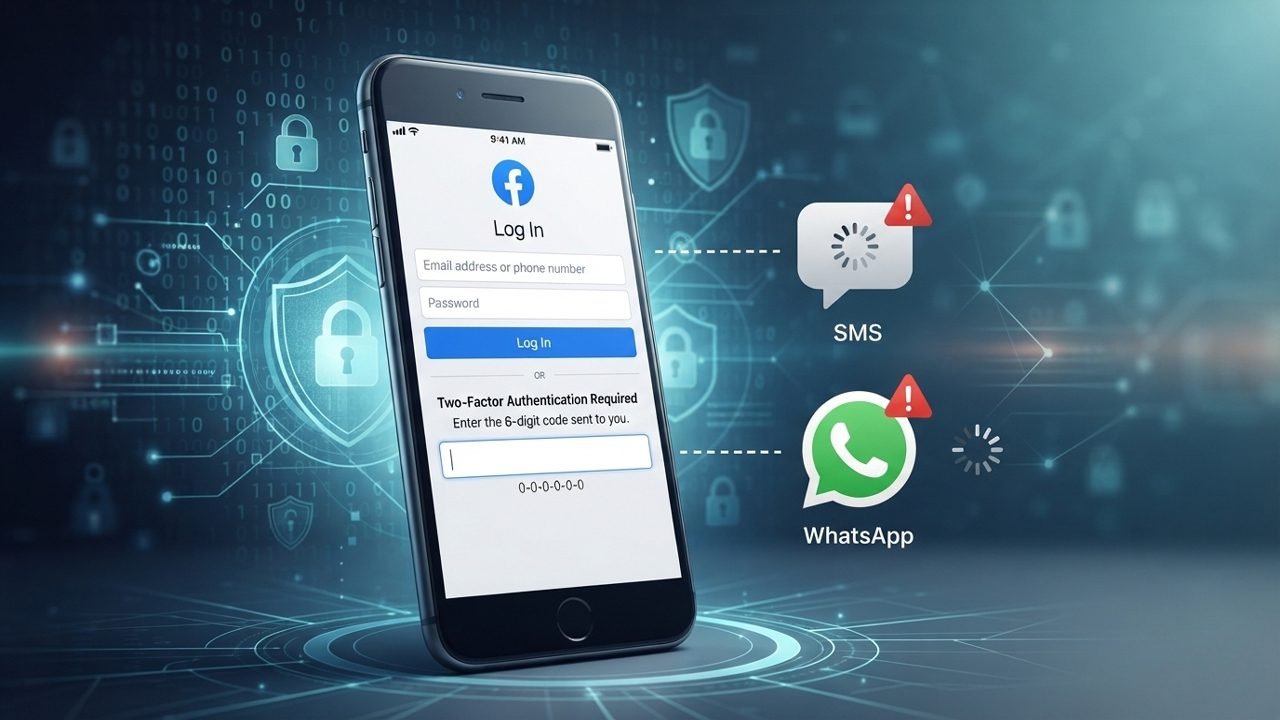
Facebook uses two-factor authentication to keep user accounts safe. It asks for an extra verification code when someone tries to log in from a new device or browser.
Sometimes, users do not receive this code on their registered phone number via WhatsApp or SMS. This can happen because of network problems, carrier short-code blocking, incorrect phone details, or temporary Meta server issues.
If you are facing the Facebook two-factor authentication code not sending to WhatsApp/SMS problem, there are several ways to fix it. You can try the following solutions on your phone or computer to receive the code and access your account again.
Why is Facebook Not Sending the Two-Factor Authentication Code?
Facebook may fail to send a verification code through WhatsApp or SMS for a variety of reasons. Sometimes the issue is related to your mobile carrier network, while other times it happens because of hidden account configurations, software conflicts, or temporary Meta server disruptions.
Common Network and Device Issues
- Weak Network Signal: Poor mobile network coverage can severely delay SMS delivery or prevent automated messages from arriving entirely.
- Incorrect Phone Number: If your registered number is outdated, missing the correct country code, or typed incorrectly, Facebook will send the security code to the wrong destination.
- WhatsApp Connection Issues: A weak internet connection or active multi-device sync issues on WhatsApp can prevent the security message from delivering to your primary phone.
- Outdated Applications: Running older versions of the Facebook or WhatsApp mobile apps can cause unexpected login loops and communication errors.
Security and Spam Filter Conflicts
- Carrier & RCS Spam Filters: Modern Android and iOS devices use aggressive cloud-based spam protection (like RCS filters). These systems frequently mistake automated Meta verification short-codes for phishing attempts and block them before they reach your main inbox.
- Blocked or Filtered Messages: Your phone’s local messaging app may have mistakenly automatically routed Facebook’s verification text straight into a hidden “Spam and Blocked” folder.
- Too Many Code Requests: Requesting verification codes repeatedly in a short window can trigger a temporary security cooldown block on your account, halting all outgoing codes.
Account Configurations and Meta Server Bugs
- Disabled Text Alerts (The “OFF” Bug): If you previously muted or disabled text alerts from Meta at the account level, Facebook’s 2FA system will quietly block outgoing SMS security codes without warning you.
- In-App Notification Hijacking: If you are still logged into Facebook or the Messenger app on an old tablet, work computer, or background browser, Meta may send an internal “Login Approval Prompt” to that device instead of triggering a text or WhatsApp message.
- Facebook Server Outages: Temporary backend infrastructure glitches or server mismatches at Meta can completely halt the routing of automated One-Time Password (OTP) verification services.
How to Fix Facebook Two-Factor Authentication Code Not Sending to WhatsApp or SMS
If you are not receiving your Facebook verification code, try these solutions one by one. They will help you identify whether the problem is related to your account configuration, mobile network, or device settings.
Fix 1: Check Your Internet and Mobile Network
A weak internet connection or unstable cellular network can interrupt the verification delivery process. Make sure your device has a stable connection before requesting another code.
- Toggle Airplane Mode: Turn Airplane Mode on for 10 seconds, then turn it off to refresh your network connection.
- Verify App Connectivity: Open a browser or another app to ensure your mobile data or Wi-Fi is actively transferring data.
- Check SIM Card Status: Ensure your SIM card is properly inserted and showing strong network coverage bars.
Try requesting the 2FA code again once your network connection stabilizes.
Fix 2: Verify Your Registered Contact Details
If the phone number linked to your Facebook account is incorrect or outdated, the code will be sent to a destination you no longer use. If you have an active session on a secondary device, verify your details.
- Open the Facebook app on a device where you are already logged in.
- Tap your Profile Menu (three lines or your icon) and select Settings & Privacy, then tap Settings.
- Tap the Meta Accounts Centre banner at the very top of the menu.
- Under Account Settings, tap Personal Details.
- Tap Contact Info to view the phone numbers and email addresses linked to your account.
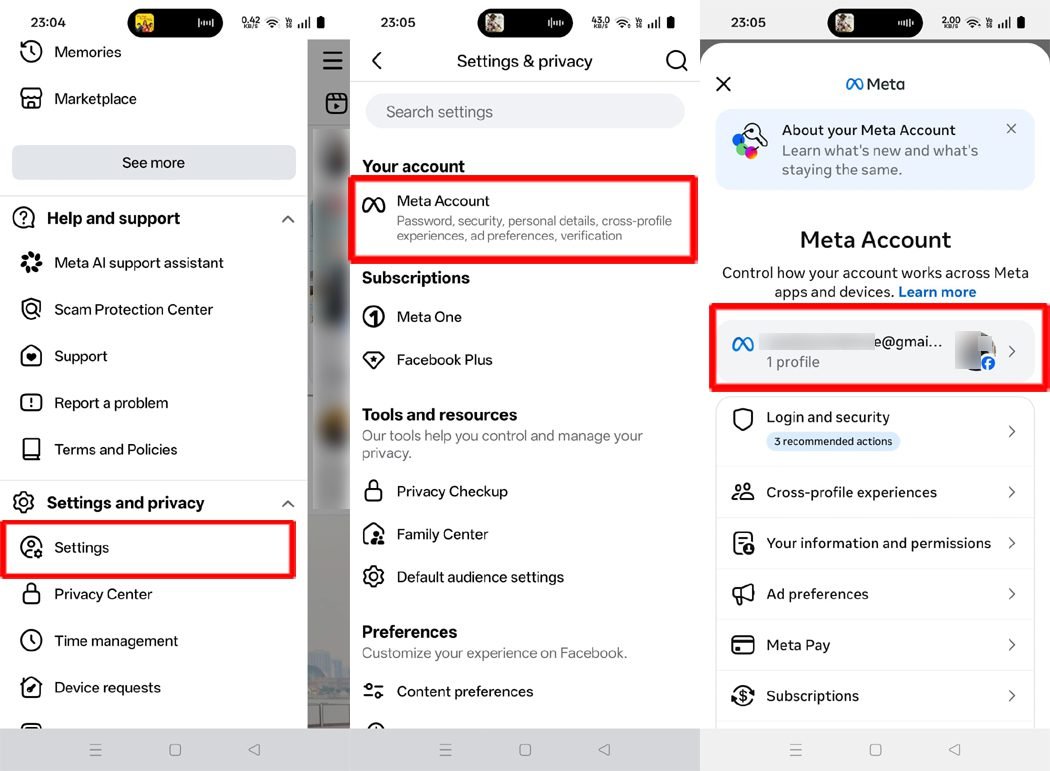
Make sure the listed number is correct and active. If you notice an error and cannot log in elsewhere, you must use an alternative verification method.
Fix 3: Check Spam Filters and Force SMS Activation
Sometimes, mobile operating systems automatically route automated short-code messages into hidden folders, causing you to miss the Facebook security code.
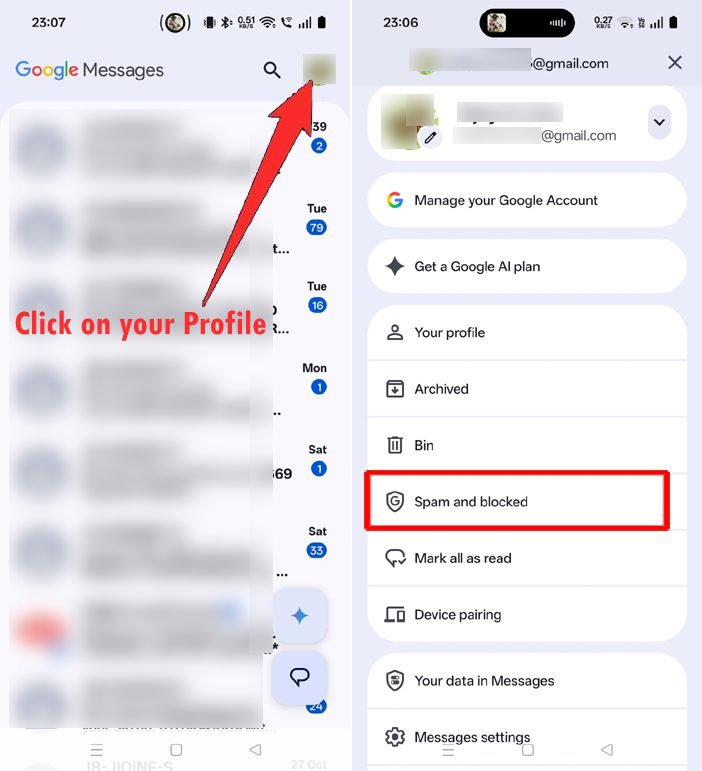
- Check Android Spam: Open your default Messages app, tap your profile icon, and select Spam & blocked.
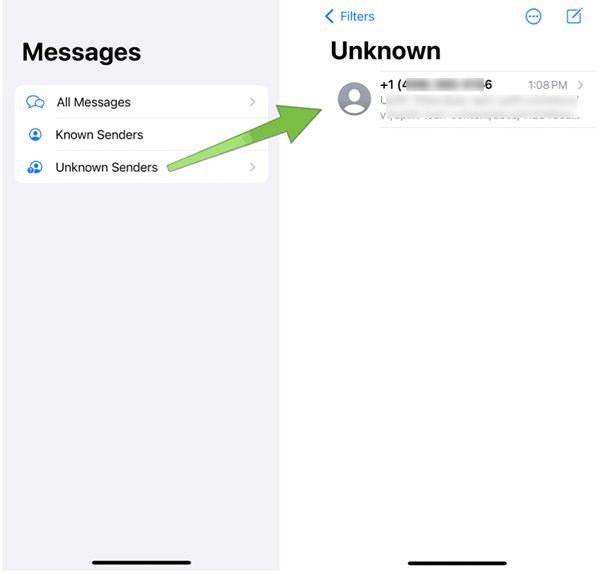
- Check iOS Filters: On an iPhone, open Messages, tap Filters in the top-left corner, and look under Unknown Senders.
- The “ON” Broadcast Trick: If you suspect your mobile carrier is blocking Meta short-codes, open a new text message, type the word “ON” or “START”, and send it to 32665 (Facebook’s official SMS short-code). This forces your carrier to unblock incoming Meta security texts.
Fix 4: Cooldown Before Requesting Another Code
Requesting multiple verification codes within a short window triggers automated security restrictions on Meta’s servers.
- Pause Requests: If you have already tapped the resend button several times, stop requesting new codes for at least 30 to 60 minutes.
- Avoid Rapid Tapping: Repeatedly tapping “Resend SMS” resets the expiration timer and invalidates previous codes.
- Use the Newest Code: If multiple text messages arrive later in a cluster, only enter the most recent code received.
Fix 5: Try Another Verification Method
If Facebook fails to send the code through SMS or WhatsApp, check whether your account layout offers alternative login options.
- Navigate to the Facebook login screen and enter your credentials.
- On the 2FA prompt screen, click Try Another Way or Need another way to authenticate?.
- Review the alternative options provided by Meta.
- Choose an option such as receiving the code via your primary email address or using a Trusted Contact if previously configured.
Note: To review all alternative recovery pathways natively supported by the platform, you can read through the official Facebook Help Center 2FA Guide for step-by-step identity onboarding requirements.
Fix 6: Approve the Login from an Active Session
If your Facebook account is already open on a background browser, tablet, or secondary phone, you can bypass the SMS delivery entirely.
- Access the device or browser where your Facebook account is currently active.
- Check your notifications for a prompt stating “A device is trying to log into your account”.
- Tap the notification, review the location and device details, and select Approve Login.
Fix 7: Generate a Code Using Your Authenticator App
If you previously linked a third-party authentication app to your account, you do not need to rely on cellular networks or WhatsApp delivery.
- Open your authenticator app (such as Google Authenticator, Bitwarden, or Duo Security).
- Scroll to find your Facebook account entry.
- Note the current six-digit verification code. Pay attention to the circular countdown timer so the code does not rotate before you type it.
- Return to the Facebook login screen and input the six-digit code.
Fix 8: Restart Your Device and Update Applications
Local software glitches within your device cache or outdated app frameworks can cause communication errors between Meta’s servers and your phone.
- Close the Facebook and WhatsApp applications entirely from your background app switcher.
- Restart your smartphone to clear temporary system memory.
- Open the Google Play Store or Apple App Store and check for pending updates to both Facebook and WhatsApp.
- Apply any available updates, launch the application, and re-attempt the login.
Fix 9: Clear App Cache and Browser Cookies
Corrupted temporary files can disrupt application login processes and cause handshake issues with Meta’s security page.
- Clear Cache (Android): Long-press the Facebook app icon, tap App Info, go to Storage, and select Clear Cache.
- Clear Browser Data (PC): Clear your web browser’s cookies and cached images, then restart the browser.
Fix 10: Disconnect the Autofill/Passkey Authenticator Bug
Modern mobile software stacks feature integrated passkey managers that can conflict with traditional SMS triggers. If a background service initializes a local device passkey prompt, Meta’s system may falsely assume you are verifying via biometric data and cancel the text/WhatsApp broadcast.
- Open your smartphone’s system Settings and go to Google/Google Services.
- Navigate to All Services and tap on Password Manager (or Autofill).
- Look for any “live authenticator” or auto-generated passkeys synced specifically to your Facebook profile.
- Temporarily remove or toggle off the auto-credential, restart your phone, and re-trigger a fresh 2FA text message from the login screen.
Fix 11: Use Your 8-Digit Backup Static Recovery Codes
If you are entirely out of network coverage or mobile cell towers are dropping the code broadcasts, you can bypass network verification entirely using your emergency codes. When you initially set up two-factor authentication, Meta provided a list of ten 8-digit emergency backup codes.
- Locate Your Code Sheet: Search your physical files, cloud storage, screenshots, or local printouts for a file titled Facebook Recovery Codes.
- Enter it in the Standard Box: Head to the standard Facebook 2FA login prompt screen. Click inside the exact same text input box where you would normally type a 6-digit SMS or WhatsApp code, and type your 8-digit static code straight into it. The system is designed to dynamically accept both lengths.
- Submit to Bypass: Click the blue Continue button. Facebook’s backend will instantly recognize the 8-digit sequence as a valid emergency backup token and log you straight into your account.
- Submit an ID Claim if Codes are Missing: Note: Each of these backup recovery codes can only be used once. If you have lost or never saved these codes and are completely locked out, click Try Another Way on the login screen, then select the link to navigate to the official Facebook Compromised Account Portal to force a security reset or submit an official government ID verification selfie to Meta support for a manual recovery link.
Device-Specific Troubleshooting for Facebook 2FA Issues
If the general fixes do not work, apply these targeted troubleshooting steps based on the specific device you are using to access your account.
On Android Devices
If you are attempting to log in or receive codes on an Android smartphone, use these steps to inspect your deep message settings and refresh the application environment.
Step 1: Check Advanced Messages Settings
- Open your default Messages app.
- Tap your profile picture or the three-dot menu icon in the top right corner.
- Select Spam & blocked from the dropdown menu.
- Look closely through the list for any filtered verification texts from Meta.
- Review your blocked contacts list to ensure you haven’t accidentally blocked Meta’s short codes.
Step 2: Clear the Facebook Application Cache
- Open your phone’s system Settings.
- Navigate to Apps (or App Management/All Apps).
- Scroll down and select Facebook from the list.
- Tap on Storage & cache (or simply Storage).
- Tap Clear cache (Do not tap Clear data unless you want to completely reset the app).
- Relaunch the Facebook app and attempt the login process again.
Step 3: Diagnose the WhatsApp Application
- Open WhatsApp and ensure your internet connection is active by sending a test message.
- Verify that the phone number you are currently using matches the exact number registered on your Facebook profile.
- Open the Google Play Store, search for WhatsApp, and install any pending updates.
- Confirm your phone is capable of receiving standard inbound WhatsApp messages from unsaved numbers.
On iPhone (iOS) Devices
If you are using an iPhone, system-level privacy filters or cellular configurations may be dropping incoming text message payloads.
Step 1: Check iOS Message Filters
- Open the built-in iOS Messages app.
- Tap Filters in the top-left corner of your main inbox screen.
- Select the Unknown Senders category.
- Scan the list for randomized automated codes or short codes originating from Meta.
Step 2: Reset Network Connections
- Open your iPhone Settings.
- Toggle Airplane Mode on for 15 seconds, then toggle it off.
- Ensure your cellular data plan is active and showing network bars.
- Switch off your Wi-Fi temporarily to force the device to request the code entirely over your cellular data network.
- Test your SMS reception by asking a friend to send you a standard text message.
Step 3: Force App Ecosystem Updates
- Open the Apple App Store.
- Tap your profile icon in the top right corner and swipe down to refresh pending updates.
- Locate both Facebook and WhatsApp and tap Update next to them if available.
- Restart your iPhone completely to apply the changes.
On Desktop Computers & Laptops
If you are trying to access Facebook via a web browser, local browser security extensions or corrupted cookie strings are the most common culprits.
Step 1: Isolate via a Different Web Browser
- Close your current browser session completely.
- Open a completely different, clean browser (e.g., switch from Chrome to Edge, Safari, or Firefox).
- Navigate directly to the official facebook.com website.
- Input your credentials and check if the code prompt behaves differently or displays new options.
Step 2: Purge Browser Cache and Cookies
- Open your primary browser’s settings menu (usually via Ctrl + Shift + Delete on Windows or Cmd + Shift + Delete on Mac).
- Navigate to the Privacy and security tab.
- Click on Clear browsing data.
- Check the boxes for Cookies and other site data and Cached images and files.
- Set the time range to All time, click Clear data, and restart your browser.
Step 3: Authorise the Session via an Active Device
- If your account remains actively open on a secondary device (like a tablet or an old phone), open that device now.
- Look for a dedicated system notification stating “An unfamiliar login was detected”.
- Review the incoming request details, and click Approve Login to bypass the text code step completely on your computer.
Pro Tips to Avoid Facebook Verification Issues in the Future
To ensure you never get locked out of your profile again, follow these best practices to maintain and secure your Facebook two-factor authentication (2FA) settings:
Device and Communication Settings
- Keep Your Contact Info Updated: Regularly check your Meta Accounts Centre to ensure your registered phone number and email address are active, accessible, and include the correct country code.
- Whitelist Meta Short-Codes: If you use third-party spam-filtering or caller ID apps (like Truecaller), ensure that automated messaging short-codes are added to your safe list so security texts are not quietly suppressed.
- Keep Apps Regularly Updated: Always update the Facebook, Messenger, and WhatsApp applications via the Google Play Store or Apple App Store to prevent unexpected communication loops or bugs.
- Avoid Rapid Code Requests: If a verification text does not arrive immediately, wait a few minutes. Spamming the “Resend” button resets the expiration timer and triggers security cooldown flags on Meta’s servers.
Backup Authentication Methods
- Configure a Backup Authenticator App: Link a trusted third-party app (such as Google Authenticator or Bitwarden) to your account. This provides an instant fallback code option that works independently of cellular networks.
- Link Your Meta Accounts: Connect your Facebook and Instagram profiles together within the unified Meta Accounts Centre. This allows you to use seamless cross-app identity verification if one platform experiences server issues.
- Transition to Device Passkeys: Upgrade your primary 2FA method to device-based hardware Passkeys (using Apple iCloud Keychain or Google Password Manager). Passkeys utilize your phone’s biometrics and bypass mobile networks entirely, making SMS delivery bugs a thing of the past.
- Save Your Emergency Recovery Codes: Download and print your 10 static, 8-digit Facebook backup recovery codes. Store them in a secure physical location or encrypted vault so you can log in completely offline if needed.
Account Safety and Security
- Use Official Meta Portals: When attempting account recovery or updating your security protocols, always navigate directly to the official facebook.com domain to avoid security flags or phishing traps.
- Never Share Your 2FA Codes: Meta security protocols and employees will never ask you for your 6-digit verification codes. Keep them completely confidential to prevent unauthorized profile hijacking.
Conclusion
The Facebook two-factor authentication code may fail to arrive through WhatsApp or SMS due to a variety of factors, including carrier network problems, aggressive spam filters, outdated contact details, or temporary Meta server disruptions.
To resolve the Facebook 2FA code not sending issue, systematically work through the basic fixes: inspect your device settings, clear application caches, utilize an alternative verification method, or restart your hardware. If the problem persists, escalate your request directly through the Meta Help Center and follow the official account recovery pathways to verify your identity and safely regain access to your profile.
Once you are successfully back inside your account, be sure to download your static backup codes or configure a device passkey immediately. Taking these proactive steps will guarantee that you never find yourself locked out by a missing text or WhatsApp message again.
You Might Also Be Interested In:
- Fix “Linking Isn’t Available Right Now”: How to Connect Instagram to Facebook
- How to Fix “This Content Isn’t Available Right Now” on Facebook (Causes & Fixes)

Danny Paul is a tech specialist and avid gamer with over 10+ years of experience resolving complex system errors, software bugs, and platform glitches. He specializes in creating straightforward, actionable troubleshooting guides for Android, iOS, PC gaming, and mainstream social media networks to help users fix issues instantly. In his free time, he loves solving puzzles, playing online games, watching movies, and traveling.