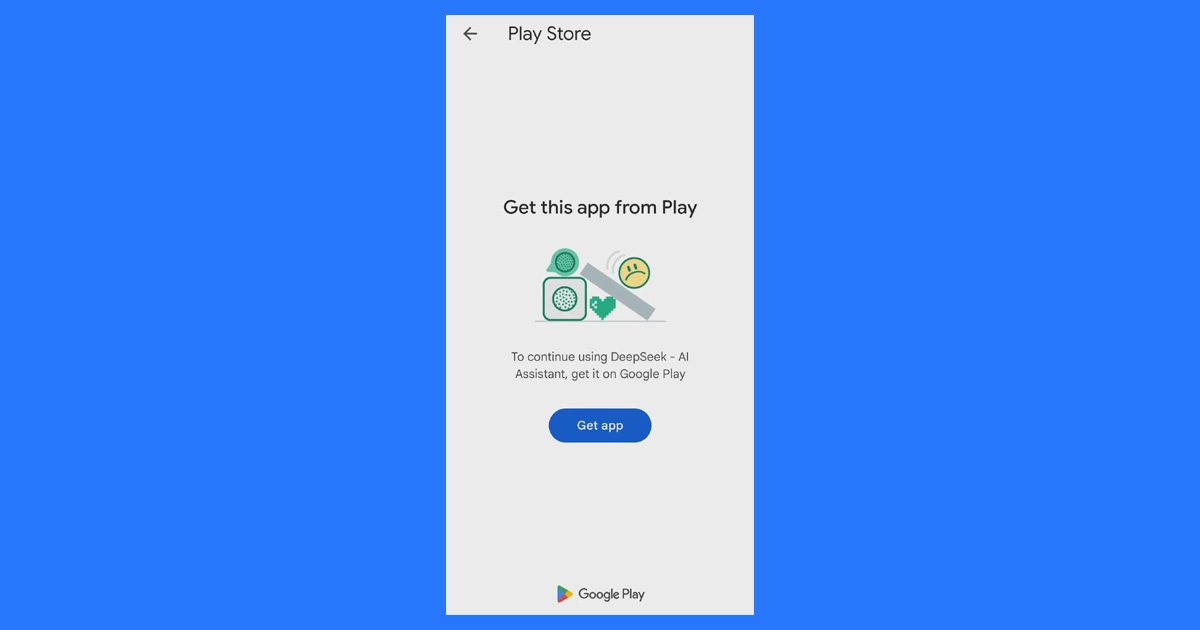
Sometimes, an Android app shows the error message “Get this app from Play” when you try to install or open an app. This usually happens when the app checks whether it is connected to Google Play and whether your Google account has access to it.
The app may install successfully but still refuse to open. The solution depends on whether your phone has the Google Play Store.
In this tutorial, you will learn the common causes behind this “Get App from Play Store” error and how to solve it.
Common Causes for the “Get this app from Play Store” Error
The “Get This App from Play Store” error is an Android security block triggered by Google’s Play Integrity API. It happens when the operating system detects that an app already installed on your device does not have a valid, authorized store certificate.
Here are the primary reasons why this error occurs:
Core Security & Source Blocks
- Sideloaded from Third-Party Sites: The app was downloaded as an .apk or .xapk file from a web browser or alternative site instead of the official Google Play Store.
- Missing Installer Metadata: When you sideload an app, the “Installer Package Name” field in your phone’s database is left blank. The phone flags this missing signature as a security risk.
- Broken Digital Signature: The app may be a modified, cracked, or region-locked version. Because the developer’s original security signature has been altered, the Play Store refuses to verify its license.
- Strict Developer Verification Policies: Many modern app developers (especially for banking, finance, high-profile games, and streaming services) explicitly code their apps to check where they were installed from. If the app asks Google’s servers, “Was I downloaded legally?” and the server says no, the app locks down.
- Strict Play Protect Policies: Google Play Protect routinely scans your phone in the background. If it finds a popular or high-security app that lacks an official store certificate, it will actively block it.
Technical & System Conflicts
- App Bundle (.AAB) Extraction Issues: Google now uses “Android App Bundles” instead of a single simple APK. When you download a split-APK or bundle from a third-party site, resource configuration packages for your specific screen size or processor can get mixed up, causing the verification handshake to fail.
- Dual Apps or Work Profile Separation: If you use built-in system features like “Dual Apps,” “Cloned Apps,” or an Android “Work Profile” to run two instances of the same app, the secondary profile sometimes loses access to the primary profile’s Google Play Store license tokens.
- Mismatched System Architecture: Sideloading a version of an app meant for a different Android operating system version or processor architecture (e.g., trying to run an Android 15 optimized app package on a device running older software) can cause the system to throw this error.
How to Fix the “Get This App from Play” Error
The “Get This App from Play Store” error can stop you from installing or opening an app on your Android phone. You can fix this error by clearing the Play Store cache, updating Google Play Services, or reinstalling the app.
So, now let’s dive into the fixes that can help you to solve this error.
Fix 1. By Registering the App
To fix the “Get this app from Play Store” error when using a sideloaded app, you can try to register the app against your Google account by simply loading its official store listing.
- Keep the app installed on your phone.
- Open the Google Play Store.
- Search for the same app and open its official page.
- Wait for the page to load completely. (You do not need to click install/download if it is already installed, just let the page load so it binds to your account).
- Close the Play Store, open your app, and see if it launches.
Keep in mind:
- This trick works best for unmodified, official APKs that you simply downloaded from a third-party site (like APKMirror) because the app wasn’t available in your region.
- This trick will not work if the app is a heavily modified or cracked version (like a modded premium app), because the app’s internal digital signature won’t match the one on the Google Play Store server.
Fix 2. Clear Google Play Store Cache and Data
You can try clearing the Google Play Store cache and data to fix this error. Sometimes, old or damaged files can stop the app from working properly.
Follow these steps:
- Open your phone’s settings.
- Go to Apps or App Management.
- From the list, tap on Google Play Store and then tap on Storage.
- Tap Clear cache and Clear Data.
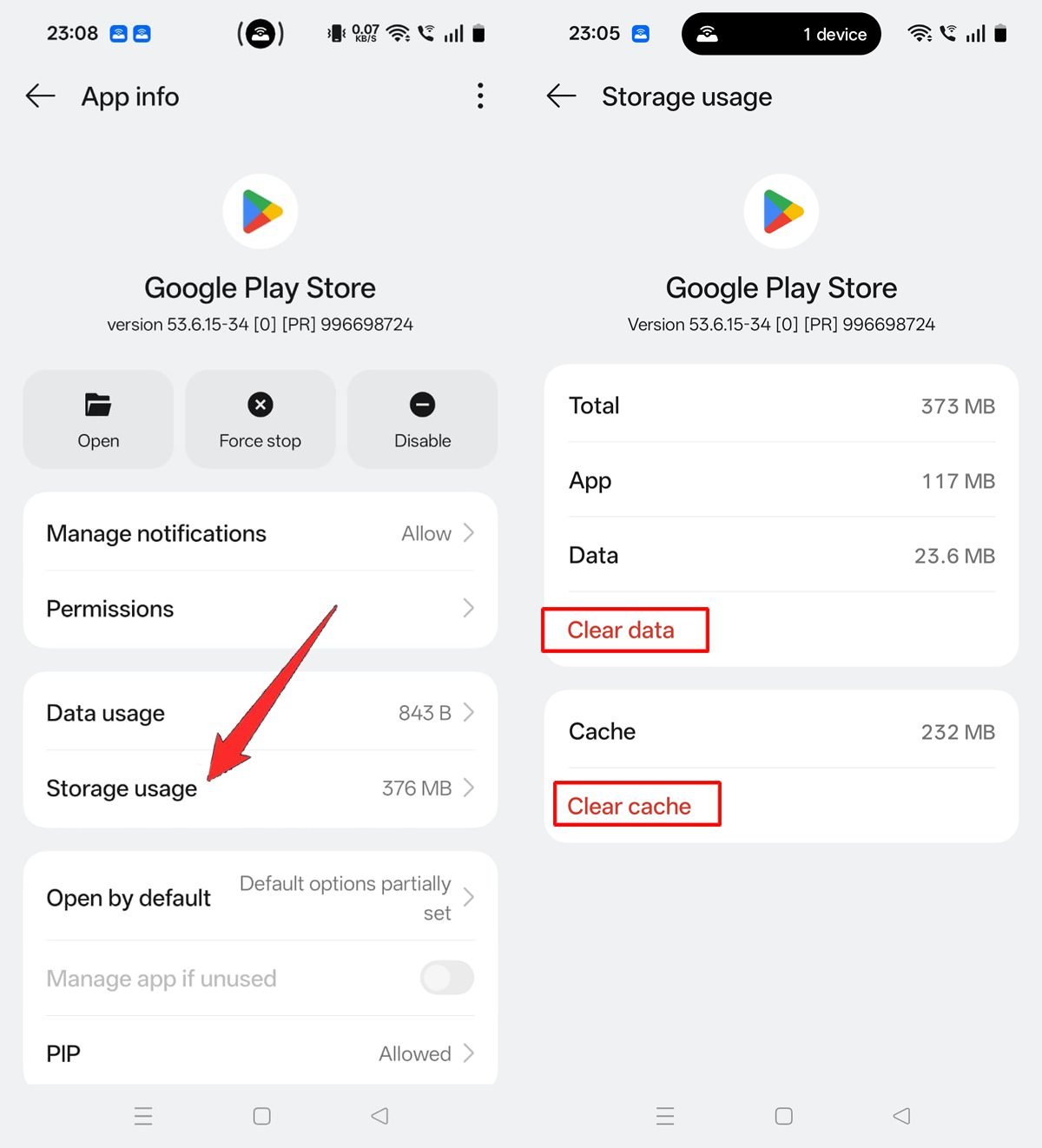
After completing these steps, open the Play Store and let it load once. Close it, and then try opening your app and check.
Fix 3. Install the App from the Google Play Store
Sometimes, apps downloaded from other Websites may show this error. To avoid this problem, install the app directly from the Google Play Store.
Follow these steps:
- Open the Google Play Store.
- Search for the app you want to install.
- Tap Install.
- After the installation is complete, open the app.
If this method does not work, try the next solution.
Fix 4. Update Google Play Store & Google Play Services
Outdated Play Services or Play Store apps can cause security handshake failures, triggering the “Get this app from Play Store” bug. Updating them refreshes the security certificates. If it is outdated, you may face app installation problems. Updating it may help fix the error.
Steps to update Google Play Services:
- Open your phone’s Settings.
- Go to Apps > All Apps (or App Management/Manage Apps).
- Scroll down and select Google Play Services.
- Scroll to the absolute bottom of the page and tap App details (on some phones, this is under App details in store or Other Info). This will force open its hidden page inside the Google Play Store app.
- If an update is available, tap Update and then check
Note: If it says “Deactivate” or “Uninstall updates,” or “Remove updates” your Play Services are already completely up to date.
Steps to update the Google Play Store:
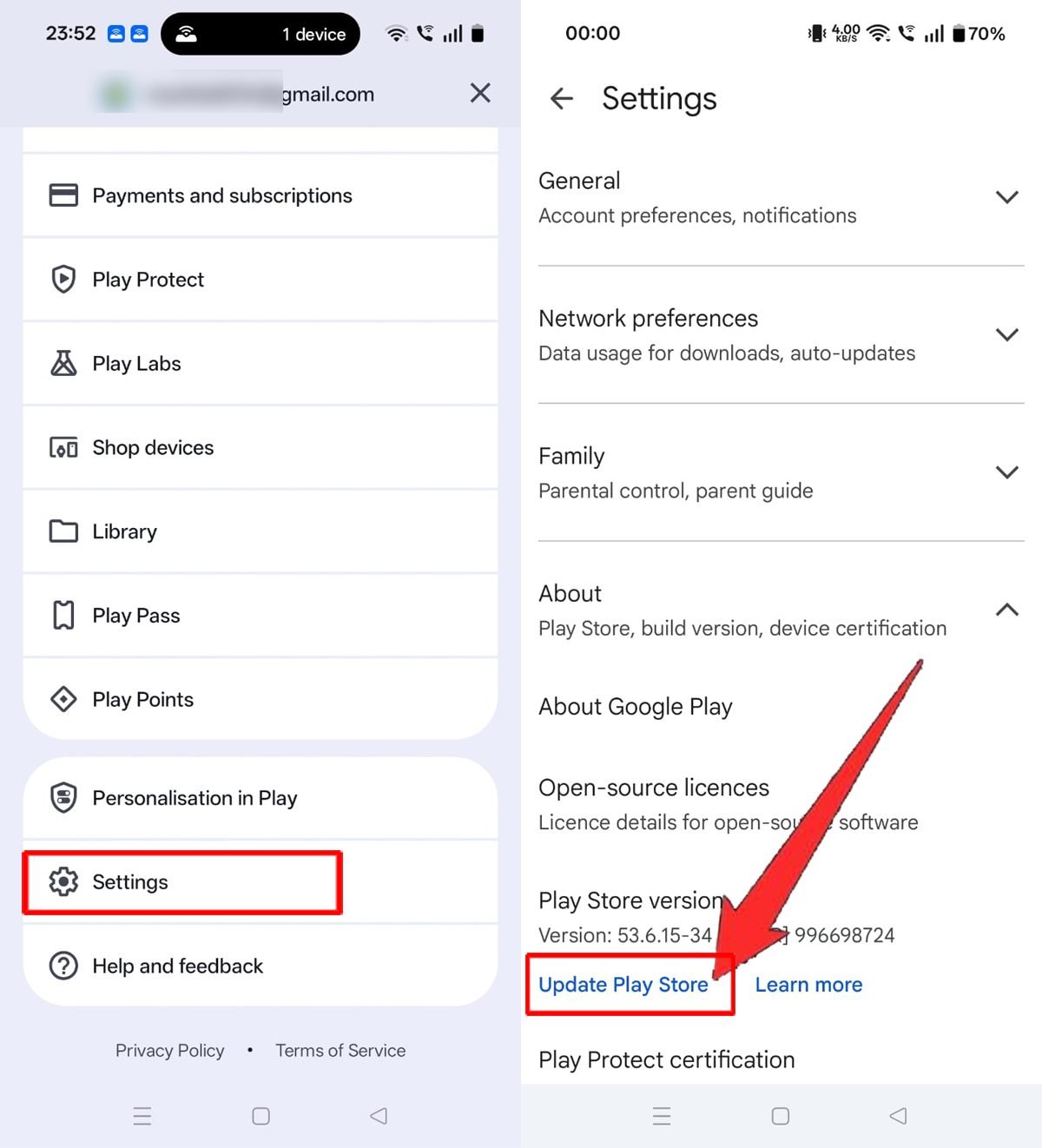
- Open the Google Play Store.
- Tap your Profile Icon (top right) and select Settings.
- Tap the About section to expand it.
- Under “Play Store version,” tap Update Play Store.
- After the update is complete, restart your device and then check.
Fix 5. Check if your Device Supports the App
Some apps work only on certain devices or in specific regions. If your phone does not support the app, you may see this error.
Follow these steps:
- Open the Google Play Store.
- Search for the app.
- Check if the app supports your device.
- If your device is not supported, look for a compatible version from a trusted source.
Fix 6. The “Link-Sinking” Trick (Easiest/No PC Required)
If you don’t have a computer and it is an official, unmodified app (e.g., downloaded from APKMirror):
- Go to Settings > Apps > Google Play Store > Storage and tap Clear Data.
- Open your web browser on your phone, search for the official Google Play Store web link for that app, and click it.
- Choose to open the link using the Play Store app.
- Once the store page loads completely, do not click install/update. Just leave it open for 10 seconds.
- Swipe away the Play Store from your recent apps, turn on Airplane Mode, and open your sideloaded app. (You can turn Airplane mode off once the app boots successfully the first time).
Fix 7. Uninstall and Reinstall the App
If the above-mentioned solutions did not work, then try Uninstalling and reinstalling the app. This may fix the problem.
Note: This will only work for the official app available in the Play Store.
Follow these steps:
- Open Settings.
- Go to Apps or App Management.
- Select the app that is causing the problem.
- Tap Uninstall.
- After uninstalling, install the app again from the Google Play Store.
Fix 8. Install via official Partner Stores (Amazon or Samsung)
If you are sideloading an app because the Google Play Store is acting up, you can try downloading it from another official, legal app repository like the Samsung Galaxy Store (on Samsung devices) or the Amazon Appstore (available for all Android phones).
Android respects the digital licenses issued by these major, certified platform storefronts just as much as the Google Play Store.
Follow these steps:
- Uninstall the problematic sideloaded app from your phone.
- Open the Amazon Appstore or Galaxy Store.
- Search for the app you need.
- Tap Install or Get.
Note: Because these stores issue their own official platform certificates, Android will recognize the app as safely verified, completely eliminating the Play Store error.
Fix 9. Switch Off “Verify Apps over USB” in Developer Options
If you are a developer, tester, or advanced user who frequently sideloads official APKs from a computer using a USB cable, Android’s internal security system might be over-checking the file and triggering this error code. You can safely toggle this developer preference off.
Follow these steps:
- Open your phone’s Settings and go to About Phone.
- Tap on the Build Number 7 times until it says “You are now a developer.”
- Go back to the main Settings menu, search for Developer Options, and open it.
- Scroll down until you find Verify apps over USB.
- Toggle this option OFF.
- Restart your phone and launch your sideloaded app.
Note: This strictly tells Android to trust apps that you intentionally push to your device via developer commands, preventing the Play Integrity API from falsely flagging your installation source.
Conclusion
The “Get this App from Play” error is usually related to installing the app from unknown sources, Play Store, compatibility issues, or temporary system problems. Installing the app from the official Play Store, clearing the Play Store cache, updating Google services, and restarting the phone often fix the issue.
So, I hope that by following the fixes mentioned in this guide, helped you to fix the “Get This App from Play Store” error on Android devices.
You Might Also Be Interested In:
- How to Fix Wi-Fi Not Working After an Android Update
- How to Fix Android Phone Not Receiving OTP Messages
- How to Fix Bluetooth Audio Lag After Android Update

Danny Paul is a tech specialist and avid gamer with over 10+ years of experience resolving complex system errors, software bugs, and platform glitches. He specializes in creating straightforward, actionable troubleshooting guides for Android, iOS, PC gaming, and mainstream social media networks to help users fix issues instantly. In his free time, he loves solving puzzles, playing online games, watching movies, and traveling.