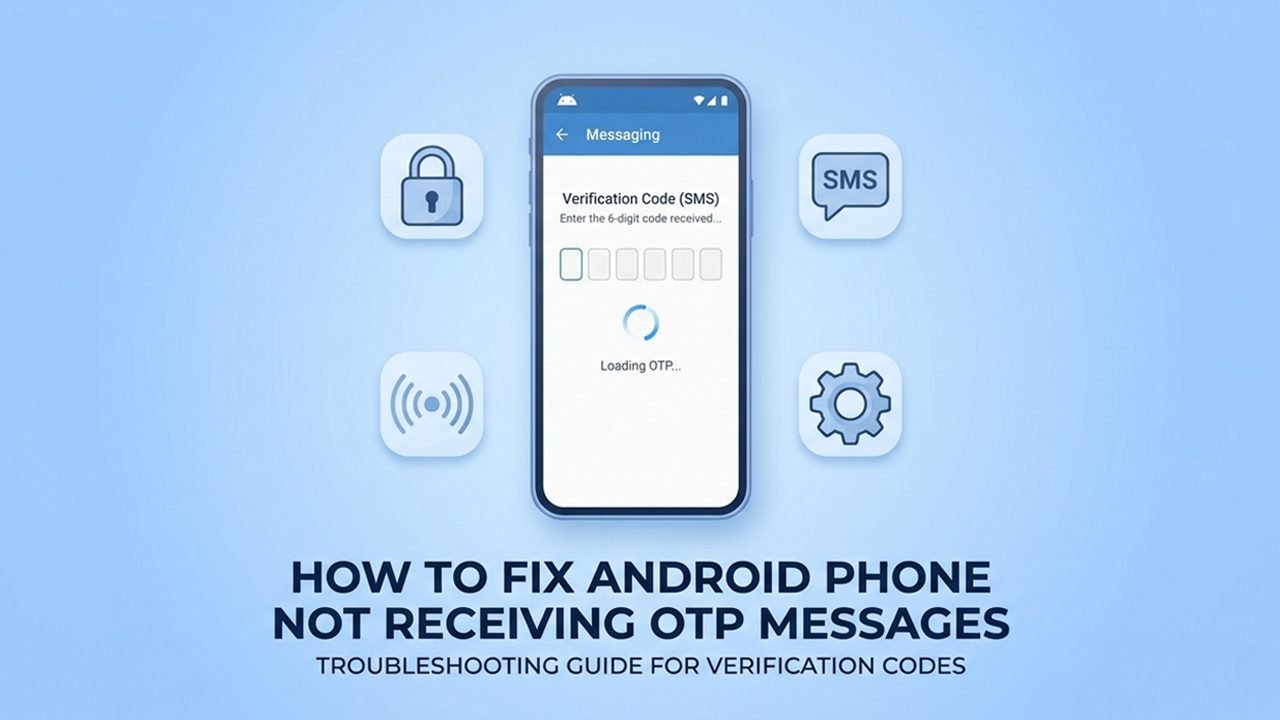
OTP messages are used to verify your identity when signing in to an account, making payments, or changing account details. Sometimes, these messages may not arrive even after requesting them several times.
This can happen because of network problems, incorrect phone numbers, blocked messages, or issues with your mobile carrier.
If your Android phone is not receiving OTP messages, there are several simple ways to fix it. Checking your message settings, refreshing your network connection, and making sure your SIM card is working properly can help you receive verification codes again.
Common Reasons: Why OTP Messages Are Not Received on Android
Before trying the fixes, it is helpful to understand what might be causing the problem.
- Poor Network Connection: Weak mobile signals, network congestion, or being in a dead zone can delay or stop incoming text messages entirely.
- Carrier Restrictions & Roaming: Some mobile operators block automated short-code messages by default to prevent spam. Additionally, if you are roaming internationally, your carrier may restrict incoming SMS.
- SIM Card Issues: An inactive, deactivated, or improperly inserted physical SIM card—or a misconfigured eSIM profile—will cause total SMS delivery failure.
- Third-Party Caller ID & Spam Apps: Aggressive spam-filtering apps like Truecaller, Whoscall, or Hiya frequently mistake automated system-generated OTP texts for telemarketing and silently redirect them to a hidden spam folder.
- Blocked Premium SMS Access: Android has a built-in security feature that restricts texts from short-code numbers (the 5 or 6-digit numbers banks use) to avoid unexpected charges. If this is disabled, OTPs are blocked.
- RCS (Rich Communication Services) Glitches: Google Messages uses RCS text features by default. If your internet connection drops or the RCS server desynchronizes, incoming traditional SMS verification codes can get stuck.
- Full Phone Storage: If your Android device completely runs out of internal storage space, the system will actively block the download and delivery of any new text messages.
- Incorrect Date & Time Settings: If your phone’s system clock is manually changed and does not match the network’s time, secure time-sensitive OTP security protocols will fail to sync.
- Incorrect Account Details: A simple typo, a missing country code, or an outdated mobile number registered on the app or bank website will prevent the code from being sent to your actual device.
Ways to Fix Android Phone Not Receiving OTP Messages
If you are locked out of your accounts because verification codes are refusing to show up, don’t panic. Below is a comprehensive list of step-by-step troubleshooting methods to resolve this frustrating glitch.
We have arranged these solutions starting with the quickest network refreshes up to the most advanced Android system configurations so you can get your codes working immediately.
Category 1: The Quick Refreshes (Try These First)
Before diving into deep system menus, start with these simple and fast network refreshes. In most cases, a temporary cellular glitch or background stall is the root cause, and these initial steps can get your verification codes delivered in less than a minute.
Fix 1: Check Your Mobile Network Signals
A weak connection is the most common culprit. Your phone must have a stable connection to cell towers to process regular SMS streams.
- Check the signal bars in your phone’s top status bar.
- Move near a window or step outside to an area with stronger reception.
- Turn Airplane Mode on for about 10 seconds.
- Turn it off and wait for your network to reconnect completely.
- Request the OTP again from the app or website.
Fix 2: Restart Your Android Phone
Temporary software freezes or network glitches can stop your phone from processing incoming message packets. Restarting your device completely flushes these temporary bugs.
- Press and hold the Power button (or Power + Volume Up on newer models).
- Tap Restart.
- Wait for your device to reboot.
- Ensure your mobile network bars reappear, then request a new OTP.
Fix 3: Turn Off Battery Saver Mode
Aggressive power-saving modes can put essential background communication services to sleep. If your phone is running low on battery, it may delay or stop real-time cellular network syncing.
- Swipe down from the top of your screen to open the Quick Settings panel.
- Locate the Battery Saver or Power Saving Mode icon.
- Toggle it Off.
- Keep your phone on normal performance mode and request the code again.
Fix 4: Check Your Registered Phone Number
A simple typo can send your validation code into oblivion.
- Open the app or website where you are requesting the OTP.
- Double-check the registered mobile number carefully.
- Look for missing digits or accidental typos.
- Ensure the correct country code (e.g., +1, +91) is added if required.
Category 2: Storage & Time Configuration
Many users do not realize that basic system resources and internal clock alignments directly dictate whether a text message can be safely delivered. If your phone’s memory is maxed out or its time sync is slightly off, secure networks will automatically reject incoming codes. Use these fixes to ensure your phone’s environment is ready to accept verification data.
Fix 5: Free Up Internal Storage Space
If your Android phone completely runs out of internal storage space, the operating system will actively block the download and delivery of any new text messages.
- Open Settings and go to Storage.
- Check how much free space remains.
- If your storage is nearly full, delete old videos, large downloaded files, or cached data.
- Restart your phone to let the system resume regular text message delivery.
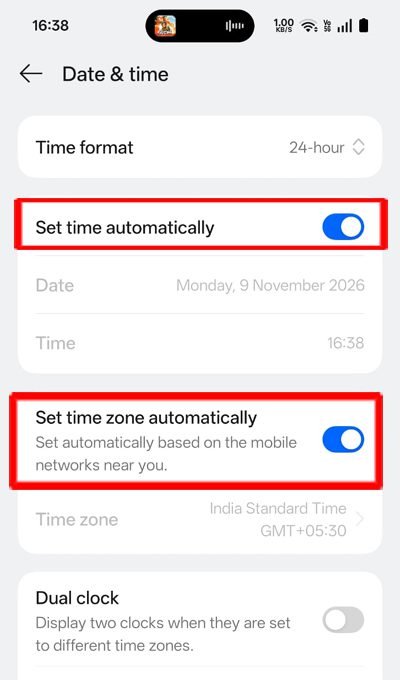
Fix 6: Correct Your Date and Time Settings
Time-sensitive security protocols like OTP generation require your phone’s internal clock to perfectly match the network’s clock. If they are out of sync, the transmission is rejected.
- Open Settings on your phone.
- Go to System (or General Management).
- Tap on Date & time.
- Toggle on the switch for Set time automatically (or Automatic date and time).
Category 3: App Permissions & Built-In Security Filters
Android comes packed with robust security features and automated filters designed to keep your phone safe from spam. However, these systems can easily mistake a critical bank or application login code for unwanted advertising and silently block it. The steps below will show you how to tweak your messaging app permissions and hidden folders to allow these safe OTPs through.
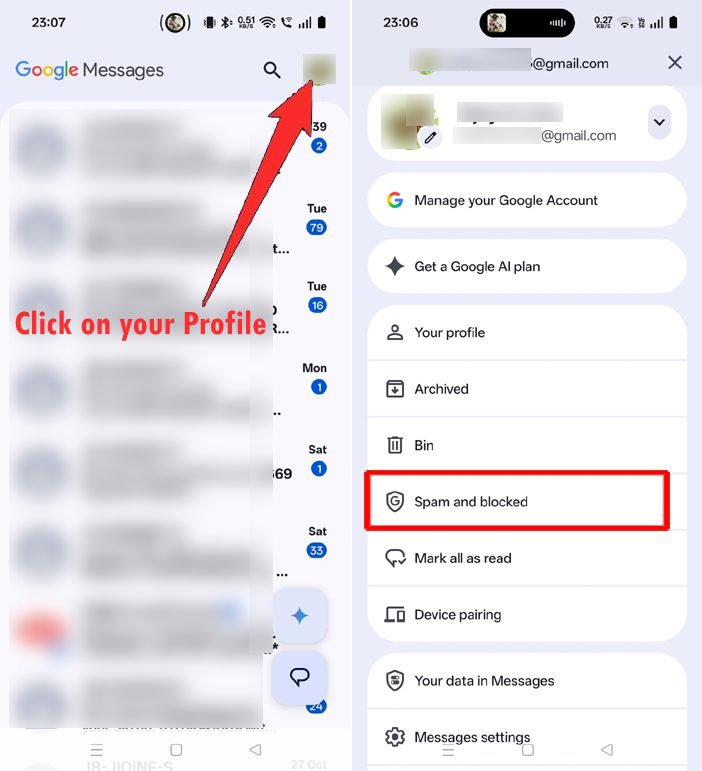
Fix 7: Check the Spam & Blocked Folder
Android’s native spam protection frequently mistakes automated transactional numbers for marketing spam, quietly routing them to a hidden folder.
- Open your default Messages app.
- Tap your profile picture or the three-dot menu icon in the top right corner.
- Select Spam & blocked.
- Check if your missing OTP message is sitting there.
- If you see it, tap the message and select Not Spam or unblock the sender.
Fix 8: Disable Third-Party SMS Blockers
Caller ID apps like Truecaller, Whoscall, or Hiya feature aggressive, crowd-sourced spam filters that silently intercept and hide banking or login verification texts.
- Open Truecaller or your specific third-party identifier app.
- Go into its internal Settings menu.
- Look for Block or SMS Filtering options.
- Temporarily disable the message-blocking feature and check your main inbox.
Fix 9: Allow Premium SMS Access
If your phone restricts your messaging app from accessing premium short codes (the 5 or 6-digit numbers banks use), OTP messages will be dropped.
- Open Settings.
- Search for Special app access in the settings search bar.
- Select Premium SMS access (or Use premium text message services).
- Tap on your default Messages app.
- Change the permission setting to Always Allow (do not leave it on “Ask” or “Never”).
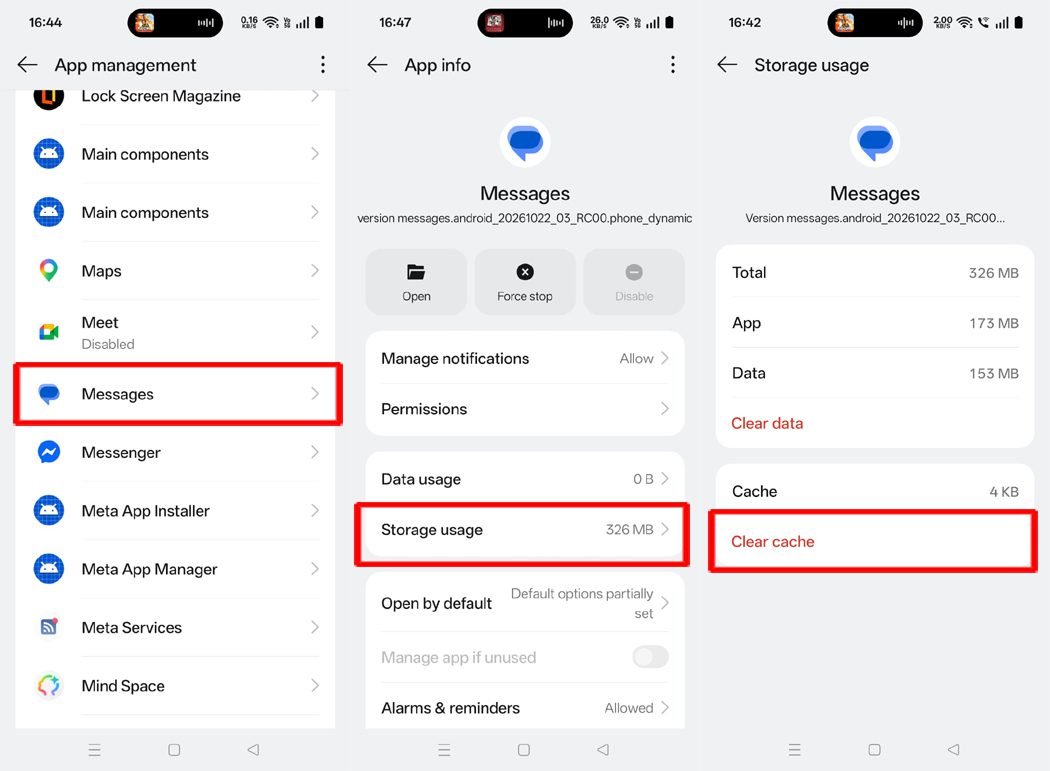
Fix 10: Clear the Messages App Cache
Corrupted temporary files inside your default messaging app can cause it to stall. Clearing the cache refreshes the app without deleting any of your actual conversations.
- Open Settings on your phone.
- Tap Apps > See All Apps.
- Select your Messages app.
- Open Storage & cache.
- Tap Clear cache. (Note: Do not select Clear Data/Storage, as that will wipe your chat history).
Fix 11: Update the Messages App and Grant Permissions
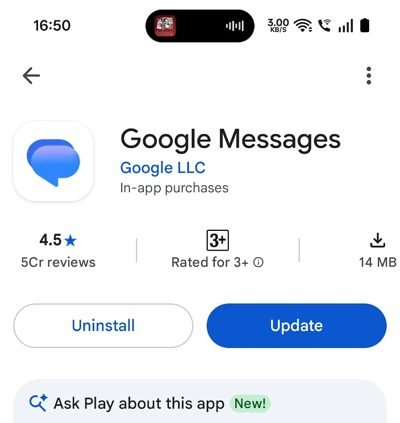
An outdated messaging application can experience backend bugs that break regular text parsing rules.
- Open the Google Play Store.
- Search for Google Messages (or your device’s native messaging client).
- Tap Update if a newer version is available.
- Once updated, long-press the Messages app icon, tap App Info (i), go to Permissions, and verify that SMS is explicitly set to Allowed.
Fix 12: Configure Android OTP Autofill Settings
If your codes are arriving in your inbox but your keyboard fails to prompt you or fill them into logging windows automatically, your Google integration needs a quick reset.
- Open Settings and go to Google (or Google Services).
- Navigate to the All Services tab.
- Select Autofill and then tap SMS verification codes.
- Toggle the switches for Autofill service and Default browser to On.
Fix 13: Disable “Restricted Settings” for Sideloaded Apps
On modern versions of Android, an aggressive security feature automatically locks down permissions for apps installed outside the official Play Store. If an app can’t access your security layers, the OTP handshake fails.
- Go to Settings > Apps > See All Apps.
- Select the specific app you are attempting to log into.
- Tap the three vertical dots in the top-right corner.
- Select Allow restricted settings and confirm your identity (PIN/Fingerprint).
- Go back into that app’s Permissions settings and toggle SMS to Allow.
Category 4: SIM Card & Network Provider Adjustments
When your phone settings are fully optimized but codes still fail to arrive, the issue usually stems from physical hardware configurations or cellular routing rules. The following steps will help you verify that your network plan, SIM cards, and underlying carrier features are properly configured to broadcast automated transactional text streams.
Fix 14: Check Your SIM Card Settings
On dual-SIM configurations, Android can accidentally assign the wrong cellular slot for handling inbound short-message rules.
- Open Settings on your Android phone.
- Go to Network & Internet (or SIM cards & mobile networks).
- Ensure the physical SIM or eSIM profile bound to your target account is turned On.
- Set that specific card as your Preferred SIM for SMS/Messages.
- For physical cards, turn off your phone, remove the SIM tray, clean the golden contact surface with a soft cloth, and reinsert it carefully.
Fix 15: Check for an Active Main Balance or SMS Plan
Most modern global carriers will completely halt incoming text routing if a prepaid account’s service validity has expired or lacks a dedicated transactional SMS processing balance.
- Log in to your carrier’s customer portal app (e.g., My Verizon, MyAT&T, MyJio, Airtel Thanks).
- Check your plan status.
- Ensure you have an active account validity, even if you have an active internet data pack.
Fix 16: Temporarily Turn Off RCS Chats
Google Messages uses Rich Communication Services (RCS) to send data over the internet. If the RCS server falls out of sync or your mobile internet drops, standard carrier-transmitted SMS codes can get jammed.
- Open the Messages app.
- Tap your Profile Picture in the top right.
- Go to Messages settings > RCS chats.
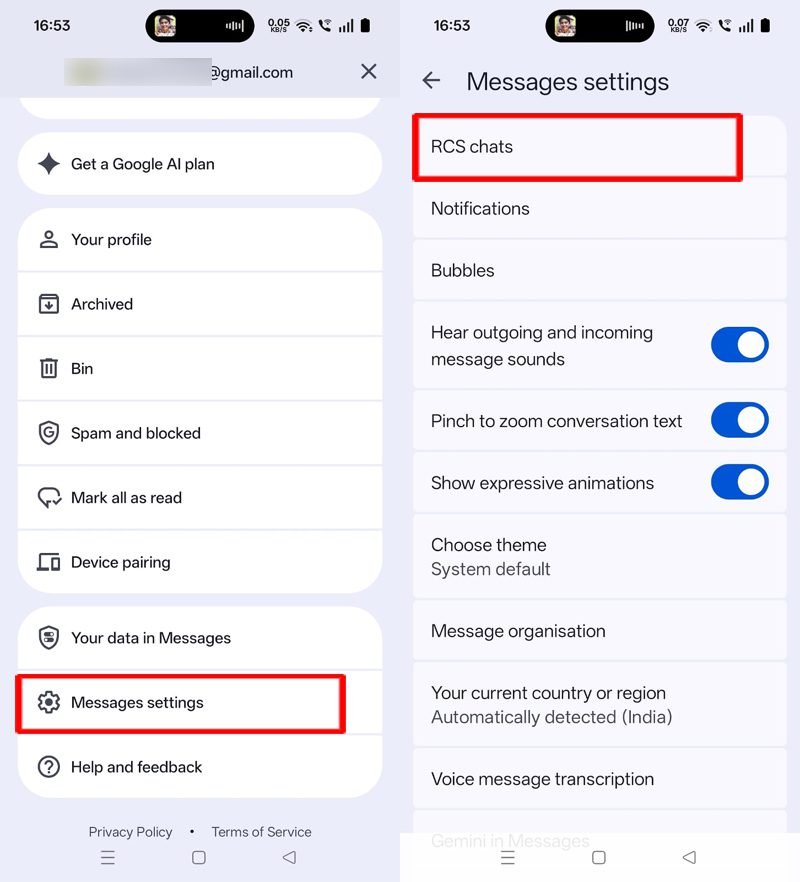
- Toggle Turn on RCS chats to Off.
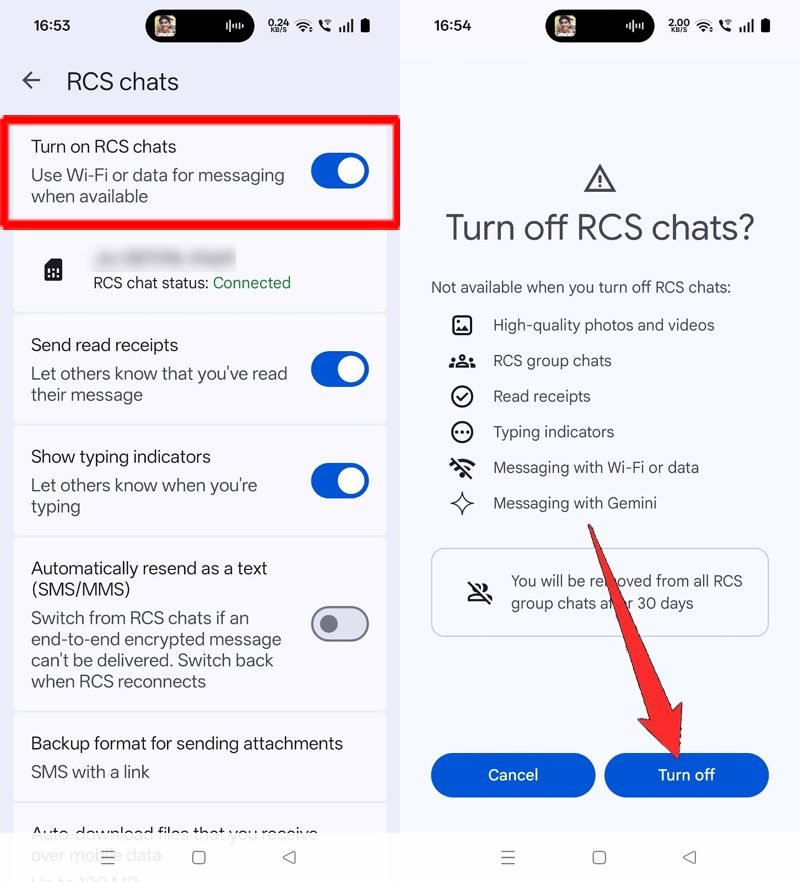
- Request a new OTP to force the network to route it via standard cellular SMS channels.
Note: If your previous device is broken or you cannot toggle it off directly in your app menu, you can use the official Google Messages RCS Deactivation Portal to remotely turn off RCS chats using your phone number.
Fix 17: Turn Off Wi-Fi Calling
Wi-Fi Calling routes inbound data through your local wireless router instead of cell towers. An over-aggressive router firewall or momentary broadband lag can drop incoming text packets.
- Open Settings on your phone.
- Go to Connections (or Network & Internet).
- Locate Wi-Fi Calling.
- Toggle the switch to Off.
- Try generating a fresh code exclusively over your mobile network.
Fix 18: Turn Off Call Forwarding Rules
A configuration clash in carrier provisioning profiles can sometimes cause conditional text pipelines to get incorrectly rerouted alongside voice calls.
- Open your stock Phone/Dialer app.
- Tap the three dots and go to Settings.
- Select Supplementary Services (or Calling Accounts > Call Forwarding).
- Review the lists and ensure all forwarding rules are completely Disabled.
Fix 19: Enable “Receive Service Messages”
A deep settings toggle inside Google Messages manages your phone’s ability to receive machine-to-user push SMS broadcasts (exactly how banks distribute code batches). It can sometimes toggle off after a system update.
- Open Google Messages and tap your profile icon.
- Go to Messages Settings and choose your active SIM card.
- Look for Receive Service Messages (or Wireless Alerts).
- Switch the toggle On.
Category 5: Advanced Carrier Overrides
If standard settings adjustments have not resolved the issue, you need to troubleshoot the backend paths where your cellular network connects to your device’s operating system. The following advanced steps will guide you through inspecting deep carrier routing addresses, flashing core network nodes, and working directly with your service provider to clear persistent system blocks.
Fix 20: Check for Carrier-Level Short Code Blocking
Carriers often turn on proactive blocks against business text codes to prevent their users from running into premium subscription scams.
- Confirm if you can receive standard messages from friend/family numbers.
- Call your mobile carrier’s customer service hotline.
- Explicitly tell the agent: “I am experiencing short-code delivery issues and cannot receive transactional OTP messages.”
- Request the technician to check for corporate, marketing, or promotional filters applied to your profile.
Fix 21: Clear Cache for “Carrier Services”
Carrier Services is a core Android system app responsible for managing handoffs between your device’s modem, system apps, and mobile towers.
- Open Settings on your phone.
- Go to Apps > See All Apps.
- Tap the three dots in the top right and select Show System to reveal core files.
- Find and select Carrier Services.
- Open Storage & cache and tap Clear cache.
- Restart your phone immediately.
Fix 22: Verify the SMSC (Short Message Service Center) Number
The SMSC number acts as the physical cellular post office routing station for your phone provider. If this address field becomes blank or corrupted, text message delivery breaks completely.
- Open your default Messages app.
- Head to Settings > More Settings > Text Messages.
- Look for Message Center or SMSC.
- Verify the long digital string against the official regional SMSC number listed on your mobile operator’s support site. Do not modify this unless instructed by a carrier representative.
Fix 23: Reset Mobile Network Settings
If deep cellular rules or APN details have become hopelessly scrambled, resetting your network configurations will cleanly overwrite everything back to network defaults.
- Note: This will not alter or remove any personal photos or files. It will, however, erase your saved Wi-Fi networks and Bluetooth pairings.
- Open Settings and go to System (or General Management).
- Tap Reset (or Reset options).
- Choose Reset Mobile Network Settings (or Reset Wi-Fi, mobile & Bluetooth).
- Tap Reset Settings to execute the system flash.
Additional Things to Check
If you have applied the technical fixes above and your validation codes are still missing, the issue might not be with your phone’s software. Consider these external factors before giving up:
- Wait Before Spamming the “Resend” Button: Requesting an OTP too many times in a row can trigger security firewalls on the application’s server. This will flag your phone number with a temporary rate-limit ban (usually lasting 15 minutes to 2 hours). Wait patiently for the countdown timer to completely expire before attempting another request.
- Save the Sender Number as a Contact: Android’s internal security filters are highly suspicious of incoming messages from unsaved numbers or short codes. If you know the short-code your bank or app uses, saving that number into your Google Contacts signals to the Android OS that the sender is safe, instantly keeping future OTPs out of hidden spam folders.
- Test Normal Incoming SMS Messages: Have a friend or family member send a standard text message directly to your number. If the regular message arrives immediately but the OTP does not, you can be sure your phone’s cellular network is perfectly healthy, and the problem lies strictly with the specific service’s delivery infrastructure.
- Look for Alternative Verification Methods: If you are in a rush and the text fails to arrive, check the application screen for alternative login options. Many modern platforms offer alternatives like “Call Me Instead,” “Send Code to Email,” or authentication via a dedicated app like Google Authenticator.
- Check the App or Website Server Status: The problem could be a backend outage on the service provider’s side. If a major bank or social media network’s SMS gateway crashes, no one using that service will receive codes. Check their official social media channels or down-detector websites to see if they are experiencing global server downtime.
- Switch Web Browsers or Use Incognito Mode: If you are requesting a code from a website on a web browser and it fails to arrive, a corrupted browser cookie or cached file might be causing the form submission to fail silently. Try requesting the code using a different browser (like Firefox or Edge) or open an Incognito window to force the server to fire off the SMS.
- Deregister iMessage (If You Recently Switched From an iPhone): If you recently swapped your SIM card from an iPhone to an Android device, Apple’s servers might still think your number is active on iMessage. Because of this, system-generated verification codes sent from automated platforms might be trying to route through Apple’s data network instead of standard SMS, causing them to vanish completely before hitting your Android phone. If you no longer have access to your old iPhone to flip the settings toggle, visit the official Apple iMessage Deregistration Tool online. Simply enter your mobile phone number, request a 6-digit confirmation text, and submit it to instantly remove your number from Apple’s servers.
- Turn Off Active VPN Services Temporarily: If you are running an active Virtual Private Network (VPN) on your Android device, it masks your physical geographical location and IP address. Many strict banking systems and secure apps automatically flag mismatched location indicators (such as trying to log into a local account while your VPN routes through another country) and silently drop the OTP request to block suspected fraud.
Conclusion
Receiving OTP messages is essential for secure account verification and smooth online transactions. However, temporary network drops, hidden message filters, or SIM card misconfigurations can easily interrupt this delivery channel.
If your Android phone is not receiving OTP messages, systematically working through the fixes outlined in this guide – such as checking your signal, clearing your messaging cache, reviewing your spam settings, and configuring your autofill options – will resolve the vast majority of glitches.
If you have exhausted all troubleshooting steps and the codes still refuse to arrive, reach out to your mobile network provider to ensure there are no backend blocks active on your account profile.
You Might Also Be Interested In:
- How to Fix Bluetooth Audio Lag After Android Update
- How to Fix Wi-Fi Not Working After an Android Update
- How to Fix “Get this App from Play” Error

Danny Paul is a tech specialist and avid gamer with over 10+ years of experience resolving complex system errors, software bugs, and platform glitches. He specializes in creating straightforward, actionable troubleshooting guides for Android, iOS, PC gaming, and mainstream social media networks to help users fix issues instantly. In his free time, he loves solving puzzles, playing online games, watching movies, and traveling.