Aniimo is a free-to-play, open-world creature-catching action RPG available on iOS and Android. Backed by FunPlus, the game blends open-world exploration with real-time combat and cozy homestead building.
Just like any other RPG game, this game also has several bugs and glitches. Many players are reporting that Aniimo is not working on mobile devices, it is not starting, keeps stopping, crashes at launch, gets stuck on the loading screen, won’t launch issues, black screen problems on mobile devices such as on Android & iOS devices.
In this article, I explain how to fix Aniimo not working, crashing, not launching, black screen, not loading on Android, iPhone, or iPad.
Top Ways to Fix Aniimo Mobile Issues
Note: Before following any of the fixes, first check server status. If you see a “No Server” message, check the Official Aniimo News Page to see if the game is down for maintenance. If it is down, under maintenance, then just wait for its server to be restored.
Now, in order to fix Aniimo crashing, black screens, or failure to launch on mobile, you can start by restarting the device, clearing app data, checking system compatibility, or managing your network connection and so on.
Below are detailed solutions that you can follow one by one.
Solution 1. Restart Your Android/iOS Devices
Whether you are playing the Aniimo game on Android phones or iOS devices such as iPhone or iPad, simply restart your respective device.
And, after your device restart you can launch the game and check.
Solution 2. Check Device Compatibility
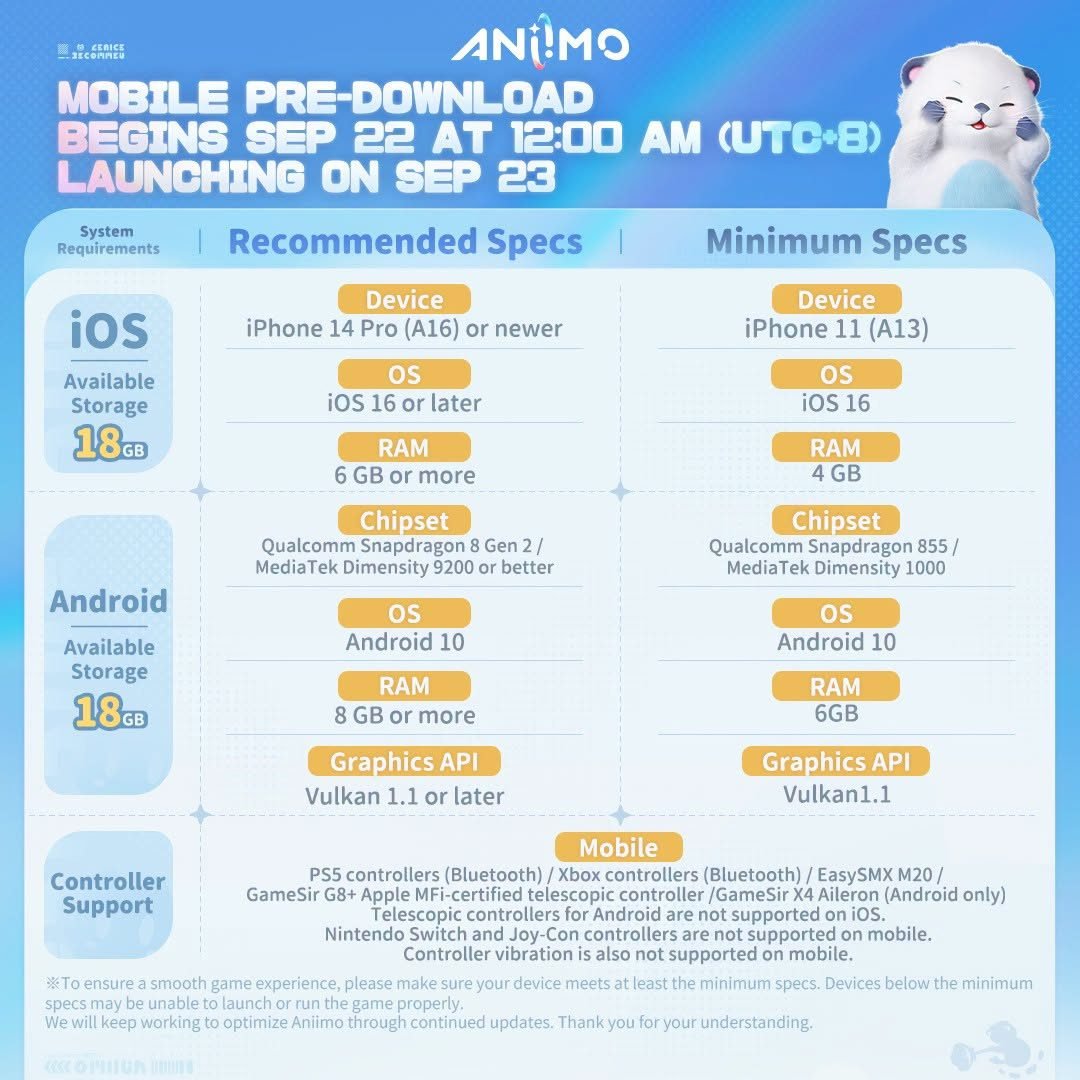
Aniimo has strict system specifications. If your phone or tablet does not meet the minimum requirements, the game may immediately shut down or display a black screen. Check the official Aniimo Facebook Community for the latest requirement charts.
Minimum Requirement (Android)
- Operating System: Android 10 or higher
- Processor (CPU): Snapdragon 855 / MediaTek Dimensity 1000
- System Memory: 6 GB RAM
- Graphics API: Vulkan 1.1 support
Minimum Requirement (iOS)
- Operating System: iOS 16 or newer
- Device Model: iPhone 11 series or newer
- System Memory: 4 GB RAM
- Tablet Support: Fully optimized for iPad Pro/Air models
Solution 3. Force Stop and Clear Cache
Corrupted Cache can also cause the game to behave abnormally, which can result in crashing or complete closure of the Aniimo app. So, clearing the cache might fix the issue.
- On Android: Long-press the Aniimo app icon, go to App Info, tap Force Stop. Next, tap on Storage/Storage Usage, tap on “Clear Cache” and confirm it. Now, launch it and check.
- On iOS: Go to iPhone’s Settings > General > iPhone Storage. Scroll down, locate Roblox, and tap it. Select Offload App, then tap it again to confirm. Once it finishes, tap Reinstall App. Now launch Aniimo and check.
Solution 4. Turn OFF and ON Internet Connection
Some players bypass initial loading bugs/glitch by turning off Wi-Fi/Mobile Data, launching the app until it prompts for a network connection, and then turning the internet back on.
- First of all, close Aniimo.
- Then disconnect the internet (Mobile Data/Wi-Fi).
- Launch the game, and when it asks for a network connection, then turn on Mobile data/Wi-Fi and reconnect to your internet.
- And thereby game loads without any issues.
Solution 5. Check Your Internet Connection/Toggle On & Off Airplane Mode
Please check and ensure that your internet is connected and working properly.
You can also toggle Airplane mode ON and OFF and then check. Here’s how to do it:
- On Android: Swipe down from the top of your screen to open Quick Settings. Tap the Airplane icon to turn it ON. Wait for a few seconds and then tap the Airplane icon again to turn it OFF.
- On iOS (iPhone/iPad): Swipe down from the top-right corner (or up from the bottom on older models with Home buttons) to open Control Center. Tap the Airplane icon to turn it ON. Wait for a few seconds, and then tap the Airplane icon again to turn it OFF.
Solution 6. Update Android System Webview & Play Services (Android Only)
A crashing game engine can sometimes be triggered by outdated system components.
- Launch the Google Play Store.
- Search for and update Android System Webview.
- Search for and update Google Play Services.
- Restart your phone before launching the game again and check.
Solution 7. Switch Networks or Disable VPNs
If the game hangs on a blank loading screen, it is failing to communicate with the login servers.
- Switch your connection from Wi-Fi to mobile data (or vice versa).
- If you are running a proxy tool or VPN, turn it off. Alternatively, if regional routing is down, connecting to a premium node via a trusted provider like NordVPN or ProtonVPN can help you bypass regional login blocks.
Solution 8. Verify Your Available Free Space
Aniimo requires roughly 18 GB to 25 GB of free local storage to extract its game world assets.
If your phone dips below this threshold, the game engine will intentionally block the boot-up sequence to prevent file corruption. Open your phone’s storage menu and clear out unneeded media files to free up space.
Solution 9. Close Background Running Apps
If you have opened and are running lots of applications in the background, then closing them will help you to run it smoothly and without any problems.
So, try to close all of the background apps, including turning off game recording overlays, performance meters, or screen filtering utilities running in the background, as they conflict with Aniimo’s rendering engine.
Solution 10. Check for Patch Fixes or Reinstall
Special Patch Version: The developers frequently push hotfixes for mobile performance. Search for Aniimo on the Google Play Store or the Apple App Store to see if a stability update is waiting.
Clean Reinstall: If the game crashes exactly 30 seconds into booting, your downloaded asset package might be corrupted. Completely uninstall the app, restart your device, and reinstall the application.
Conclusion
Dealing with app crashes, black screens, or loading failures can be incredibly frustrating. However, in most cases, a few quick troubleshooting steps are all it takes to get the game running smoothly again. By systematically clearing your cache, checking for system updates, or performing a clean reinstall, you can easily resolve the underlying software conflicts. The solutions mentioned above will definitely help you if Aniimo is not working on mobile devices.
If the app still refuses to launch after trying all of these methods, the problem likely stems from an internal server outage or a deeper optimization bug that requires an official developer patch. Keep an eye on Aniimo’s official social media channels for server status updates, and don’t hesitate to reach out to the official Aniimo Support Center to report the bug if your issues persist.
Also Read: Check out our latest Gaming & Troubleshooting Guides

Danny Paul is a tech specialist and avid gamer with over 10+ years of experience resolving complex system errors, software bugs, and platform glitches. He specializes in creating straightforward, actionable troubleshooting guides for Android, iOS, PC gaming, and mainstream social media networks to help users fix issues instantly. In his free time, he loves solving puzzles, playing online games, watching movies, and traveling.