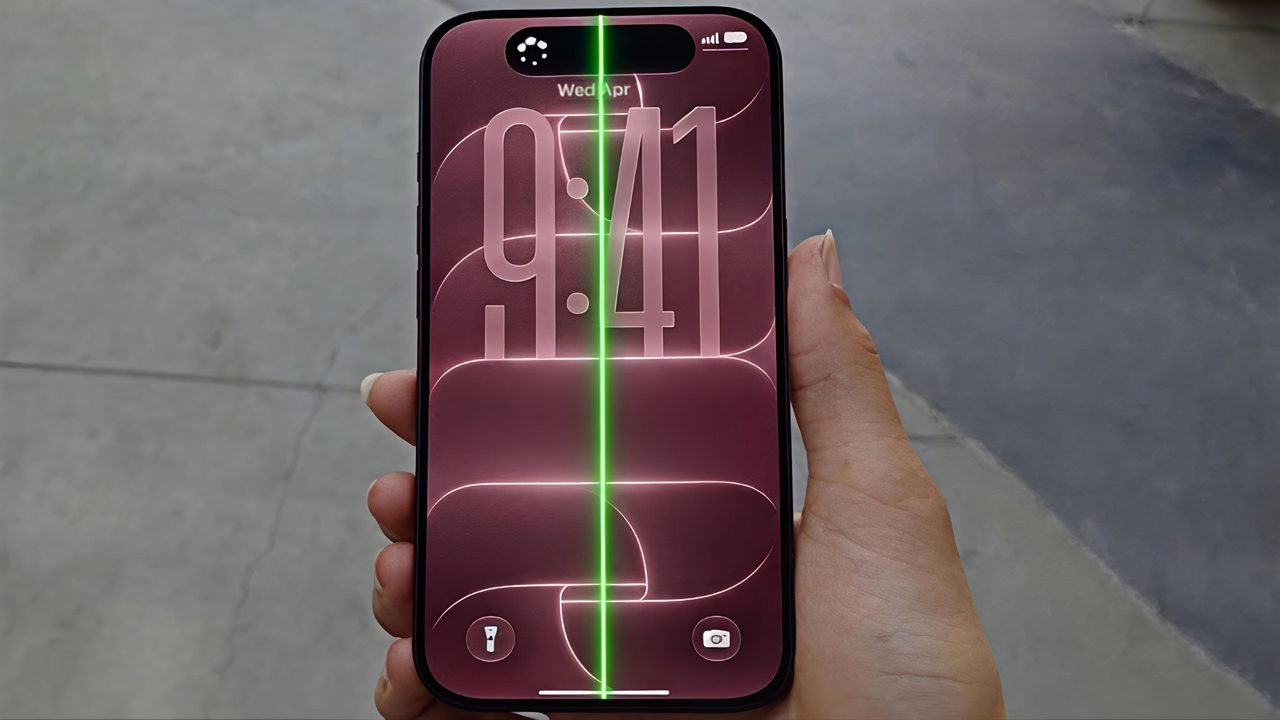
Apple’s recently launched iPhone 18 Pro and Pro Max have attracted attention after some users reported unexpected green, pink, and red vertical lines appearing on their displays. These reports have raised questions about whether the issue could be related to display hardware, software behaviour, or individual device defects.
Since the iPhone 18 Pro & Pro Max are brand-new models, there is currently no confirmed evidence of a specific cause or a widespread manufacturing defect. However, a persistent vertical line screen problem should be checked carefully.
Understanding the possible causes of the issue can help determine the appropriate troubleshooting approach. If you are experiencing this issue, following proper troubleshooting steps and knowing your repair options can help you determine the best way to safely fix or address the display anomaly.
Understanding the Vertical Line Issue
Vertical lines on a smartphone display can be caused by a software glitch, display-related issue, or a problem with the screen hardware. However, since the iPhone 18 Pro and iPhone 18 Pro Max are newly launched models, it is still too early to determine the exact cause of the reported display lines.
Some users have reported green, pink and red vertical lines appearing on the display shortly after purchasing the devices. Similar reports have surfaced from different regions, but the number of affected devices remains unclear. Some reports have also been questioned, so these claims should not yet be treated as evidence of a widespread manufacturing defect.
It is also important to separate the display-line reports from other early iPhone Pro issues. Apple has acknowledged a Face Id-related freeze and restart bug and addressed it through iOS 27.0.1, while the reported persistent display lines have not been officially confirmed as a software issue.
Before considering a repair, check whether the line appears across different apps and menu. If it remains visible throughout the interface even after restarting or updating the iPhone, contact Apple Support for further assistance.
How to Troubleshoot the Vertical Line Screen Problem
First, let’s identify how the vertical lines behave on your iPhone screen to determine whether the issue is confined to a particular app or appears across the entire display system.
Check the Line on Different Screens
Checking different parts of the user interface can help identify whether the issue is limited to a single application.
- Switch Screens: Tap between the Lock Screen and the Home Screen.
- Test Apps: Open the Settings app and launch a few different third-party applications.
- Look for Consistency: Check whether the exact same line appears in the identical location on every screen.
- Take a Screenshot: Press the Side button and the Volume Up button simultaneously to take a screenshot, then view that image on another device (or send it to a friend).
If the line remains visible on your physical screen but disappears completely in the screenshot, the issue points toward a hardware display failure rather than an iOS software rendering bug.
Basic Troubleshooting (Fixes You Can Try at Home)
These are some basic steps you can try on your own to check whether the display problem can be resolved without advanced solution.
Fix 1: Restart the iPhone
A temporary system glitch can sometimes affect how the display behaves. Restarting the device is a simple first step before trying more advanced troubleshooting.
- Press and quickly release the Volume Up button.
- Press and quickly release the Volume Down button.
- Press and hold the Side button.
- Keep holding the Side button even when the power-off slider appears, and release it only when the Apple logo appears.
- Check whether the vertical line is still visible.
If the line disappears after restarting but returns later, note when it happens and whether it appears in a particular app or screen.
Fix 2: Remove the Case and Screen Protector
A poorly fitted case or damaged screen protector can sometimes interfere with screen or make an existing display issue more difficult to assess.
- Remove the case temporarily.
- Check the screen protector for cracks, gaps, or incorrect alignment.
- Make sure the display is free from dust, moisture, or debris.
- Gently clean the screen with a soft, lint-free cloth.
- Check whether the line is still present.
Removing cases and screen protectors and keeping the display clean are also recommended when troubleshooting abnormal screen behaviour.
Fix 3: Disconnect Connected Accessories
- Connected USB-C accessories.
- Check the screen again.
- If the line disappears, reconnect accessories one at a time.
- Check whether the issue returns with a particular cable, charger, or accessory.
If the screen behaves normally after an accessory is removed, the accessory or connection may need further checking.
Fix 4: Update the iPhone
Software updates can include fixes for system-related problems. If the display issue is caused by a software glitch, installing the latest available update may help.
- Go to Settings.
- Tap General.
- Select Software Update.
- If an update is available, tap download and install.
- Complete the update and check the display again.
However, an update should not be treated as a guaranteed solution for a persistent physical line. Current reports have not established that a software update specifically fixes the iPhone 18 Pro display-line issue.
Fix 5: Reset Your Device
- Go to Settings on your phone.
- Choose General.
- Scroll down and select Transfer or Reset iPhone.
- Click Reset.
- Choose Reset All Settings (or the reset option that matches the problem you want to address).
- Follow the on-Screen instructions to complete the reset.
Check for Physical Damage
Think carefully about whether the vertical line appeared right after the phone was dropped, pressed tightly, bent, or exposed to liquid. Physical impact can easily damage the delicate internal layers of an OLED screen, resulting in permanent lines.
Carefully inspect the display and the titanium edges of the device for visible damage or dents. Avoid pressing tightly or bending the screen to test it, as this could permanently ruin the display panel. If the line appeared without any obvious drop or physical damage, a professional inspection is required.
What to Do If the Vertical Line Remains
If the line continues to show after trying all the basic fixes, document the issue before seeking professional help:
- Gather Evidence: Take clear photos or a short video using another device showing the line on different screens.
- Note the Timeline: Document exactly when the issue first appeared and whether it followed an iOS update or an accidental drop.
Some online forum reports claim that affected devices were swapped out for new ones after contacting support, but these individual cases do not establish a universal replacement policy.
When to Seek Professional Repair
A line that remains visible across the Home Screen, Settings, and different apps may require a closer inspection of the display. It could be due to manufacturer defects or it could be due to hardware-related problems.
So, if basic troubleshooting does not resolve the issue, and if you believe that it could due to hardware related or manufacturer defects, then you must contact Apple Support or visit an Apple Authorised Service Center. The device can be inspected by the authorised staff to determine whether it needs a screen repair or replacement.
Tips to Prevent Further Display Issues
- Avoid applying excessive pressure to the screen.
- Keep the iPhone away from liquids and excessive heat.
- Use a properly fitted case and screen protector.
- Keep the iOS software up to date.
- If a line appears suddenly, document the issue instead of repeatedly pressing the affected area.
- If the screen is physically damaged, do not try to repair it yourself.
Final Thoughts
A continuous vertical line on the iPhone 18 Pro or iPhone 18 Pro Max display can be caused by various software or hardware-related factors. Starting with simple checks – such as restarting the device, removing connected accessories, checking for physical damage, and updating iOS – can help you troubleshoot the vertical line screen problem.
If the line continues to appear across different screens, a professional inspection is recommended to determine whether the display requires further repair or replacement.
iPhone 18 Pro & Pro Max Vertical Line FAQs
1. Why is my iPhone 18 Pro showing a green vertical line?
A green line is often associated with a display-related hardware problem. However, because reports regarding this issue on the iPhone 18 Pro remain limited, the exact cause cannot be determined solely by the color of the line.
2. Can restarting fix a vertical line on an iPhone?
Restarting can help rule out a temporary software glitch. However, if the vertical line is caused by a physical display fault or hardware failure, restarting the device is unlikely to remove it.
3. Will updating iOS remove the vertical line?
An iOS update may resolve a software-related display problem. However, there is currently no established evidence that a software update will remove a persistent, physical line on the iPhone 18 Pro display.
4. How can I tell if the line is related to the display?
Check whether the line appears consistently across the Lock Screen, Home Screen, Settings, and different apps. You can also take a screenshot and view it on another device. If the line remains visible on the physical screen but is completely absent from the screenshot, it indicates a display-related hardware issue.
5. Should I reset the iPhone if the line does not disappear?
A factory reset is not the first step you should take for a persistent display line. Try basic troubleshooting methods first. If the line remains visible across multiple screens, documenting the issue and seeking a professional inspection is a much better approach.
6. When should I contact Apple Support?
You should contact Apple Support or visit an Apple Authorized Service Provider if the line remains visible after basic troubleshooting, appears across multiple apps, or is accompanied by other display problems. A professional inspection will help determine the appropriate repair or replacement option.
You Might Also Be Interested In:

Danny Paul is a tech specialist and avid gamer with over 10+ years of experience resolving complex system errors, software bugs, and platform glitches. He specializes in creating straightforward, actionable troubleshooting guides for Android, iOS, PC gaming, and mainstream social media networks to help users fix issues instantly. In his free time, he loves solving puzzles, playing online games, watching movies, and traveling.