Connecting Instagram and Facebook is supposed to make managing your social media easy. However, sudden permission roadblocks, account access bugs, or hidden portfolio conflicts can easily break the connection.
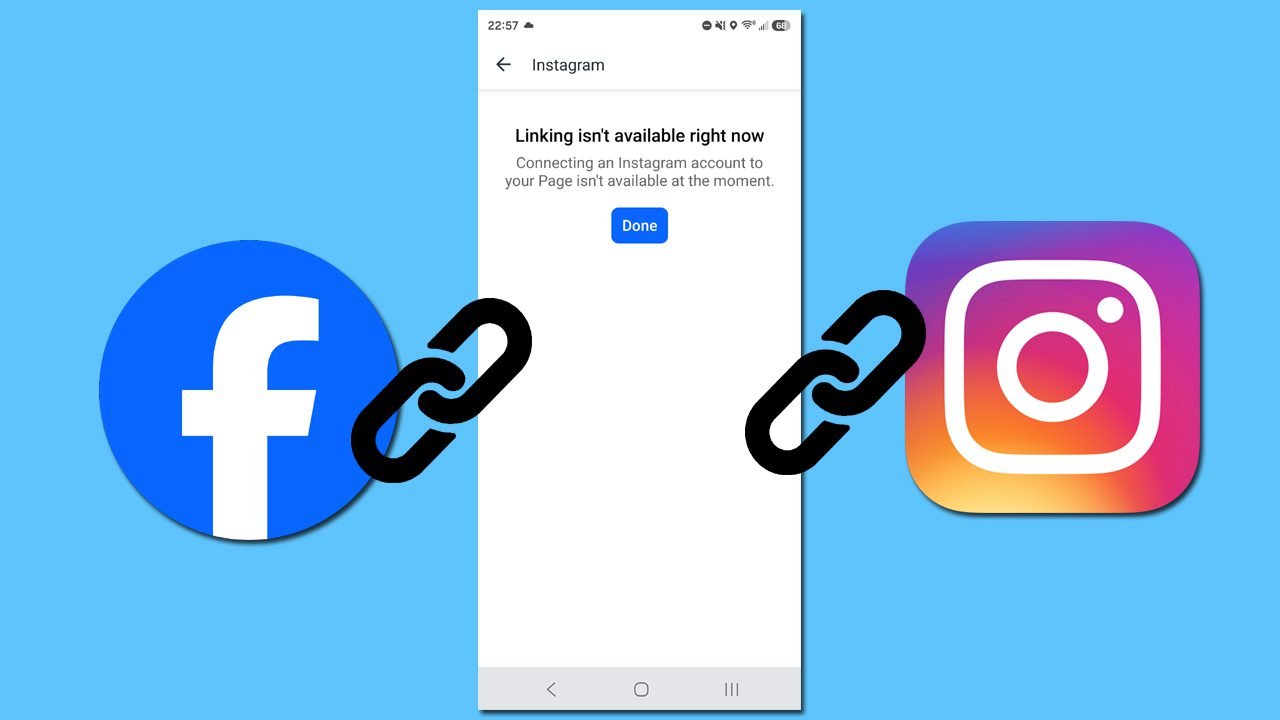
If you are stuck staring at the frustrating “Linking isn’t available right now” error message, you aren’t alone. This step-by-step guide breaks down the common causes behind this glitch and shows you exactly how to successfully link both platforms.
Causes: Why Are My Instagram and Facebook Accounts Not Linking?
The “Linking isn’t available right now” message typically appears when Instagram and Facebook fail to establish a secure connection. Some common reasons for this issue include:
- Incorrect Account or Page Access: The Facebook account you are logged into may not have the necessary admin or editor access to the specific Facebook Page.
- Missing Full Permissions: Required asset permissions may have been skipped or denied during the initial connection process.
- Existing Connections: The Instagram account might already be linked to another, forgotten Facebook account or Page.
- Wrong Instagram Account: A different Instagram profile may accidentally be selected during the linking process.
- Account Restrictions: Active policy restrictions, security flags, or ad account holds on either platform can temporarily block connection features.
- Account Type Mismatch: Personal, Creator, and Business accounts support different linking rules, and a conflict in account types can impact certain connections.
- Temporary Platform Issues: Server-side glitches or temporary updates on Meta’s backend can sometimes block the platforms from communicating properly.
- Meta App/Browser Glitches: Stale browser cookies, app cache issues, or an outdated mobile app.
How to Connect Instagram to Facebook
Before troubleshooting the issue, ensure you are using the correct method to connect your Instagram account to Facebook. The exact steps depend on whether you are linking a personal profile or a business page.
Option 1: How to Connect Instagram to a Personal Facebook Account
You can connect a personal Facebook profile to your Instagram account through the Meta Accounts Center. This allows you to manage connected experiences, such as seamlessly sharing posts and stories across both platforms.
- Open Instagram and tap your profile icon in the bottom right.
- Tap the Menu icon (three horizontal lines) in the top-right corner.
- Select Settings and privacy, then tap Accounts Center.
- Tap Profiles, then select Add accounts.
- Choose Add Facebook account.
- Log in to the personal Facebook account you want to connect.
- Follow the on-screen prompts to confirm and complete the connection.
Option 2: How to Connect an Instagram Business/Creator Account to a Facebook Page
If you use Instagram for business, connecting it to a Facebook Page allows you to run ads and manage your brand across both platforms. Ensure you have Full Control or admin permissions by following the official Meta Business Asset Guide for the target Facebook Page before starting the process.
- Open Instagram and go to your professional profile.
- Tap Edit Profile.
- Scroll down to the Public Business Information section and tap Page.
- Select Connect an existing Page (or Create Facebook Page if you don’t have one).
- Log in to the Facebook account that holds administrative rights to the Page.
- Select the specific Facebook Page you want to link to your Instagram Business account.
- Follow the on-screen instructions to finalize the setup.
Note: The available layout and options may vary slightly depending on your account type and your current app version.
How to Connect a Facebook Page to Instagram (From Facebook)
If you prefer to initiate the connection from the Facebook side, the process is slightly different than linking a personal profile. The “Linking isn’t available right now” error frequently appears here if you are logged into the wrong Facebook account or lack the required Page permissions. Ensure you are actively using the Facebook profile that has full access to the Page.
- Log into Facebook and switch to your Business Page profile.
- Go to your Page’s Settings.
- Look for the Linked Accounts menu on the left sidebar and select Instagram.
- Click Connect Account and follow the prompts.
- When the login window appears, enter the credentials for the correct Instagram account to establish the connection.
How to Fix the “Linking Isn’t Available Right Now” Error
If your accounts still do not connect, try the following solutions. We recommend starting with simple checks and moving toward account and permission settings if the problem persists.
Solution 1: Try Connecting Instagram to Facebook Again
A minor backend glitch can occasionally disrupt the setup process. Simply restarting the linking sequence can refresh the authentication tokens.
- Open Instagram and navigate to your profile.
- Tap the Menu icon (three lines) in the top-right corner.
- Select Settings and privacy, then open Accounts Center.
- Choose the option to add a Facebook account.
- Sign in to the correct Facebook account.
- Follow the on-screen instructions to complete the connection.
Solution 2: Check Your Internet Connection
An unstable internet connection can interrupt Meta’s verification servers midway through the handshake.
- Open your device’s Settings.
- Toggle Wi-Fi off to switch to Mobile Data, or connect to a completely different, stable Wi-Fi network.
- Relaunch the Instagram app.
- Attempt to connect Instagram to Facebook again to check if the connection goes through.
Solution 3: Verify You Selected the Correct Accounts
Logging into an incorrect profile is a common error, especially if you manage multiple brand or personal pages.
- Access your Instagram connection settings via the Accounts Center.
- Double-check the username of the Facebook account currently active.
- If you manage multiple profiles, explicitly switch to the exact Instagram account you intend to link.
- Proceed with the connection steps and confirm that the correct profiles are linked.
Solution 4: Ensure You Select a Facebook Page (Not a Profile)
If your goal is to connect professional assets, ensure you are selecting your dedicated Facebook Business Page rather than your personal timeline profile.
- Open Facebook and sign in to the personal profile that holds administrative rights to the Page.
- Switch your active profile to the required Facebook Page.
- Open the Page’s Settings.
- Navigate to Linked Accounts and select Instagram.
- Log in to the correct Instagram profile and follow the prompts to finish the connection.
Solution 5: Verify Your Facebook Page Access Level
If you cannot link Instagram to a Facebook Page, your personal Facebook account might lack the proper authority level on that Page.
- Open Facebook and switch to your specific Page profile.
- Go to Settings & Privacy > Settings.
- Select New Pages Experience (or Page Access depending on your layout).
- Check your account’s access level. Ensure you have Full Control or task access for linked accounts.
- If your access is restricted, ask the primary Page owner or an administrator to grant you full management permissions following the official Facebook Page Access Guide.
Solution 6: Check for Conflicting Instagram Links
An Instagram account cannot be actively mapped to multiple Facebook Pages at once. A pre-existing connection will trigger a linking block.
- Go to the target Facebook Page.
- Open Settings > Linked Accounts > Instagram.
- Check which Instagram handle is currently linked here.
- If a conflicting account is attached, click Disconnect Account before attempting to bind your new Instagram profile.
Solution 7: Review App Permissions During Setup
Denying Facebook or Instagram access to cross-platform assets during the initial setup prompt will halt the linking process.
- Initiate the Instagram-to-Facebook connection process once more.
- When the Meta permission or authorization screen appears, review the requested access items carefully.
- Ensure you toggle on and allow all requested permissions.
- Complete the connection loop and re-test if it fails.
Solution 8: Review Your Instagram Account Type
Certain professional cross-posting and advertising features require an Instagram Professional (Business or Creator) account, rather than a standard Personal profile.
- Open Instagram and go to your profile.
- Tap the Menu icon and navigate to Settings and activity.
- Scroll down to Account type and tools.
- Verify your account status. If it is currently set to Personal, switch it to a Professional or Creator account to unlock full Meta Business integration.
Solution 9: Inspect Both Profiles for Account Restrictions
Active security warnings, community guideline violations, or uncompleted identity verifications will restrict account linking features.
- Open Instagram, go to Settings, and check your Account Status for any active flags or warnings.
- Review your notification feed for security or multi-factor verification alerts.
- Log into Facebook and check your Support Inbox or Account Quality dashboard for similar restrictions.
- Resolve any outstanding security blocks or identity actions, then retry the link.
Solution 10: Clear the “Before Connecting” Prompt Requirements
If Meta stops you with a mandatory warning block before completing the link, there is an account-level dependency you must resolve first.
- Carefully read the specific prompt or error code displayed on the screen.
- Identify what action Meta requires (such as verifying a phone number or confirming page terms).
- Complete the requested action entirely.
- Return to your connection menu and try linking the accounts again.
Solution 11: Match the Correct Facebook Business Portfolio
If your assets belong to two completely different Meta Business Portfolios (formerly Business Managers), Meta will restrict direct connections.
- Sign in to the Facebook account managing the asset.
- Open your page inside Meta Business Suite.
- Confirm that both your Facebook Page and the target Instagram account are assigned to the exact same Meta Business Portfolio.
- Re-assign assets if necessary, then execute the link.
Solution 12: Resolve the “Unknown Error Occurred” Glitch
The frustrating message “Unable to add Instagram account. Sorry, an unknown error occurred” is typically caused by localized browser or app cache corruption.
- Log out of both the Facebook and Instagram apps entirely.
- If troubleshooting on a desktop computer, clear your browser cache and cookies, or switch to an Incognito Window.
- Log back into the correct accounts and re-attempt the link.
Solution 13: Wait Out Temporary Meta Server Issues
If your settings are completely flawless but the “Linking Isn’t Available Right Now” message persists, the root cause is likely an ongoing Meta server outage or API maintenance.
- Close both the Facebook and Instagram applications.
- Check an online status tool (like Downdetector for Facebook) to see if Meta is experiencing platform wide issues.
- Ensure both mobile apps are fully updated to their latest versions via the App Store or Google Play Store.
- Wait a few hours for backend synchronization to normalize before trying again.
Best Practices to Prevent Facebook & Instagram Link Errors
To ensure your cross-platform features run smoothly without future disruptions, keep these essential best practices in mind:
- Keep Apps Updated: Routinely update both the Facebook and Instagram apps via your device’s App Store or Google Play Store to patch known authentication bugs.
- Verify Active Profiles: Double-check that you are actively logged into the correct Facebook account and Instagram profile before attempting any sync.
- Confirm Page Access Early: Always check your administrative permissions on the target Facebook Page prior to initiating a professional connection.
- Audit Existing Links: Review current Instagram configurations across your brand pages to catch and resolve hidden linking conflicts ahead of time.
- Grant Full Permissions: Always toggle on and allow all requested access permissions when prompted during the initial handshake process.
- Monitor Account Health: Periodically check your account status dashboards on both platforms for active restrictions or outstanding security alerts.
- Maintain Stable Internet: Use a secure, high-speed Wi-Fi network or reliable mobile data while linking accounts to prevent timeout errors.
Final Thoughts
Identifying why the “Linking isn’t available right now” error occurs requires a systematic check of your account access levels, platform permissions, profile selections, and any hidden pre-existing connections. By carefully reviewing these settings, confirming your administrative Page access, and following the proper step-by-step connection sequences, you can successfully resolve the most common cross-platform linking barriers.
If the problem persists even after applying these troubleshooting methods, it is best to check for active account restrictions or simply wait out temporary Meta platform outages. Taking a moment to verify your overall account health will help you determine whether further administrative action is needed or if Meta’s backend servers just need time to synchronize.
Instagram to Facebook Linking: FAQs
Why is Instagram not connecting to Facebook?
Instagram usually fails to connect to Facebook due to an incorrect profile selection, missing admin permissions, a pre-existing connection to another page, active account restrictions, or a temporary Meta server glitch.
How do I connect Instagram to a Facebook Page instead of a personal profile?
Sign in to the Facebook account that manages your Business Page and switch to that Page’s profile. Open the Page Settings, navigate to the Linked Accounts or Instagram option, select the correct Instagram account, and follow the on-screen prompts to establish the connection.
Why can’t I connect my Instagram account to a Facebook Page specifically?
First, verify that your Facebook account has Full Control or admin access to the target Facebook Page. Next, check if that specific Instagram handle is already linked to a different Page, and review both accounts for any denied app permission requests.
Why is my Instagram account restricted from connecting to Facebook?
An active policy restriction, an uncompleted security checkpoint, or a missing two-factor verification requirement can trigger a linking restriction. Check the Account Status dashboard and support inbox on both Instagram and Facebook for any unresolved alerts.
What should I do if the “Linking Isn’t Available Right Now” error appears?
Systematically audit your account access levels, platform permissions, existing links, and Facebook Page roles. If all configurations are correct, update both mobile apps to their latest versions, clear your browser cache, and try connecting the accounts again later.
Why do I get the “Unable to add Instagram account. Sorry, an unknown error occurred” message?
This error is typically triggered by a localized app cache corruption, an incorrect login session, or a temporary Meta API timeout. Swapping to an incognito browser window, logging out and back into your profiles, or reviewing asset permissions usually resolves this glitch.
You Might Also Be Interested In:
- How to Fix “Instagram Messages Not Showing or Loading” Glitch
- How to Fix “This Content Isn’t Available Right Now” on Facebook
- How to Fix the Instagram Automatic Logout Glitch

Danny Paul is a tech specialist and avid gamer with over 10+ years of experience resolving complex system errors, software bugs, and platform glitches. He specializes in creating straightforward, actionable troubleshooting guides for Android, iOS, PC gaming, and mainstream social media networks to help users fix issues instantly. In his free time, he loves solving puzzles, playing online games, watching movies, and traveling.