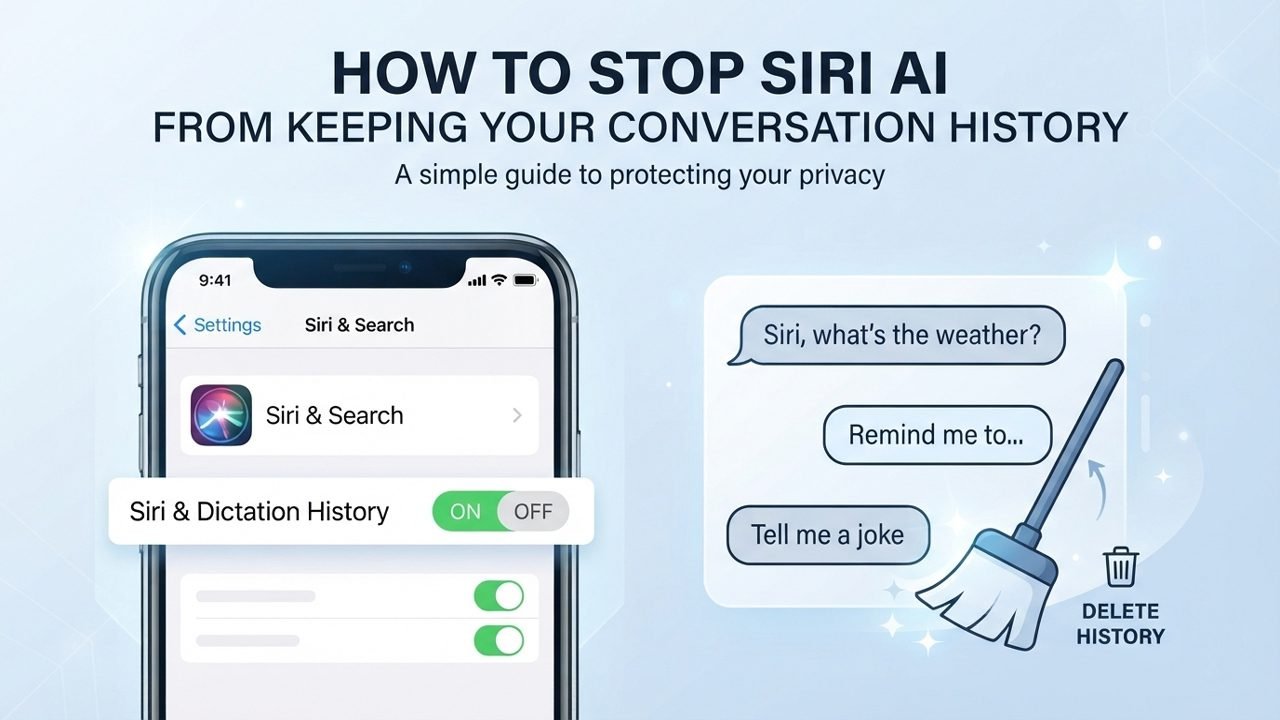
The new Siri AI experience in iOS 27, and macOS 27 makes it easier to interact with Siri through text or voice. However, your conversation may remain available in the Siri app and can sync across your Apple devices through iCloud.
If you want to stop Siri AI from storing your conversation history permanently, you can change the Keep Conversations setting. You can choose to automatically remove older conversations after 30 days or 1 year instead of keeping them forever.
Can You Really Stop Siri From Keeping Your Chat History?
Well, the Answer is “NO”. There is currently no way to completely prevent Siri from keeping your Conversations. Queries you make outside the Siri app may also be recorded in the app. However, you can set Siri to automatically delete conversation after a selected period, such as 30 days or 1 year.
Why is Siri AI Keeping your Conversation History?
The new Siri app works much like other AI chat apps. You can type a question or use your voice to interact with Siri and continue a conversation later. Siri requests can also be synced through iCloud across your Apple devices.
By default, Siri conversations can remain stored. If you want to stop Apple from storing your Siri conversation permanently, changing the retention period gives you a simple way to manage your chat history.
Automatically Delete Old Siri Queries From the App
Since Siri conversation are synced across your Apple devices through iCloud, deleting a conversation from one device can also remove it from your other connected devices. For example, a conversation deleted from your iPhone can also disappear from iPad, Mac, or Vision Pro.
If you want Siri to automatically remove older queries, you can select a specific retention period instead of keeping your conversation indefinitely.
On iPhone or iPad
Follow these steps to stop Siri AI from storing your conversation history permanently:
- Open the Settings app.
- Tap Siri.
- Select Keep Conversations.
- Choose 30 Days or 1 Year.
- Confirm your selection.
Once you select a time period, Siri automatically deletes conversations that are older than the chosen limit. The same setting also applies to future conversations. Deleted chats cannot be recovered.
On Mac
- Open System Settings.
- Select Siri from the Sidebar.
- Click Keep Conversations.
- Select 30 Days or 1 Year.
Siri will then remove conversation that passes the selected retention period.
Automatically Delete Siri Queries From a Specific Device
Sometimes, you may want to delete older Siri conversations from one device while keeping them available on another. For example, you might want to remove old chats from your iPhone but continue accessing important conversations on your Mac.
To do this, you need to turn off Siri’s iCloud syncing on the specific device. Keep in mind that new Siri conversation from your other devices will also stop syncing to the device where synchronization is disable.
On iPhone or iPad
- Open Settings.
- Tap your Apple Account name.
- Select iCloud.
- Select See All.
- Turn off Sync this iPhone or Sync this iPad.
- Choose whether you want to keep or delete the existing conversation.
You can also access the Keep Conversations option from this section to select 30 Days or 1 Year.
On Mac
- Open System Settings.
- Click your Apple Account name.
- Select iCloud.
- Click See All.
- Select Siri.
- Turn off Sync this Mac.
- Choose whether to Keep or delete the existing chats.
After disabling iCloud sync, Siri conversations from your other Apple devices won’t automatically appear on that Mac.
How to Delete Siri AI Chat History From iCloud
If you want to remove all stored Siri conversations from iCloud at once, you can delete Siri data from your iCloud storage. This removes the stored Siri information from devices using the same Apple Account.
Before using this option, remember that deleted conversations cannot be recovered.
On iPhone or iPad
- Open Settings.
- Tap Apple Account.
- Select iCloud.
- Tap See All and choose Siri.
- Tap Manage Storage.
- Select Delete Data From iCloud.
- Confirm the deletion.
On Mac
- Open System Settings.
- Select Apple Account.
- Click iCloud.
- Select Manage in the Storage section.
- Find and select Siri.
- Click Delete Data from iCloud.
- Confirm the action.
Tips to Manage Siri AI Conversation Chat History
If you want better control over your Siri chats, keep these points in mind:
- Choose 30 Days if you don’t need older Siri conversations.
- Select 1 Year if you regularly refer to previous chats.
- Turn off Siri iCloud sync if you want to manage conversation separately on a particular device.
- Remember that deleted Siri conversation cannot be recovered.
- Before deleting all Siri data from iCloud, make sure you no longer need stored conversations.
Extra Tip: The “Training Data” Opt-Out
If you do not want Apple to use your histories to train their AI Models, then turn off Improve Siri & Dictation.
- Open Settings.
- Tap Privacy & Security.
- Scroll to the bottom and tap Analytics & Improvements.
- Toggle off Improve Siri & Dictation (or Improve Siri & Apple Intelligence).
- Open System Settings (from the Apple menu).
- Click Privacy & Security in the left sidebar.
- Scroll down on the right side and click Analytics & Improvements.
- Toggle off Improve Siri & Dictation.
Final Thoughts
Managing your Siri AI conversation history gives you better control over how long your chats are stored. By changing the keep Conversations setting, you can choose to automatically delete older conversations after 30 Days or 1 Year. You can also manage iCloud syncing or remove stored Siri data when needed.
These options make it easier to keep your Siri conversation history organized and under your control.
You Might Also Be Interested In:

Danny Paul is a tech specialist and avid gamer with over 10+ years of experience resolving complex system errors, software bugs, and platform glitches. He specializes in creating straightforward, actionable troubleshooting guides for Android, iOS, PC gaming, and mainstream social media networks to help users fix issues instantly. In his free time, he loves solving puzzles, playing online games, watching movies, and traveling.