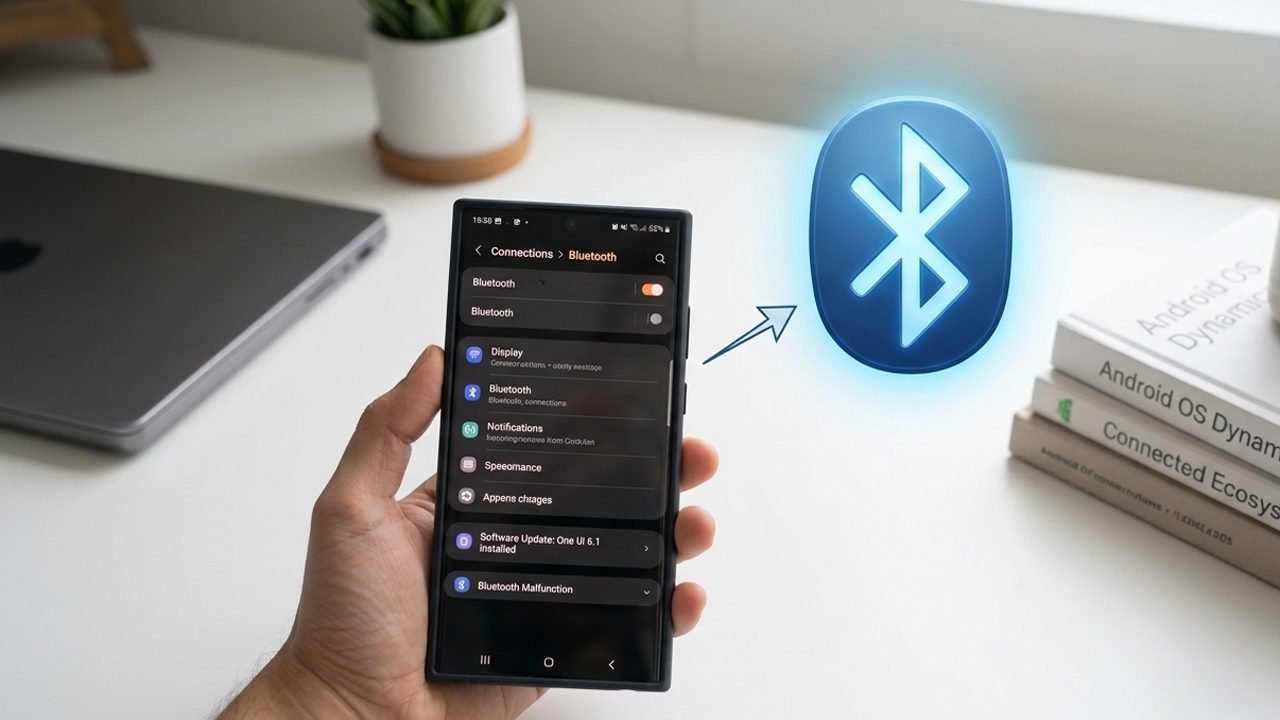
A phone software update can sometimes break your wireless settings, leaving you with Samsung Bluetooth not working as expected. This sudden glitch often leads to frustrating pairing failures, unexpected disconnections, audio interruptions, or nearby devices completely failing to detect your phone.
Many users report that their wireless earbuds disconnect every few minutes, audio cuts out during music playback, or their car audio system refuses to sync.
Fortunately, you don’t have to deal with these bugs forever. In this guide, we will look at 9 practical ways to troubleshoot your connection, restore your wireless settings, and resolve these common post-update issues for good.
How to Fix Samsung Bluetooth Not Working After a Software Update
If Bluetooth stops working after a Samsung software update, the issue may be caused by temporary system glitches, outdated pairing data, or incorrect connection settings. Try the methods below to restore your connection.
Fix 1: Turn Bluetooth Off and On
A temporary software glitch can easily affect Bluetooth connectivity right after an update. Turning the feature off and on refreshes the background wireless system and helps your phone detect nearby accessories.
- Open Settings on your Samsung phone.
- Tap Connections.
- Select Bluetooth.
- Toggle the Bluetooth switch to Off.
- Wait a few seconds, then turn it back on.
- Check whether your accessory appears in the available devices list.
Tip: You can also use the Bluetooth shortcut icon in the Quick Settings swipe-down panel to toggle this feature quickly.
Fix 2: Restart Your Samsung Phone
Restarting your phone clears minor system bugs that often pop up after a firmware installation. It also allows critical system services to reboot properly.
- Press and hold the power button layout to open the Power menu.
- Tap Restart.
- Wait until the phone reboots completely.
- Open your Bluetooth settings and try connecting your accessory again.
Note: If the accessory still refuses to sync, try restarting that device as well.
Fix 3: Unpair and Pair the Bluetooth Device Again
Outdated pairing data can sometimes prevent a wireless accessory from reconnecting smoothly after a major software update. Removing the saved profile and pairing it from scratch creates a fresh connection.
- Go to Settings > Connections > Bluetooth.
- Find the device that is failing to connect.
- Tap the Settings (gear) icon next to that device.
- Select Unpair at the bottom of the screen.
- Put your accessory into pairing mode.
- Select the device under the available devices list to pair it again.
This method successfully resolves pairing problems involving headphones, speakers, wireless keyboards, and car audio systems.
Fix 4: Clear the Bluetooth App Cache
Clearing corrupted temporary data is highly effective when system apps act up. Since Bluetooth runs as a system process, you will need to reveal hidden apps to clean it out.
- Open Settings and tap Apps.
- Tap the small Filter and Sort icon (next to “Your apps”).
- Enable the toggle for Show system apps and tap OK.
- Search for Bluetooth and select it.
- Tap Storage.
- Tap Clear Cache in the bottom corner.
- Restart your phone and test the connection.
Tip: If the problem persists, repeat these steps and tap Clear Data. Keep in mind this will wipe all your currently paired devices, requiring you to pair them again.
Fix 5: Reset Wi-Fi and Bluetooth Settings
Incorrect or broken network protocols can completely block wireless signals. Samsung includes a dedicated reset utility that restores wireless data paths back to factory defaults without erasing your personal files.
(Note on Samsung Bluetooth Reset Code: If you are looking for a hidden dialer pad code to reset your Bluetooth, please note that modern Samsung devices do not use one. Instead, you must use the built-in settings menu below).
- Go to Settings and select General management.
- Tap Reset.
- Select Reset Wi-Fi and Bluetooth settings.
- Review the warning message and tap Reset settings.
- Enter your lock screen PIN or pattern if prompted, then confirm.
Remember: This removes all saved network info, meaning you will need to log back into your Wi-Fi networks and pair your accessories again.
Fix 6: Check Your Bluetooth Accessory
Sometimes, the update glitch is a coincidence, and the problem actually lies with the external hardware. If your phone cannot find a device, make sure the accessory is truly ready to link.
- Confirm the accessory is powered on and has plenty of battery life.
- Manually trigger its unique pairing mode based on the manufacturer’s manual.
- Disconnect the accessory from any nearby laptops or secondary phones.
- Keep the accessory within close, physical proximity to your Samsung phone.
If it still does not show up, try connecting it to a different phone. This instantly tells you whether the bug belongs to the accessory or your smartphone.
Fix 7: Check for Subsequent Software Updates
If a bug in a major update broke your Bluetooth, chances are other users reported it too. Samsung regularly drops smaller, subsequent patches to fix issues introduced by larger OS rollouts.
- Open Settings and scroll down to Software update.
- Tap Download and install.
- If a patch is waiting, follow the prompts to install it.
- Reboot your device once the installation finishes.
Tip: Also open the companion app for your specific earbuds or smartwatch (like Galaxy Wearable) to see if the accessory itself requires a firmware update.
Fix 8: Boot into Safe Mode
Third-party applications can occasionally conflict with core system processes. Booting your Galaxy phone into Safe Mode temporarily disables downloaded apps, allowing you to see if a specific app is crashing your Bluetooth hardware.
- Press and hold your physical power buttons to bring up the Power menu.
- Touch and hold down the Power off icon on your screen until the Safe Mode prompt appears.
- Tap Safe Mode to reboot your phone.
- Once booted, try activating your Bluetooth accessory.
- Restart your phone normally to exit Safe Mode.
If your Bluetooth works perfectly in Safe Mode, a recently installed or updated app on your phone is causing the conflict. Try uninstalling recent apps one by one.
Fix 9: Run Diagnostics in the Samsung Members App
If none of the manual adjustments resolve the glitch, you can use Samsung’s official hardware checker to rule out a physical antenna failure.
- Launch the pre-installed Samsung Members app.
- Tap the Support tab at the bottom right.
- Select Phone diagnostics.
- Tap the Bluetooth icon from the hardware list.
- Follow the quick automated scan and review the results.
If the app flags a hardware error, you will need to contact Samsung Support or visit an authorized service center for a physical repair.
Why Is Bluetooth Not Working on Samsung Galaxy Phones?
A major software update can sometimes break Bluetooth connectivity due to temporary system glitches or underlying changes in device settings. In most cases, outdated paired-device profiles, corrupted system caches, or compatibility conflicts prevent your wireless accessories from connecting properly.
The most common reasons behind this glitch include:
- Temporary system glitches: Critical background wireless processes may fail to launch correctly immediately following an operating system update.
- Outdated pairing information: Previously saved connection profiles can conflict with the new firmware, preventing an accessory from reconnecting.
- Corrupted Bluetooth cache: Temporary system app data can become corrupted during the update file migration, causing unexpected wireless behaviors.
- Third-party app interference: Certain installed apps may conflict with your phone’s wireless permissions.
- Accessory compatibility problems: An older accessory may require its own firmware update to communicate with your phone’s upgraded software.
Tips to Prevent Bluetooth Connectivity Issues
Taking proactive care of your phone’s software can stop wireless bugs from happening in the future. Follow these quick best practices:
- Charge before updating: Never update your phone’s operating system when the battery is critically low.
- Keep accessories updated: Regularly update the firmware on your headphones, smartwatches, and speakers.
- Clear out old profiles: Remove ancient pairing records for devices you no longer use.
- Maintain close proximity: Keep your devices right next to each other during the initial pairing process.
- Avoid untrusted apps: Do not install third-party applications from unverified sources outside the Play Store.
- Back up your data: Always back up your phone before performing network or system resets.
Key Takeaways – Fix Samsung Bluetooth Today
Bluetooth connectivity issues after a Samsung software update typically stem from temporary system-level changes, corrupted cache data, or minor accessory compatibility bugs. Fortunately, running through basic troubleshooting steps – such as refreshing the connection, clearing the system app cache, and resetting your network settings – can easily resolve the problem and restore your wireless connections.
If your Bluetooth remains completely broken even after following all nine steps outlined above, the update may have a more severe bug. We highly recommend running a hardware scan through the Samsung Members app diagnostics menu or contacting official Samsung Support for deeper technical assistance.
FAQs: Samsung Bluetooth Issues
Why is Bluetooth not working after a Samsung update?
Minor software bugs, corrupted cache registries, or outdated network settings frequently interfere with Bluetooth signals right after a firmware rollout. Restarting your smartphone, clearing the app cache, and pairing your accessory from scratch will usually fix the issue.
Why is Bluetooth not showing on my Samsung phone?
Navigate to Settings > Connections and verify that the Bluetooth toggle switch is turned on. If the setting is greyed out or missing entirely, force-restart your device and check for any immediate, subsequent software patches.
What should I do if Bluetooth is not turning on?
First, restart your smartphone and check for any pending system updates. If the toggle button remains unresponsive, perform a Reset Wi-Fi and Bluetooth settings action or run a quick hardware scan using Samsung Members diagnostics.
Can a software update affect Bluetooth on the Galaxy S26 series?
Yes. Major software rollouts and One UI changes can occasionally disrupt Bluetooth connectivity across any device, including the Galaxy S26 lineup. The exact root cause depends heavily on the specific firmware version and your device’s active symptoms.
Do I need a Samsung Bluetooth reset code?
No. Modern Samsung Galaxy smartphones do not require a separate dialer code to reset your wireless radios. Instead, you can safely wipe your wireless data paths using the native Reset Wi-Fi and Bluetooth settings utility inside your system settings menu.
You Might Also Be Interested In:
- How to Fix Wi-Fi Not Working After an Android Update
- How to Fix “Get this App from Play” Error (Quick Fix)

Danny Paul is a tech specialist and avid gamer with over 10+ years of experience resolving complex system errors, software bugs, and platform glitches. He specializes in creating straightforward, actionable troubleshooting guides for Android, iOS, PC gaming, and mainstream social media networks to help users fix issues instantly. In his free time, he loves solving puzzles, playing online games, watching movies, and traveling.