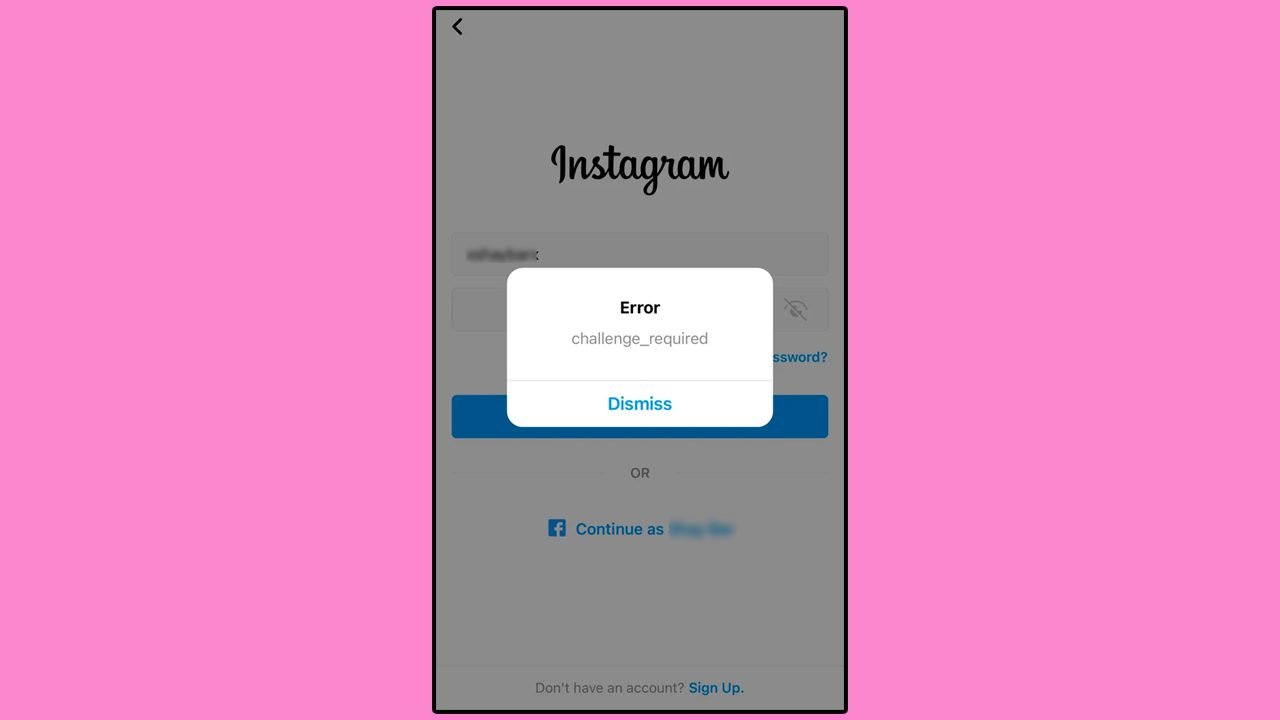
The “Challenge Required” error on Instagram can appear when you try to log in or use your account. It usually means the app needs to check your activity before allowing you to continue.
This may happen when you use a new device, change your network, or make several login attempts.
If you want to fix the Instagram Challenge Required error and regain account access, there are several simple ways to resolve it. In this guide, we will walk you through the top methods to clear the glitch, from checking your connection to completing the verification step successfully.
Why Does Instagram Show the “Challenge Required” Error?
Instagram uses automated security checks to protect user accounts from suspicious login attempts. The error typically appears for one of the following reasons:
- New device or location: The app may not recognize a device or geographic location you have not used before.
- Active VPNs or Proxies: Using a VPN routes your traffic through shared IP addresses. Instagram often flags these IPs—or sudden changes in your virtual location—as high-risk.
- Simultaneous device logins: Attempting to access the same profile from two different devices or locations at the exact same time looks like a security breach.
- Frequent login attempts: Trying to log in repeatedly in a short period can trigger extra security protocols.
- Internet connection problems: An unstable network or sudden switch between cellular data and Wi-Fi may interrupt the secure login process.
- Outdated app version: Running an older version of Instagram can cause compatibility bugs during authentication.
- Corrupted cache files: Accumulated temporary app data can sometimes corrupt the login cycle.
- Instagram server issues: Widespread server outages can temporarily prevent the app from processing logins correctly.
- Third-party apps & scrapers: Linking unofficial tools, unfollow trackers, or automated browser extensions to your profile creates immediate security flags.
Why Does Instagram Think My Account is a Bot?
Instagram strictly monitors account activity to prevent automated spam. Performing actions too quickly, such as mass following, mass unfollowing, or posting the same comment repeatedly, signals to Instagram’s algorithm that your account might be a bot.
Additionally, brand-new accounts have much stricter activity limits than older, established profiles. Logging in from a new device, using a VPN, or suddenly shifting your IP address can easily trigger a security check, prompting Instagram to temporarily lock your account until you verify your identity.
How Long Does the Challenge Required Error Last?
The Instagram “Challenge Required” error can last anywhere from 24 to 48 hours, though the exact duration depends entirely on what triggered it.
If it is a minor glitch, verifying your account through your email or phone number will fix it instantly. However, if Instagram is experiencing widespread server issues, you may simply need to wait until they are fixed.
Furthermore, if Instagram’s automated systems detect unusual activity on your IP address, you may be required to change your password or complete a secure checkpoint. Keep in mind that using automation bots or unauthorized third-party apps can extend this error into a temporary account restriction or a permanent suspension.
12 Ways to Fix the Instagram “Challenge Required” Error
Try these step-by-step fixes to identify the cause of the problem and safely restore access to your account.
Fix 1: Verify Your Instagram Account
The platform may simply be asking you to confirm your identity before allowing a login. Start by following the instructions shown on your screen.
- Open the Instagram app.
- Enter your username and password.
- Read the exact security message displayed on the screen.
- Request a verification code if the app offers an email or SMS option.

- Enter the code accurately and complete the required security steps.
- Once the app verifies your identity, try accessing your feed again.
Fix 2: Check Your Internet Connection
A weak or fluctuating connection can interrupt communication between Instagram’s servers and your phone. Switching networks can help if the login screen is not loading correctly.
- Check whether your other apps can successfully access the internet.
- If you are using Wi-Fi, turn it off and switch to mobile data.
- If you are already using mobile data, try connecting to a stable Wi-Fi network.
- Relaunch Instagram and try logging in again.
Fix 3: Try a Trusted Network or Device
The app often triggers extra verification when it detects an unfamiliar IP address or device. Returning to your usual setup can bypass the glitch.
- Stop making repeated, rapid login attempts, which look suspicious to the system.
- Open Instagram on a phone or desktop browser you normally use.
- Connect to your usual, trusted home or work network.
- Enter your login details once and follow any on-screen verification prompts.
Note: Avoid switching rapidly between multiple devices or locations in a short time.
Fix 4: Restart the Instagram App
A minor software glitch can prevent the app from processing your credentials. Completely closing and reopening the app is a quick way to refresh it.
- Force-close the Instagram app entirely so it isn’t running in the background.
- Wait a few seconds, then reopen the app.
- Enter your login details to check if the error is resolved.
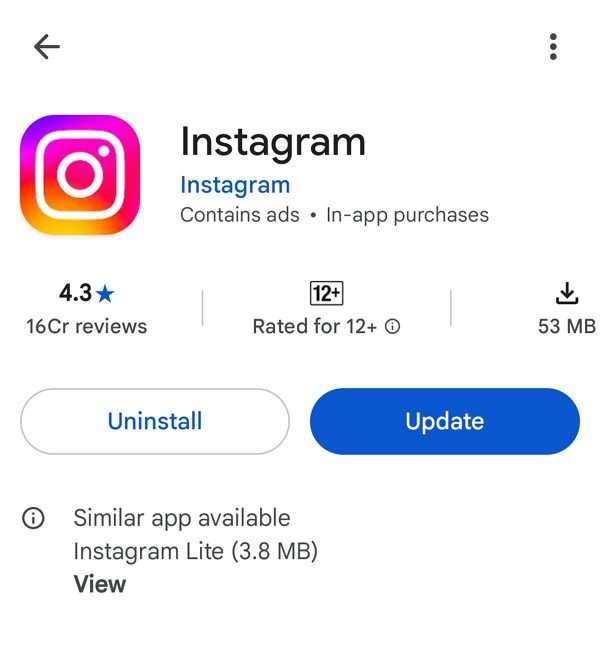
Fix 5: Update the Instagram App
Running an outdated version of the app can introduce bugs that conflict with Instagram’s current security protocols.
- Open the Google Play Store (Android) or Apple App Store (iPhone).
- Search for Instagram and open its official page.
- Tap Update if a newer version is available.
- Open the app and attempt to log back in.
Fix 6: Clear the Instagram App Cache (Android)
Instagram stores temporary files to help the app load faster. If these files become corrupted, they can disrupt the login cycle.
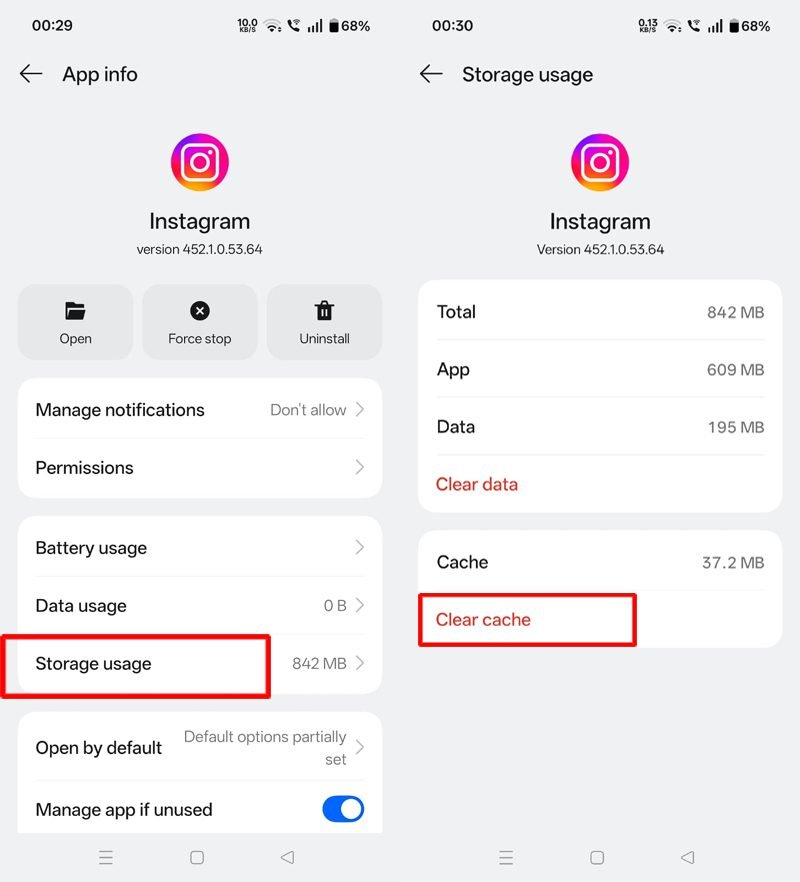
- Open Settings on your phone.
- Tap Apps or App Management, then select Instagram.
- Tap Storage (or Storage and Cache).
- Select Clear Cache.
- Open the app and check if the login error is gone.
Note: For iPhone users: iOS does not have a native “Clear Cache” button. To refresh app data, you will need to offload or reinstall the app.
Fix 7: Review and Download Your Instagram Information
If you still have active access to your account on a secondary device (like a tablet or PC), save a backup copy of your data just in case.
- Open Instagram on the device where you are still logged in.
- Go to your profile, tap the three-line menu, and select Account Center.
- Tap Your Information and Permissions.
- Select Download your information, then tap Request a download and follow the prompts to request a secure copy of your data.
Fix 8: Uninstall and Reinstall Instagram
If clearing the cache or updating doesn’t work, clean-installing the app will remove deep-seated, corrupted core files.
- Ensure you know your exact password before proceeding.
- Delete/Uninstall Instagram from your device.
- Restart your phone to clear temporary system memory.
- Download a fresh version of Instagram from your app store and try logging in.
Fix 9: Check Instagram’s Service Status
Sometimes, the problem isn’t on your end at all. Widespread server outages can cause authentication errors for thousands of users simultaneously.
- Check platform status trackers like Downdetector for Instagram to see if other users are reporting issues.
- Look for official announcements on Instagram’s communication channels.
- If a widespread outage is underway, simply wait for Instagram to resolve the issue on their side before trying again.
Fix 10: Approve the Login via “Login Activity” (If Logged In Elsewhere)
If you are still successfully logged into your Instagram account on a secondary device (like a tablet, laptop, or an old phone), you can manually tell Instagram’s security system that the blocked login attempt was actually you.
- Open Instagram on the secondary device and go to your Profile.
- Tap the Menu (☰) icon in the top-right corner to open Accounts Center.
- Tap on Meta Account and then choose Login and Security (or Password and security).
- Scroll down and click on “Where you’re logged in” under the Security checks section.
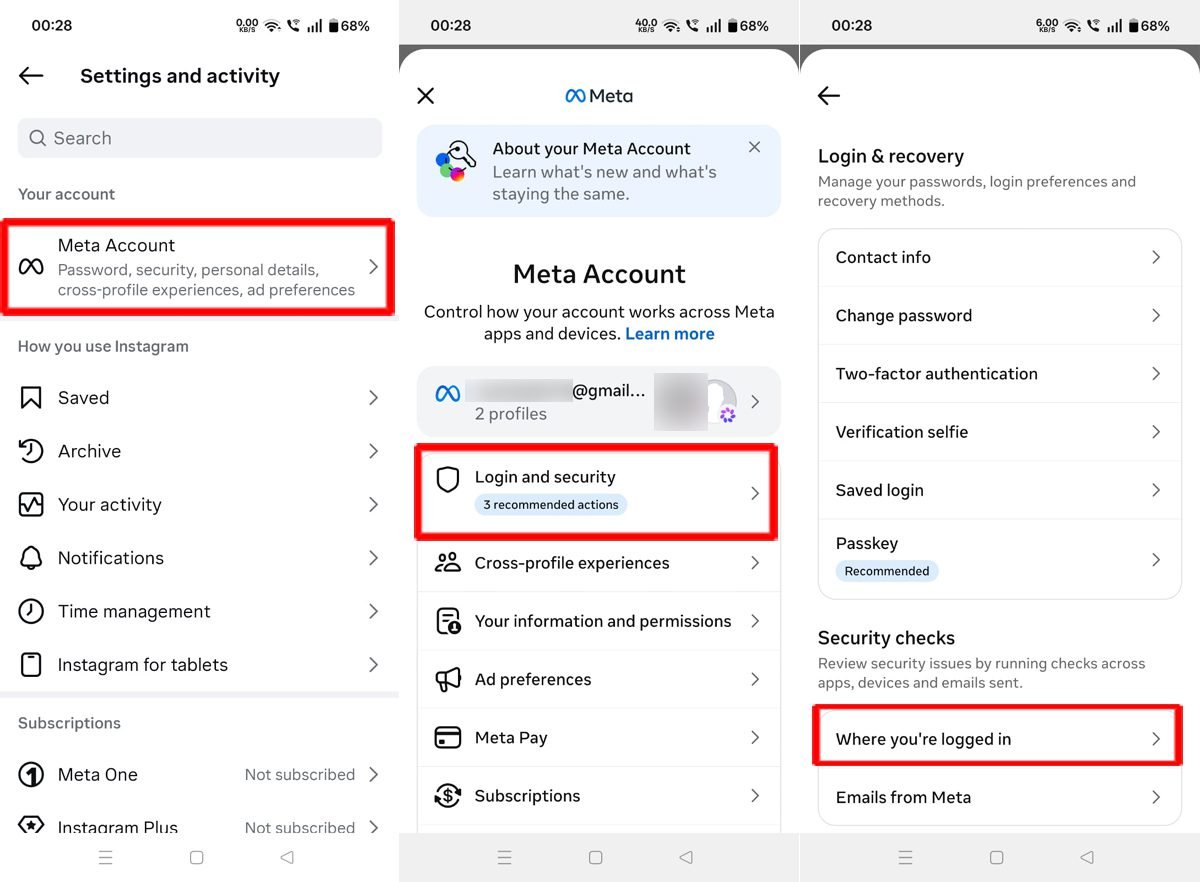
- Select your main Instagram account profile to view the active session list.
- Locate the blocked login attempt flagged by the system, click on it, and tap “This Was Me” to approve the session.
- Return to your primary phone and log in normally.
Fix 11: Attempt Login via an Incognito Web Browser
Sometimes, the Instagram app saves “session cookies” that get permanently stuck in the error loop. Forcing a login via a web browser using an Incognito window can completely bypass the app’s stuck code.
- Open Safari, Chrome, or your preferred mobile browser.
- Open an Incognito / Private Browsing tab.
- Go directly to instagram.com.
- Manually type in your username and password (do not use autofill).
- If it asks for identity verification here, complete it. Once successfully logged in on the web browser, wait a few minutes, then try opening your mobile app.
Fix 12: Reset Network Settings (For Stuck Device IPs)
If switching from Wi-Fi to cellular data doesn’t work, your phone’s local network system might be caching a flagged DNS route or IP path. Resetting your device’s network settings forces your phone to pull fresh connection paths.
- For Android: Go to Settings > System > Reset Options > Reset Wi-Fi, Mobile & Bluetooth.
- For iPhone: Go to Settings > General > Transfer or Reset iPhone > Reset > Reset Network Settings.
Note: This will restart your phone and clear saved Wi-Fi passwords, but it completely flushes the network glitches that confuse Instagram’s servers.
How to Recover Your Instagram Account if Nothing Works
If every troubleshooting fix fails, you will need to use Instagram’s official account recovery pathways. This is critical if you aren’t receiving security codes or suspect malicious activity.
- Go to the Instagram login screen and select Forgot Password? or Get help logging in.
- Enter your username, registered email address, or linked phone number.
- Follow the official identity verification steps provided by the app.
- If you suspect your account has been compromised, go directly to the official instagram.com portal via a web browser.
- Complete any identity checks requested by the platform.
If the app says your account has been suspended or disabled, follow the review or appeal instructions displayed on the screen. A login error does not always mean your account has been banned, so check the exact message before submitting an appeal.
Tips to Avoid the “Challenge Required” Error in the Future
- Use a familiar device: Log in from your regular smartphone or primary desktop browser whenever possible.
- Turn off VPNs before logging in: Disable your VPN or proxy settings before opening the app to prevent Instagram from flagging shared, high-risk IP addresses.
- Avoid repeated login attempts: Stop entering your password repeatedly if you encounter a login glitch, as this triggers automated spam filters.
- Warm up new profiles carefully: If your account is brand new, limit your daily actions (likes, follows, comments) to avoid looking like an automated bot.
- Log out of older, inactive devices: Periodically review your login activity and remove access from old phones or tablets you no longer use.
- Keep Instagram updated: Always install the latest app updates directly from the official Google Play Store or Apple App Store.
- Use a stable internet connection: Avoid switching between Wi-Fi and mobile data networks while the app is attempting to verify your identity.
- Review connected apps: Revoke access to third-party tools, unfollow trackers, or automated bots that you no longer use or trust.
- Protect your login details: Never share your account password or SMS verification codes with anyone.
- Enable Two-Factor Authentication (2FA): Add an extra layer of protection to your profile immediately after regaining access.
- Keep your recovery information current: Regularly check that the email address and phone number linked to your Instagram account are active and accessible.
Conclusion
The Instagram “Challenge Required” error is a protective feature that triggers when the platform needs to verify a login attempt. If you encounter it, begin by checking your internet connection, updating the app, and verifying your identity through the on-screen prompts.
If the error persists, systematically try the other troubleshooting methods outlined above to safely resolve the issue and regain access to your profile. Should all standard fixes fail, visit Instagram’s official recovery channels for specialized support. Once you successfully log back in, protect your account by securing your credentials and enabling two-factor authentication.
Frequently Asked Questions (FAQs)
1. What does the “Challenge Required” error mean on Instagram?
It means that Instagram’s security system has flagged a login attempt as unusual and needs to verify your identity or confirm that you are the legitimate account owner before letting you continue.
2. Why does the app keep showing the “Challenge Required” error?
This error usually repeats if you are using an unfamiliar device, logging in from a new geographic location, making rapid and repeated login attempts, using a VPN, or experiencing an unstable network connection. Widespread Instagram server issues can also cause it.
3. How can I fix the Instagram “Challenge Required” error quickly?
The fastest way to resolve it is to complete the on-screen security verification using the SMS or email code sent by Instagram. Additionally, ensure you are connected to a stable, trusted network and using your primary mobile device.
4. How long does the “Challenge Required” error last?
There is no fixed duration. A minor connection or app glitch can clear up instantly, while automated IP blocks or security flags can last anywhere from 24 to 48 hours if you are unable to pass the verification checkpoint.
5. Will clearing the Instagram app cache fix the error?
Clearing the cache can fix the error on Android devices if corrupted temporary files are causing a local script glitch. However, clearing your cache will not bypass or remove a security restriction that Instagram’s servers have placed on your account.
You Might Also Be Interested In:
- How to Fix “Instagram Messages Not Showing or Loading” Glitch
- How to Fix the Instagram Automatic Logout Glitch (Step-by-Step)
- Fix: “Linking isn’t available right now” Error

Danny Paul is a tech specialist and avid gamer with over 10+ years of experience resolving complex system errors, software bugs, and platform glitches. He specializes in creating straightforward, actionable troubleshooting guides for Android, iOS, PC gaming, and mainstream social media networks to help users fix issues instantly. In his free time, he loves solving puzzles, playing online games, watching movies, and traveling.