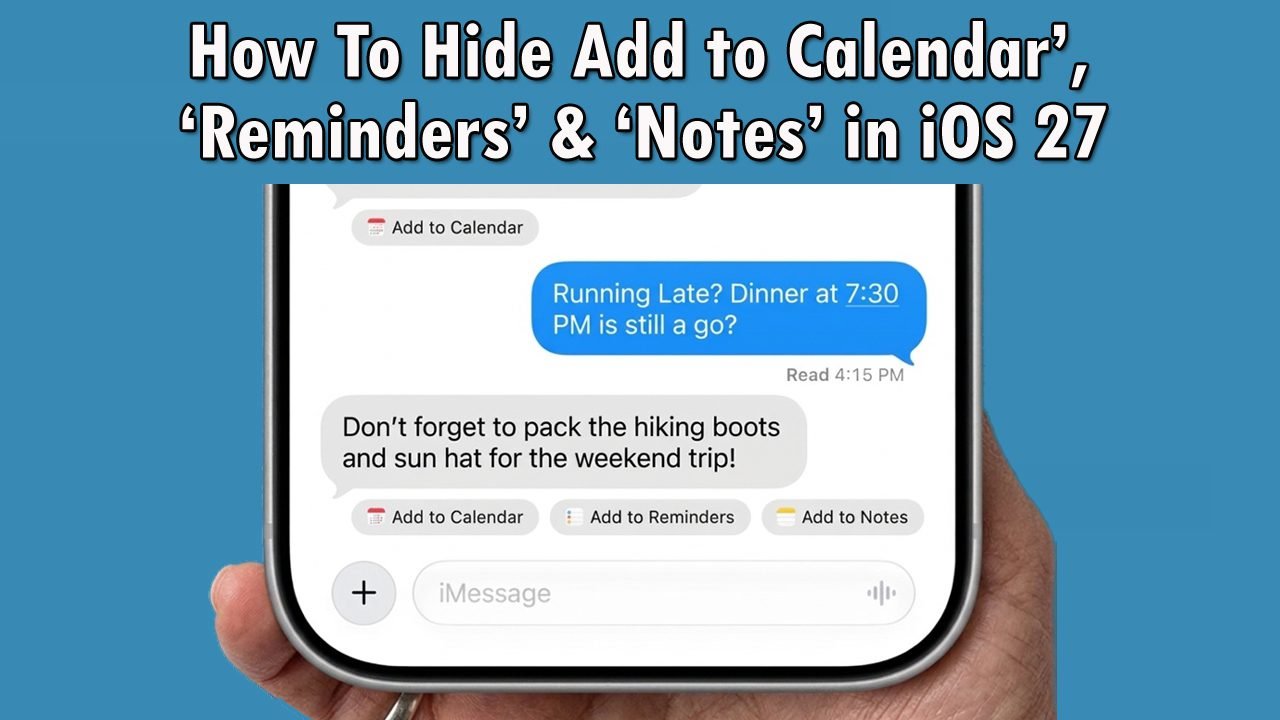
The Messages app on Apple devices is designed to help you act on information quickly. However, the system often displays automatic, dynamic suggestion buttons right inside your chat threads. These context-driven shortcuts include options to add events to your Calendar, generate a new task in Reminders, or save clipped text into the Notes app.
While intended to be helpful, many users find these buttons intrusive. They clutter the screen while you are trying to read a conversation, get in the way of taking clean screenshots, and often lead to accidental taps while scrolling.
If you want to declutter your chat screens, you can turn these options off. The available settings depend slightly on whether you are using an iPhone, iPad, or a Mac running the latest iOS 27 or macOS 27 Golden Gate software.
Common Reasons These Buttons Appear
Your device relies on on-device data processing through Apple Intelligence & Siri to scan message text for actionable terms. The system flags specific phrases and triggers the following interface elements:
- Siri Suggestions: Siri can suggest actions based on the content of a conversation.
- Dates and Events: Messages that mention dates, meetings, or appointments may trigger Calendar suggestions.
- Tasks and Reminders: Text about work or daily tasks may lead to Reminder suggestions.
- Useful Information: Your iPhone may suggest saving certain details in Notes.
- Messages Features: The available suggested actions depend entirely on your current iOS version and active system configurations.
Methods to Hide Add to Calendar, Reminder, and Notes Buttons
Apple provides distinct ways to disable these shortcuts depending on your specific hardware and software build version. Use the relevant methods below to clear your chat interface.
Method 1: Turn Off Siri Suggestions on iPhone and iPad
For most users running standard builds of iOS 27 or iPadOS 27, the quickest approach is to revoke the Messages app’s permission to display dynamic text suggestions.
Step 1. Open the Settings app on your iPhone or iPad.
Step 2. Scroll down and tap Siri.
Step 3. Scroll down and tap Suggestions.

Step 4. Locate and select Messages from the list of installed applications.
Step 5. Toggle off the switch labeled Show in App.
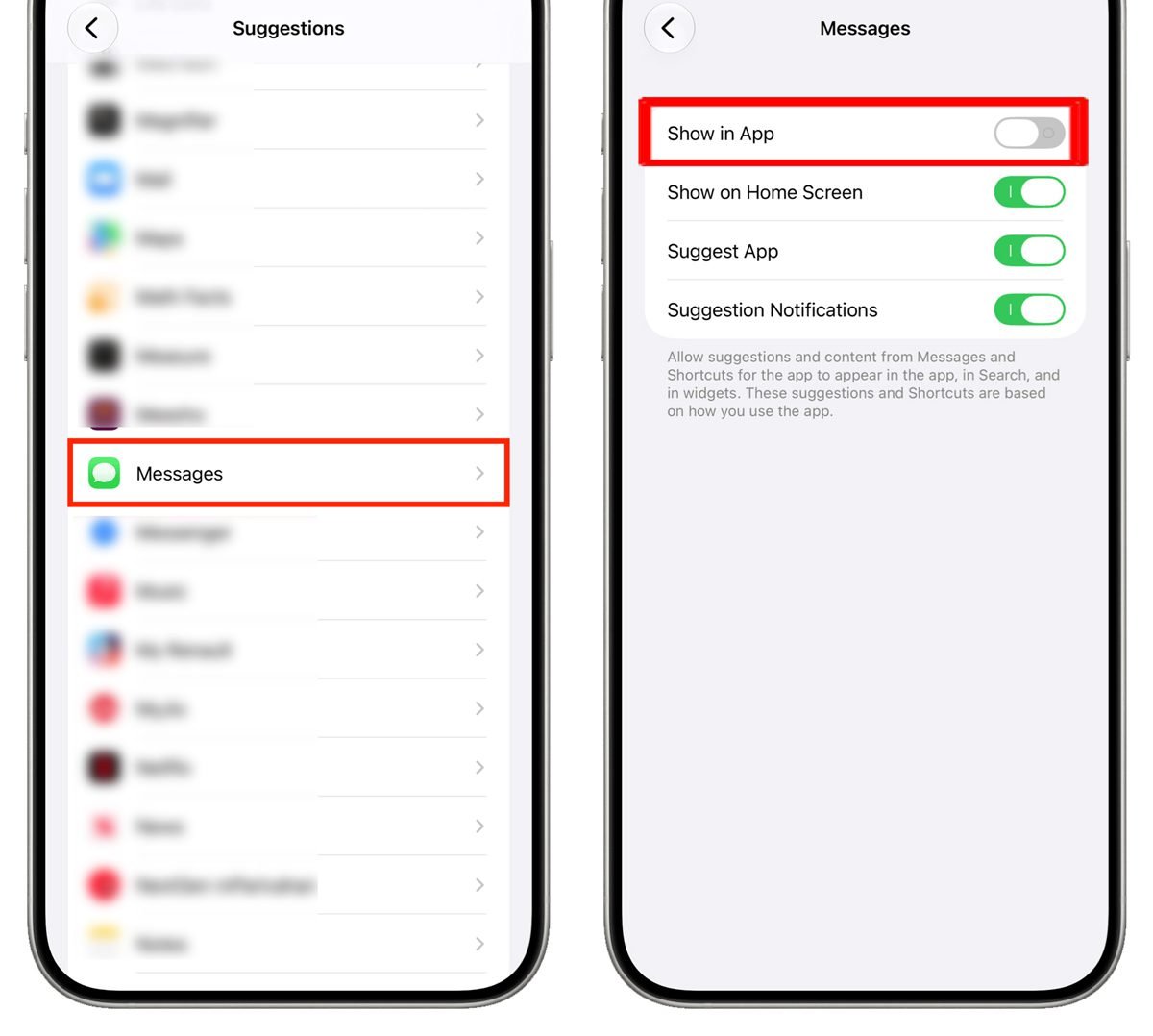
Now open Messages and check whether the buttons are no longer visible.
Method 2: Use App Access Controls (Earlier iOS 27 Build Layouts)
If your device is running an alternative initial variation of the software where the standard “Suggestions” sub-menu isn’t visible, use this application path instead:
- Open Settings and navigate to Siri.
- Tap App Access
- Choose Messages from the application inventory.
- Switch off the toggle for Show in App.
Method 3: Check Dedicated ‘Suggested Actions’ Controls in Messages
Recent system versions, like the iOS 27.2 beta, introduce granular toggles directly within the dedicated app options page, allowing you to selectively preserve or block individual button behaviors.
- Launch Settings.
- Scroll down to the application section, tap Apps, and pick Messages.
- Look for a dedicated menu subcategory labeled Suggested Actions.
- Individually disable Add to Calendar, Add to Reminders, or Add to Notes based on your personal preference.
These separate controls have been reported in beta software and may not be available in every public release.
Method 4: Turn Off Only the Buttons You Do Not Need
If your iPhone offers individual controls for suggested actions, you do not need to disable every suggestion. You can keep useful options enabled and turn off the ones you rarely use.
- Open Settings.
- Go to Apps and tap Messages.
- Open Suggested Actions, if available.
- Find the button you want to hide.
- Turn off its switch.
For example, you can disable Add to Notes while keeping Add to Calendar enabled. This method depends entirely on the controls available in your installed iOS version.
Method 5: Turn Off Messages Suggestions on macOS Golden Gate
If you mirror your text chains across your desktop or laptop ecosystem, you will also notice these buttons popping up on your Mac interface. You can turn them off globally via system settings.
- Click the Apple menu icon and launch System Settings on your Mac.
- Click Siri from the left-hand navigation sidebar.
- Scroll down on the main panel and click on Suggestions.
- Locate the entry for Messages and turn off the adjacent toggle switch.
If your Mac is running an earlier build of macOS 27 Golden Gate:
- Go to System Settings > Siri.
- Click on the App Access tab option.
- Highlight Messages from the catalog list.
- Turn off “Show Siri Suggestions in application.”
Method 6: Restart Your iPhone
If you have changed the settings but the buttons still appear, restart your iPhone. This can help refresh the system cache after a settings change.
- Open the power-off screen using your iPhone’s usual shutdown method.
- Turn off your iPhone.
- Wait a few seconds.
- Turn it back on.
- Open Messages and check the same conversation again.
Restarting will not remove a feature that is still enabled, so always verify your settings configurations first.
Method 7: Check for a Stable iOS Update
Apple frequently changes how suggested actions work across software point releases. Installing an available stable update may provide new controls or fix an interface bug.
- Open Settings.
- Tap General.
- Select Software Update.
- Check whether an update is available.
- Read the update details and install it if appropriate.
Keep your iPhone connected to Wi-Fi and make sure it has enough battery capacity before initiating an update.
Tips to Manage Suggested Buttons
- Check Siri settings thoroughly before trying more complex troubleshooting steps.
- Turn off only the suggestions you do not need when individual granular controls are visible.
- Force close the Messages app or restart your iPhone after applying changes to ensure they take effect.
- Stick to stable public iOS updates to receive polished feature improvements rather than buggy experimental layouts.
- If a setting appears missing, cross-reference Apple’s official support documentation for your exact installed build.
Conclusion
Inline chat helpers can occasionally clutter your daily messaging experience. By managing your Apple Intelligence & Siri permissions, you can permanently clean up your layout. If you ever need these shortcuts back, simply retrace the steps above and turn the corresponding toggle switches back on to restore full functionality.
Frequently Asked Questions (FAQs)
Q1: Why do the ‘Add to Calendar’, Reminders, and Notes buttons appear in Messages?
Your iPhone automatically suggests actions when it detects dates, appointments, upcoming tasks, or address information within a conversation thread.
Q2: Can I hide only the ‘Add to Calendar’ button?
Yes, if your specific iOS version supports granular controls, you can selectively disable the Calendar option while keeping the Notes or Reminders shortcuts active.
Q3: Will turning off Siri Suggestions delete my messages?
No. Modifying your suggestion or Apple Intelligence settings will only change the interface layout. It will not delete or alter any of your text conversations.
Q4: Why can’t I find the ‘Suggested Actions’ menu on my device?
This menu structure varies by software build. If you cannot find it under your Messages settings, check the global Apple Intelligence & Siri menu, as the feature might be grouped under a different layout name.
Q5: Will updating iOS hide these buttons automatically?
No. System updates do not turn off the feature automatically. However, updating your device ensures you receive the latest settings toggles required to change it manually.
Q6: Do I need to restart my iPhone after changing these settings?
Usually, the changes apply instantly. However, if the buttons continue to display after you have turned them off, a quick restart will refresh the system cache and force the updates to take effect.
Q7: Will hiding these buttons also stop dates from being underlined in text messages?
No. Turning off Siri Suggestions removes the large shortcut blocks (Add to Calendar, Reminders, Notes) from appearing directly under the text bubble. However, standard iOS data detectors will still underline dates, times, and phone numbers in blue, allowing you to manually tap them to create events if needed.
Q8: Does turning off these suggestions improve my message privacy?
Yes. While Apple handles all Siri and Apple Intelligence text processing locally on your device rather than on external servers, disabling these settings prevents your operating system from actively parsing your daily conversations for tasks, events, and calendar bookings.
Q9: If I hide the buttons on my iPhone, will they still show up on my Mac?
Yes, unless you disable them there as well. These settings do not sync via iCloud across your entire ecosystem. If you use the Messages app on a Mac running macOS 27 Golden Gate, you will need to manually adjust the suggestions settings in the Mac System Settings menu to fully hide them.
Further Readings:
- How To Stop iPhone & Mac From Automatically Showing Subtitles (iOS 27)
- iPhone 18 Pro & Pro Max Vertical Lines: Troubleshooting Steps and Repair Options
- iPhone Timer Not Making Sound? 10 Easy Fixes

Danny Paul is a tech specialist and avid gamer with over 10+ years of experience resolving complex system errors, software bugs, and platform glitches. He specializes in creating straightforward, actionable troubleshooting guides for Android, iOS, PC gaming, and mainstream social media networks to help users fix issues instantly. In his free time, he loves solving puzzles, playing online games, watching movies, and traveling.