Seeing a comment number on an Instagram post or Reel when the actual comments are missing can be confusing and frustrating. This usually happens because of hidden comments, filtering settings, deleted comments, or temporary loading problems.
Dealing with Instagram comments not showing when the count is still visible is a common issue, and it often makes users wonder if their comments have disappeared for good. Fortunately, checking your Hidden Words settings, refreshing the post, and reviewing your comment controls can help you find the cause and fix the problem quickly.
Common Reasons: Why Instagram Comments Are Missing?
Before trying different solutions, it helps to understand what causes the comment counter to get stuck. Depending on the situation, the issue usually comes down to either privacy filters or a technical glitch.
1. Privacy, Moderation, and Filter Settings
- Hidden Words Filter: Instagram automatically hides comments containing offensive or restricted words, phrases, or emojis.
- AI Spam Detection: Instagram’s automated moderation flags comments with links, repetitive emojis, or spammy keywords (like “DM” or “free”), hiding them silently while still counting them.
- “Most Relevant” Comment Sorting: Instagram often defaults to showing “Most Relevant” replies, which can hide newer or low-engagement comments until you switch the filter to “All Comments.”
- Restrict or Limits Mode: If a creator uses the Restrict tool or turns on Limits to stop spam, comments from specific users or non-followers stay hidden from public view even though the count increases.
- Manually Hidden Comments: The post owner may have manually hidden specific replies from their comment section.
- Private or Blocked Accounts: If a private account you don’t follow (or an account you blocked) comments on a public post, the number goes up, but the comment remains invisible to you.
- Recently Deleted Comments: A user may have deleted their comment, and Instagram’s servers simply haven’t updated the cached count yet.
2. Technical, Network, and Device Issues
- Weak Internet Connection: A slow or unstable network can load the post’s numbers while failing to fetch the actual comment thread.
- Active VPN or Proxy: Using a VPN can trigger Instagram’s security blocks, causing comment sections to stall or appear blank.
- Data Saver Mode: Having “Use less mobile data” turned on inside Instagram (or Low Data Mode on your phone) can prevent comment threads from loading properly.
- Temporary App Glitches: An outdated Instagram version, corrupted cache data, or bugs in Instagram Lite can stop comments from displaying properly.
Effective Ways to Fix Instagram Comments Not Showing
Try these solutions one by one – starting with quick settings checks – to find out why comments are missing on your post or Reel and restore them.
Fix 1: Check the Hidden Comments Section
Instagram automatically moves comments containing unwanted words or inappropriate content into a separate folder. If you own the post, check whether any comments were placed there.
- Open Instagram and visit your profile.
- Select the post where comments are missing.
- Tap the comment section.
- Scroll to the very bottom of the comments.
- Look for View hidden comments, if available.
- Review the hidden comments and tap Unhide if you want to make a comment visible again.
This option is especially helpful when the comment count is higher than the number of replies displayed.
Fix 2: Change the Comment Sorting Option
Instagram arranges comments using algorithmic filters by default, which can hide newer or low-engagement replies from view.
- Open the post or Reel where comments are missing.
- Tap the comment section.
- Look for the sorting filter at the top (usually labeled Top comments or Most relevant).
- Switch the option to Most recent or All comments.
- Scroll through the thread again.
Changing this filter often reveals newer comments that were hidden below top replies.
Fix 3: Review the ‘Hidden Words’ Filter
The Hidden Words feature protects users by automatically filtering comments containing offensive words, phrases, or emojis, as outlined in the Instagram Help Center guide on hiding unwanted comments. However, genuine comments sometimes get caught by mistake.
- Open your Instagram profile.
- Tap the three-line menu in the top-right corner to open Settings and activity.
- Find Hidden Words under “How others can interact with you“.
- Review your active comment filtering options.
- Check your Manage custom words and phrases list and remove any unnecessary words that might be blocking real comments.
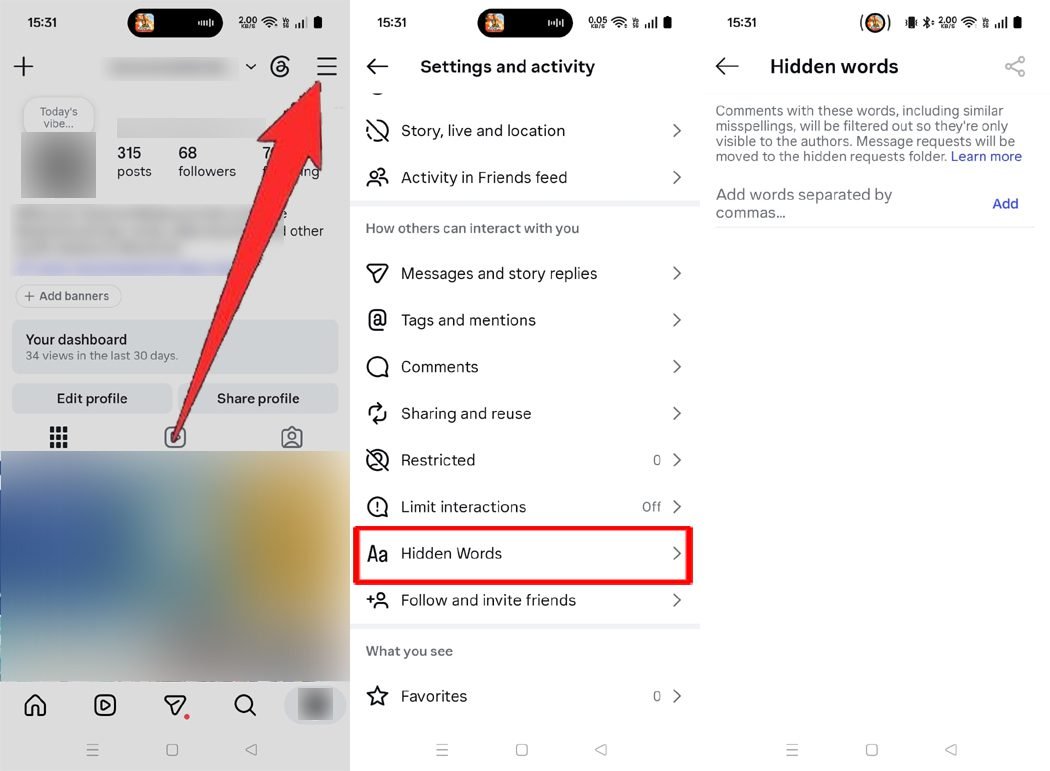
After updating your settings, reopen the post and check whether the missing comments appear.
Fix 4: Check If Comments Are Turned Off
Commenting may be disabled for a specific post, which can hide the comment thread even when a previous comment count is still visible.
- Open the affected Instagram post.
- Tap the three dots in the top-right corner.
- Look for the Turn on commenting option.
- If you see it, tap it to enable comments again.
Once commenting is turned back on, reopen the post to check the comment section.
Fix 5: Review the Instagram Limits Settings
Instagram has a feature called Limits that protects accounts from unwanted comments and sudden spam waves, which can hold back replies from non-followers or recent followers.
- Open your Instagram profile.
- Tap the three-line menu and go to Settings and activity.
- Find and tap Limits.
- Check whether this feature is turned on and adjust the settings if needed.
Note: If Limits held back any replies, open your post’s comment section and look for a See Limited Comments link (or tap Approve on comments from Restricted accounts) to make them visible.
Fix 6: Check Comment Controls and Restrictions
Instagram lets account owners control who is allowed to comment on their posts, which may prevent certain replies from showing up.
- Open your Instagram profile.
- Tap the three-line menu and go to Settings and activity.
- Find Comments under “How others can interact with you“.
- Review who is allowed to comment on your posts (e.g., Everyone, People you follow, or Your followers).
- Adjust the settings if any unwanted restrictions are enabled.
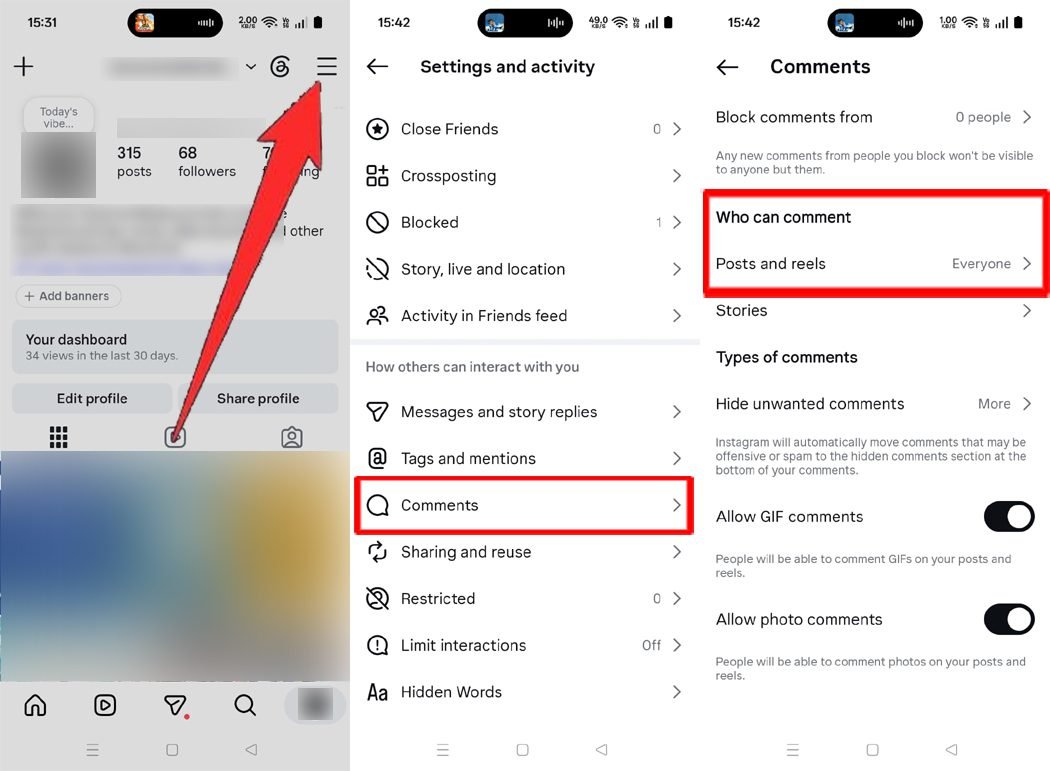
If you are viewing someone else’s post, keep in mind that only the post owner can change these settings.
Fix 7: Refresh the Instagram App
Sometimes, Instagram fails to load comments properly due to a temporary app glitch. Force-closing and refreshing the app often resolves this.
- Close the Instagram app completely from your recent apps screen.
- Reopen the app.
- Navigate to the affected post and pull down on your screen to refresh.
- Tap the comment section and wait a few seconds for it to load.
If the comments are still missing, move on to checking your network connection.
Fix 8: Check Your Internet Connection
A slow or unstable network can prevent Instagram from loading the full comment thread even after the post image loads.
- Switch between Wi-Fi and mobile data to test your connection.
- Turn Airplane Mode on for 10 seconds, then turn it off.
- Disconnect any active VPN or proxy services, as Instagram sometimes blocks comment threads on VPN connections.
- Reopen Instagram and check whether the comments appear.
If other posts or Reels are also slow to load, your network connection is likely the cause.
Fix 9: Clear Instagram Cache on Android (or Offload on iPhone)
Corrupted temporary files stored by Instagram can cause comment sections to appear blank.
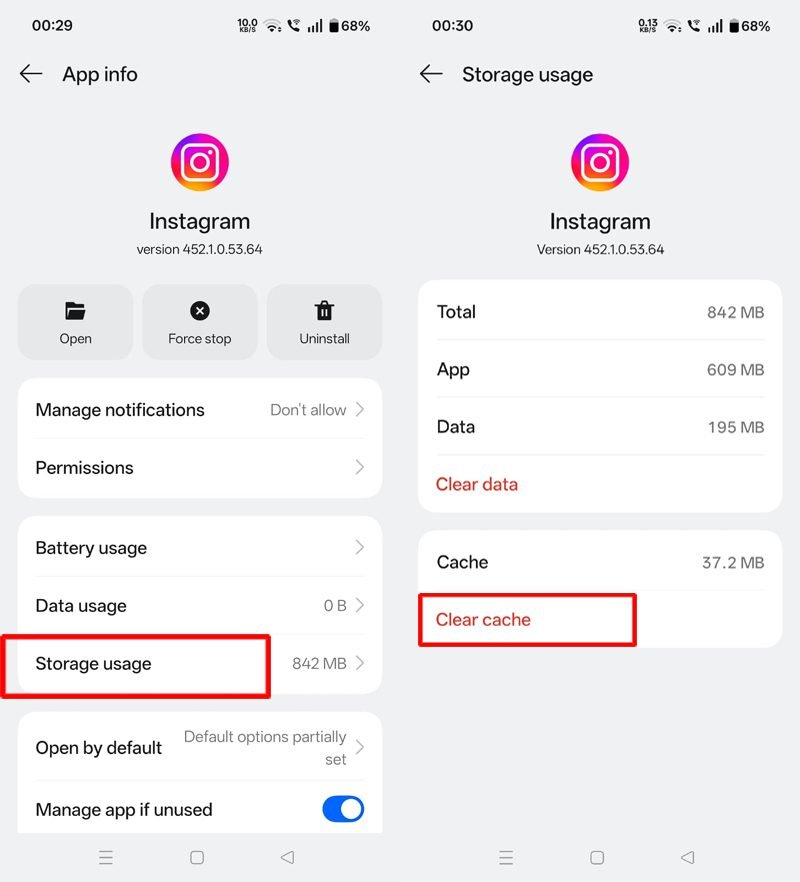
On Android:
- Open your phone’s Settings.
- Select Apps or App Management.
- Find and tap Instagram.
- Open Storage and cache.
- Tap Clear cache (avoid tapping Clear data unless you are ready to log in again).
On iPhone:
- Open iPhone Settings > General > iPhone Storage.
- Tap Instagram and select Offload App (or delete and reinstall the app) to clear corrupted temporary files.
Fix 10: Check Instagram in an Incognito Browser Window
Opening Instagram in a private web browser helps you verify whether the bug is tied to your mobile app or the post itself.
- Open Chrome, Safari, or another web browser.
- Start a new Incognito or Private window.
- Paste the link to the affected Instagram post.
- Check whether the missing comments are visible.
If the comments appear in the browser but not in the app, updating or reinstalling the Instagram app should fix it.
Fix 11: Update Instagram or Report the Problem
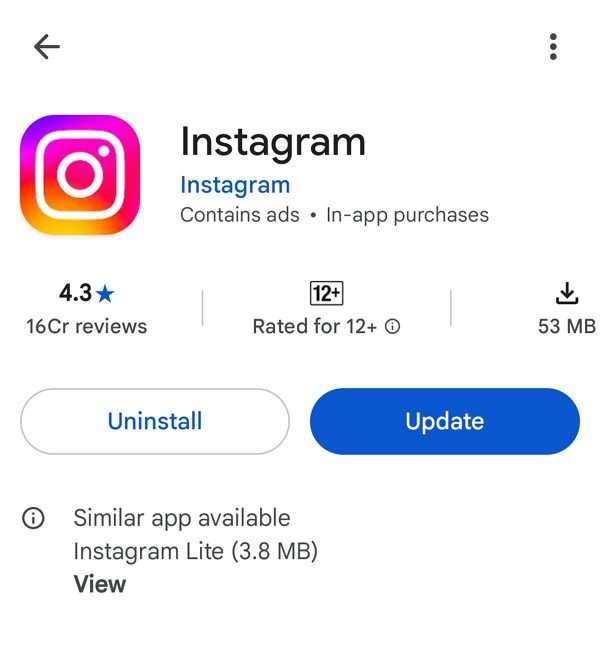
An outdated app build may contain UI bugs that stop comments from rendering properly.
- Open the Google Play Store (Android) or Apple App Store (iPhone).
- Search for Instagram.
- Tap Update if a newer version is available.
- Reopen the app and check the affected post.
If the problem continues after updating, follow the steps in the Instagram Help Center technical problem guide by going to Settings and activity > Help > Report a problem. Briefly explain that the comment count is visible while the comments are missing, and attach a screenshot if possible.
Fix 12: Review Teen Account Settings
Instagram enforces stricter default safety controls for Teen Accounts, which can filter out or hide certain comments and replies.
- Open your Instagram profile and go to Settings and activity.
- Tap Teen Account settings (or What you can see).
- Check whether Limited content is active, as this setting restricts comments and mentions on posts.
- Review the available interaction and comment controls to see if safety filters are hiding replies.
Keep in mind that certain protections are locked automatically for younger users and cannot be turned off without parental supervision.
Fix 13: Check Business Account Controls
Business accounts use the same core comment settings as personal profiles, though higher spam volume and stricter filters can hide legitimate customer replies.
- Open your Instagram business profile and go to Settings and activity.
- Review your Hidden Words settings and allowed comment audience.
- Check whether any customer accounts were accidentally Restricted.
- Open a few other posts on your grid to see if the issue affects a single post or your entire business account.
Fix 14: Check Actions by Other Account Managers
If multiple team members or social media managers have access to your business or creator account, someone else may have hidden the comments.
- Contact the team members who manage your Instagram account.
- Ask whether anyone manually hid comments or changed the post’s comment controls.
- Review recent moderation actions together.
Remember that hidden comments remain visible to the person who wrote them and to account administrators, even when hidden from the public.
Fix 15: Turn Off Instagram Data Saver Mode
Instagram’s built-in data-saving feature reduces network usage by delaying how quickly secondary content – like comment threads and profile pictures – loads on mobile data.
- Open your Instagram profile and tap the three-line menu.
- Go to Settings and activity.
- Scroll down to Media quality (or Data usage and media quality).
- Toggle Use less mobile data off.
Reopen the post afterward to see if the comment section loads completely.
Fix 16: Switch From Instagram Lite to the Standard App
If you use Instagram Lite, lightweight app limitations or occasional rendering glitches can cause comment sheets to appear blank even when a comment count is shown.
- Open the post using a mobile web browser at Instagram.com, or install the standard Instagram app from your app store.
- Log in to your account and navigate to the affected post.
- Tap the comment icon to check if the replies appear normally.
Switching to the main app or web version often bypasses Lite-specific display bugs immediately.
Fix 17: Check If Instagram Servers Are Down
Sometimes the issue has nothing to do with your account or phone – Instagram’s servers may be experiencing a temporary database glitch where comment counters update faster than the actual comment threads.
- Check live outage reports on the DownDetector Instagram status page to see if other users are experiencing issues.
- Search X (formerly Twitter) to see if people are reporting missing comments at the same time.
- If there is a widespread outage, wait 30 to 60 minutes for Instagram to fix the issue on their end.
Once server stability returns, your missing comments will reappear automatically without needing to change any settings.
Additional Fixes for Desktop and Web Users
If you are browsing Instagram.com on a computer and see a comment count with no visible comments, try these browser-specific solutions.
Fix 18: Disable Browser Extensions (Ad Blockers and Privacy Tools)
Ad blockers and strict privacy extensions often mistake Instagram’s comment-loading scripts for trackers and block them from running.
- Open Instagram.com in your desktop browser (Chrome, Edge, Brave, or Firefox).
- Click the Extensions (puzzle piece) icon in the top-right toolbar.
- Temporarily pause or disable any Ad Blockers or script-blocking extensions on Instagram.
- Press Ctrl + R (Windows) or Cmd + R (Mac) to reload the page and check the comment section.
Fix 19: Clear Instagram Browser Cookies and Site Data
Corrupted session cookies stored in your desktop browser can prevent comment threads from loading while leaving the main photo or Reel visible.
- Open Instagram.com in Chrome or Edge.
- Click the View site information icon (the tune/sliders icon or padlock) to the left of the web address bar.
- Select Cookies and site data > Manage on-device site data.
- Click the trash can icon next to instagram.com to remove its stored data.
- Refresh the page, sign back into your account, and reopen the post.
Fix 20: Switch Browsers or Turn Off Graphics Acceleration
Outdated browser builds or graphics rendering glitches on desktop computers can cause the comment panel next to a post to appear completely blank.
- Open the Instagram post link in a different browser (for example, switch from Chrome to Firefox or Microsoft Edge).
- If the comments load in the second browser, go back to your main browser’s Settings > System and toggle Use graphics acceleration when available off.
- Restart your browser and check the Instagram post again.
Helpful Tips to Prevent Instagram Comment Issues
Once your comments are loading properly again, a few simple habits can keep this glitch from coming back:
- Keep Your App Updated: Install Instagram updates regularly from the Google Play Store or Apple App Store to patch UI bugs before they affect your feed.
- Audit Your Hidden Words Filter: Review your custom blocked words list every few weeks to make sure common phrases or emojis are not hiding genuine comments by mistake.
- Avoid Spam-Like Commenting Habits: Do not copy and paste identical replies, spam repetitive emojis, or comment too fast across multiple posts, as Instagram’s AI filter silently hides comments that look automated.
- Keep Comments Free of Links and Trigger Words: Avoid placing raw URLs or repetitive promotional phrases (like “DM me” or “free”) in replies, which often get flagged and hidden by global spam filters.
- Double-Check Post Restrictions: Before publishing an important Reel or announcement, confirm that your comment controls and Limits settings match the audience you want to hear from.
- Use a Stable Network: Avoid browsing or posting on weak public Wi-Fi or unstable VPN connections, which frequently interrupt comment threads from loading.
- Clear App Cache Periodically: If you use Instagram heavily on Android or desktop, clearing temporary cache files or site cookies once a month prevents loading errors.
- Report Persistent Bugs: If the comment counter keeps getting stuck across multiple posts, send a quick screenshot through Settings and activity > Help > Report a problem so Instagram can fix the server bug.
Conclusion
Instagram comments can disappear from view due to filtering options, hidden replies, account restrictions, or temporary app glitches. Dealing with Instagram comments not showing when the count is still visible is usually easy to fix once you check your Hidden Words section and review the post’s comment controls.
Start with the simplest steps first – switch your comment sorting filter, refresh the app, and install the latest update. If none of these solutions bring the replies back, report the bug directly to Instagram so their team can resolve it.
Related Guides
- How to Fix the “Instagram Messages Not Showing or Loading” Glitch
- How to Fix the Instagram Automatic Logout Glitch
- How to Fix Instagram “Challenge Required” Error and Regain Account Access

Danny Paul is a tech specialist and avid gamer with over 10+ years of experience resolving complex system errors, software bugs, and platform glitches. He specializes in creating straightforward, actionable troubleshooting guides for Android, iOS, PC gaming, and mainstream social media networks to help users fix issues instantly. In his free time, he loves solving puzzles, playing online games, watching movies, and traveling.