
Facebook shows suggested topics and posts in the feed to help users discover new content. These suggestions are usually based on their interests, searches, likes, comments, and other activities.
However, sometimes Facebook shows topics that users are not interested in, making the feed less useful.
If you are looking for how to remove suggested topics from your Facebook feed, there are a few ways to manage these recommendations. You can hide unwanted posts, adjust your content preferences, and use the Feeds section to see more posts from people and Pages you follow.
Why Does Facebook Show Suggested Topics?
Facebook’s default Home feed uses artificial intelligence to recommend topics and posts it predicts you will find interesting. Some common reasons include:
- Previous activity: Facebook tracks the posts you like, share, comment on, and search for.
- Passive viewing habits: Even without clicking, pausing to read a post, watching a Reel to the end, or taking a screenshot signals interest to the algorithm.
- Your Algorithm preferences: With Meta’s new “Your Algorithm” tool, Facebook also tailors topics based on custom text prompts and feedback you give directly on posts.
- Similar interests: The system suggests topics that are popular with other users who follow the same Pages or engage with similar content.
- Pages, Groups, and Location: Your activity in specific Groups, along with trending topics in your local area, heavily influences what appears in your feed.
How to Remove Suggested Topics from Facebook Feed
While Facebook does not offer a single button to permanently turn off all suggested topics, you can still take control of what appears on your screen. By combining built-in feed filters with quick feedback tools, you can retrain the algorithm to stop showing irrelevant content. Follow these steps to manage unwanted recommendations and make your Facebook feed more relevant.
Step 1: Switch to the Feeds Section (Friends, Favorites, or Groups)
According to the Facebook Help Center, the Feeds section lets you view chronological posts from friends, Pages, and Groups you already follow without suggested topics.
(Note: This feature works in the official Facebook app and on a computer, but is not available on mobile web browsers).
- Open the Facebook app.
- Tap the Menu icon (or check the bottom navigation bar).
- Select Feeds (tap See More and then tap on Feeds if you do not see it right away).
- Choose Friends, Favorites, Pages, or Groups at the top to browse posts only from accounts you follow.
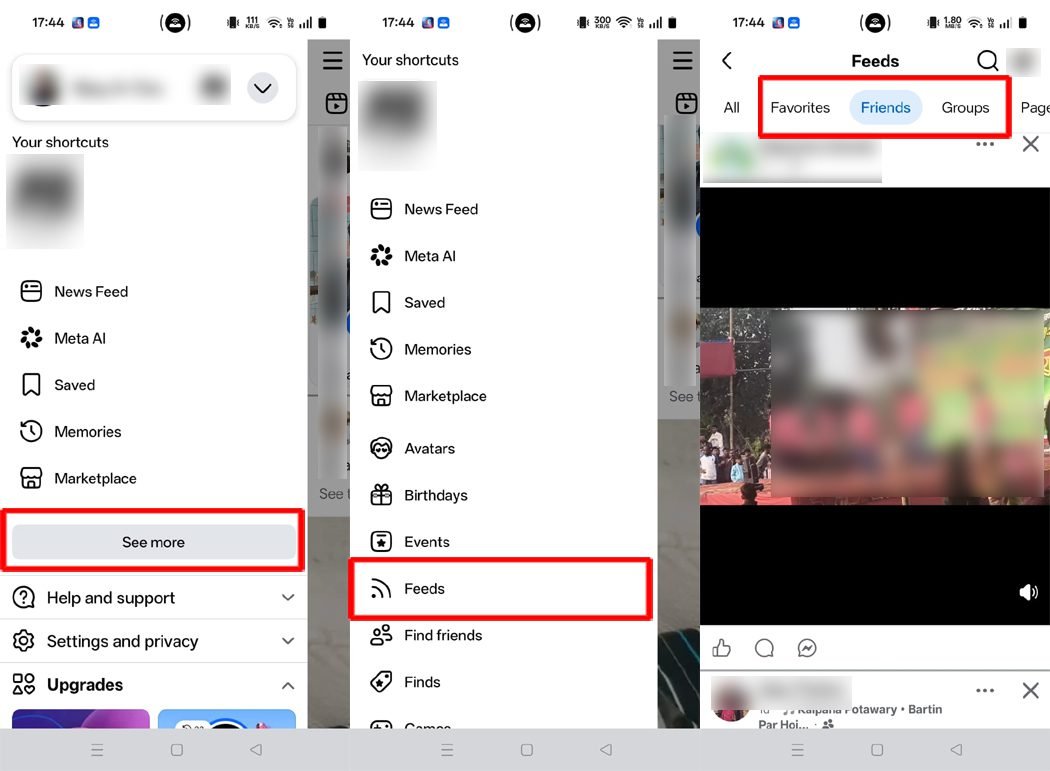
Note: This helps you avoid suggested topics, though sponsored ads may still appear.
Step 2: Use the Not Interested Option
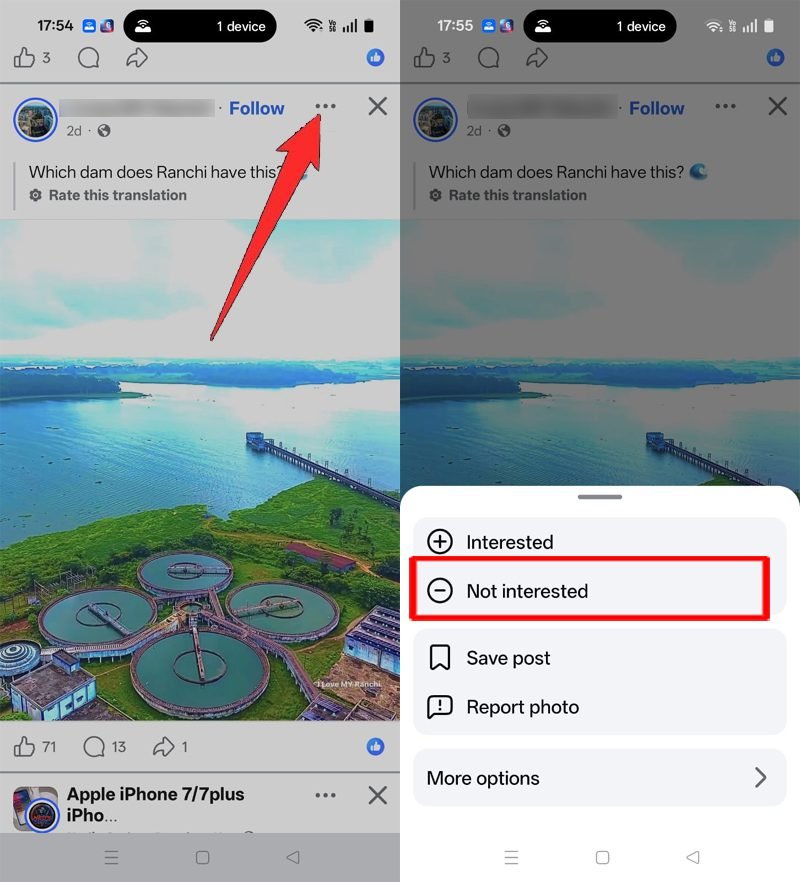
If Facebook shows a topic you do not like, you can use the Not Interested option to train the algorithm. This helps reduce similar recommendations over time.
- Open the Facebook app.
- Find a suggested post in your feed.
- Tap the three-dot menu in the top-right corner.
- Select Not Interested (or tap Hide post and choose See fewer posts like this).
- Follow any follow-up prompts on the screen.
Step 3: Adjust Your Algorithm Preferences or Content Preferences
Meta’s Your Algorithm feature lets you tell the Facebook app in your own words what topics you want to see more or less of in your Feed and Reels.
- Open the Facebook app.
- Find a regular or suggested post in your feed (make sure it is not a Sponsored ad).
- Tap the three-dot menu (•••) in the top-right corner.
- Select Your Algorithm (usually the third option down).
- Review the suggested topics on the screen, or type in your own words what you want to see less of.
- Follow the on-screen instructions to save your changes.
Note: Meta is rolling out Your Algorithm gradually across regions. If you do not see it in your three-dot menu yet, tap Content preferences (or select Not interested on the post) to adjust your topic settings instead.
Step 4: Tap the “X” Icon to Hide Individual Suggested Posts
If you want to immediately remove a single suggested post from your screen without opening any menus, use the quick close button.
- Open Facebook and scroll through your feed.
- Find the suggested post you want to remove.
- Tap the X icon in the top-right corner of the post (located right next to the three-dot menu).
- Facebook will immediately hide that post and show a brief confirmation prompt.

Note: If you do not see an X icon, tap the three-dot menu (•••) and select Hide post (for followed Pages) or Hide ad (for Sponsored posts). This removes the single post, though it does not permanently turn off all future suggestions.
Step 5: Manage Feed Preferences
Facebook provides built-in feed preferences that let you prioritize posts from friends, Pages, and Groups so your timeline stays focused on accounts you care about.
- Open the Facebook app.
- Tap the Menu icon.
- Go to Settings & privacy and select Settings.
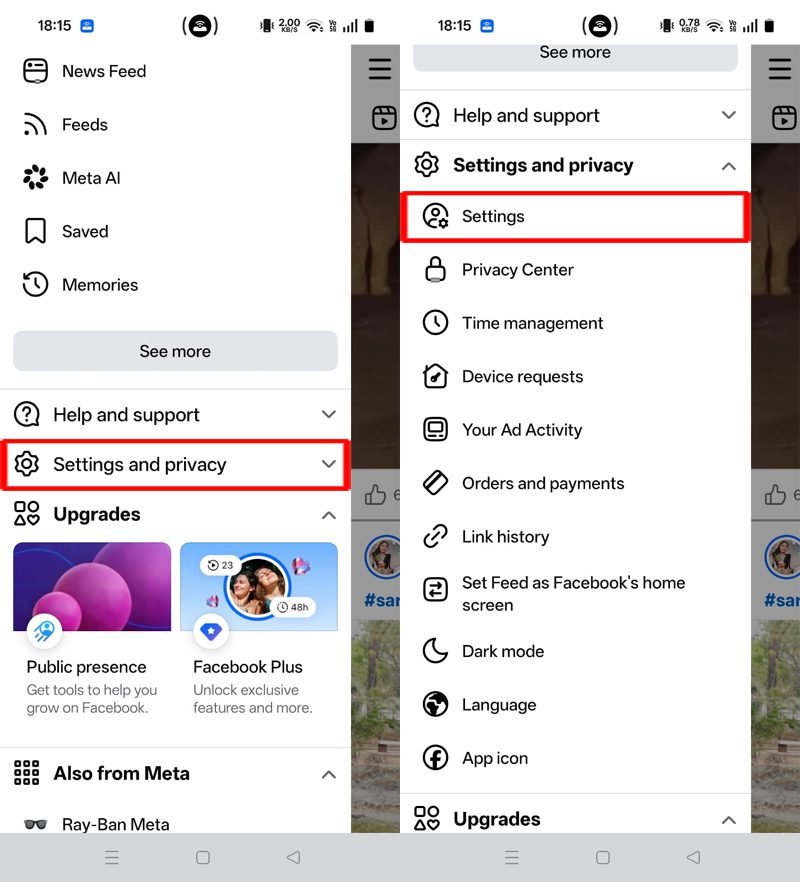
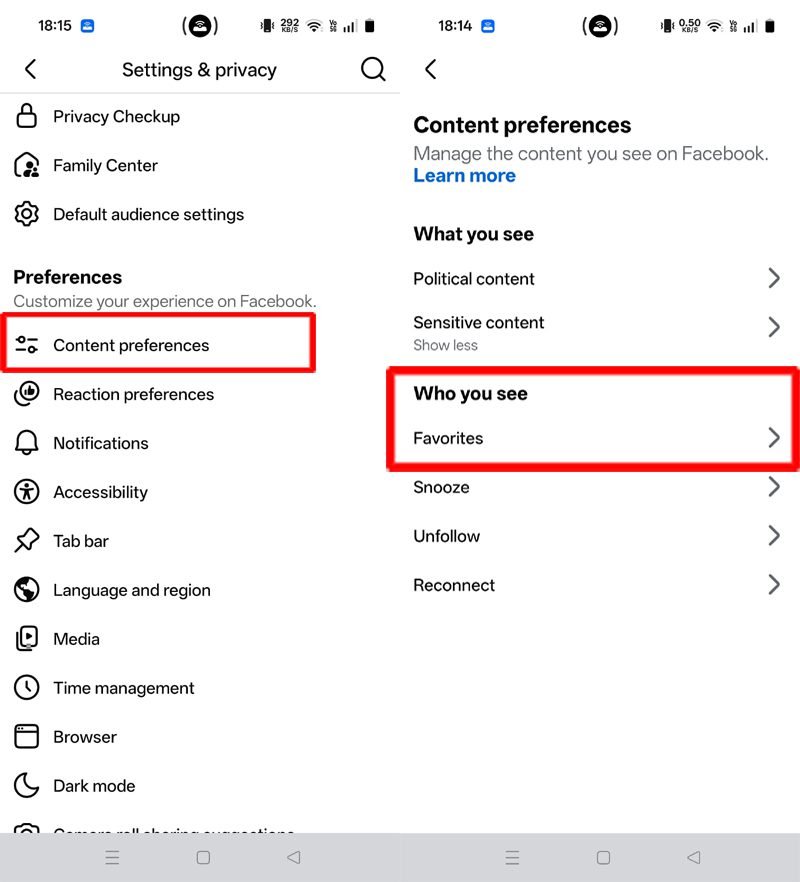
- Scroll to Preferences and tap Feed or Content preferences.
- Review options such as Favorites, Unfollow, Reconnect, and Snooze.
- Add up to 30 friends and Pages to Favorites so their posts appear higher in your feed.
Step 6: Unfollow Pages You Don’t Like
If you no longer want to see posts from a particular Page you previously followed, you can unfollow it.
- Open Facebook and search for the Page.
- Open the Page profile.
- Tap the Following button.
- Select Unfollow.
Note: You can still visit the Page whenever you want, but its regular posts will no longer appear in your feed.
Step 7: Snooze Unwanted Pages
If you want to stop seeing posts from a Page temporarily, use the Snooze option.
- Find a post from that Page in your feed.
- Tap the three-dot menu.
- Select Snooze [Page Name] for 30 days, if available.
- Confirm your choice if Facebook asks.
Note: This temporarily hides posts from that Page, and its updates may appear again after the 30-day period ends.
Step 8: Adjust Ad and Topic Preferences
Facebook uses your activity and interests to show suggested posts and ads. You can adjust these settings in the Accounts Center.
- Open the Facebook app.
- Go to Settings & privacy and select Settings.
- Open Accounts Center and select Ad preferences.
- Review options such as Ad topics and Activity information from ad partners to limit unwanted categories.
Note: Settings may vary depending on your account and region. Changing ad preferences reduces irrelevant ads, though it does not permanently remove all suggested posts.
Step 9: Update the Facebook App (and Clear Cache on Android)
An outdated app may not show newer tools like Your Algorithm. Updating the app ensures you have the latest feed controls.
- Open the Google Play Store (Android) or Apple App Store (iOS).
- Search for Facebook and open its app page.
- Tap Update, if available, and wait for it to finish.
- Open Facebook again and check your three-dot menu options.
Optional Tip for Android Users: If the app is glitching or failing to load updated menus, open your phone’s Settings > Apps > Facebook > Storage & cache, and tap Clear cache. (Clearing the cache only removes temporary files and does not delete your account data or directly turn off suggested topics.)
Step 10: Clear Your Facebook Search History
Facebook often suggests topics based on things you recently searched for inside the app. Clearing your search history helps stop those recommendations.
- Open the Facebook app and tap the Search (magnifying glass) icon at the top.
- Tap See all next to Recent searches.
- Tap Clear all to remove your past searches, or tap the X next to specific topics you no longer want to see.
Step 11: Filter Your Feed on a Desktop Browser (PC or Mac)
If you use Facebook on a computer, the layout looks slightly different from the mobile app, making it even easier to hide suggested topics.
- Go to facebook.com and log in to your account.
- Look at the left-hand menu and click Feeds (click See more if it is hidden).
- Choose Friends, Favorites, Pages, or Groups to view posts in chronological order without suggested topics.
Tip: You can bookmark the Friends feed page in your browser so you never have to see the default algorithmic Home feed on your computer.
Additional Tips to Manage Your Facebook Feed
- Scroll past without pausing or reacting: Facebook tracks how long you stop to look at a post, and even leaving an angry reaction or negative comment counts as engagement. Quickly scrolling past unwanted topics tells the algorithm to stop showing them.
- Use “Not Interested” consistently: Giving quick feedback whenever an irrelevant suggestion appears helps retrain your feed faster over time.
- Pin the Feeds tab to your navigation bar: Go to Settings & privacy > Settings > Navigation bar > Customize the bar and pin Feeds so you can jump straight to posts from friends and followed Pages in one tap.
- Manage suggested Reels separately: Suggested topics often come from short videos. Tap the three-dot menu on unwanted Reels and choose Show less or update your Your Algorithm preferences to keep video suggestions relevant.
- Engage more with friends and Favorites: Liking and commenting on posts from close friends and favorite Pages signals Facebook to prioritize their updates over random recommendations.
Conclusion
Facebook provides several built-in options to manage unwanted recommendations and control what appears in your feed. You can hide individual posts, use the Not Interested option, adjust Your Algorithm preferences, and unfollow Pages you no longer want to see.
Although Facebook does not offer a single setting to permanently remove all suggested posts, combining these tools can significantly reduce unwanted content over time. Following these steps will help make your Facebook feed cleaner, more relevant, and much easier to manage.
You Might Also Be Interested In:
- How to Fix Facebook Two-Factor Authentication Code Not Sending to WhatsApp/SMS
- Fix “Linking Isn’t Available Right Now”: How to Connect Instagram to Facebook
- How to Fix “This Content Isn’t Available Right Now” on Facebook (Causes & Fixes)

Danny Paul is a tech specialist and avid gamer with over 10+ years of experience resolving complex system errors, software bugs, and platform glitches. He specializes in creating straightforward, actionable troubleshooting guides for Android, iOS, PC gaming, and mainstream social media networks to help users fix issues instantly. In his free time, he loves solving puzzles, playing online games, watching movies, and traveling.