Getting kicked out of a match or stuck on the loading screen in ROB RUN is frustrating, especially when vague pop-ups like Error E-403 (Authorization Failed), Network Error, or Can’t Connect to Server stop you from playing on PC.
Whether you are dealing with sudden login failures, annoying multiplayer issues, severe lag, or unstable server connections, most of these problems share the same root causes on Windows.
Below, we have put together a complete, step-by-step troubleshooting guide to fix ROB RUN connection, multiplayer, and server errors so you can get back into your heist without interruption.
Quick ROB RUN Error Code Reference Table
Before diving into the fixes, match the error code on your screen to the table below to see what is blocking your connection:
| Error Code | What It Means | Primary Cause |
|---|---|---|
| E-0101/E-0110 | Cannot connect to server for startup data | Server outage, offline network, or routing block |
| E-0102 | Downloaded game data was blocked or corrupted | Antivirus HTTPS scanning, VPN/proxy, or public Wi-Fi |
| E-0124 | Internal game asset loading error | Missing or damaged local game files |
| E-0201 | Lost connection to the game server mid-session | Unstable Wi-Fi, packet loss, or server restart |
| E-0301/E-0302 | Outdated game client version | Pending game update on Steam |
| E-0303/E-0304 | Corrupted or mismatched game data | Interrupted patch or cached server mismatch |
| E-0401 | Steam account authentication failed | Steam is offline or session token expired |
| E-0403/E-0404 | Epic Online Services (EOS) authorization failed | Firewall block, Windows clock sync, or missing EOS background service |
| E-0405 | Steam not responding or library blocked | Antivirus quarantined a game file |
| E-0501/E-0502 | Easy Anti-Cheat failed to initialize | Launched outside Steam or corrupted EAC service |
How to Fix ROB RUN Connection, Server & E-403 Errors on PC
Work through these solutions in order. Start with the quick server and Steam checks before moving on to Easy Anti-Cheat, Epic Online Services, and Windows network resets.
Fix 1. Check ROB RUN Server Status & Regional Outages First
If the game hangs on “Waiting for Status Information” or throws E-0101 without any changes on your end, the servers may be undergoing maintenance.
- Check the official ROB RUN Steam Discussions, the game’s Steam news hub, or Kefir’s official X (Twitter) page to see if specific regions (such as EU or US servers) are experiencing downtime.
- If servers were recently restarted, wait 10 to 15 minutes before logging in again so queues can clear.
Fix 2. Fully Restart Steam and Launch from Your Library
Launching ROB RUN from a desktop shortcut can cause authentication tokens and Easy Anti-Cheat to fail, triggering E-0401, E-0403, or E-0501.
- Close ROB RUN completely.
- Press Ctrl + Shift + Esc to open Task Manager.
- End any background processes for ROB RUN, Steam, and Easy Anti-Cheat.
- Reopen Steam, confirm it is in Online Mode, and click Play directly inside your Steam Library.
Fix 3. Install, Update, or Run Epic Games Launcher in the Background (Fixes E-0403)
Even when playing on Steam, ROB RUN relies on Epic Online Services (EOS) for multiplayer authorization. Missing or outdated EOS files frequently trigger Error E-0403.
- Download and install the Epic Games Launcher if it is not already on your PC.
- If it is already installed, open it, go to Settings, and install any pending launcher or service updates.
- Keep the Epic Games Launcher running minimized in the background while you launch ROB RUN on Steam.
- Note: If an outdated installation is causing conflicts and won’t update, uninstall the Epic Games Launcher completely, restart your PC, and test the game again.
Fix 4. Repair Easy Anti-Cheat Using the install prod-fn Command
If you see Error E-0501/E-0502 or E-0403, your Easy Anti-Cheat (EAC) service may need a manual repair:
- Open your Steam Library, right-click ROB RUN, and select Manage > Browse local files.
- Look for a batch/executable file named Fix EAC (or similar), right-click it, and select Run as administrator.
- If that does not work, open the EasyAntiCheat folder inside the game directory.
- Right-click EasyAntiCheat_EOS_Setup.exe and select Send to > Desktop (create shortcut).
- Right-click the new shortcut on your Desktop and click Properties.
- In the Target box, click at the very end after the closing quotation mark (
"), press Spacebar once, and typeinstall prod-fn. (Example:"C:\...\EasyAntiCheat_EOS_Setup.exe" install prod-fn) - Click Apply and OK, then right-click the shortcut and choose Run as administrator to reinstall the anti-cheat service.
Fix 5. Sync Your Windows Date, Time, and Region Settings
Epic Online Services relies on strict security certificates to verify your login. If your PC clock or region is out of sync, authorization will fail immediately.
- Right-click the clock in the bottom-right corner of your Windows taskbar and select Adjust date and time.
- Toggle Set time automatically and Set time zone automatically to On.
- Scroll down and click Sync now under Additional settings.
- Next, go to Time & language > Language & region in Windows Settings and verify that your Country or region matches your actual physical location.
- Restart your PC and launch the game.
Fix 6. Whitelist All Three Game Executables in Controlled Folder Access & Firewall
Windows Ransomware Protection and Defender Firewall often block ROB RUN’s background anti-cheat files from connecting to servers.
- Open Windows Security > Virus & threat protection > Manage ransomware protection.
- Click Allow an app through Controlled folder access > Add an allowed app > Browse all apps.
- Navigate to your ROB RUN installation folder (
...\steamapps\common\ROB RUN\) and add all three of these.exefiles:- The main ROB RUN executable (
ROB RUN.exe) start_protected_game.exe- The setup
EasyAntiCheat_EOS_Setup.exeinside the EasyAntiCheat subfolder
- The main ROB RUN executable (
- Next, open Control Panel > System and Security > Windows Defender Firewall > Allow an app or feature through Windows Defender Firewall.
- Click Change settings, add all three
.exefiles above, and ensure both Private and Public checkboxes are ticked for each one. - If you use third-party antivirus software (Avast, AVG, Bitdefender, McAfee, Kaspersky, Norton), add these three files to its exclusions list or temporarily disable HTTPS/Web Shield scanning while playing.
Fix 7. Run the Game as Administrator
Missing Windows permissions can prevent ROB RUN from writing temporary session tokens.
- Right-click ROB RUN in Steam and choose Manage > Browse local files.
- Right-click the main game
ROB RUN.exe(and/orstart_protected_game.exe) and select Run as administrator.
Fix 8. Verify the Integrity of Game Files on Steam
Corrupted patches or missing assets cause E-0124, E-0303, and E-0403 errors.
- Open your Steam Library, right-click ROB RUN, and choose Properties.
- Select the Installed Files tab on the left and click Verify integrity of game files.
- Wait for Steam to replace any damaged files, then relaunch the game.
Fix 9. Power Cycle Your Router or Test a Mobile Hotspot
If your ISP is having a temporary routing glitch to the game servers, switching networks quickly isolates the problem.
- Power Cycle Your Router: Unplug your Wi-Fi router and modem from power for 1 to 2 minutes, plug them back in, and wait for a full connection before testing.
- Test a Mobile Hotspot: Turn on mobile data and a Wi-Fi hotspot on your phone, connect your PC to it, and try logging into ROB RUN. If the game connects over mobile data, the issue is with your home ISP routing or router firewall.
Fix 10. Toggle VPNs (Disconnect Active VPNs or Test Routing Through One)
- If you are using a VPN or Proxy: Turn it off completely. Go to Windows Settings > Network & internet > Proxy and ensure Use a proxy server is set to Off, as proxies frequently cause E-0102 and E-0403 blocks.
- If your ISP is blocking game traffic: Conversely, some players resolve regional ISP routing blocks by connecting to a nearby server using a reputable VPN (such as Cloudflare WARP or ProtonVPN).
Fix 11. Flush DNS, Renew IP, and Switch DNS Servers
Resetting your local network stack clears stale IP leases and DNS routing caches.
- Click the Windows Start button, type cmd, right-click Command Prompt, and select Run as administrator.
- Run each of these five commands one by one, pressing Enter after each:
ipconfig /release ipconfig /flushdns ipconfig /renew netsh int ip reset netsh winsock reset - Next, open Control Panel > Network and Internet > Network and Sharing Center > Change adapter settings.
- Right-click your active connection (Ethernet or Wi-Fi) and click Properties.
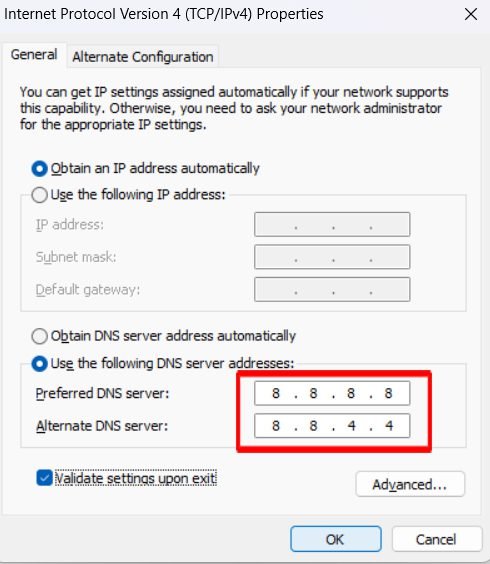
- Double-click Internet Protocol Version 4 (TCP/IPv4), select Use the following DNS server addresses, and enter:
- Preferred DNS server:
8.8.8.8(or Cloudflare1.1.1.1) - Alternate DNS server:
8.8.4.4(or Cloudflare1.0.0.1)
(Tip: If you were already using a custom DNS, try switching back to Obtain DNS server address automatically.)
- Preferred DNS server:
- Click OK and restart your PC.
Fix 12. Temporarily Disable IPv6 and Fix Multiplayer Lag & Matchmaking Issues
Some multiplayer servers struggle with dual-stack IPv4/IPv6 handshakes, causing login loops or high packet loss.
- Open your network adapter’s Properties window (same path as Step 11).
- Uncheck Internet Protocol Version 6 (TCP/IPv6) and click OK. (You can re-enable this box after your gaming session if needed.)
- Eliminate Lag & Error E-0201: Switch from Wi-Fi to a wired Ethernet cable, pause background downloads or 4K streams, and verify that your in-game server region matches your nearest location.
Fix 13. Perform a Windows Network Reset & Install Windows Updates
If none of the steps above clear the error, corrupted Windows network drivers or missing OS security certificates may be at fault.
- Update Windows: Go to Windows Settings > Windows Update, click Check for updates, and install all available updates.
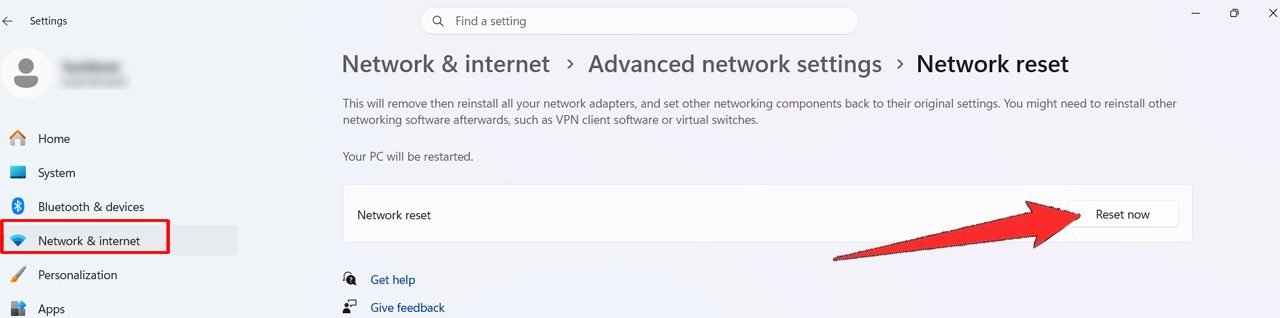
- Reset Network Adapters: Go to Windows Settings > Network & internet > Advanced network settings > Network reset and click Reset now.
- Restart your PC, reconnect to your Wi-Fi or Ethernet, and launch ROB RUN.
Conclusion
Dealing with ROB RUN server errors, multiplayer issues, or Error E-403 (Authorization Failed) on PC usually comes down to a minor sync glitch between Steam, Epic Online Services, and your Windows network settings.
In most cases, verifying that the servers are online, syncing your Windows clock, whitelisting the game files in Windows Security, or flushing your DNS cache will get you back into matches smoothly.
If one fix does not immediately resolve your connection or lag problem, work down the checklist step by step until your network handshake clears.
Frequently Asked Questions (FAQ)
1. Why does ROB RUN say “Error E-403 Authorization Failed” on PC?
Error E-0403 means Epic Online Services failed to verify your game session. It is typically caused by an out-of-sync Windows clock, missing/outdated Epic Games Launcher background services, a corrupted Easy Anti-Cheat installation, or firewall software blocking start_protected_game.exe.
2. How do I fix ROB RUN stuck on “Connecting to Server”?
First, check Steam announcements or X (Twitter) to ensure your regional servers are online. If servers are up, completely close Steam via Task Manager, disable any active VPN, run ipconfig /flushdns and ipconfig /renew in Command Prompt, and launch the game directly from your Steam Library.
3. Why do I keep disconnecting mid-game with Error E-0201?
Error E-0201 occurs when your PC loses its active connection to the match server and cannot reconnect in time. Switching from Wi-Fi to a wired Ethernet connection, disabling IPv6, and changing your DNS to 8.8.8.8 or 1.1.1.1 resolves most local routing drops.
More ROB RUN Troubleshooting Guides
- How To Fix ROB RUN Not Launching & Crashing on PC
- How to Fix ROB RUN Stuttering, Mouse Lag, and Low FPS on PC
- How to Fix ROB RUN “Fatal Error: Failed to Load il2cpp”

Danny Paul is a tech specialist and avid gamer with over 10+ years of experience resolving complex system errors, software bugs, and platform glitches. He specializes in creating straightforward, actionable troubleshooting guides for Android, iOS, PC gaming, and mainstream social media networks to help users fix issues instantly. In his free time, he loves solving puzzles, playing online games, watching movies, and traveling.