
X Bookmarks allow users to save important posts and read them later. However, sometimes saved posts may suddenly disappear, the bookmarks list may appear empty, or older posts may not load properly.
Having your X bookmarks disappear on Android or iOS can happen because of temporary app glitches, network problems, account switching, or changes to the original post – or simply because X recently moved them into a new History tab on iOS. Checking the updated menu, verifying your account, and refreshing or updating the X app can help fix this problem.
Common Reasons: Why X Bookmarks Disappear?
There are several reasons why saved posts may not appear in your X account.
- Recent iOS menu update: X moved the Bookmarks tab inside a new History menu on iPhone, making it look like your saved posts vanished.
- Incorrect account: You may be signed in to a different X account.
- Temporary app issues: A loading problem or corrupted cache can prevent saved posts from appearing.
- Poor internet connection: A weak network may stop your bookmark list from loading.
- Original post removed: The author may have deleted the post, gotten suspended, or made their account private.
- Bookmark Folders: Posts moved into custom folders stay hidden from the main feed, and an expired X Premium plan can affect folder access.
- Outdated X app: An older app version may cause display or loading problems.
- Accidental removal: You may have tapped the bookmark icon again and removed a saved post without noticing.
Effective Fixes to Restore Missing X Bookmarks
Follow the steps below in order, starting with the quickest menu and account checks before moving on to app troubleshooting. Most missing bookmark issues on Android and iPhone can be fixed within a couple of minutes.
Fix 1: Check the New “History” Tab on iPhone
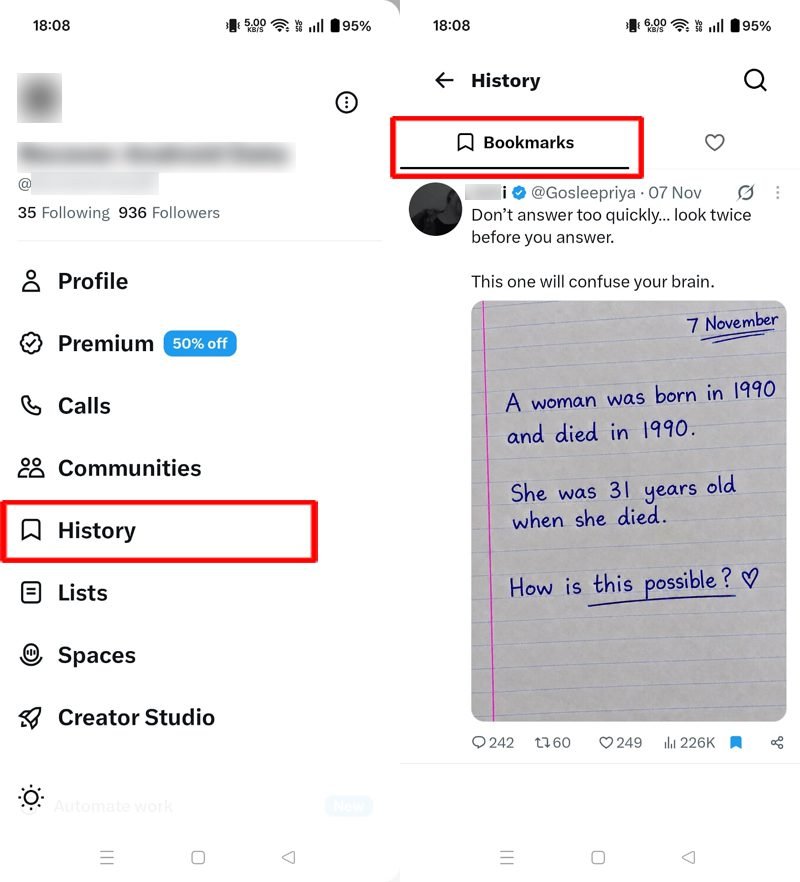
If the Bookmarks button seems completely gone from your side menu on iPhone, X has not deleted your saves. Instead, X moved them into a new History hub.
On iOS
- Open the X app and tap your profile picture in the top-left corner.
- Tap History from the side menu.
- Select the Bookmarks tab at the top to view your saved posts.
(Note: Most Android users and older iOS app versions still show Bookmarks directly in the main side menu.)
Fix 2: Check Your X Account
Sometimes, X bookmarks disappear because you are signed in to a different account. Since bookmarks are tied to individual profiles, saved posts will only appear in the account where you originally saved them.
On Android/iOS
- Open the X app on your phone.
- Tap your profile picture.
- Check your username and account details.
- Switch to the account where you saved the posts.
- Open Bookmarks (or History > Bookmarks on iOS) and check your saved content.
Fix 3: Check Bookmark Folders and X Premium Status
If you use Bookmark Folders, moving a post into a folder removes it from your main Bookmarks feed. Additionally, because folders are an X Premium feature, an expired subscription can hide your folders from view.
On Android/iOS
- Open your Bookmarks tab and check if you have separate folders created at the top or in the menu.
- If your folders are missing, tap your profile picture and go to Settings and privacy > Premium to verify that your subscription is still active.
Fix 4: Refresh the Bookmarks Section
Sometimes, a temporary loading glitch can prevent your saved posts from appearing. Refreshing the bookmarks timeline forces X to fetch your saved content again.
On Android/iOS
- Open the X app.
- Tap your profile picture and select Bookmarks (or History > Bookmarks on iOS).
- Pull down on the screen to refresh the list.
- Wait a few seconds for your saved posts to load again.
Fix 5: Access Bookmarks Through X Web
A temporary bug in the X mobile app may stop saved posts from displaying even though they are safe on your account. Opening X through a mobile browser lets you verify if your bookmarks are still there.
On Android
- Open Chrome on your phone and visit x.com.
- Sign in to your X account.
- Open the Bookmarks section from the menu.
- Check whether your saved posts are visible.
On iOS
- Open Safari on your iPhone and visit x.com.
- Sign in to your X account.
- Open the Bookmarks section from the menu.
- Check whether your saved posts appear.
If your bookmarks show up in the browser but not in the app, the issue is caused by a mobile app glitch.
Fix 6: Use Bookmark Search to Find Older Saves
A known X pagination bug can cause older bookmarks to stop loading once you scroll past roughly 800 to 1,000 saved posts—or right after removing several bookmarks in a row. Your older posts are still saved, even though scrolling stops early.
On iOS & X Web
- Open Bookmarks (or visit x.com in your mobile browser if you are on Android, where in-app bookmark search is often unavailable).
- Tap the Search Bookmarks bar at the top.
- Type a keyword, phrase, or username from the missing post to pull it back up.
Fix 7: Check Your Internet Connection
A slow or unstable internet connection can prevent X from loading saved posts properly. Switching to another network can quickly resolve bookmark loading errors.
On Android/iOS
- Open your phone’s Settings.
- Turn off Wi-Fi and enable mobile data (or connect to a stronger Wi-Fi network).
- Open X again and check whether your bookmarks are loading.
Fix 8: Check Sensitive Content Settings
X has content filters that control how sensitive media appears on your account. If some saved posts contain sensitive media, adjusting these settings may restore hidden posts.
On Android
- Open the X app and tap your profile picture.
- Go to Settings and privacy > Privacy and safety.
- Tap Content you see.
- Enable Display media that may contain sensitive content.
- Return to Bookmarks and check your saved posts.
On iOS
- Because Apple restricts this toggle inside the iOS app, open Safari and sign in at x.com.
- Go to More > Settings and privacy > Privacy and safety > Content you see, and enable Display media that may contain sensitive content.
- Restart the X app on your iPhone and check your bookmarks.
Fix 9: Check If X Servers Are Down
Sometimes, the problem is on X’s end rather than your phone or account. If X servers are experiencing an outage, bookmarks and timelines may appear blank for everyone.
On Android/iOS
- Open Chrome, Safari, or another browser.
- Visit Downdetector and search for X or Twitter.
- Check whether other users are reporting similar issues.
- If an outage is ongoing, wait until X resolves the server issue.
Fix 10: Force-Close the X App
Pulling down to refresh inside a tab does not always reload X’s side navigation or clear a frozen screen. Force-closing the app completely restarts its background processes.
On Android
- Swipe up from the bottom of your screen (or tap the Recent Apps button).
- Swipe the X app card up or off the screen to close it.
- Reopen X and check your bookmarks.
On iOS
- Swipe up from the bottom of your screen and pause in the middle (or double-click the Home button on older models).
- Swipe the X app preview upward to close it completely.
- Relaunch X and open History > Bookmarks.
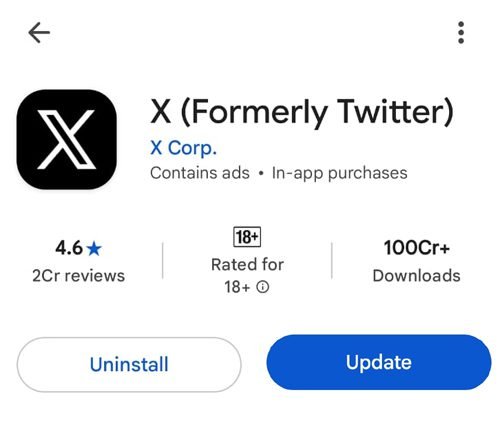
Fix 11: Update the X App
Running an outdated version of X can cause display bugs and sync failures. Installing the latest update patches known issues affecting saved posts.
On Android
- Open the Google Play Store and search for X.
- Open the app page and tap Update if an update is available.
- Launch X and check your bookmarks list.
On iOS
- Open the Apple App Store and search for X.
- Check whether an update is available and tap Update.
- Open the app and check your saved posts.
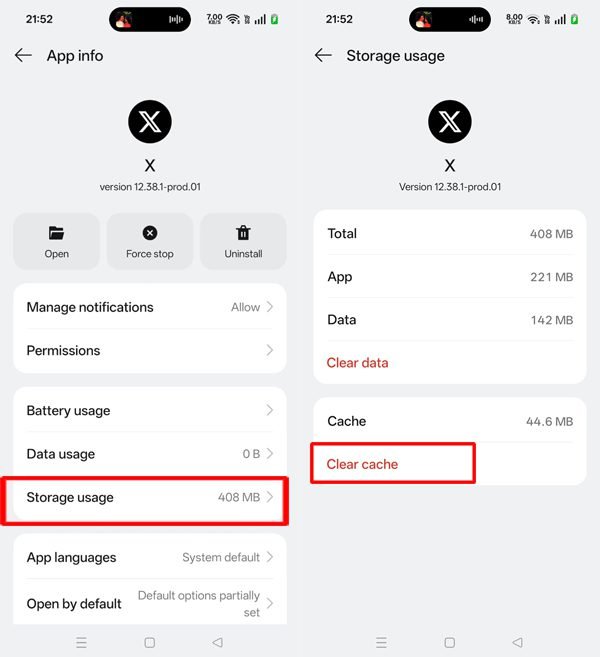
Fix 12: Clear the X App Cache on Android
Corrupted temporary files stored by X can prevent your bookmarks list from loading. Clearing the app cache forces X to rebuild fresh data without deleting your account or saves.
On Android
- Open Settings on your phone.
- Go to Apps or App Management.
- Select X from the app list.
- Tap Storage or Storage Usage.
- Choose Clear Cache, then reopen X and check your bookmarks.
On iOS
- iPhone does not offer a separate button to clear the cache for individual apps. Force-close the X app and reopen it, or move on to reinstalling the app if the issue persists.
Fix 13: Restart Your Device
Temporary system glitches can interfere with how background apps sync data. Restarting your phone refreshes the operating system and clears minor software conflicts.
On Android
- Close X and other running apps.
- Press and hold the power button, then select Restart.
- Wait for your phone to turn back on, open X, and check your saved posts.
On iOS
- Press and hold the side button and a volume button until the power-off slider appears.
- Slide to turn off your iPhone and wait a few seconds.
- Turn your iPhone back on, open X, and check whether your bookmarks are visible.
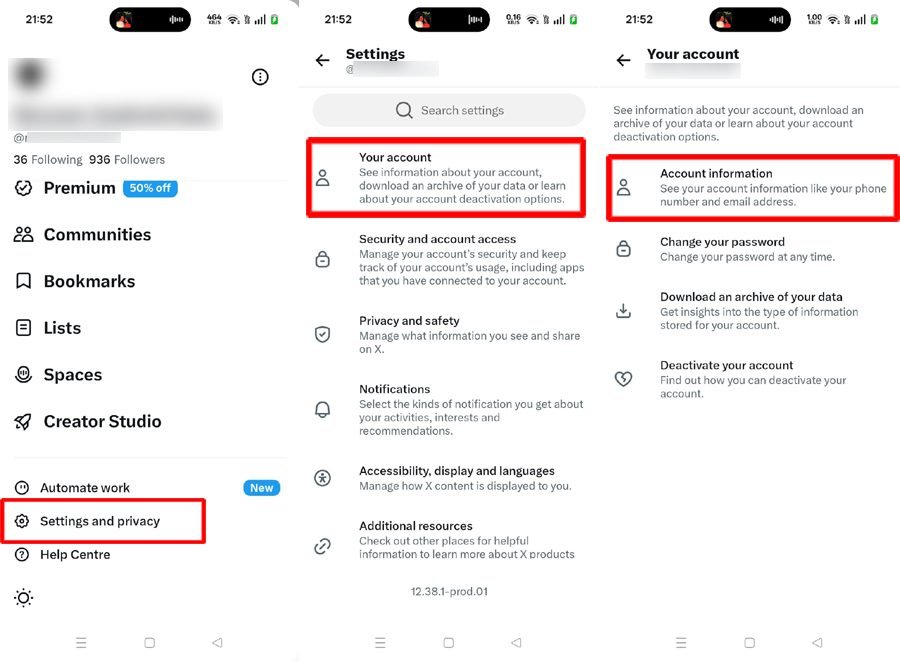
Fix 14: Log Out and Log Back Into X
An expired or corrupted login session can stop X from syncing your saved bookmarks properly. Signing out and back in refreshes your account connection.
On Android/iOS
- Open the X app and tap your profile picture.
- Go to Settings and privacy > Your account > Account information.
- At the end, tap on the Log out option to sign out of your account.
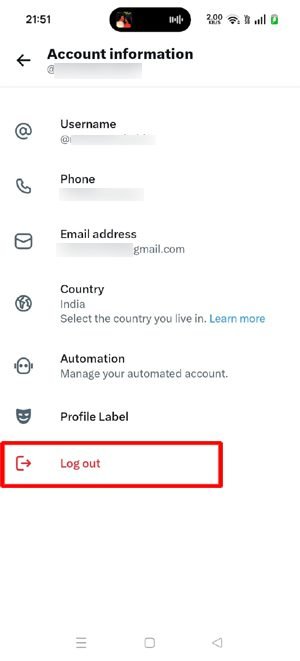
- Sign back in using your account details and check the Bookmarks section.
Fix 15: Reinstall the X App
If your X bookmarks are still missing after trying all previous fixes, reinstalling the app removes damaged installation files and gives you a clean slate.
On Android
- Open Settings > Apps, select X, and tap Uninstall.
- Open the Google Play Store, search for X, and install it again.
- Sign in and check your bookmarks.
On iOS
- Press and hold the X app icon on your Home Screen.
- Select Remove App > Delete App.
- Open the App Store, search for X, and install it again.
- Sign in to your account and check your saved posts.
(Tip: Save any unfinished post drafts and make sure you remember your login credentials before uninstalling the app.)
Fix 16: Check Whether the Original Post Was Removed
Not every missing bookmark is caused by a technical bug. X bookmarks act as direct links to live posts – if the original author deletes a post, gets suspended, or switches their account to private, the post automatically disappears from your Bookmarks list and cannot be recovered.
How to Save, Find, and Remove Bookmarked Posts on X
You can save any post on X using the bookmarks option, making it easy to read later without searching for it again.
To Bookmark a Post:
Open the post you want to save and tap the Bookmark icon (ribbon symbol) below it. The post will be added to your Bookmarks list.
To Find Your Saved Posts:
- On iPhone (iOS): Tap your profile picture in the top-left corner, open History, and select Bookmarks (on older app versions, tap Bookmarks directly).
- On Android: Open X, tap your profile picture in the top-left corner, and select Bookmarks.
- On Desktop: Open X and click Bookmarks from the left-side menu (click More if you are using a narrow window).
To Remove a Saved Post:
Open your Bookmarks list and find the post you no longer want to save. Tap the Bookmark icon again to remove it from your list.
Helpful Tips to Keep Your X Bookmarks Safe
- Verify your active account: Always make sure you are signed in to your primary X account before saving important posts.
- Watch out for accidental taps: Be careful not to tap the bookmark ribbon icon a second time while reading saved posts, as X removes the item immediately without asking for confirmation.
- Keep the X app updated: Install regular updates from the Google Play Store or Apple App Store to avoid sync bugs and display glitches.
- Use Bookmark Search for older saves: If you have hundreds of saved posts, use the search bar inside Bookmarks (or on x.com) instead of scrolling down endlessly.
- Watch out for X Premium folder limits: If you organize posts into Bookmark Folders and plan to cancel your X Premium subscription, move your must-have saves back to the main Bookmarks list first so you do not lose easy access to them.
- Back up must-have links in Notes: Copy the link to critical posts and paste it into your phone’s Notes app or a browser bookmark, since X bookmarks vanish permanently if the original author deletes the post.
- Export large lists with a bookmark manager: If you save hundreds of posts for work or research, consider syncing them to a third-party bookmark tool (like Dewey or Raindrop.io) on desktop so you keep a searchable offline copy.
Conclusion
Missing saved posts can make it frustrating to find important content later. Fortunately, checking the new History menu on iOS, verifying your active account, refreshing the app, or clearing temporary files will quickly fix X bookmarks disappearing on Android and iPhone in most cases.
Keep in mind that if an original post has been deleted or is no longer available, it cannot be restored. Keeping a separate copy of critical post links in your Notes app or a bookmark manager is the best way to avoid losing access to useful content permanently.
Related Guides
- How to Fix X (Twitter) DMs Not Syncing Across Devices
- How to Fix “Post Not Sent” & “Failed to Send Post” Errors on X (Twitter)
- How to Fix Photos and Videos Not Loading in Posts & Chats on X

Danny Paul is a tech specialist and avid gamer with over 10+ years of experience resolving complex system errors, software bugs, and platform glitches. He specializes in creating straightforward, actionable troubleshooting guides for Android, iOS, PC gaming, and mainstream social media networks to help users fix issues instantly. In his free time, he loves solving puzzles, playing online games, watching movies, and traveling.