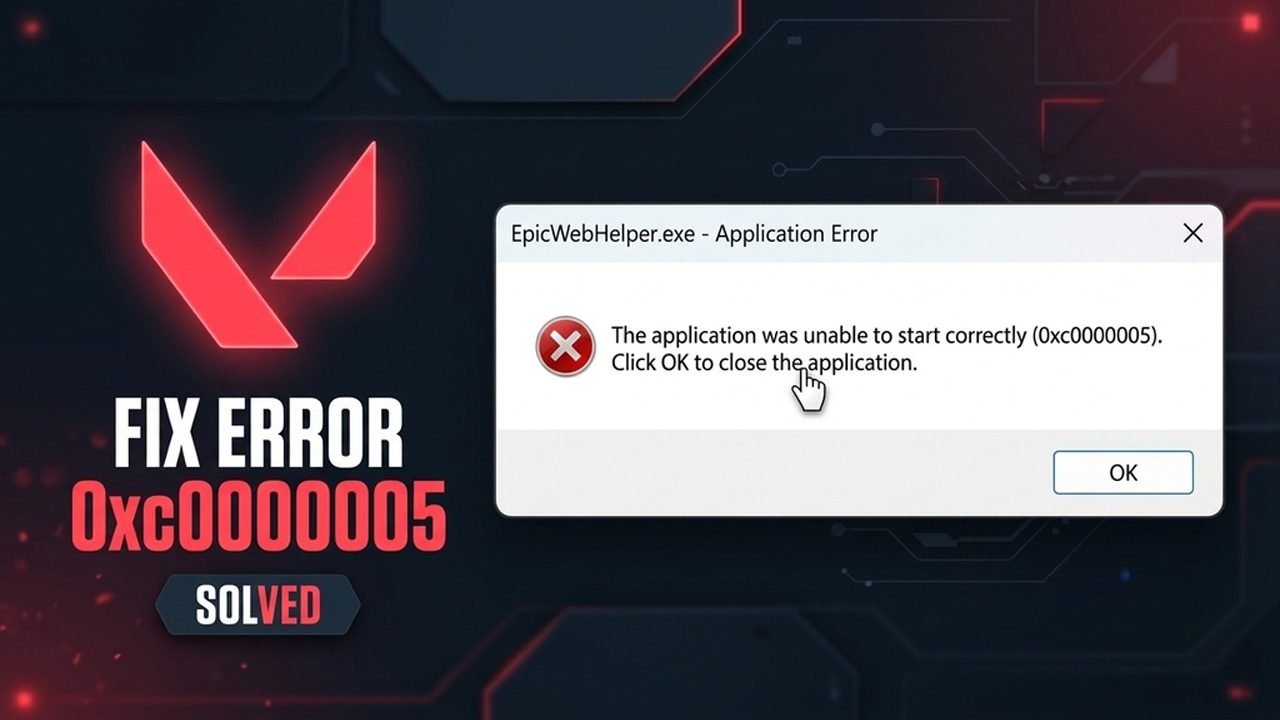
Getting hit with the “EpicWebHelper.exe – Application Error: The application was unable to start correctly (0xc0000005)” pop-up when trying to launch Valorant on PC is frustrating, especially when you just want to jump into a match.
This memory access violation error typically happens when third-party antivirus tools flag Valorant’s internal web helper process, Windows security settings block file access, or background launcher cache files become corrupted.
Fortunately, you don’t need to reinstall the entire game right away – follow the step-by-step fixes below to resolve the error and get back into Valorant.
What Causes Valorant EpicWebHelper.exe Error 0xc0000005?
Error 0xc0000005 is a standard Windows Access Violation code, meaning an application tried to read or write to a protected block of memory and was blocked or crashed. Because EpicWebHelper.exe runs inside both Valorant’s Unreal Engine directory and the Epic Games Launcher to handle web overlays and store elements, several common triggers can cause it to fail on startup:
- Overprotective Antivirus Software (False Positives): Third-party antivirus programs like Avast, Norton, and AVG frequently mistake
EpicWebHelper.exefor a suspicious process, blocking or quarantining it the moment Valorant launches. - Windows Security & Controlled Folder Access: Built-in Windows Ransomware Protection or Firewall rules can prevent the web helper process from accessing local directories or establishing network connections.
- Corrupted LocalAppData or Launcher Webcache: Outdated or broken temporary browser files stored inside the Riot Games or Epic Games
LocalAppDatafolders can cause the helper executable to crash immediately. - Riot Vanguard & Permission Conflicts: Because Riot Vanguard operates at the Windows kernel level, launching Valorant or Epic Games without proper administrator permissions can trigger memory access conflicts.
- Damaged System DLLs or Visual C++ Runtimes: Missing or corrupted Microsoft Visual C++ Redistributable libraries or Windows system files can prevent Unreal Engine’s web helper module from initializing properly.
How to Fix Valorant EpicWebHelper.exe Error 0xc0000005
Work through these fixes in order, starting with the most common antivirus and Windows security adjustments before moving on to deeper system and launcher fixes. Most players resolve the error within the first two or three steps without needing to reinstall the game.
Before you begin, make sure you are signed into a Windows administrator account and save any open work, as a few of these solutions require a quick PC restart so Riot Vanguard and Windows Security can apply the changes properly.
Fix 1. Whitelist Valorant and EpicWebHelper Files in Your Antivirus (Avast, Norton, Windows Defender)
Third-party antivirus software (especially Avast and Norton) frequently flags Valorant’s internal EpicWebHelper.exe file as a false positive, causing the 0xc0000005 pop-up to loop endlessly. Adding both the individual .exe files and the main installation folders to your antivirus exclusions list resolves this immediately.
- Open your antivirus program (such as Norton, Avast, AVG, or Windows Security > Virus & threat protection > Manage settings > Add or remove exclusions).
- Go to Exclusions / Exceptions and add these four specific executable files:
C:\Riot Games\VALORANT\live\Engine\Binaries\Win64\EpicWebHelper.exeC:\Riot Games\VALORANT\live\VALORANT.exeC:\Riot Games\VALORANT\live\ShooterGame\Binaries\Win64\VALORANT-Win64-Shipping.exeC:\Riot Games\Riot Client\RiotClientServices.exe
- Next, add these three main folders to your exclusions list as well:
C:\Riot GamesC:\Program Files\Riot VanguardC:\Program Files (x86)\Epic Games(if you installed Valorant through Epic)
- Restart your PC and launch Valorant again.
(Tip: If the error pop-up keeps reappearing every time you click OK, open Task Manager with Ctrl + Shift + Esc and end VALORANT-Win64-Shipping.exe before applying the exclusions.)
Fix 2. Allow the Game Executables Through Windows Controlled Folder Access
Windows 10 and 11 include a Ransomware Protection feature called Controlled folder access that can block EpicWebHelper.exe from accessing memory or writing temporary files.
- Click the Start menu, type Windows Security, and open it.
- Go to Virus & threat protection, scroll down to Ransomware protection, and click Manage ransomware protection.
- Click Allow an app through Controlled folder access, then select Yes on the prompt.
- Click Add an allowed app > Browse all apps, and add these four files one by one:
C:\Riot Games\VALORANT\live\Engine\Binaries\Win64\EpicWebHelper.exeC:\Riot Games\VALORANT\live\VALORANT.exeC:\Riot Games\VALORANT\live\ShooterGame\Binaries\Win64\VALORANT-Win64-Shipping.exeC:\Riot Games\Riot Client\RiotClientServices.exe
Fix 3. Allow Valorant and EpicWebHelper Through Windows Firewall
If Windows Defender Firewall blocks EpicWebHelper.exe or RiotClientServices.exe from establishing a connection during startup, the process can crash with error 0xc0000005.
- Open Windows Security and select Firewall & network protection.
- Click Allow an app through firewall > Change settings.
- Click Allow another app > Browse, and add the same four
.exefiles:EpicWebHelper.exeVALORANT.exeVALORANT-Win64-Shipping.exeRiotClientServices.exe
- Ensure both the Private and Public checkboxes are ticked next to each entry, then click OK to save.
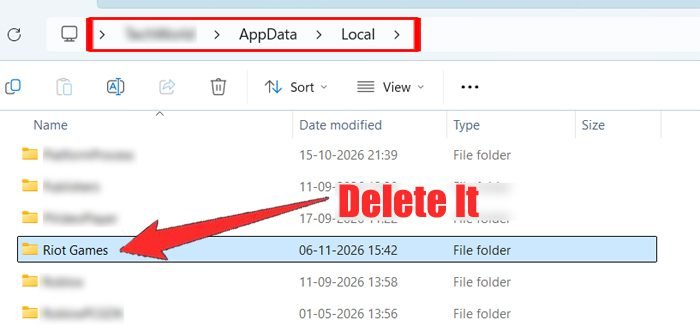
Fix 4. Clear the Riot Games LocalAppData Cache
Corrupted local cache files inside your Windows user directory can prevent the Riot Client from initializing web helper components properly.
- Press Ctrl + Shift + Esc to open Task Manager and end all active Riot Client and VALORANT background processes.
- Press Win + R to open the Run box, type
%localappdata%, and press Enter. - Locate the Riot Games folder, right-click it, and select Delete.
- Right-click your Riot Client shortcut, choose Run as administrator, and allow it to rebuild fresh local configuration files.
Fix 5. Set Administrator Permissions on Core Valorant and Launcher Executables
Windows User Account Control (UAC) restrictions can prevent EpicWebHelper.exe and Valorant’s main binaries from accessing protected memory addresses.
- Right-click each of the following files (or their desktop shortcuts) and select Properties:
C:\Riot Games\VALORANT\live\VALORANT.exeC:\Riot Games\VALORANT\live\ShooterGame\Binaries\Win64\VALORANT-Win64-Shipping.exe- Your Epic Games Launcher shortcut (if applicable)
- Go to the Compatibility tab.
- Check the box for Run this program as an administrator.
- Click Apply > OK on each file, then test launching the game.
Fix 6. Repair Corrupted Windows System Files (DISM & SFC)
Error 0xc0000005 is a Windows system-level Access Violation code. If shared Windows DLL files are damaged, running DISM and System File Checker will repair them.
- Click the Start menu, type cmd, right-click Command Prompt, and select Run as administrator.
- Type the following command and press Enter (wait for it to reach 100%):
DISM /Online /Cleanup-Image /RestoreHealth - Once finished, run the second command and press Enter:
sfc /scannow - Close Command Prompt, restart your computer, and launch Valorant.
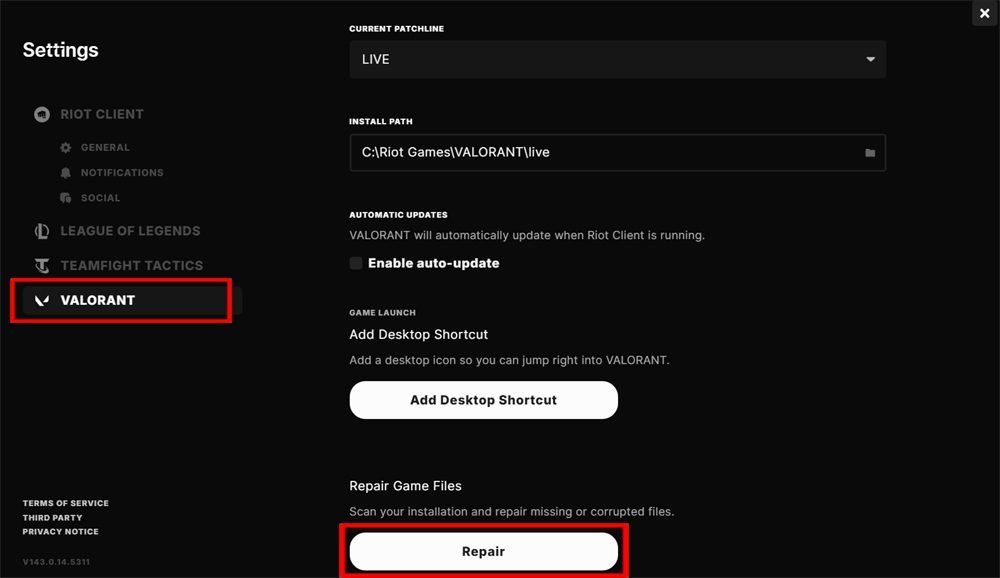
Fix 7. Repair Valorant Game Files via the Riot Client
If your antivirus already quarantined or corrupted EpicWebHelper.exe before you whitelisted it, repairing the game through the Riot Client will restore the missing binary without a full download.
- Open the Riot Client and click your Profile icon in the top-right corner.
- Select Settings, then click VALORANT in the left sidebar.
- Click the Repair button and wait for the client to verify and restore damaged files.
Fix 8. Clean Reinstall Valorant and Riot Vanguard
If none of the fixes above resolve the startup crash, a corrupted installation of Riot Vanguard or Valorant may be causing the memory conflict.
- Open Windows Settings (
Win + I) and go to Apps > Installed apps (or Apps & features on Windows 10). - Find VALORANT, click the three dots, and select Uninstall.
- Search for Riot Vanguard in the same list and click Uninstall.
- Delete any leftover folders inside
C:\Riot Gamesand%localappdata%\Riot Games. - Restart your PC, open the Riot Client, and install Valorant fresh.
Fix 9. Launch Valorant Directly Through the Riot Client (Bypass Epic Games)
If you installed Valorant through the Epic Games Store, you do not actually need the Epic Games Launcher running to play. Launching directly from Riot’s client bypasses Epic’s launcher processes completely.
- Open Task Manager (
Ctrl + Shift + Esc) and end Epic Games Launcher andEpicWebHelper.exe. - Press the Windows Key, type Riot Client, and click Open (or run
C:\Riot Games\Riot Client\RiotClientServices.exe). - Sign in with your Riot account, select Valorant, and click Play.
Fix 10. Clear the Epic Games Launcher Webcache
If you still prefer launching through the Epic Games Store, corrupted browser cache inside Epic’s local folder can trigger EpicWebHelper.exe crashes.
- Right-click the Epic Games icon in your bottom-right system tray and click Exit.
- Press Win + R, type
%localappdata%, and press Enter. - Open EpicGamesLauncher > Saved.
- Delete the webcache folder (along with webcache_4147 or webcache_4430 if you see them).
- Restart your PC and try launching Valorant again.
Fix 11. Disable Fullscreen Optimizations and Compatibility Mode
Legacy Windows compatibility settings can clash with modern Windows 10/11 memory management and trigger 0xc0000005 errors on startup.
- Right-click your Valorant and Epic Games Launcher shortcuts and select Properties > Compatibility.
- Make sure Run this program in compatibility mode for is unchecked.
- Check the box for Disable fullscreen optimizations.
- Click Apply > OK.
12. Repair Microsoft Visual C++ Redistributables
Both Unreal Engine (which powers Valorant) and the Epic Games Launcher rely on Visual C++ runtime libraries. Damaged runtime packages frequently cause 0xc0000005 startup errors.
- Open Windows Settings > Apps > Installed apps.
- Type Visual C++ into the search bar.
- Click the three dots next to Microsoft Visual C++ 2015–2022 Redistributable (x64) and choose Modify > Repair.
- Repeat the repair for the (x86) version, then restart your PC. (If the repair fails or the packages are missing, download fresh x64 and x86 installers directly from the official Microsoft Visual C++ Redistributable page.)
13. Reinstall the Epic Games Launcher (Without Deleting Valorant)
If Epic’s own EpicWebHelper.exe binary is corrupted, reinstalling the Epic Games Launcher fixes it without forcing you to re-download Valorant.
- Open File Explorer, go to
C:\Program Files\Epic Games\, and move the VALORANT folder to a safe folder (such asC:\Riot Games\VALORANT). - Go to Windows Settings > Apps > Installed apps and uninstall Epic Games Launcher.
- Restart your PC, download a fresh installer from the official Epic Games website, and install it.
- Move your VALORANT folder back (or continue launching it directly via the Riot Client).
Final Thoughts
The Valorant EpicWebHelper.exe Error 0xc0000005 looks alarming, but it almost always comes down to an overprotective antivirus program or a corrupted webcache file blocking memory access. Adding the Valorant and EpicWebHelper.exe binaries to your antivirus and Windows Firewall exclusions solves the issue for most players within minutes.
Frequently Asked Questions (FAQ)
1. What is EpicWebHelper.exe in Valorant?
EpicWebHelper.exe is a Chromium-based background process used to render web pages and store interfaces. It exists both inside the Epic Games Launcher and inside Valorant’s own Unreal Engine folder (VALORANT\live\Engine\Binaries\Win64\EpicWebHelper.exe). It is a safe, official file – not a virus – even though antivirus programs sometimes flag it by mistake.
2. Why does Error 0xc0000005 keep popping up in a loop when I click OK?
This happens when your antivirus or Windows Controlled Folder Access blocks EpicWebHelper.exe while Valorant is still running in the background, causing the game to repeatedly try restarting the web helper process. Open Task Manager (Ctrl + Shift + Esc), end VALORANT-Win64-Shipping.exe, and add the file to your antivirus exclusions list to stop the loop.
3. Do I have to reinstall Valorant to fix Error 0xc0000005?
No. In almost all cases, whitelisting EpicWebHelper.exe in your antivirus, clearing your local cache folders, or running the Repair tool inside the Riot Client fixes the error without needing to re-download the game.
4. Why am I getting an EpicWebHelper.exe error in Valorant if I don’t even have the Epic Games Launcher installed?
Valorant is built on Unreal Engine, which includes its own internal copy of EpicWebHelper.exe inside C:\Riot Games\VALORANT\live\Engine\Binaries\Win64\ to render in-game web overlays and store pages. Even if you downloaded Valorant directly from Riot Games and never installed the Epic Games Store, this file still runs in the background when you launch the game.
5. Why did Error 0xc0000005 suddenly start happening in November 2026?
Following mid-November 2026 updates, third-party antivirus programs – most notably Norton 360 and Avast—began flagging Valorant’s internal EpicWebHelper.exe binary as a false positive (often logged as a BEX64 / DEP memory block in Windows Event Viewer). Adding EpicWebHelper.exe and your Riot Games folders to your antivirus exclusions list resolves the conflict.
6. Why does the EpicWebHelper.exe pop-up keep reappearing in a loop when I click OK?
When your antivirus or Windows Controlled Folder Access blocks EpicWebHelper.exe while Valorant is actively trying to load, the game engine repeatedly attempts to restart the helper process, causing the 0xc0000005 dialog box to reappear instantly. Press Ctrl + Shift + Esc to open Task Manager, end VALORANT-Win64-Shipping.exe, and whitelist the file in your antivirus before relaunching.
7. Is EpicWebHelper.exe safe to whitelist in Norton or Avast?
Yes. As long as the file is located inside your official C:\Riot Games\VALORANT\live\Engine\Binaries\Win64\ or Epic Games directory, EpicWebHelper.exe is a legitimate, digitally signed Chromium web-helper component used by Unreal Engine and Epic Games – not malware.
8. What does Riot Support recommend if Error 0xc0000005 still won’t go away?
In its official Riot Games Support Error 0xc0000005 advisory, Riot recommends configuring your Windows or third-party firewall to allow Valorant, Riot Vanguard, and the Riot Client, or temporarily uninstalling third-party antivirus suites (such as Norton) to test whether security software is blocking the launch binaries. If the crash still persists, you can submit a ticket with your Riot Client logs on that same support page.
Further Reading

Danny Paul is a tech specialist and avid gamer with over 10+ years of experience resolving complex system errors, software bugs, and platform glitches. He specializes in creating straightforward, actionable troubleshooting guides for Android, iOS, PC gaming, and mainstream social media networks to help users fix issues instantly. In his free time, he loves solving puzzles, playing online games, watching movies, and traveling.