Jumping into a chaotic heist in ROB RUN only to get hit by severe frame drops or frozen camera movements can ruin a run fast. Even on mid-range and high-end gaming rigs, many players are running into frustrating ROB RUN stuttering, mouse lag, and low FPS on PC.
In most cases, these performance hiccups are not caused by weak hardware, but by a known engine conflict with high mouse polling rates and a few heavy lighting settings.
Below, we walk through the exact, tested fixes – starting with a quick mouse adjustment that immediately stops camera stutter – so you can get back to smooth gameplay.
Why Is ROB RUN Lagging Even on High-End PCs?
You are not alone if the game stutters right out of the box. Across the ROB RUN Steam Community and Reddit, players running powerhouse rigs – including RTX 5070 Ti and RX 7800 XT builds with 32GB of DDR5 RAM – have reported millisecond freezes in the character creator and severe FPS drops even on the lowest presets.
In our own testing, we noticed the exact same behavior: standing still gave smooth frame rates, while moving the mouse triggered instant micro-stutters. Because this is an input and engine optimization bug rather than a hardware bottleneck, standard “low graphics” tweaks won’t fix it on their own. Here is what actually works.
How to Fix ROB RUN Stuttering, Mouse Lag, and Low FPS on PC
Start with the mouse polling rate adjustment first, as it resolves camera micro-stutters for most players in under a minute. Work through the remaining graphics and Windows tweaks in order until your frame rate stays smooth during intense heist runs.
Fix 1. Lower Your Mouse Polling Rate to 500Hz (Most Effective Fix)
If your frame rate looks fine while standing still but tanks the second you move your camera, your mouse polling rate is the culprit. Modern gaming mice default to 1000Hz, 2000Hz, or even 8000Hz, which sends thousands of position updates every second and overwhelms ROB RUN’s input thread.
Dropping the polling rate to 500Hz immediately eliminates camera micro-stutters without noticeably affecting your aim during a heist. (Note: If you use an ultra-high 4000Hz or 8000Hz mouse, dropping to 1000Hz may reduce lag, but 500Hz is the safest setting to stop camera freezes completely).
How to Lower Mouse Polling Rate by Brand
Logitech G HUB
- Launch Logitech G HUB and click on your mouse tile on the home screen.
- Click the Sensitivity (DPI) icon (target/graph icon) on the left sidebar.
- Look for the Report Rate (Hz) or Wireless Report Rate dropdown menu.
- Select 500 from the options.
Razer Synapse (3 or 4)
- Open Razer Synapse and select your mouse under the Dashboard or Devices tab.
- Click on the Performance tab at the top of the window.
- Locate the Polling Rate dropdown menu and change it to 500.
(Tip: On supported wireless Razer flagships, you can also cycle polling rates directly on the mouse by holding the scroll wheel button and pressing the bottom power button—Blue indicates 500Hz).
Corsair iCUE
- Open Corsair iCUE and click the Gear Icon (Settings) in the top-right corner.
- Select your mouse (or wireless dongle tile) from the device list.
- Locate the Polling Rate or USB Wired Polling Rate dropdown box and select 500 Hz (2ms).
SteelSeries GG (Engine)
- Open SteelSeries GG and click on the Engine tab in the left sidebar.
- Select your connected mouse under the Gear list to open its settings.
- On the right-hand panel under sensor settings, set Polling Rate to 500 and click Save in the bottom-right corner.
(Tip: On SteelSeries Prime mice, you can also press and hold the CPI button underneath the mouse to cycle polling rates without opening the software).
Glorious CORE (v1 or v2)
- Open Glorious CORE and select your mouse from the dashboard or left sidebar.
- Click on the Performance tab.
- Open the Polling Rate dropdown, lower it to 500 Hz, and click Save or Apply.
(Note: If you use a driverless mouse from brands like Zowie, Pulsar, or Endgame Gear, flip the physical polling rate switch on the bottom of the mouse directly to 500Hz).
Fix 2. Optimize Heavy In-Game Graphics Settings
Because ROB RUN is still undergoing early optimization, several lighting and shadow settings cause heavy GPU spikes even on powerful graphics cards. Disabling the biggest performance hogs while keeping textures sharp gives you the best balance of visibility and high FPS.
Recommended Video Settings for Maximum FPS:
- Shadows: Off or Low (Biggest FPS booster in indoor heist maps).
- HBAO (Ambient Occlusion): Off (Removes heavy contact-shadow rendering).
- Environment Reflections: Off or Low.
- Additional Light: Off (Prevents sudden frame drops when alarms or flashlights trigger).
- Water & Grass Quality: Low or Minimum.
- Texture Quality: Medium or High (Keep this higher if you have 8GB+ VRAM, as it barely impacts FPS).
- V-Sync: Off (Reduces input delay; cap your FPS in your GPU driver instead).
(Note: After changing these settings, restart the game completely so the shader cache refreshes properly).
Fix 3. Force ROB RUN to Use Your Dedicated GPU
On gaming laptops and PCs with integrated CPU graphics (like Ryzen 7000 series processors), Windows sometimes launches ROB RUN on the weak integrated chip instead of your dedicated NVIDIA or AMD graphics card.
How to assign your dedicated GPU in Windows:
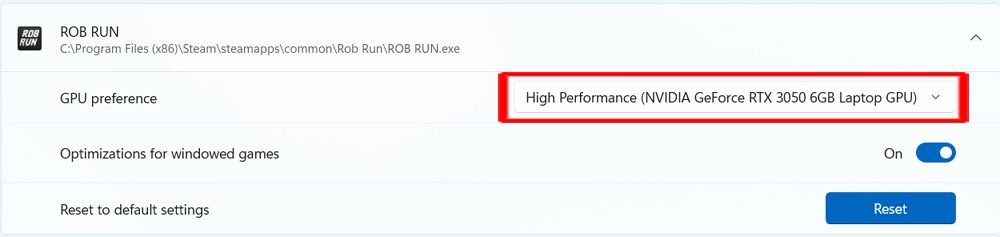
- Press the Windows Key, type Graphics settings, and open it.
- Under Custom settings for applications, click on Add desktop app.
- Navigate to your ROB RUN installation folder (C:\Program Files (x86)\Steam\steamapps\common\Rob Run).
- Select the main game executable (ROB RUN.exe) and click Add.
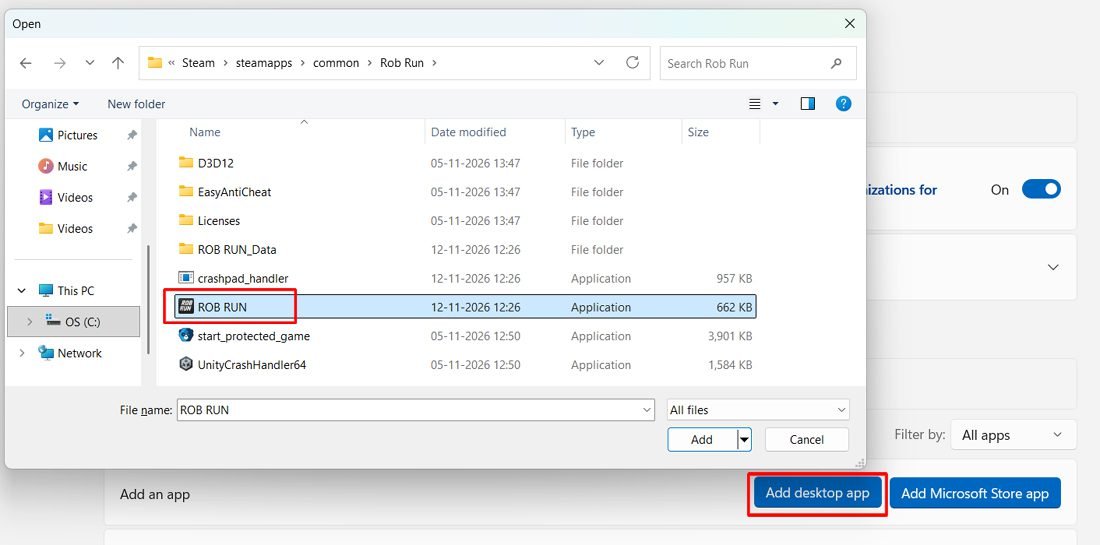
- Locate ROB RUN in the app list below, click on it to expand its settings, open the GPU preference dropdown, and select High performance (your dedicated graphics card).
Fix 4. Set High Priority & Disable Fullscreen Optimizations
Windows background services can occasionally steal CPU cycles during intense escapes, causing brief audio crackles or millisecond freezes.
How to apply Windows executable tweaks:
- Open Steam, right-click ROB RUN in your library, and select Manage > Browse local files.
- Right-click ROB RUN.exe and choose Properties.
- Switch to the Compatibility tab at the top.
- Check the box for Disable fullscreen optimizations and click Apply > OK.
- Launch the game, open Task Manager (Ctrl + Shift + Esc), go to the Details tab, right-click ROB RUN.exe, and set Priority to High.
Fix 5. Verify Game Files & Check Server Latency
If you are experiencing “rubberbanding” (where your character snaps backward) rather than true frame drops, the issue is likely network packet loss or a corrupted patch file rather than your hardware.
How to verify files on Steam:
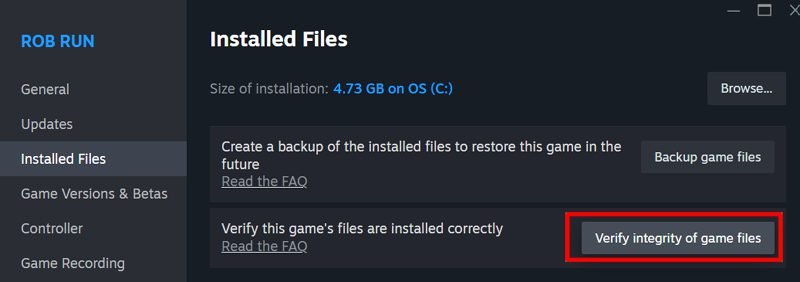
- Open your Steam Library, right-click ROB RUN, and select Properties.
- Click the Installed Files tab on the left.
- Select Verify integrity of game files and wait for Steam to replace any missing or broken shaders.
(Tip: Always queue into servers located in your closest geographic region, as connecting to high-ping lobbies in ROB RUN often mimics the feel of low FPS).
Fix 6. Update GPU Drivers & Check 13th/14th Gen Intel BIOS
Running outdated graphics drivers often causes shader compilation stutters whenever new effects or map areas load in. Additionally, developer Kefir explicitly advises players using 13th or 14th Gen Intel CPUs to update their motherboard BIOS if persistent stuttering continues.
How to ensure your system firmware and drivers are ready:
- NVIDIA & AMD Drivers: Open the NVIDIA App (or GeForce Experience) or AMD Software: Adrenalin Edition and install the latest Game Ready / WHQL driver.
- Intel 13th/14th Gen Owners: If you run an Intel Core i5, i7, or i9 from the 13th or 14th generation (such as an i7-13700K or i9-14900K), check your motherboard manufacturer’s support page for the latest BIOS stability update.
Fix 7. Disable Third-Party Overlays (Discord, Steam, & NVIDIA)
Developer Kefir specifically notes that background screen-hooking overlays can conflict with ROB RUN’s rendering pipeline, triggering random frame-time spikes even when your average FPS looks high.
How to turn off conflicting overlays:
- Discord: Open User Settings (gear icon) > Game Overlay > toggle off Enable in-game overlay.
- Steam: Right-click ROB RUN in your library > Properties > General > uncheck Enable the Steam Overlay while in-game.
- NVIDIA App / GeForce Experience: Open Settings > Features > toggle off In-Game Overlay.
Fix 8. Enable Hardware-Accelerated GPU Scheduling & Game Mode
On Windows 11 and Windows 10, enabling native gaming schedulers helps your graphics card process frame queues faster and prevents background Windows tasks from stealing resources during intense escapes.
How to turn on Windows gaming optimizations:
- Press the Windows Key, type Graphics settings, and press Enter.
- On Windows 11, scroll down and click Advanced graphics settings to expand the menu (on Windows 10, click Change default graphics settings at the top).
- Toggle Hardware-accelerated GPU scheduling to On (you will need to restart your PC for this change to take effect).
- Next, open Windows Settings > Gaming > Game Mode and make sure Game Mode is switched On.
Final Thoughts
Dealing with ROB RUN stuttering, mouse lag, and low FPS on PC can be frustrating, especially when you are running capable gaming hardware. In most cases, dropping your mouse polling rate to 500Hz and disabling heavy lighting options like HBAO will smooth out your frame times right away.
If you are still running into performance hiccups after trying all eight fixes above, leave a comment below with your CPU, GPU, and mouse model so we can help troubleshoot your setup.
Frequently Asked Questions (FAQ)
1. Why does ROB RUN stutter only when I move my mouse?
This is a known input-thread bottleneck in ROB RUN. Modern gaming mice default to 1000Hz–8000Hz polling rates, which send thousands of cursor updates per second and overwhelm the game engine. Lowering your mouse report rate to 500Hz in your mouse software fixes this issue immediately.
2. How can I check my FPS and ping inside ROB RUN?
You do not need third-party software to monitor performance. Open the in-game Settings menu, go to the Other tab, and enable Display performance metrics. This puts a live counter on your screen showing your FPS, PING, and LOSS, helping you tell whether a lag spike is caused by your PC hardware or server latency.
3. Which graphics settings give the biggest FPS boost in ROB RUN?
Turning off Shadows, HBAO (Ambient Occlusion), and Additional Light provides the largest frame rate jump, especially during indoor heist escapes. Keeping Texture Quality on Medium or High will not hurt your FPS as long as your graphics card has at least 8GB of VRAM.
More ROB RUN Troubleshooting Guides
- How To Fix ROB RUN Not Launching & Crashing on PC
- How to Fix ROB RUN “Fatal Error: Failed to Load il2cpp”
- Fix ROB RUN Server, Multiplayer & E-403 Connection Errors on PC

Danny Paul is a tech specialist and avid gamer with over 10+ years of experience resolving complex system errors, software bugs, and platform glitches. He specializes in creating straightforward, actionable troubleshooting guides for Android, iOS, PC gaming, and mainstream social media networks to help users fix issues instantly. In his free time, he loves solving puzzles, playing online games, watching movies, and traveling.