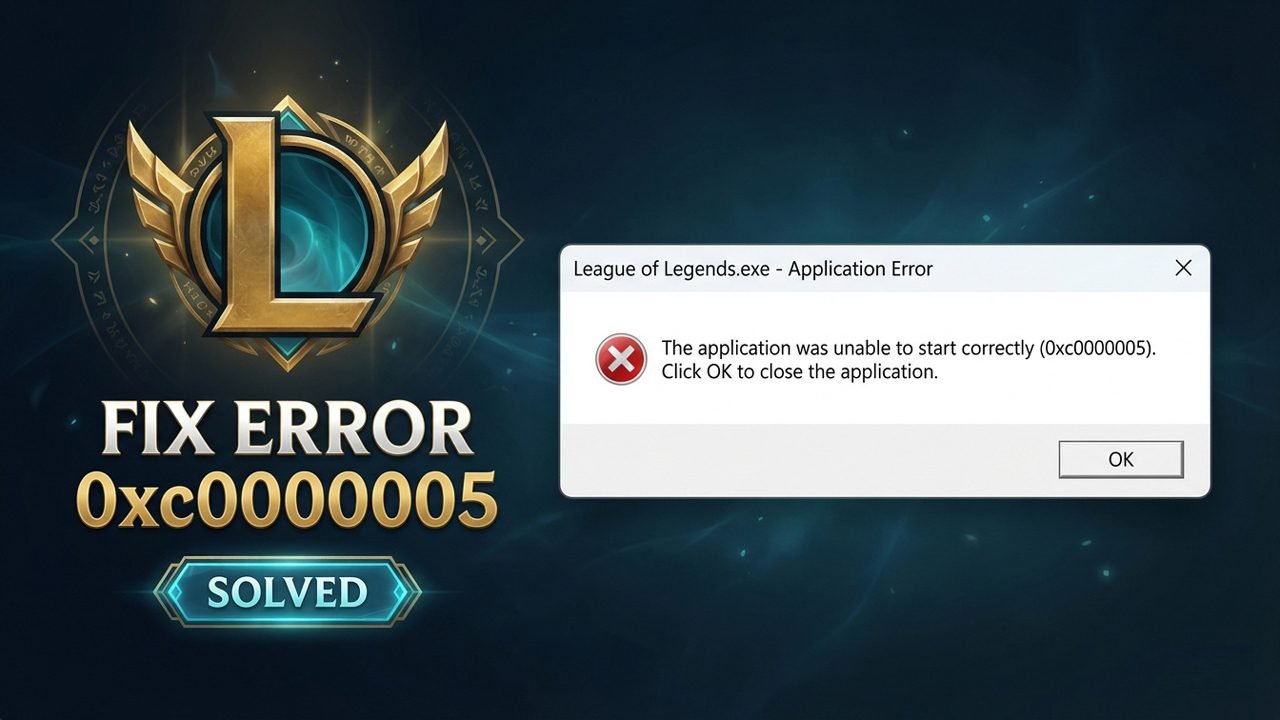
Getting hit with the “LeagueClient.exe – Application Error: The application was unable to start correctly (0xc0000005)” pop-up, or crashing straight to the desktop right after Champion Select, is frustrating when you just want to load into a match.
This Windows memory access violation error typically happens when third-party antivirus drivers (especially Norton or Avast) clash with Riot Vanguard (vgc.exe) and League of Legends.exe, Windows security blocks game binaries, or corrupted local files interfere with startup.
Fortunately, you don’t need to re-download the entire game right away – work through the step-by-step fixes below to resolve the 0xc0000005 error and get back onto Summoner’s Rift.
What Causes League of Legends Error 0xc0000005?
Error 0xc0000005 is a standard Windows Access Violation (BEX64 / DEP) code indicating that LeagueClient.exe, League of Legends.exe, or Riot Vanguard tried to access protected system memory and was blocked. The most common triggers include:
- Third-Party Antivirus Kernel Driver Conflicts (Norton & Avast): Following mid-November 2026 updates (such as Norton v26.11 and League Patch 26.23), antivirus drivers began silently blocking
League of Legends.exeandvgc.exeduring loading screens—often without showing any alert in the antivirus Security History. - Windows Security & Controlled Folder Access: Built-in Windows Ransomware Protection or Firewall rules can prevent the League Client from writing session files or establishing connections.
- Corrupted LocalAppData or Client Config/Logs: Damaged temporary files inside
%localappdata%\Riot Gamesor your LeagueConfigandLogsfolders can cause the Chromium-based client interface to crash immediately. - Missing Administrator Permissions & Overlay Injections: Lack of admin rights or third-party overlays (Discord, Overwolf, Blitz, Porofessor) injecting into the game binary can trigger startup crashes.
- Damaged Visual C++ Runtimes or System DLLs: Corrupted Microsoft Visual C++ Redistributable libraries or Windows system files prevent the game client from initializing properly.
How to Fix League of Legends Error 0xc0000005
Work through these fixes in order, starting with the fastest antivirus and local cache fixes before moving on to deeper system repairs and clean reinstalls. Most players resolve the error within the first two or three steps without needing to reinstall League of Legends.
Before you begin, make sure you are signed into a Windows administrator account, and always test your fix in the Practice Tool first so you don’t get hit with an AFK/LeaverBuster penalty in ranked if the loading screen crashes.
Step 1. Whitelist Riot Games and Riot Vanguard in Your Antivirus (Avast, Norton, Windows Defender)
Third-party antivirus programs (especially Norton, Avast, and AVG) are the most common trigger for error 0xc0000005 in League of Legends. Adding both the main installation folders and individual executables to your exclusions list resolves this for many players.
- Open Task Manager (
Ctrl + Shift + Esc) and end all League of Legends, Riot Client, and Riot Vanguard processes. - Open your antivirus program (such as Avast, Norton, or Windows Security > Virus & threat protection > Manage settings > Add or remove exclusions).
- Add these two main folders to your exclusions/exceptions list:
C:\Riot GamesC:\Program Files\Riot Vanguard
- Also add these four specific
.exefiles individually:C:\Riot Games\League of Legends\LeagueClient.exeC:\Riot Games\League of Legends\LeagueClientUx.exeC:\Riot Games\League of Legends\Game\League of Legends.exeC:\Riot Games\Riot Client\RiotClientServices.exe
- Restart your PC and test launching a Practice Tool match.
Step 2. Completely Uninstall Norton Antivirus (If Whitelisting Fails)
If you use Norton AntiVirus / Norton 360 and adding exclusions or turning off shields still results in 0xc0000005 crashes after Champion Select, Norton’s background kernel drivers are still intercepting Riot Vanguard (vgc.exe) in memory—even if Norton’s Security History shows nothing blocked.
- Open Windows Settings (
Win + I) and go to Apps > Installed apps (or Apps & features on Windows 10). - Type Norton into the search bar, click the three dots next to Norton AntiVirus / Norton 360, and select Uninstall.
- Follow the on-screen prompts to remove it completely, then restart your PC (Windows Defender will automatically turn back on to keep your PC protected).
- Launch the Riot Client and test League of Legends in the Practice Tool.
Step 3. Delete the Riot Games Folder Inside LocalAppData
Corrupted local cache data inside your Windows user profile can prevent the Riot Client and League Client from launching properly.
- Press Ctrl + Shift + Esc to open Task Manager and end all active League of Legends, Riot Client, and Riot Vanguard tasks.
- Press Win + R to open the Run dialog box, type
%localappdata%, and press Enter. - Locate the Riot Games folder (you can copy it to your Desktop first if you want a backup), right-click it, and click Delete.
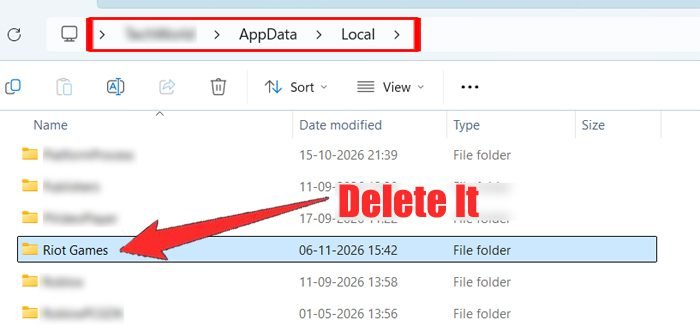
- Right-click your Riot Client shortcut, select Run as administrator, and allow it to rebuild fresh local files.
Step 4. Set All Core League of Legends Executables to Run as Administrator
Windows User Account Control (UAC) restrictions can block League’s client and rendering binaries from interacting with kernel-level Riot Vanguard services.
- Open File Explorer and browse to
C:\Riot Games\League of Legends\. - Right-click each of these four executable files one by one and select Properties:
LeagueClient.exeLeagueClientUx.exeLeagueClientUxRender.exeGame\League of Legends.exe(inside theGamesubfolder)
- Go to the Compatibility tab, check Run this program as an administrator, and make sure Run this program in compatibility mode for is unchecked.
- Click Apply > OK on each file, then do the same for
C:\Riot Games\Riot Client\RiotClientServices.exe.
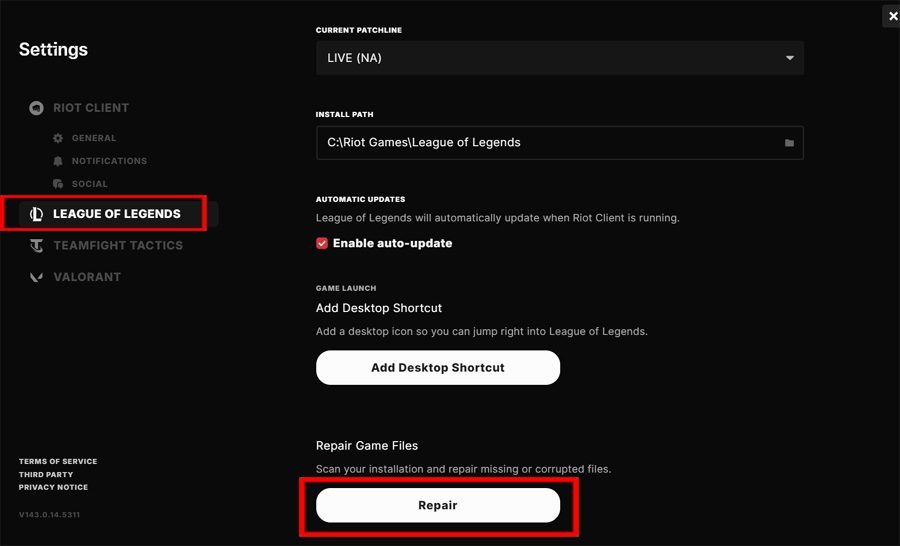
Step 5. Repair League of Legends Game Files via the Riot Client
If your antivirus quarantined or corrupted a required client file before you added your exclusions, the Riot Client’s built-in repair tool restores missing binaries without a full download.
- Open the Riot Client and click your Profile icon in the top-right corner.
- Click Settings, then select League of Legends from the left sidebar.
- Click Repair and wait for the verification scan to finish replacing damaged files.
Step 6. Clean Reinstall League of Legends and Riot Vanguard (Standard or Revo Uninstaller)
If corrupted Riot Vanguard services (vgc / vgk) or leftover registry entries are causing the crash, performing a clean reinstall resolves it.
Option A: Standard Clean Reinstall
- Open Windows Settings > Apps > Installed apps, locate League of Legends, click the three dots, and select Uninstall.
- Search for Riot Vanguard in the same list and click Uninstall.
- Delete any leftover folders inside
C:\Riot Gamesand%localappdata%\Riot Games. - Reboot your PC, download a fresh installer from the official League of Legends download page, and reinstall the game.
Option B: Deep Registry Scrub with Revo Uninstaller
- End all Riot processes in Task Manager (
Ctrl + Shift + Esc). - Download and extract Revo Uninstaller Free Portable, right-click
RevoUPort.exe, and select Run as administrator. - Uninstall League of Legends, Riot Vanguard, and Riot Client through Revo, clicking Scan > Select All > Delete after each removal to wipe leftover registry keys and folders.
- Restart your computer and install the Riot Client and League of Legends fresh.
Step 7. Allow League Executables Through Windows Controlled Folder Access
Windows 10 and 11’s Ransomware Protection feature (Controlled folder access) can silently block LeagueClient.exe or League of Legends.exe from writing temporary files to disk.
- Open Windows Security from the Start menu and click Virus & threat protection.
- Scroll down to Ransomware protection and click Manage ransomware protection.
- Click Allow an app through Controlled folder access > Yes.
- Click Add an allowed app > Browse all apps, and add
LeagueClient.exe,LeagueClientUx.exe,League of Legends.exe, andRiotClientServices.exeusing the paths from Step 1.
Step 8. Allow League of Legends Through Windows Defender Firewall
If Windows Firewall blocks the League Client or Riot Vanguard from communicating on startup, the process can crash with a 0xc0000005 access error.
- Open Windows Security and go to Firewall & network protection.
- Click Allow an app through firewall > Change settings.
- Click Allow another app > Browse, and add
LeagueClient.exe,League of Legends.exe, andRiotClientServices.exe. - Make sure both the Private and Public checkboxes are ticked next to each entry, then click OK.
Step 9. Delete Corrupted League of Legends Config and Logs Folders
Damaged local game settings inside your League installation folder can crash the client before the lobby loads.
- Close the Riot Client and League of Legends completely via Task Manager.
- Open File Explorer and go to
C:\Riot Games\League of Legends\. - Select the Config and Logs folders, right-click them, and click Delete.
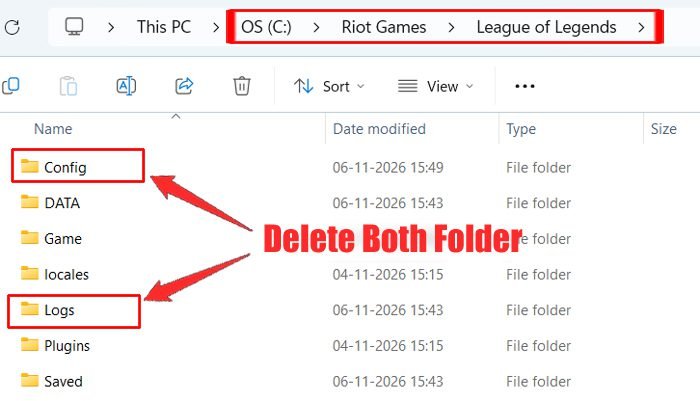
- Launch the Riot Client as administrator and start League of Legends to regenerate clean configuration files.
Step 10. Disable Third-Party Overlays (Discord, Overwolf, Blitz, Porofessor)
Companion apps and in-game overlays hook directly into League of Legends.exe at launch, which frequently triggers 0xc0000005 memory violations after game patches.
- Completely exit Overwolf, Blitz, Porofessor, or Mobalytics from your bottom-right Windows system tray.
- Open Discord > User Settings (gear icon) > Game Overlay, and toggle Enable in-game overlay off.
- Launch League of Legends and check if the crash stops.
Step 11. Repair Microsoft Visual C++ Redistributables & Windows System Files
League of Legends relies on Microsoft Visual C++ runtime packages and shared Windows DLLs to render its interface and game engine.
- Open Windows Settings (
Win + I) > Apps > Installed apps. - Search for Visual C++, click the three dots next to Microsoft Visual C++ 2015–2022 Redistributable (x64), and select Modify > Repair (repeat for the x86 version). (If the repair fails or the packages are missing, download fresh x64 and x86 installers from the official Microsoft Visual C++ Redistributable page.)
- Next, click Start, type cmd, right-click Command Prompt, and choose Run as administrator.
- Run these two commands one after the other, then restart your PC:
DISM /Online /Cleanup-Image /RestoreHealth
sfc /scannow
Step 12. Restore Quarantined Riot Files from Antivirus Protection History
If your antivirus already moved League of Legends.exe or vgc.exe into quarantine before you added folder exclusions, whitelisting the folder alone won’t restore the missing binary.
- For Windows Defender: Open Windows Security > Virus & threat protection > Protection history, find any blocked Riot Games items, and select Actions > Restore/Allow on device.
- For Norton or Avast: Open your antivirus Quarantine/Virus Chest, locate any quarantined League or Vanguard files, and click Restore and Add Exclusion.
Step 13. Manually Delete Stuck Riot Vanguard Services via Command Prompt
If a standard uninstall fails to clear corrupted Riot Vanguard kernel drivers, manually removing the vgc and vgk services via Command Prompt forces a completely fresh installation.
- Click Start, type cmd, right-click Command Prompt, and select Run as administrator.
- Enter these four commands one by one:
taskkill /f /im RiotClientServices.exe taskkill /f /im LeagueClient.exe sc delete vgc sc delete vgk - Delete the
C:\Program Files\Riot Vanguardand%programdata%\Riot Gamesfolders, restart your PC, and launch the Riot Client to reinstall Vanguard automatically.
Step 14. Perform a Windows Clean Boot to Isolate Background Conflicts
Background hardware utilities (such as MSI Center, RGB lighting controllers, or VPN services) can hook into memory and clash with League of Legends on startup.
- Press Win + R, type
msconfig, and press Enter. - Go to the Services tab, check Hide all Microsoft services, and click Disable all (leave
vgcchecked if listed). - Open Task Manager > Startup, disable non-essential startup apps, restart your PC, and test League of Legends in the Practice Tool.
Step 15. Run the Official Riot Repair Tool (RRT)
If none of the steps above resolve Error 0xc0000005, download and run the official Riot Repair Tool (RRT) from Riot Games Support. It automatically scans for missing client components and generates a diagnostic log zip file you can attach when submitting a Player Support ticket.
Conclusion
The League of Legends Error 0xc0000005 crash is almost always triggered by third-party antivirus software – particularly Norton or Avast – interfering with Riot Vanguard and League of Legends.exe during startup. Whitelisting your Riot folders (or removing conflicting antivirus drivers) and clearing local cache folders resolves the issue for the vast majority of players without needing a full reinstall.
Frequently Asked Questions (FAQ)
1. Why did League of Legends start crashing with Error 0xc0000005 after Champion Select in November 2026?
Following mid-November 2026 updates (including Norton AntiVirus v26.11 and League Patch 26.23), Norton’s background kernel drivers began triggering a Windows Data Execution Prevention (BEX64) conflict with Riot Vanguard (vgc.exe) and League of Legends.exe right as the match loads. Uninstalling Norton completely—or whitelisting your Riot Games and Riot Vanguard folders – resolves the crash immediately.
2. Why didn’t disabling Norton or checking Security History fix the crash?
Even when you pause Norton’s shields, its low-level kernel drivers stay loaded in Windows memory and continue intercepting Riot Vanguard. Furthermore, Norton often blocks memory access silently without logging an entry in Security History. Completely uninstalling Norton via Windows Settings > Apps > Installed apps and rebooting removes the conflicting driver and re-enables Windows Defender automatically.
3. How can I test if Error 0xc0000005 is fixed without getting an AFK penalty?
Because Error 0xc0000005 frequently occurs right after Champion Select when the match loading screen starts, always launch a solo Practice Tool game after applying a fix. Once you load onto Summoner’s Rift cleanly, you can safely queue for normal or ranked matches.
4. What does Riot Games Support recommend for Error 0xc0000005?
In its official Riot Games Support Error 0xc0000005 advisory, Riot recommends configuring your firewall to allow League of Legends, Riot Vanguard, and the Riot Client, or temporarily uninstalling third-party antivirus suites to confirm whether security software is blocking the game binaries.
5. Why does League of Legends Error 0xc0000005 happen along with VAN 7018 or vgc.exe crashes?
Because Riot Vanguard (vgc.exe) runs alongside League of Legends.exe to verify game integrity during match loading, anything that blocks Vanguard’s memory access—especially third-party antivirus drivers like Norton 360 or corrupted vgc/vgk services—will cause both Riot Vanguard and the League game client to crash simultaneously with Error 0xc0000005 or a VAN 7018 service error.
6. Will deleting the Riot Games folder in LocalAppData or Config/Logs erase my account progress or skins?
No. Your champions, skins, rank, Blue Essence, and match history are stored permanently on Riot Games’ servers—not on your PC. Deleting %localappdata%\Riot Games or the Config and Logs folders only resets local settings (like window resolution, audio volume, or keybinds) and forces the client to rebuild clean files.
7. Can I turn off Data Execution Prevention (DEP) in Windows to fix Error 0xc0000005?
No – do not disable Windows Data Execution Prevention (DEP) to bypass this error. Riot Vanguard requires DEP and core Windows memory protections to remain enabled; turning off DEP will prevent League of Legends from launching altogether and leaves your PC vulnerable to malware.
8. Should I reinstall Windows if League of Legends keeps showing Error 0xc0000005?
In almost all cases, reinstalling Windows is unnecessary. Unless your Windows installation itself is severely corrupted, removing conflicting third-party antivirus software, running sc delete vgc and sc delete vgk to cleanly rebuild Riot Vanguard, or repairing your Visual C++ Redistributables will fix the crash without wiping your PC.
Further Reading

Danny Paul is a tech specialist and avid gamer with over 10+ years of experience resolving complex system errors, software bugs, and platform glitches. He specializes in creating straightforward, actionable troubleshooting guides for Android, iOS, PC gaming, and mainstream social media networks to help users fix issues instantly. In his free time, he loves solving puzzles, playing online games, watching movies, and traveling.