Dealing with MW4 crashing issues on startup or finding that the game simply refuses to open? You are not alone. A massive wave of PC players are running into frustrating issues where the game is not loading, getting stuck on a pitch-black black screen, or completely freezing during the initial boot sequence.
Whether you are dealing with a sudden startup crash right after clicking play, or the game is stubbornly not launching at all, these performance hurdles can easily lock you out of the action. If your game keeps crashing before you even reach the main menu, don’t panic. Following hands-on testing across various PC setups, this Ultimate Troubleshooting Guide provides step-by-step fixes to resolve these issues and get your game running smoothly.
Why Does MW4 Keep Crashing or Not Launching?
When a game is constantly crashing, freezing, or refusing to open, it is rarely caused by a single isolated bug. Instead, a breakdown in communication between the game engine, your Windows operating system, and your hardware components is usually the culprit.
Understanding what triggers a startup crash or a stuck black screen makes finding the right fix much easier. Here are the primary software conflicts why Call of Duty: MW4 is not loading or not launching on your PC:
- Corrupted or Missing Game Files: If your download was interrupted or an update failed to apply correctly, critical files might be missing. This typically triggers an immediate startup crash right after clicking play.
- Outdated Graphics Drivers: Modern games require the latest software optimizations. Running outdated NVIDIA, AMD, or Intel drivers will frequently result in a frozen loading sequence or a permanent black screen on boot.
- Corrupted Shader Cache: When the game compiles shaders during its initial boot, a glitch can corrupt the cache folder. This almost always triggers specific engine errors, resulting in a sudden crashing loop back to the desktop.
- BIOS Security Settings (TPM 2.0 & Secure Boot): The game’s kernel-level anti-cheat system requires specific security protocols to be enabled in your PC’s BIOS. If TPM 2.0 or Secure Boot is turned off or misconfigured, the game will trigger security errors or result in the app stubbornly not launching. You can cross-reference your PC setup settings against the official Activision Support Portal to confirm the baseline security requirements.
Advanced Windows and Hardware System Blocks
- Administrative Privilege Conflicts: Windows sometimes restricts the game from accessing essential system folders. Without proper permissions, the game executable will simply hang in the background, leaving the game stuck and not loading.
- Overlay and Background Software Interference: Popular applications like Discord, GeForce Experience, or third-party antivirus suites can conflict with the game. This friction often leads to aggressive freezing or instant desktop crashes.
- Controller Remapping Software Conflicts: Third-party input mappers (such as reWASD) are actively blocked by the game’s anti-cheat engine. Having these programs running—even in the background—will result in the game closing immediately upon boot.
- Missing Visual C++ Redistributables: Call of Duty: MW4 relies on specific Microsoft Visual Studio files to run. If your PC is missing the latest x86 and x64 Visual C++ components, the launcher will error out, leaving the game not loading.
- Windows Core Isolation Restrictions: High-security features in Windows (like Memory Integrity under Core Isolation) can accidentally block the game’s engine from initializing, causing it to freeze up on launch. Tracking down these specific internal system blocks is the fastest way to eliminate consistent MW4 crashing loops entirely.
Tracking down these specific internal system blocks is the fastest way to eliminate consistent MW4 crashing loops entirely.
How to Fix MW4 Crashing & Not Launching on PC
If you are locked out of the game due to a permanent black screen, constant freezing, or an instant startup crash, or the game not launching, work your way through these proven troubleshooting steps. We have organized them logically from quick app resets to advanced system configurations.
Fix 1: End Background Tasks to Stop MW4 Crashing & Launching Issues
If a previous session of Call of Duty or an associated launcher service is secretly stuck running in the background, the game will suffer from a startup crash or get locked on a black screen upon your next attempt to open it.
- Press Ctrl + Shift + Esc to open the Windows Task Manager.
- Look through the list for any lingering instances of Call of Duty, Battle.net, or Steam.
- Right-click the application or service and select End Task.
- Relaunch your gaming client and start the game normally.
Why it works: Windows prevents two identical game executables from modifying the exact same system memory blocks simultaneously. Ending the ghost process clears the memory lane, allowing the game launcher to initialize a fresh, clean load state.
Fix 2: Run Launcher as Admin to Prevent Launch Problem & MW4 Crashing
If you are struggling with a sudden MW4 crashing loop, Windows security settings can sometimes prevent the game from launching its anti-cheat files, leaving the app completely not loading. Giving the game admin privileges can solve this instantly.
- Right-click on your game launcher (Steam or Battle.net) and select Properties.
- Go to the Compatibility tab.
- Check the box next to Run this program as an administrator.
- Click Apply, then OK.
- Repeat these exact steps for the main cod.exe and sp26-cod.exe files inside your game installation folder.
Why it works: Modern kernel-level anti-cheat software requires deep system-level access to look for unauthorized modifications. Running as an administrator bypasses basic user-level permission boundaries, granting the engine access to the restricted directories it needs to operate.
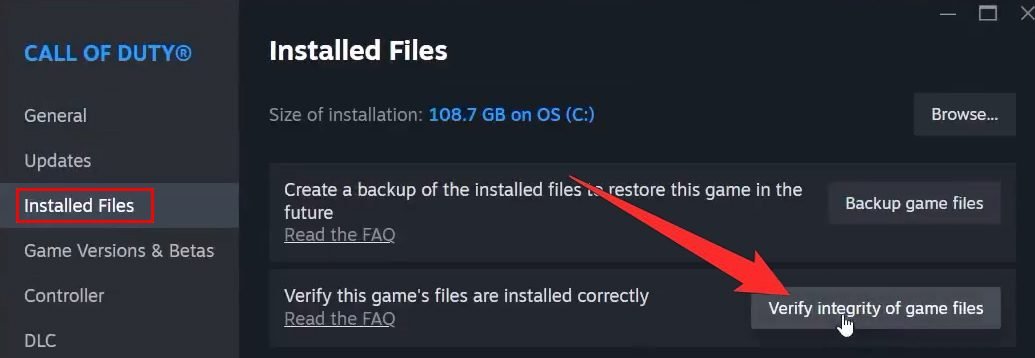
Fix 3: Verify the Integrity of Game Files
A corrupted download is the leading cause behind an immediate startup crash. Verifying the files will scan your directory and replace anything missing.
- For Steam: Open your Library > Right-click Call of Duty > Select Properties > Go to Installed Files > Click Verify integrity of game files.
- For Battle.net: Open the launcher > Click the Gear icon next to the Play button > Select Scan and Repair > Click Begin Scan.
- For Xbox App/Game Pass: Right-click the game in your sidebar > Go to Manage > Click Files > Select Verify and Repair.
Why it works: This utility calculates a digital cryptographic signature (checksum) for every local asset file and references it against the developer’s official master server. If any byte discrepancies match an interrupted download block, the launcher replaces the corrupt data packet without forcing a full redownload.
Fix 4: Run Game Pass & Xbox App System Repairs
For players streaming or playing the game via the Xbox App or PC Game Pass, a desynced launcher environment frequently leaves the game not loading or heavily freezing.
- Gaming Services Repair: Open your Xbox App, click your profile icon, and head to the Support section. Click on the Gaming Services Repair Tool and select Start Repairing.
- App Reset Protocol: Search for your game application in the Windows search bar, right-click it, and select App Settings. Scroll down and click Terminate, then click Repair. If it still struggles to open, click Reset.
Tip: Ensure you execute the repair protocol specific to your active game library setup.
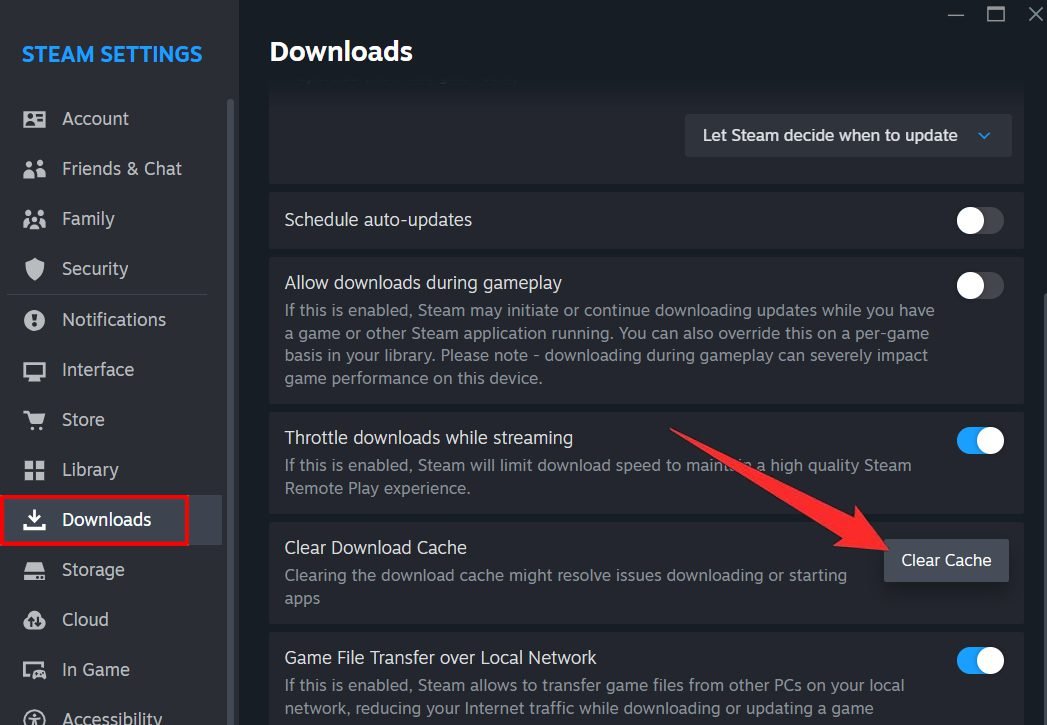
Fix 5: Clear the Steam Download Cache
Fragmented update downloads trapped inside your launcher’s cache can trigger permanent desktop crashing loops during the verification process.
- For Steam Users: Click Steam in the top-left menu > Settings > Downloads. Scroll to the bottom and click Clear Download Cache, then hit Confirm to let Steam auto-restart.
Why it works: The application cache acts as a temporary scratchpad for downloaded updates. If an update stalls midway, this scratchpad becomes corrupted, feeding bad instructions to the launcher. Clearing it flushes out the stale script configurations entirely.
Fix 6: Disable Conflict Software to Stop MW4 Crashing
Incompatible background software can cause aggressive freezing or trigger a black screen loop because the anti-cheat flags them as unauthorized.
- Turn off Overlays: Open Discord or Steam settings and completely disable the in-game overlay feature. For NVIDIA users, open the NVIDIA App Settings and turn off the NVIDIA overlay.
- Disable Overclocking & Input Mappers: Completely shut down software like MSI Afterburner, RivaTuner, or input mappers (reWASD) via the Windows Task Manager before hitting play. Set all hardware clocks back to default.
- Disconnect External USB Hardware: Unplug unnecessary external devices like steering wheels, pedals, extra controllers, or unneeded USB adapters that might cause hardware initialization errors.
Why it works: Overlays use a rendering technique called graphics hook injection to draw UI elements on top of the game window. The engine’s anti-cheat engine monitors this space closely and will shut down the game instantly if it interprets a standard user overlay or a controller macro tool as an unauthorized injection vector.
Fix 7: Configure the COD Broker Service to Run Automatically
A major culprit for the game not launching or failing to authenticate with its servers is a disabled or stalled internal background service.
- Go to the game’s root installation folder. Right-click COD Secure Destination Wizard, COD Broker Service, and COD Broker Installer one by one, and choose Run as administrator.
- Press the Windows Key, type Services, and open the desktop application.
- Scroll down until you locate the COD Broker Service.
- Double-click it, change the Startup type dropdown menu to Automatic, and click Apply.
- Click the Start button if it is highlighted, right-click the service name, and select Restart.
Why it works: The COD Broker handles critical execution permissions between your Windows identity permissions and the game engine. Setting this to automatic ensures that the service triggers instantly during boot execution rather than getting trapped in a delayed system queue loop.
Fix 8: Force the Game to Run via DirectX 11 or 12 Command Arguments
If your game executable causes a severe startup crash or locks up on a black screen, you can force the game engine to utilize a specific legacy or modern DirectX version.
- For Steam: Go to your Library > Right-click Call of Duty > Select Properties. Scroll down to the Launch Options field at the bottom of the General tab, type -dx11 (or -dx12), and close the window.
- For Battle.net: Open the launcher > Click the Gear icon next to the Play button > Select Game Settings. Check the box for Additional command line arguments and type -dx11 (or -dx12) into the text box.
Why it works: Different GPU hardware architectures manage software rendering instructions uniquely. Forcing a specific DirectX variable bypasses default rendering logic constraints, resolving initial handshaking issues between graphics hardware and application APIs, which directly prevents severe MW4 crashing errors on boot.
Fix 9: Perform a Clean Graphics Driver Installation
If your screen turns completely pitch-black or suffers severe freezing on boot, your GPU drivers are likely outdated or corrupted.
- Download the latest drivers for your specific card from the official NVIDIA Driver Portal or AMD Driver Portal.
- During the installation wizard, choose the Custom Installation option.
- Check the box that says Perform a clean installation.
- Restart your PC once the installation is complete and attempt to launch the game.
- If the latest driver still causes problems, visit the “Previous Drivers” page on your manufacturer’s site, perform a clean install of an older stable version, and test the game.
Why it works: Overlapping legacy driver software files frequently cause compilation instructions to fragment. Running a clean installation completely flushes the old operational directory framework, writing fresh, uncorrupted instruction pathways for complex game engines.
Fix 10: Clear Shader Cache to Resolve MW4 Crashing Issues
- Press Windows Key + R to open the Run dialog box, type
%localappdata%, and hit Enter. - Locate the Activision folder and rename it to
Activision.old. - Open your Task Manager and ensure all background NVIDIA/AMD display services are temporarily shut down.
- Navigate back to
AppData\LocalandAppData\LocalLow, find the NVIDIA or AMD folders, and delete their temporary sub-contents. - Search for Disk Cleanup in your Windows search bar, select your main drive, check the box specifically for DirectX Shader Cache, and click Delete Files. Restart your PC immediately.
Why it works: Shaders are pre-compiled blueprint scripts that tell your graphics card exactly how to render in-game lighting and textures. If these files get corrupted during an update or driver change, the graphics card gets fed broken instructions, triggering an instant memory exception crash back to the desktop.
Fix 11: Adjust Paging File Size to Fix MW4 Crashing on Startup
- Search for View advanced system settings in Windows and open it.
- Under the Advanced tab, click the first Settings button, choose the Advanced tab again, and click Change.
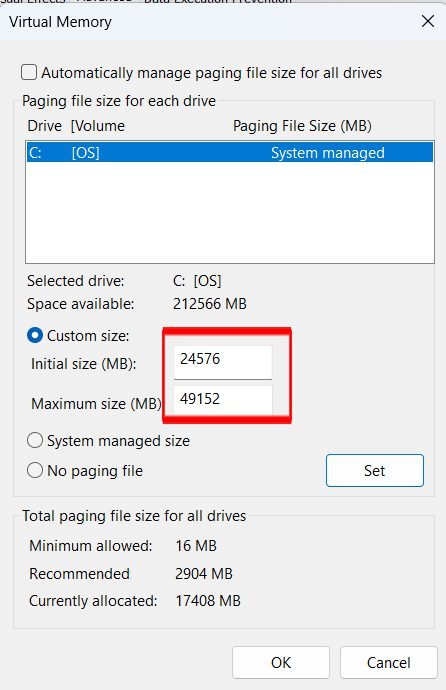
- Uncheck Automatically manage paging file size and select the drive where your game is installed.
- Click Custom Size. Calculate your values based on your total system RAM (visible under Windows Settings > System > About):
- Initial Size: Multiply your total RAM in GB by 1024, then multiply by
1.5(e.g., for 16GB RAM, enter24576). - Maximum Size: Multiply your total RAM in GB by 1024, then multiply by
3(e.g., for 16GB RAM, enter49152).
- Initial Size: Multiply your total RAM in GB by 1024, then multiply by
- Click Set, hit OK, and restart your machine.
Why it works: When a game engine experiences a memory spike that exceeds your physical RAM capacity, Windows forces a hard close to protect your operating system. A custom page file acts as a designated hardware buffer zone on your SSD, safely catching memory overflows so the game doesn’t crash.
Fix 12: Install and Repair Microsoft Visual C++ Redistributables
Call of Duty: MW4 relies on critical Visual Studio runtime files. If these are corrupted or missing, the engine will fail to initialize, leaving the game not loading.
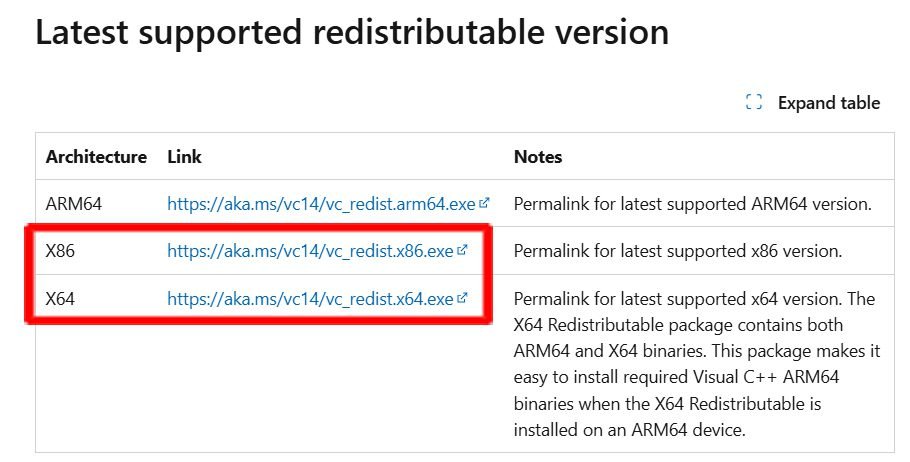
- Go directly to the official Microsoft Visual C++ Support Page.
- Download both the x86 and x64 architecture installers.
- Run each .exe file. If it is already installed, click Repair; otherwise, click Install.
- Restart your computer once both installations are complete, then launch the game.
Why it works: Modern Windows games are built using specific C++ coding packages. If your operating system is missing the corresponding operational library links, the application cannot interpret the game executable’s core commands, resulting in a silent failure to open.
Fix 13: Allow MW4 Through Windows Firewall and Controlled Folder Access
Sometimes, aggressive Windows real-time security blocks the game’s network files or prevents the executable from modifying save data, leading to the application not launching.
- Press the Windows Key, type Firewall, and open Windows Defender Firewall.
- Click Allow an app or feature through Windows Defender Firewall -> Change Settings.
- Click Browse, navigate to your MW4 installation folder, add both the main cod.exe and sp26-cod.exe launch files, and ensure both Private and Public boxes are ticked.
- Next, search for Core Isolation in your Windows search bar. Under this menu, ensure Kernel mode hardware-enforced stack protection is enabled to keep the game’s anti-cheat framework satisfied.
Why it works: Modern real-time heuristic security systems scan file changes constantly. If a security rule flags a game’s network call as a false-positive threat, Windows blocks its memory updates. Exempting these files stops the security framework from halting the game processes.
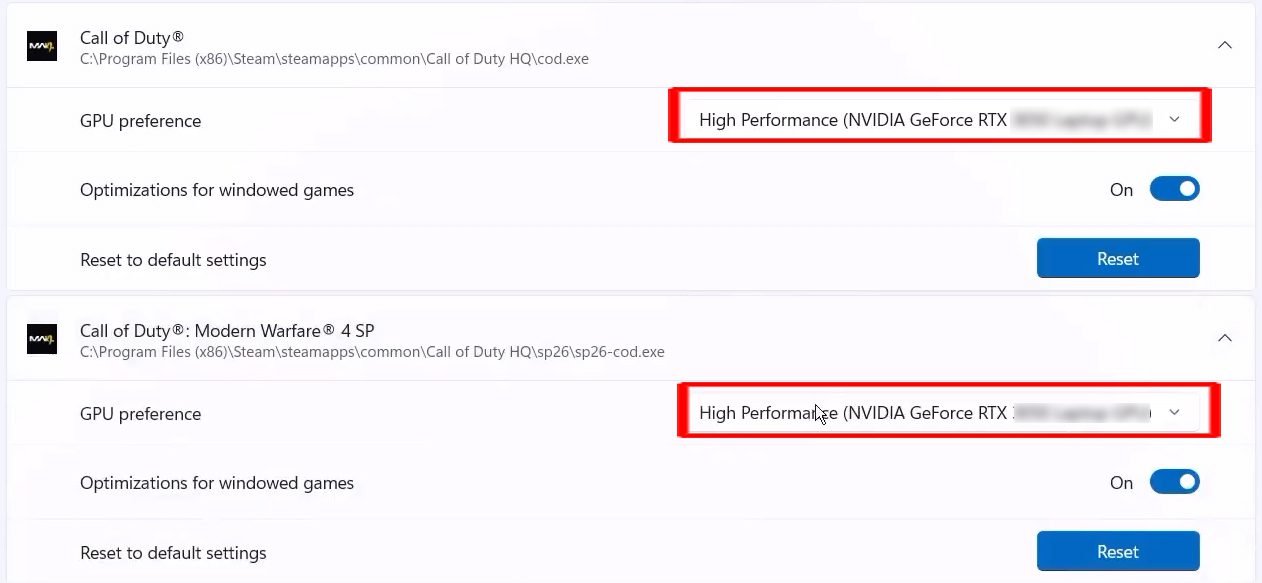
Fix 14: Force Your Dedicated GPU to Prevent MW4 Crashing
Stop unexpected MW4 crashing on gaming laptops by forcing Windows to utilize your dedicated graphics card. If you are playing on a laptop or a dual-GPU desktop setup, Windows may accidentally run MW4 using your CPU’s weak integrated graphics instead of your dedicated graphics card. This triggers immediate freezing or an instant crash.
- Open Windows Graphics settings, click Browse, select your game executable files (cod.exe/sp26-cod.exe), click Options, and force them to High performance.
- For desktop users, double-check that your HDMI or DisplayPort cable is physically plugged directly into your dedicated graphics card slot, not the motherboard slot.
- If it still crashes, open Device Manager > expand Display adapters > right-click your integrated graphics card (e.g., Intel HD Graphics) and select Disable device. Turn it back on when you’re done gaming.
Why it works: Low-power integrated graphics chips lack the hardware rendering units and VRAM required to build high-end 3D environments. Forcing the dedicated GPU routes all execution logic blocks through the proper graphics processing rails, stopping internal memory allocation crashes.
Fix 15: Adjust Hardware-Accelerated GPU Scheduling (HAGS) & Display Modes
Windows has a built-in display scheduling tool that can occasionally conflict with high-performance game graphics engines.
- Type Graphics settings in your Windows search bar and click on Advanced graphics settings.
- Find the toggle for Hardware-accelerated GPU scheduling and turn it off. If it was already off, try toggling it on. Restart your PC.
- Disconnect any secondary monitors and attempt to run the game strictly on a single monitor setup.
- Right-click your desktop > Display settings > drop your monitor’s refresh rate down from ultra-high settings (like 240Hz) down to a stable 120Hz or 60Hz to test system stability.
Why it works: HAGS re-routes timing operations from the operating system directly to the graphics hardware’s VRAM processor. In some combinations of display setups or driver versions, this can cause frame timing errors that force high-refresh monitors to desync and freeze on startup.
Fix 16: Configure In-App Graphics Settings (Nvidia App/Windows Power)
Toggling specialized rendering features outside the game environment can prevent structural launch blockages.
- NVIDIA Debug Mode: Open your NVIDIA App > Go to System > Click Advanced > Toggle Debug Mode to On (or toggle it off if it was already running) to clear driver timing errors.
- Power Optimization: Open Control Panel > Hardware and Sound > Power Options. Switch your system power plan profile over to Power Saver or High Performance to see if power rail throttling is causing the engine to freeze.
Why it works: Factory overclocked graphics cards can sometimes suffer from unstable timing curves out of the box. Enabling NVIDIA Debug Mode forces the card to run at reference clock base specs, clearing clock instability problems. Changing the Windows power profile ensures your hardware gets a consistent delivery of electricity.
Fix 17: Enable TPM 2.0 and Secure Boot in BIOS & Update Windows/BIOS
The kernel-level anti-cheat software requires modern security protocols and updated firmware to be active. If they are disabled, the game will remain stubbornly not launching.
- Go to Windows Update and click Check for updates to ensure your OS is fully up to date, then restart.
- Restart your PC and tap your BIOS key (usually F2 or Del) to enter firmware settings. Go to the Security or Boot tab and ensure Secure Boot and TPM 2.0 (fTPM/PTT) are toggled to Enabled.
- If errors persist, visit your motherboard manufacturer’s website, download the latest BIOS update firmware for your specific model number, and flash your system.
Why it works: Modern gaming anti-cheat platforms require hardware root-of-trust authentication to prevent digital code injection hacks. Secure Boot and TPM 2.0 guarantee that the operating system kernel hasn’t been intercepted or tampered with before the game launches.
Fix 18: Reinstall the Game onto a Different SSD Drive
If you are still hitting an endless black screen or persistent MW4 crashing, your storage drive might be failing. It will cause severe asset-loading issues like an endless black screen or continuous freezing.
- Completely uninstall Call of Duty: Modern Warfare 4 via your launcher’s game properties menu.
- When downloading the game fresh, do not install it on an older mechanical HDD. Choose a clean path on a high-speed Solid State Drive (SSD), ideally your default C: Drive, to ensure smooth asset loading.
Why it works: Mechanical hard drives (HDDs) read files using a physical, moving magnetic head, which is far too slow for the massive texture packages used by modern games. Moving the game files to a solid-state drive (SSD) allows the game engine to read files almost instantly, preventing loading lag and timeout crashes.
Final Thoughts: Getting Back Into the Lobby
Dealing with a game that is constantly crashing or stubbornly not launching can be incredibly frustrating, but working your way through these steps will usually get you past those annoying technical bottlenecks. In most cases, a simple launch parameter adjustment, clearing a corrupted shader folder, or updating your graphics card drivers will completely fix the problem, ensuring your game goes back to running smoothly and remaining not crashing.
If you have tried every single step on this list and you are still staring at a frozen black screen or experiencing a sudden startup crash, it may be time to check the running log of known server bugs or flag your hardware setup by submitting a ticket through the Activision Support Options Portal, or check community forums to see if a recent game patch has introduced a widespread server-side bug. Keep your drivers fresh, keep your hardware optimized, and we will see you on the battlefield!
By methodically working through this troubleshooting order, you will successfully eliminate MW4 crashing bottlenecks and stabilize your frame performance.
Frequently Asked Questions (FAQs)
1. Why does Call of Duty: MW4 crashing on startup without an error code?
When a game suffers a sudden startup crash straight to the desktop without an error pop-up, it is typically caused by the anti-cheat system flagging background software as a threat, or critical administrative permissions being blocked by Windows. Ensure you have closed all overlay applications (like Discord or MSI Afterburner) and run the launcher executable as an administrator.
2. How do I fix the permanent black screen issue when launching MW4?
A persistent black screen usually means the game engine is failing to handshake with your graphics card or display configuration. To resolve this, perform a clean graphics driver installation, drop your monitor’s refresh rate down to a stable 60Hz or 120Hz to eliminate display timing errors, or toggle the Hardware-Accelerated GPU Scheduling (HAGS) feature inside your Windows graphics settings.
3. What should I do if my game is stuck freezing on the loading screen?
If the game initializes but starts aggressively freezing or becomes stuck not loading on the main title screen, the culprit is almost always a corrupted shader compilation folder. Flush your cache by navigating to your system’s local temporary application folders (%localappdata%), locate the game directory, and purge the temporary storage sub-contents before relaunching.
4. Can missing security settings prevent MW4 from launching?
Yes. Call of Duty: MW4 utilizes a kernel-level anti-cheat framework designed to protect game integrity. This system requires modern security parameters like TPM 2.0 and Secure Boot to be actively enabled within your motherboard’s BIOS firmware. If these settings are turned off or out-of-date, the platform launcher will explicitly block the game from opening, leaving it stuck and not launching.
5. Why is the game still crashing even though I have plenty of physical RAM?
Even if your system packs an adequate amount of RAM, modern high-end titles can experience massive, unexpected allocation spikes during heavy asset load cycles. If Windows runs out of buffer memory lanes, it will execute a hard shutdown of the application. Manually expanding your system’s Virtual Memory paging file size allocates a safe backup partition on your SSD to catch these random overflows, keeping the game perfectly stable and preventing crashes.
6. Will modifying my system’s Virtual Memory paging file or BIOS settings damage my PC?
No, these adjustments are completely safe and will not harm your hardware. Enabling TPM 2.0 and Secure Boot simply activates standard system security layers that are required by modern operating systems like Windows 11. Manually adjusting your Virtual Memory paging file is a standard Windows optimization technique that safely creates a temporary memory overflow buffer on your SSD, ensuring your system remains stable instead of forcing a sudden application shutdown.
7. Why am I getting an error saying critical files are missing even after updating the game?
This happens when a patch download gets interrupted, or when your platform launcher fails to correctly write the new asset files to your drive. Even though the application claims to be updated, corrupted data blocks will cause a sudden startup crash. To fix this, use the built-in Verify Integrity of Game Files or Scan and Repair tool in Steam, Battle.net, or the Xbox App to automatically isolate and replace the broken data packets.
8. Does running MW4 on a traditional hard drive (HDD) cause it to freeze?
Yes, modern high-fidelity shooters stream massive amounts of map and texture data in real-time. Traditional mechanical hard drives are simply too slow to keep up with these heavy data transfer cycles, frequently causing the game to get stuck on a loading screen or trigger an endless black screen timeout. Moving the installation files onto a fast Solid State Drive (SSD) allows the engine to load assets instantly, keeping your gameplay smooth and without any crashing.
⚠️ Disclaimer
The troubleshooting steps outlined in this guide utilize standard Windows configurations, official game launcher features, and verified manufacturer updates. While these optimization methods are completely safe and designed to resolve game execution bugs, always ensure your operating system files are backed up before modifying advanced system architecture settings like your motherboard BIOS.
Author’s Note: If this guide helped you fix your game, please share this post to help other players get back online!
More COD MW4 Troubleshooting Guides:
- How To Fix MW4 Connection Error & Multiplayer Issues on PC
- How to Fix Blurry Graphics & Washed-Out Textures in COD MW4

Danny Paul is a tech specialist and avid gamer with over 10+ years of experience resolving complex system errors, software bugs, and platform glitches. He specializes in creating straightforward, actionable troubleshooting guides for Android, iOS, PC gaming, and mainstream social media networks to help users fix issues instantly. In his free time, he loves solving puzzles, playing online games, watching movies, and traveling.