
Sometimes, messages appear on your phone but fail to show up on your computer, making it frustrating to keep track of your conversations.
The X (Twitter) DM sync issue usually happens because of an outdated app, a poor internet connection, browser glitches, or encrypted chat settings.
In this guide, you will learn how to quickly fix this problem on Android, iOS, and desktop browsers using a few simple steps.
Why Are My X (Twitter) DMs Not Syncing?
- Poor internet connection: Weak or unstable network signals can cause messages to take longer to load or update.
- Outdated X app: Running an older version of the application can cause software conflicts and stop chats from updating.
- Corrupted cache files: Temporary data stored on your phone can become corrupted, stalling real-time updates.
- Browser issues: Corrupted cookies, outdated cached data, or conflicting browser extensions can block X from syncing on desktops.
- Encrypted chat settings: X’s secure chat features require specific device keys. Pin or key mismatches will prevent encrypted conversations from appearing on secondary devices.
- Direct Message settings restrictions: Strict inbox privacy filters can isolate filtered message requests, creating delivery lag between different versions of the app.
- Background Data usage limits: Battery-saver modes or restricted mobile data permissions can block the app from performing required updates in the background.
- Temporary server issues: X’s central servers occasionally experience backend outages or technical glitches that temporarily halt message syncing.
Fixes To Try When X DMs and Chats Are Not Syncing Across Devices
If your messages are not updating across devices, a few simple changes may help fix the problem. These fixes focus on refreshing the app, checking the internet connection, and removing temporary issues that may stop chats from syncing.
Follow the steps below for Android, iOS, and desktop browsers.
Fix 1: Force Close and Restart the X App
Sometimes the app’s background sync process stalls. Closing the app completely and opening it again forces it to establish a fresh connection with X’s servers.
- On Android: Go to Settings > Apps > See all apps > X. Tap Force Stop, then reopen the app from your home screen.
- On iOS (iPhone/iPad): Swipe up from the bottom of your home screen to open the app switcher, find the X app preview card, and swipe it up and off the screen to close it. Re-launch X from your device.
Fix 2: Update the X App
An outdated app can cause loading and syncing problems. Check for a newer version to make sure you are using the latest available features and fixes.
- For Android: Open the Google Play Store, search for X, open the app page, and tap Update if available.
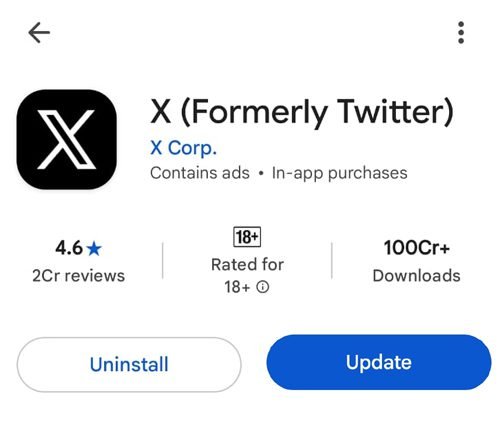
- For iOS: Open the Apple App Store, search for X, open the app page, and tap Update if available. After updating, open X and check your messages again.
Fix 3: Log Out and Log In
Logging out and signing in again refreshes your account session and can resolve temporary connection problems. Before logging out, make sure you know your login details and can complete any security verification.
- Open the X app and tap on your Profile.
- Go to Settings and privacy.
- Tap on Your account and then tap on “Account information“.
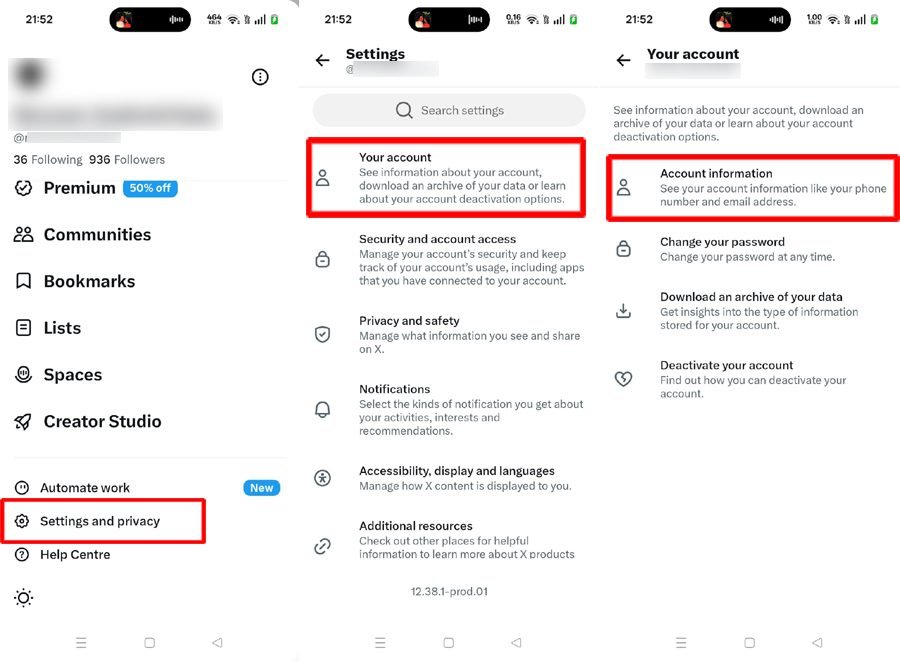
- At the end, tap on the Log out option to sign out of your account.
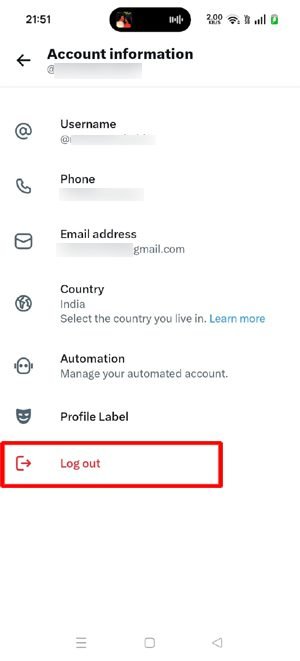
- Sign in again and open your DM inbox.
Note: If you use encrypted chats, make sure you know your Chat passcode before signing out. Logging out can remove encryption keys stored on the device, which may affect access to encrypted chat history.
Fix 4: Clear the X App Cache on Android
The X app stores temporary files to help it load content faster. If these files become damaged or outdated, they may cause loading issues. Clearing the cache can help without removing your account.
- Open your phone’s Settings.
- Tap Apps or App management.
- Select X.
- Open Storage or Storage and cache.
- Tap Clear cache.
- Open X again and check your messages.
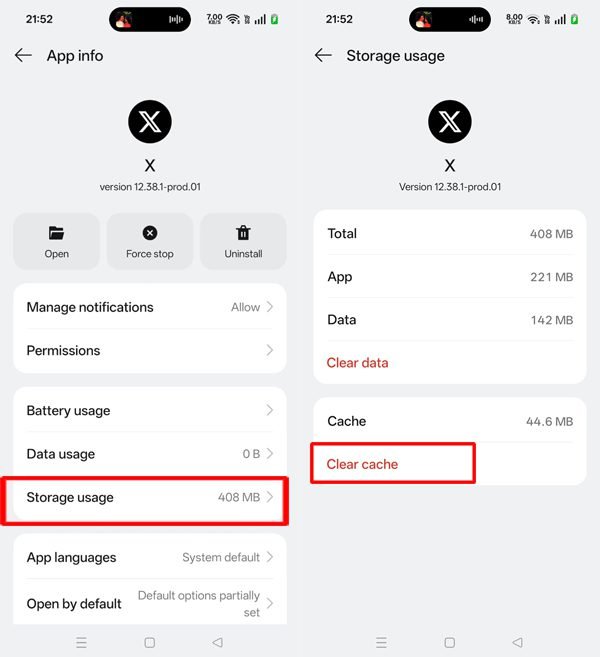
Avoid tapping Clear data unless necessary, because it may reset app settings and sign you out.
Fix 5: Offload and Reinstall X on iPhone
Since iOS does not provide the same direct app-cache clearing option as Android, you can try offloading X to remove the app while keeping its documents and data, then reinstall it. This may help if the app itself is causing the issue.
- Open Settings on your iPhone.
- Tap General.
- Select iPhone Storage.
- Find and tap X.
- Tap Offload App.
- After offloading, tap Reinstall App.
- Open X and check whether your DMs sync correctly.
Fix 6: Toggle Direct Message Permissions
Toggling your account’s privacy rules can kickstart a stalled message sync process on your mobile device.
- Open X and tap your Profile icon.
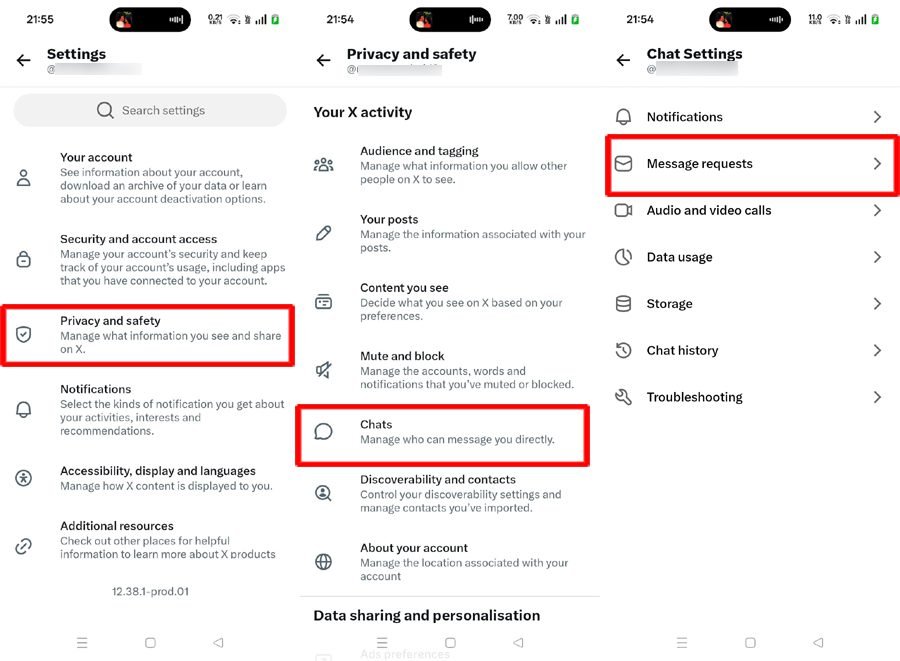
- Go to Settings and privacy > Privacy and safety > Chats.
- Tap on Message requests and temporarily change it (e.g., turn it off or switch to a different tier). Wait a few seconds, then change it back to your preferred setting and then check.
Fix 7: Verify Device Keys for Encrypted Chat Threads
X utilizes localized device keys for secure messaging. If you are trying to view an encrypted chat thread on a secondary mobile device, it will fail to load until that specific device is verified.
- Open the individual message thread that is failing to sync.
- Tap the Info (i) icon in the top right corner of the chat window.
- Look for the Encryption status or Verify device settings.
- Ensure your secondary device has been authorized using your account PIN or passkey so it can download the decrypted chat logs from the server.
Fix 8: Check Your Internet Connection
A weak or unstable connection can prevent X from loading the latest messages on every device. Switching networks can help you find out whether the problem is related to your connection.
- Check whether other apps and websites are loading properly.
- Switch from Wi-Fi to mobile data, or try another reliable Wi-Fi network.
- Turn off any VPN temporarily, if you use one.
- Open X again and refresh your DM inbox.
Fix 9: Adjust Direct Message Privacy Tiers
X occasionally updates its message filter settings, which can cause a delay in syncing chat requests between the app and desktop versions. Adjusting your global inbox filter forces the account parameters to re-sync across all active platforms.
- Open X and tap your Profile icon.
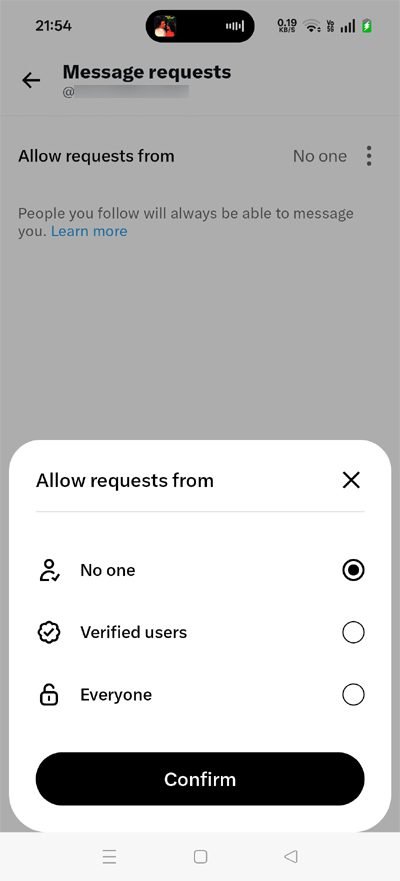
- Head to Settings and privacy > Privacy and safety >Chats.
- Tap on Message requests and temporarily change it (e.g., select No one, Verified users, or Everyone).
- Even if it is already set correctly, switch it to a different setting, save, and switch it back to force a configuration refresh.
Fix 10: Check X Server Status
If none of your device-specific steps resolve the issue, the sync problem is likely backend-related. Before modifying any advanced account configurations, it is highly recommended to check live reporting charts on Downdetector for X to see if the platform is experiencing a massive platform-wide server disruption.
If you notice a major spike in user reports, the direct messaging infrastructure is temporarily frozen on X’s end, and you will need to wait for their engineering team to deploy a fix.
Troubleshooting Desktop Browsers (Mac and PC)
Fix 11: Clear Browser Cache and Cookies
Your browser saves cached files and cookies to load websites faster and keep you signed in. Sometimes, outdated or damaged browser data can affect how X loads chats.
- Open your browser.
- Go to Settings.
- Find Privacy and security.
- Select Clear browsing data.
- Choose Cached images and files (and Cookies if needed).
- Select the appropriate time range and clear the selected data.
- Reopen X and sign in again.
Clearing cookies may sign you out of websites, so make sure you can access your account before proceeding.
Fix 12: Try X in an Incognito or Private Window
Browser extensions or saved website data may interfere with X. A private window can help you check whether the problem is limited to your regular browser session.
- Open Chrome, Edge, Safari, or Firefox.
- Open a new Incognito or Private window.
- Visit X.com.
- Sign in to your account.
- Open your DMs and check whether messages appear correctly.
If chats work in the private window, try disabling browser extensions one at a time or clearing X’s site data in your regular browser.
Fix 13: Check Encrypted Chat Passcode Settings
X offers Encrypted Chats, which use encryption keys to protect messages. When you open encrypted chats on another device, X may ask for your Chat passcode. If your passcode is missing or the keys are unavailable, older encrypted messages may not appear as expected.
To better understand how the platform handles cryptographic key pairs across different devices, you can read the official X Help Center Guide on Chat.
- Open X on the device where your encrypted chats are working.
- Go to the Chat inbox.
- Open the Chat settings using the gear icon.
- Check your passcode settings.
- If another device asks for the passcode, follow the on-screen instructions.
- If you have forgotten it, use the available Change passcode or Forgot passcode options.
If possible, change the passcode from a device where your encrypted chats are still accessible. Resetting the passcode may cause you to lose access to encrypted chat history, so do not reset it unless you understand the warning shown by X.
Note: X’s passkey for signing in and its encrypted Chat passcode are different features. A sign-in passkey is not the same as the passcode used to recover encrypted chat keys.
Fix 14: Update Your Browser and Disable Extensions
An outdated browser or an extension that blocks website functions may prevent X from working correctly. Updating the browser and temporarily disabling extensions can help identify the cause.
- Open your browser settings.
- Check for available browser updates.
- Install any updates and restart the browser.
- Temporarily disable extensions, especially ad-blockers or those that block scripts.
- Open X and check your DMs again.
If the problem remains, try another supported browser to see whether the issue is browser-specific.
Fix 15: Check Account Health and Submit a Support Ticket
If your browser settings are perfect but certain message strings still refuse to appear on desktop, your account may be experiencing a localized backend glitch or a temporary feature restriction.
Navigate over to the X Support Ticket Portal to review your account status and ensure there are no hidden security flags holding back message delivery. From there, you can easily submit a technical report to request a manual account synchronization refresh from their web development team.
- Go to the X navigation menu and open the X Help Center.
- Check your account status to ensure there are no temporary blocks or pending security verifications holding back message delivery.
- If everything looks clear, use the support forms to report a persistent messaging bug to get the platform to manually reset your account’s server sync profile.
Tips to Avoid X (Twitter) DM Sync Issues
Before trying the more detailed fixes, follow these quick tips to identify the problem more easily:
- Refresh your DM inbox: Pull down to refresh the chat screen on your mobile app or refresh the webpage on your desktop browser.
- Check both devices: Ensure that X is connected to a stable internet connection on both your phone and your computer.
- Keep the app updated: Install the latest version of X from the app store to avoid glitches caused by outdated software.
- Enable background app refresh: Check your mobile settings to ensure X is allowed to sync data in the background when the app is closed.
- Disable Data Saver mode: Turn off data-saving settings on your device or browser, as these features often block real-time chat updates to save data.
- Try another browser: Open X in a different browser (like switching from Chrome to Firefox) to verify if the issue is browser-related.
- Avoid repeated login attempts: Signing in and out too many times in a short window may trigger temporary security checks on your account.
- Keep your Chat passcode safe: Ensure you have your encrypted chat passcode written down, as you will need it to authorize secondary devices.
- Check for widespread service issues: If your messages are completely missing on every single device, the problem is likely a temporary system outage on X’s backend.
Conclusion
If your messages are not showing up on all your devices, try checking your internet connection, updating the X app, or clearing your browser cache. These simple steps frequently resolve the problem and restore your normal chat logs.
If the X DMs and chats not syncing across devices issue persists, take a closer look at your localized Encrypted Chat settings or try opening your profile on an alternate device.
If nothing helps, you can visit the X Help Center to submit a support report for more direct assistance.
Frequently Asked Questions (FAQs)
1. Why are my DMs showing on my phone but not my computer?
This usually happens because of browser cache glitches, a temporary connection dropout, or because your encrypted chat keys have not been verified on your computer. Try opening X in an Incognito or Private browser window first, and check your mobile account’s Encrypted Chat settings.
2. How do I clear the X cache on Android?
Open your phone’s Settings, go to Apps, select X, tap Storage, and choose Clear cache. The exact menu names may differ slightly depending on your Android manufacturer.
3. Can I clear the X cache on an iPhone?
No, iOS does not offer a direct cache-clearing option for individual third-party apps. Instead, you can navigate to your iPhone Storage, select X, tap Offload App, and then reinstall it to wipe out temporary data while keeping your account login intact.
4. Will resetting my X Chat passcode delete my messages?
Resetting your Encrypted Chat passcode will cause you to permanently lose access to your past encrypted chat history. Always read X’s on-screen warning carefully. If possible, try changing the passcode from a primary device where your chats are still accessible instead of initiating a full factory reset.
5. What should I do if none of these fixes work?
First, check live outage maps to see if X is experiencing a localized server disruption. If the servers are operational, try testing your account on an alternate browser or device. If the problem persists, open a support ticket at the X Help Center for further engineering troubleshooting.
6. Why are my X DMs delayed or lagging when syncing between devices?
A sync lag is usually caused by background data restrictions or battery-saver settings on your mobile device. If your phone places X into a low-power mode, the app cannot communicate with the server to fetch updates in real-time, resulting in messages appearing on your computer long before they pop up on your phone.
7. Do standard X chats and Encrypted Chats sync differently?
Yes. Standard DMs are stored directly on X’s cloud servers, meaning they automatically sync to any device the moment you log in. Encrypted Chats rely on secure, device-specific cryptographic keys. They will not sync or display on a secondary device until you manually verify the connection or enter your matching Chat passcode.
More X (Twitter) Troubleshooting Guides:
- How to Fix “Post Not Sent” & “Failed to Send Post” Errors on X (Twitter)
- How to Fix Photos and Videos Not Loading in Posts & Chats on X

Danny Paul is a tech specialist and avid gamer with over 10+ years of experience resolving complex system errors, software bugs, and platform glitches. He specializes in creating straightforward, actionable troubleshooting guides for Android, iOS, PC gaming, and mainstream social media networks to help users fix issues instantly. In his free time, he loves solving puzzles, playing online games, watching movies, and traveling.