The iPhone timer is useful for managing daily tasks, cooking, studying, and other activities. However, sometimes the timer reaches zero without playing an alert, leaving you frustrated with your iPhone timer sounds not going off. This can make it difficult to know when the countdown has finished. Missing an alarm because your device stays silent can mean burnt food, missed appointments, or a disrupted schedule.
If your iPhone timer is not making sound, the problem may be related to the selected timer tone, alert volume, speaker, or a temporary software glitch. Checking these settings and testing the timer can help you find the cause.
This guide explains the common reasons and practical solutions to fix the problem.
Common Reasons: Why the iPhone Timer Is Not Making Sound?
Before trying any solution, it is helpful to understand what may be causing the problem.
- Incorrect timer sound: The selected end sound may not be suitable for a regular timer alert.
- Low alert volume: A low volume level can make the timer difficult to hear.
- Speaker problems: A blocked or damaged speaker may affect audio output.
- Temporary software glitches: A minor system issue may prevent the timer from working properly.
- Outdated iOS: Software bugs may affect certain features on the device.
- Incorrect timer settings: The current timer configuration may not produce the expected sound.
How to Fix an iPhone Timer That Is Not Making Sound
If your iPhone timer sounds not going off, checking a few settings may help resolve the problem. Incorrect timer tones, low alert volume, or temporary software glitches can affect the sound.
Try these fixes to identify the cause and get your timer working properly again.
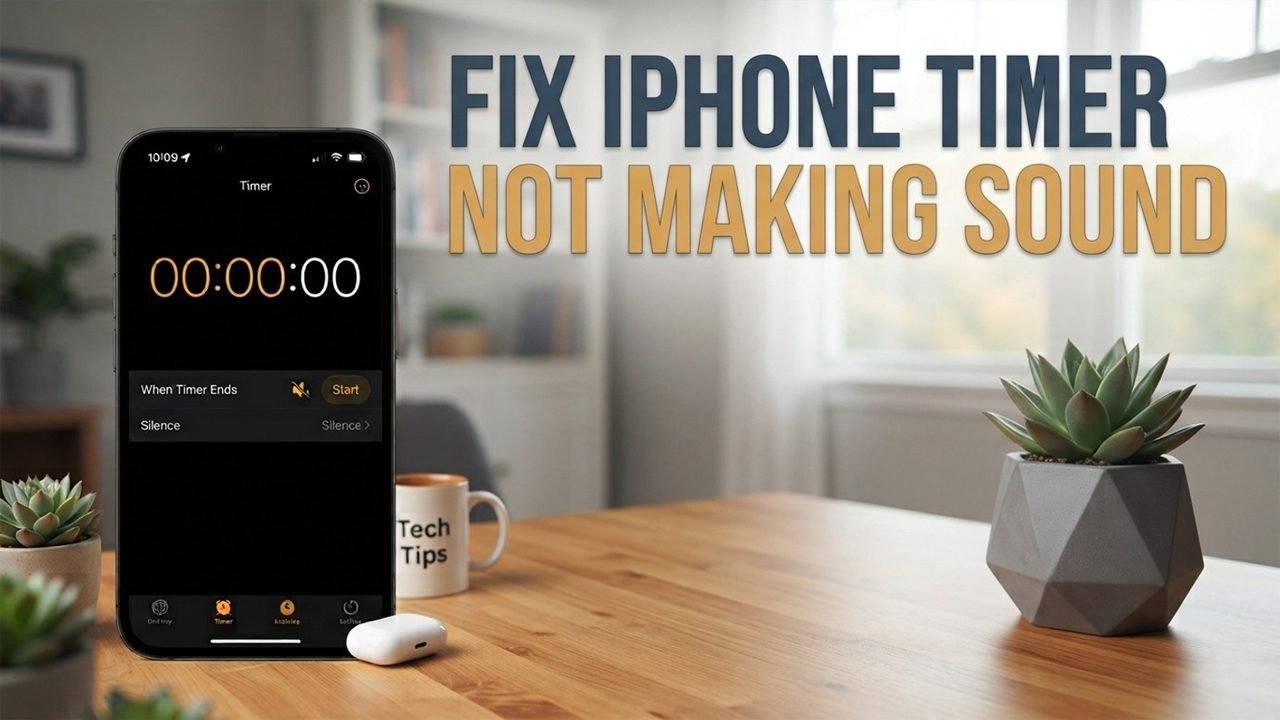
Fix 1: Check the Timer End Sound
The first step is to check whether your timer is set to play an audible tone when it finishes. If the wrong option is selected, you may not hear the expected alert.
- Go to your Clock app on your device.
- Click Timer.
- Choose an available sound instead of Stop Playing.
- Set a short timer to check whether the sound works.
Fix 2: Check that the Timer is Activated
In some cases, the iPhone timer cannot make a sound because it is paused or not started. Check the timer and ensure it is running.
- Open the Clock app.
- Tap Timers.
- Check whether the timer is running or paused.
- If it is paused, click Resume to continue.
- If it has not started, set the time and tap Start.
Fix 3: Set Multiple Timers
You can set more than one timer on your iPhone to manage different tasks at the same time.
- Go to Clock app on your iPhone.
- Click Timers and start a timer.
- Tap the + (Plus) button to add another timer.
- Set the time for the new timer and start it.
Fix 4: Turn on sounds for the Clock app
Alarm and timer sounds usually play even when your iPhone is in Silent Mode or Do Not Disturb is turned on. They should also play through your iPhone’s speaker when AirPods are connected. However, the timer may not make a sound if the Clock app’s sound settings are turned off.
- Go to the Settings app on your iPhone.
- Scroll down and click Apps.
- Choose Clock from the app list.
- Select Notifications.
- Ensure Sounds is turned on. You can also check that Lock Screen, Notification Center, and Banners are enabled.
Fix 5: Check Whether Siri Set the Timer Properly
Siri can set a timer with a voice command, but sometimes the request can not work when several Apple devices are nearby. Your iPhone, iPad, or Mac may all respond to the same command, and the timer might not start. To avoid this problem, check whether the timer has started after asking Siri to set it.
- Say “Hey Siri, set a timer for 5 minutes.”
- Wait for Siri to respond.
- Check your iPhone’s Lock screen to see whether the timer appears.
- You can also open the Clock app and check whether the timer is running.
- If the timer doesn’t appear, open the Clock app and set the timer manually.
Fix 6: Increase the Ringtone and Alert Volume
If the timer sound is too quiet or cannot be heard, your alert volume may be low. Adjusting the volume can help make the sound easier to hear.
- Go to Settings on your iPhone.
- Select Sounds and Haptics.
- Find the Ringtone and Alerts slider.
- Set a timer and test the sound again.
Fix 7: Choose a Different Timer Sound
Sometimes, the selected sound may not be loud enough for you to notice. Choosing another available sound can help determine whether the problem is related to the current sound.
- Open the Clock app and go to Timers.
- Click When Timer Ends.
- Choose a different audible tone.
- Set a short timer and wait for it to finish.
- Check whether the new sound plays correctly.
Fix 8: Delete and Set Up the Timer Again
Sometimes, an old timer may not work properly when you try to use it again. In this case, delete the old timer and create a new one. You can also remove previous timers to avoid this issue.
- Open the Clock app on your iPhone.
- Go to the Timers section.
- Tap the + icon to set a new timer.
- Enter the time and start the timer to check whether it works.
- To delete old timers, click Edit and select the timers you want to remove using the red minus icon, if available.
Fix 9: Restart Your iPhone
Temporary software glitches can sometimes interfere with the Clock app. Restarting your iPhone may help clear these temporary problems.
- Turn off your device using the power-off method for your model.
- Wait a few seconds.
- Turn your iPhone back on.
- Open the Clock app and test the timer again.
Fix 10: Check for iOS Update
An outdated iOS version may contain bugs that affect certain features. Checking for software updates may help resolve problems with the timer.
- Go to Settings on your iPhone.
- Select General.
- Click Software Update.
- If an update is available, follow the on-screen instructions to install it.
- After updating, test the timer again.
- Ensure your iPhone has sufficient battery power and a stable internet connection before starting the update. If you run into installation issues, consult Apple’s support page for software troubleshooting steps.
Tips to Prevent iPhone Timer Sound Problems
Along with the fixes above, a few simple practices may help you avoid similar problems in the future:
- Check the timer sound before starting an important task.
- Keep the Ringtone and Alerts volume high enough to hear clearly.
- Install available iOS updates to keep your device running smoothly and bug-free.
- Test the timer immediately after changing any sound settings.
Conclusion
In conclusion, fixing an iPhone timer not making sound is usually simple. If you find your iPhone timer sounds not going off, the issue can often be resolved by checking the timer settings, adjusting the Ringtone and Alerts volume, and selecting an audible timer tone.
Restarting the iPhone or updating iOS may also help to fix temporary software glitches. If the problem continues, review the timer settings again to identify the cause and restore normal sound.
FAQs: iPhone Timer Sounds Not Going Off
Why is my iPhone timer not making any sound?
The timer may be set to “Stop Playing” instead of a ringtone, the Ringtone and Alerts volume might be too low, or a temporary software glitch could be affecting the Clock app. For more user experiences and rare edge cases regarding this bug, you can read the active discussions on this Apple Support Community thread.
Will Silent Mode stop my iPhone timer from making a sound?
No, Silent Mode does not stop the built-in Clock app from playing its timer alerts. If you cannot hear it, you should check the timer’s “When Timer Ends” sound setting and your device’s alert volume.
How can I test whether my iPhone timer sound is working?
Open the Clock app, choose an audible tone under When Timer Ends, set a short 5-second timer, and wait for the countdown to finish to see if the audio plays correctly.
Also Read:
- iPhone 18 Pro & Pro Max Vertical Lines: Troubleshooting Steps and Repair Options
- How To Stop Siri AI From Keeping Your Conversation History
- How To Stop iPhone & Mac From Automatically Showing Subtitles (iOS 27)

Danny Paul is a tech specialist and avid gamer with over 10+ years of experience resolving complex system errors, software bugs, and platform glitches. He specializes in creating straightforward, actionable troubleshooting guides for Android, iOS, PC gaming, and mainstream social media networks to help users fix issues instantly. In his free time, he loves solving puzzles, playing online games, watching movies, and traveling.