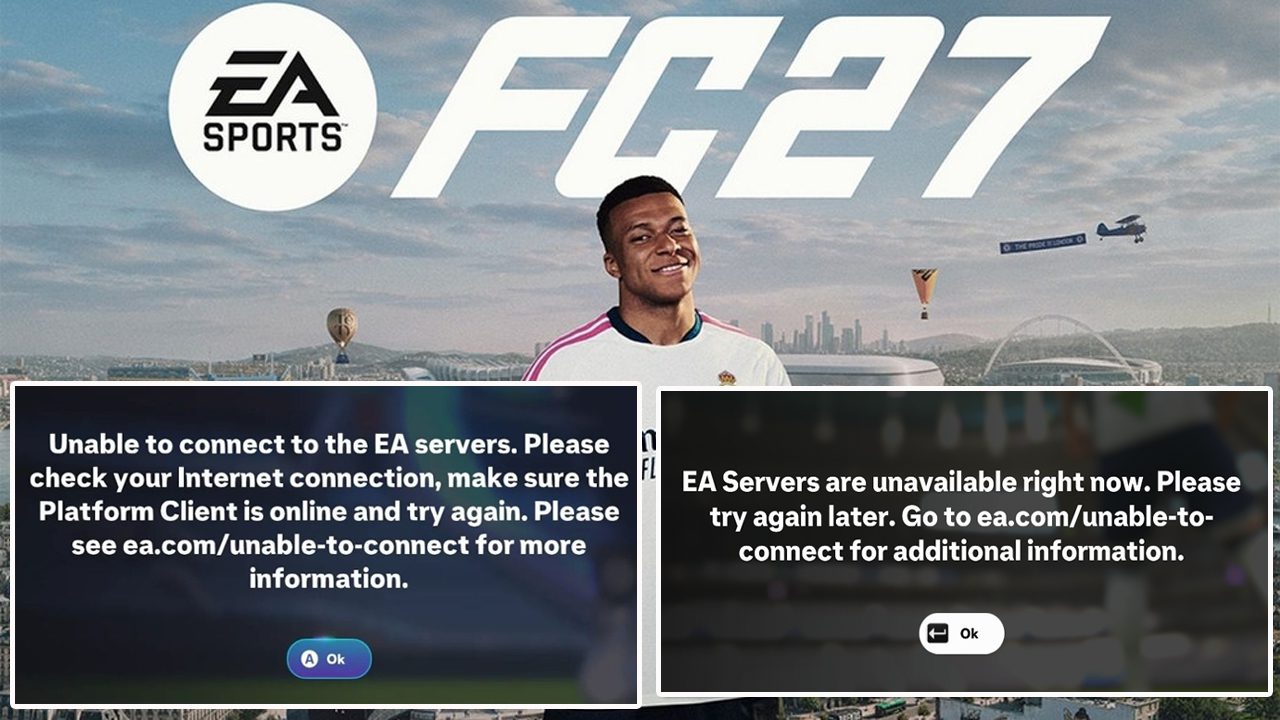
You are playing EA Sports FC 27 and suddenly, you encounter server or connection error such as “EA Servers are unavailable right now. Please try again later” or “Unable to connect to the EA servers”, then it could be the most frustrating and annoying moment for any players.
Few things are more frustrating than preparing for a match only to be stopped by a persistent server or connection error in EA SPORTS FC 27. Whether you are facing a complete network timeout on PC or console, or experiencing login service errors trying to access Ultimate Team, we have you covered.
In this article, you will learn the ultimate step-by-step troubleshooting solutions on how to fix EA SPORTS FC 27 server error, connection error, login error, network error or can’t connect to server error to get your connection back online immediately.
How To Fix Server or Connection Error in EA SPORTS FC 27
Check EA SPORTS FC 27 Server Status
Now, before jumping to the fixes you must first check the server status of EA SPORTS FC 27.
You can check the server status of FC 27 from its official EA website – EA SPORTS FC 27 Server Status.
If you find that its server is offline, under maintenance or if it is encountering any outage, then in such scenarios, you have to just wait for their online service to get restored and the issue will get resolved by itself.
However, if its server status is online and if you are still experiencing the server or connection issues, then follow the fixes outlined below.
Fix 1. Restart Steam/Restart EA App/Restart Your PC
This is the most basic fix that you must start with.
- Just close the FC 27 game completely from Task Manager. And then relaunch the game and check.
- If that didn’t help, then restart your gaming device (PC, Xbox, PS5, Nintendo) and then launch the game and check.
Fix 2. Re-synchronize Your Windows Clock
If your device’s clock does not match the EA server’s clock, the authentication process fails. To fix this, follow these steps:
- Open Windows Settings and choose Time & language.
- Go to Date & time and toggle Set time automatically off and back on.
- Click Sync now under the Additional settings tab.
- Launch the game and check.
Fix 3. Change DNS Server
Changing your DNS server on a Windows PC, change the adapter properties via the Network Connections panel. This bypasses slow or unreliable ISP servers and routes your EA server traffic through faster public resolvers like Google or Cloudflare.
Windows 10 & 11 (Standard Method)
- Press Windows Key + R, type cpl, and press Enter to open Network Connections.
- Right-click your active network adapter (Ethernet if wired, or Wi-Fi if wireless) and select Properties.
- In the list, double-click Internet Protocol Version 4 (TCP/IPv4).
- Select the radio button for Use the following DNS server addresses.
- Enter one of the high-performance public DNS pairs below:
Option A: Google Public DNS
- Preferred DNS server: 8.8.8.8
- Alternate DNS server: 8.8.4.4
Option B: Cloudflare DNS
- Preferred DNS server: 1.1.1.1
- Alternate DNS server: 1.0.0.1
- Check the box for Validate settings upon exit and click OK on both windows.
- Now, launch the game and check.
Fix 4. Reset Internet Connection
Resetting the internet connection refreshes your network connection, helping you to FC 27 server/connection/network error.
- Click the Start menu, type cmd, right-click Command Prompt, and select Run as administrator.
- Copy and paste the following block of CMD codes into the window one-by-one, then press Enter:
ipconfig /release
ipconfig /flushdns
ipconfig /renew
netsh int ip reset
netsh winsock reset
- After this, restart your PC (it is a must) and then launch the game check.
Fix 5. Perform Network Reset
- Press Windows Key + I to open Settings.
- Navigate to Network & internet (or Network & Internet > Status on older Windows 10 versions).
- Scroll down to the bottom and click on Advanced network settings.
- Under the More settings section, click on Network reset.
- Click the Reset now button, then click Yes to confirm.
- Save all open work immediately. Your PC will automatically restart within 5 minutes to complete the factory reset of your network configuration.
- After your PC reboots, check the bottom right corner of your taskbar. If you are on Wi-Fi, you will need to click the network icon, select your router, and re-enter your Wi-Fi password, as a network reset clears all saved network profiles.
- Now, launch the game and check.
Fix 6. Power Cycle Your Internet
Perform a hard hardware reboot to clear out corrupted routing tables, drop stalled connections to EA servers, and force your ISP to assign you a clean IP address.
- Turn off Wi-Fi Router or Modem.
- Also, turn off your gaming device (PC, Xbox, PS5)
- Wait for 1-2 minutes and then restart your Wi-Fi router or modem.
- Turn ON your gaming device.
- Reconnect internet and then launch the game and check.
Fix 7. Switch Internet Connection
Sometimes, there could be issue in your network connection. To fix this issue, you can switch your internet connection.
- If you are connected to Wi-Fi, then connect to mobile data via hotspot and then check.
- If possible, then try to connect to internet via ethernet cable and then check.
Fix 8. Run the game as an Administrator
Go to EA SPORTS FC 27 game installation folder.
Depending on where you purchased the game, find the root installation folder:
- EA App Default Path: C:\Program Files\EA Games\EA SPORTS FC 27
- Steam Default Path: C:\Program Files (x86)\Steam\steamapps\common\EA SPORTS FC 27
- Epic Games Default Path: C:\Program Files\Epic Games\EA SPORTS FC 27
- Look for the file named FC27.exe (it will have the official game logo icon).
- Right-click exe and select Properties.
- Click on the Compatibility tab at the top of the properties window.
- Check the box that says Run this program as an administrator.
- Click Apply and then click OK to save your changes and close the menu.
- Now, launch the game and check.
Fix 9. Disconnect VPN
If you’re connected to a VPN, then disconnect it to check if that helps to fix your connectivity issues.
Fix 10. Allow FC 27 exe File to Firewall & Controlled Folder Access
Steps to Allow FC 27 exe File to Firewall:
- Press Win + R, type control cpl, and hit Enter.
- Click Allow an app or feature through Windows Defender Firewall in the left sidebar.
- Click the Change settings button at the top (requires administrator rights).
- Click Allow another app… at the bottom.
- Click Browse and navigate to your FC 27 installation directory (e.g., C:\Program Files\EA Games\EA SPORTS FC 27\FC27.exe).
- Select exe, click Open, and then click Add.
- In the list, ensure both Private and Public checkboxes are ticked next to FC 27.
- Click OK to save.
Steps to Allow FC 27 exe File in Controlled Folder Access:
- Press Win + I to open Settings and navigate to Privacy & security > Windows Security > Virus & threat protection.
- Scroll down to Ransomware protection and click Manage ransomware protection.
- Click Allow an app through Controlled folder access (ensure Controlled folder access is toggled On).
- Click Add an allowed app and select Browse all apps.
- Browse to your FC 27 installation folder, select exe, and click Open.
Next, if you are using any third-party antivirus like Comodo, Avast, Kaspersky, AVG, McAfee, Norton, bit defender, ESET, Webroot, etc. then also allow the FC 27 game exe file to your antivirus program and then launch the game and check. Or you can also disable your Antivirus program and then check. Later, you can enable your Antivirus program after playing the game.
Fix 11. Verify/Repair Game Files
To verify or repair EA SPORTS FC 27 game files, use the specific UI path for the launcher platform where you purchased or play the game.
If you play on EA App
- Open the EA App and log in to your account.
- Click on Library (or My Collection) in the left sidebar menu.
- Locate the EA SPORTS FC 27 game tile.
- Click the three dots (…) icon on the top-right corner of the game tile (or open the game page and click Manage).
- Select Repair from the drop-down menu.
- Allow the app to scan, verify, and automatically replace any missing or corrupted files.
If you play on Steam
- Launch the Steam client and open your Library.
- Right-click on EA SPORTS FC 27 from the games list on the left and select ...
- Select the Installed Files tab from the left sidebar.
- Click the Verify integrity of game files
- Steam will compare your local files with official game servers and automatically download any missing or corrupted components.
If you play on Epic Games Launcher
- Open the Epic Games Launcher and click on your Library.
- Find the EA SPORTS FC 27 tile and click the three dots (…) next to the game title.
- Select Manage from the pop-up options menu.
- Click the Verify button next to the “Verify Files” option.
After, verifying/repairing FC 27 game files, launch the game and check.
Fix 12. Update Windows
- Press Win + I to open Settings.
- Click Windows Update at the bottom of the left sidebar.
- Click the Check for updates
- If updates are found, click Download & install.
- Restart your PC if prompted to complete the installation.
- Now, launch the game and check.
Conclusion
Dealing with a server or connection error in EA SPORTS FC 27 is incredibly frustrating, especially when you are trying to squeeze in matches for Champions or checking your squads on the Web App. Fortunately, most network glitches and login failures are local and can be quickly resolved by flushing your DNS, updating your hardware configurations, or simply checking the live server status.
By following the troubleshooting steps outlined above, you should be able to clear any corrupted data handshakes and establish a stable, lag-free line to the EA servers.