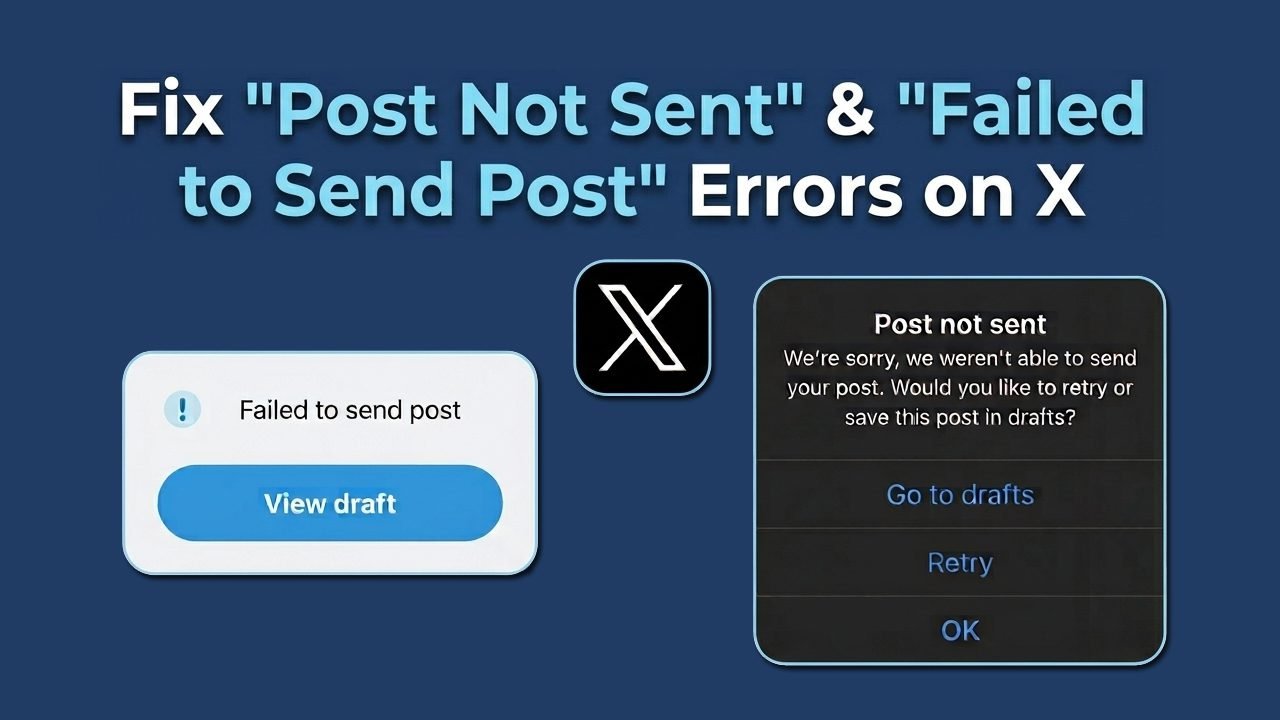
X (formerly Twitter) users sometimes encounter errors when publishing posts, replies, or videos. These problems typically occur due to network disruptions, duplicate content, app glitches, server outages, or account restrictions.
To fix the “Post not sent” or “Failed to send post” errors on X (Twitter), you must first identify what is stopping your content from being published. This guide covers the most common causes and provides step-by-step solutions for Android, iOS, and web users.
Common Reasons Behind the “Post Not Sent” & “Failed to Send Post” Errors
A range of issues can prevent your content from uploading successfully. Identifying the underlying cause will help you choose the right solution.
- A Weak or Unstable Internet Connection: A weak network connection can interrupt communication between your device and X. As a result, your post may remain unsent or fail mid-upload.
- App Glitches: An outdated application or temporary software bug can interfere with the posting process. These problems can affect both Android and iOS users, even when their internet connection is working perfectly.
- Video Upload Issues: Large video files, unsupported formats, or interrupted uploads can cause a post containing media to fail. Checking the file size and your connection can help isolate the issue.
- Duplicate Content: Publishing identical messages repeatedly triggers spam prevention filters. X will reject a duplicate post to prevent spam from appearing on the platform.
- Blocked or Flagged Links: Certain URLs are blocked or flagged by X’s automated security systems. If your post contains a suspicious or restricted link, the system will prevent it from being published.
- Account Restrictions: X may temporarily restrict your posting privileges if your account reaches a daily usage limit or requires additional security verification. In these cases, standard network or app fixes will not resolve the error.
- Temporary X Server Outages: Sometimes, the problem originates from X’s servers rather than your device. A temporary service disruption can affect posting capabilities across both the mobile app and the desktop website.
Solutions To Fix “Post Not Sent” and “Failed to Send Post” Errors on X (Twitter)
The following solutions cover the common reasons why the application or website fails to publish your content.
Try these troubleshooting methods in order, starting with the simplest checks to quickly resolve the issue.
Solution 1: Check Your Internet Connection
A reliable connection helps X upload text, images, and videos without interruptions. If your network is unstable, changing your connection may resolve the “failed to send post” error.
- Open your phone’s Settings.
- Switch between Wi-Fi and mobile data.
- Open a website in your browser to confirm that the internet is working.
- Return to the app and try publishing the post again.
Solution 2: Rewrite the Post Before Tweeting Again
If X rejects a message because similar content was recently published, submitting the same text repeatedly will not help. Modifying the wording naturally can help you determine whether duplicate content is responsible for the block.
- Open X and check your profile to see whether the original post was actually published.
- If it was not, prepare a new version of the message.
- Avoid repeatedly submitting identical content to prevent triggering spam filters.
- Tap the Post button and check the result.
Solution 3: Review the Link Included in Your Post
A URL may trigger a posting error if X’s automated systems consider it suspicious or restricted. Testing the message without the link can help determine whether the web address is causing the problem.
- Open the draft that failed to publish.
- Check whether the URL is correct, formatted properly, and accessible.
- Temporarily remove the link and try publishing just the text.
- If the post goes through, review the link’s legitimacy before trying to include it again.
Note: Only share legitimate links. If the platform restricts a particular domain, you may need to contact the website owner or X (Twitter) Support for further guidance.
Solution 4: Update the X App
An older app version may contain bugs that affect publishing capabilities. Installing the latest available update improves compatibility and resolves known software issues.
- Open the Google Play Store on your Android device.
- Search for X.
- Tap Update if the option appears next to the app.
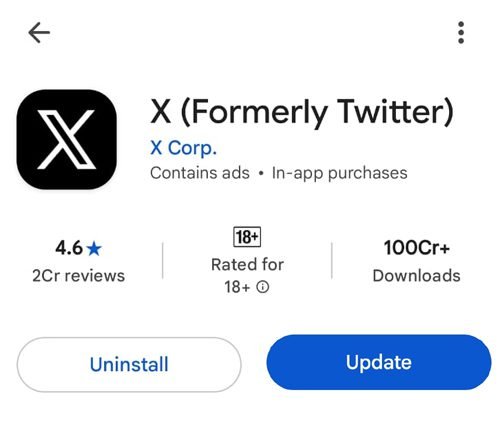
- Wait for the installation to finish.
- Launch the app and test posting again.
For iOS users: Open the App Store, search for X, and install any available updates.
Solution 5: Clear Temporary App Data (Cache)
Stored cache files can sometimes become corrupted and cause performance issues. You can clear the cache of X app on both Android and iOS.
On Android:
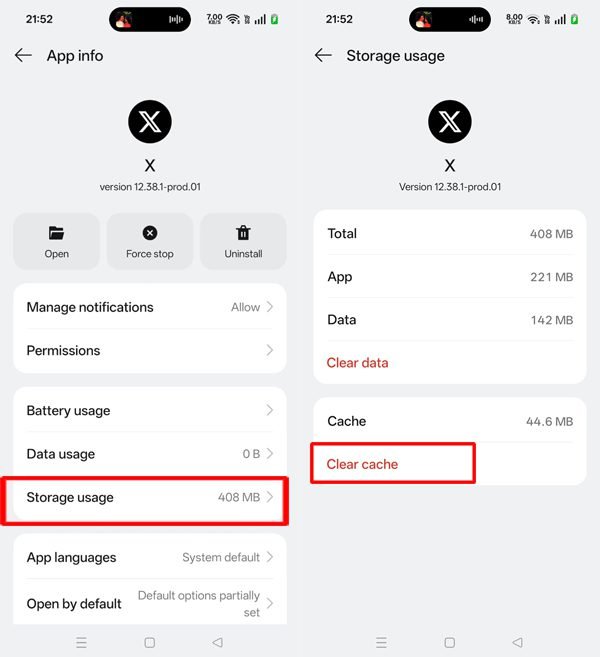
- Open your phone’s Settings.
- Select Apps and choose X.
- Tap Storage usage, Storage, or Storage & Cache.
- Select Clear Cache.
On iOS:
- Open Settings on your iPhone.
- Tap General.
- Select iPhone Storage.
- Find and tap X.
- Tap Offload App.
- After offloading, tap Reinstall App.
Solution 6: Sign Out and Sign In Again
A temporary account-session glitch can interfere with certain app functions. Logging out and back in refreshes your session and resynchronizes your account data with X’s servers.
- Open X, tap your profile icon, and navigate to Settings and Privacy.
- Tap Your account, select Account information, and choose Log out.
- Log back in using your account credentials.
- Try publishing a new post.
Tip: Make sure you remember your password and login details before signing out.
Solution 7: Check the Video Before Uploading It
If X fails to send a post that contains a video, the file size or upload process itself may be responsible. Large files, unsupported formats, or brief network drops during media transfers frequently cause errors.
- Check whether the video meets X’s current upload requirements (file size, length, and format dimensions).
- Confirm that the file plays correctly on your device’s local gallery.
- Try uploading it again while connected to a stable, high-speed connection.
- If the error continues, test by posting a shorter, compressed version of the video.
Note: If text-only posts work perfectly but video posts consistently fail, focus your troubleshooting on the video file parameters.
Solution 8: Check for Account Restrictions
A platform-wide posting limit or account restriction may prevent new content from being published. These situations require verifying your account status rather than changing your local device settings.
- Open X and check your notifications or email for any account alerts.
- Review any warning, rate-limit, or verification messages (like a CAPTCHA request).
- Follow the specific on-screen instructions provided by X to restore full functionality.
- If you believe the restriction is an error, contact X (Twitter) Support.
If you suspect a platform block, review the official guidelines for Locked and Limited Accounts on the X Help Center or submit a direct appeal using the official X Support Suspension Form.
Note: Avoid repeatedly hitting the post button while an account restriction or rate limit is actively applied to your account.
Solution 9: Try Posting Through a Web Browser
If the mobile app continues to show the error, testing the desktop or mobile website can help determine whether the issue is strictly limited to the application.
- Launch Chrome, Safari, or your preferred web browser.
- Go to the official X website (x.com).
- Log in to your account.
- Choose a new post and click Post.
Note: If posting works in the browser but fails in the app, the issue is tied to your mobile application setup or its temporary data.
Solution 10: Check if You Have Exceeded Daily Post Limits
To combat automated bots and data scraping, X enforces daily posting limits, especially for unverified (free) accounts. If you hit these hidden thresholds, any new content you try to publish will fail immediately.
- Open X and review how many posts and replies you have published over the last 24 hours.
- Keep in mind that free accounts are generally limited to 50 original posts and 200 replies per day.
- If you have crossed this threshold, you will need to wait 24 hours for the restriction to reset.
- Alternatively, upgrading to X Premium will instantly lift these basic daily limitations.
Solution 11: Revoke Access to Third-Party Connected Apps
Many users link external scheduling tools, analytics platforms, or cross-posting apps to their X accounts. If one of these third-party connections experiences an authorization token glitch, it can lock up your account’s posting capabilities entirely.
- Open X and tap your profile icon to open Settings and Privacy.
- Select Security and account access, then tap Apps and sessions.
- Choose Connected apps to view all external platforms linked to your account.
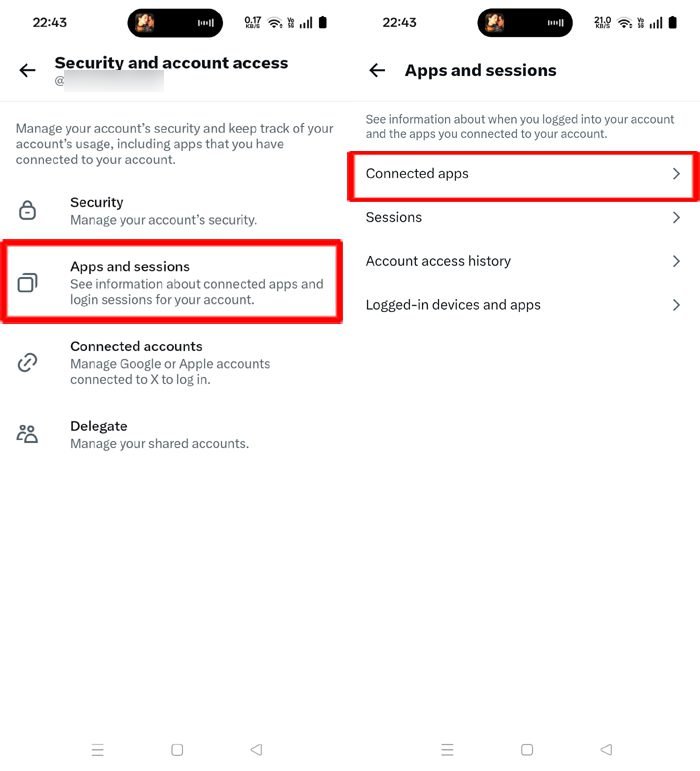
- Select any suspicious or outdated app and tap Revoke app permissions.
- Return to X and check if your native posting capabilities are restored.
Solution 12: Reduce the Number of Mentions and Hashtags
X’s automated spam filters are highly aggressive. If your draft strings together too many account handles or trending hashtags, the system will instantly flag the message as automated spam and block it from publishing.
- Open the draft that failed to send.
- Count the number of @mentions and #hashtags you have included.
- Remove any excessive or unnecessary tags to clean up the text.
- Try publishing a stripped-down, simplified version of the post.
Tip: If you need to tag multiple accounts, try publishing the core post first and then mention the remaining handles inside the replies section below it.
Solution 13: Wait for Temporary Service Problems to Clear
If none of the previous solutions work, X may be experiencing a widespread server disruption or outage. In this situation, changing your personal device settings will not help.
- Check whether other features on X (like loading the timeline or direct messages) are working.
- Check an external tracking platform like Downdetector for X or look at official X platform announcement accounts for service status updates.
- Wait for the server disruption to clear before attempting to post again.
Tips to Avoid Future Posting Errors
Adopting a few simple best practices can help prevent unexpected interruptions when publishing content on X.
- Keep the Application Updated: Routinely check the Google Play Store or iOS App Store to ensure you are running the latest version of the X app, which contains essential bug fixes.
- Use a Stable Internet Connection: Whenever possible, switch to a reliable Wi-Fi network or a strong cellular data connection before attempting to upload media-heavy posts.
- Avoid Duplicate Content: Refrain from publishing identical messages or links repeatedly within a short timeframe to ensure your account is not flagged by spam prevention filters.
- Verify Web Links: Always check that the URLs you include in your posts are typed correctly and point to secure, legitimate domains.
- Review Video Specifications: Confirm that your video files meet X’s specific requirements for file size, duration, and format before starting an upload.
- Monitor Account Posting Limits: Pay close attention to platform warnings and standard daily usage limits to avoid triggering temporary rate restrictions.
- Clear Browser Cache and Cookies: If you primarily use the web version of X on a desktop computer, regularly clearing your browser’s cache and cookies can resolve underlying script errors that block the post button.
- Watch Your Character and Formatting Limits: Ensure your post does not accidentally exceed the platform’s character limits. Keep in mind that hidden characters, emojis, and long links count toward your total limit and can trigger silent posting failures.
- Test in Incognito Mode: If you suspect a browser extension or an ad-blocker is interfering with the interface on your computer, try opening X in a private or incognito window to test it.
Conclusion
Encountering a “Post Not Sent” or “Failed to Send Post” error on X (Twitter) can be highly frustrating, but most occurrences are easily fixed. In most cases, the issue stems from a simple network disruption, an outdated mobile application, or exceeding daily account limits. By systematically following the 13 troubleshooting solutions outlined in this guide, you can quickly identify the root cause and get your content published without further interruption.
If you have tried all the steps and X still prevents you from tweeting, the platform might be experiencing a widespread server outage. In such instances, simply give the platform a little time to resolve its internal service bugs.
If the problem persists, consult official X support for further assistance.
Frequently Asked Questions About X (Twitter) Posting Errors
Why does X say my post failed to send?
This message usually appears due to an unstable internet connection, duplicate content, an app glitch, or a temporary account restriction. Checking these specific factors one by one will help you identify the exact cause.
How do I fix a failed to send post on X for Android?
First, check your internet connection, update the application through the Google Play Store, and clear the app cache in your system settings. If the error continues to persist, try publishing your post through a mobile web browser instead.
Why does X fail to send a video post?
The video file may not meet the platform’s strict upload size or format requirements, or your network connection might have been briefly interrupted during the transfer. Double-check your file specifications and try uploading it again over a strong connection.
Why can I post on the X website but not on my iPhone?
This mismatch indicates that the issue is related to your iOS application rather than your actual account settings. Updating the X app through the App Store, clearing your device data, or reinstalling the application will usually resolve this localized issue.
Will clearing my app data or logging out delete my saved drafts?
Yes, clearing your app data or logging out of the X application will permanently erase your saved drafts. If you have important unfinished posts, copy and paste them into a separate notes app before clearing your storage cache or logging out of your account.
How long does the X “Failed to send post jail” last?
If your posts are failing due to a temporary automated rate limit or a spam filter restriction, the restriction typically lasts anywhere from 12 to 24 hours. Avoid repeatedly hitting the submit button during this window, as continuous failed attempts can extend the penalty duration.
Can exceeding the character limit cause a silent post failure?
Yes. While X usually warns you when a message is too long, sudden formatting bugs or hidden characters (like complex emojis or long web links) can push your text over the platform’s character limits and cause the post button to fail without a specific error warning. If your post fails, try shortening the text or removing media parameters to see if it publishes.
You Might Also Be Interested In:
- How to Fix Photos and Videos Not Loading in Posts & Chats on X
- How to Fix X (Twitter) DMs Not Syncing Across Devices

Danny Paul is a tech specialist and avid gamer with over 10+ years of experience resolving complex system errors, software bugs, and platform glitches. He specializes in creating straightforward, actionable troubleshooting guides for Android, iOS, PC gaming, and mainstream social media networks to help users fix issues instantly. In his free time, he loves solving puzzles, playing online games, watching movies, and traveling.