Fortnite may close suddenly while launching or during a match. This usually happens because of temporary bugs, low device storage, or corrupted game files.
If you are facing the Fortnite crashing on Android/iOS problem, a few simple troubleshooting steps can help you fix the issue and get the game running smoothly on your device again. This guide explains exactly how to fix the problem on both platforms.
Why Does Fortnite Keep Crashing?
The game can crash for several reasons while launching or during a match. Sometimes, the issue is related to your device hardware, remaining storage space, outdated software, or network connection.
Understanding the root cause will help you apply the correct fix:
- Outdated Game Version: Running an older version of Fortnite can cause stability issues, as newer patches fix critical, known bugs.
- Low Storage Space: If your phone is running out of storage, the game cannot create the temporary cache files it needs to load textures and run smoothly.
- Unstable Internet Connection: A weak or fluctuating network can disrupt data sync with Epic servers, causing the app to freeze, throw a server error, or close unexpectedly.
- Device Compatibility: Fortnite is a heavy, high-fidelity game. If your phone does not meet the minimum hardware requirements (like having less than 4GB of RAM), the system will force-close it.
- Device Overheating: Intensive 3D gaming makes mobile processors run hot. When a phone reaches high temperatures, its internal safety features will automatically shut down heavy apps like Fortnite to cool the hardware down.
- Background RAM Exhaustion: Even if your phone has enough total RAM, running multiple apps in the background (like Discord, social media, or browser tabs) steals the short-term memory Fortnite needs.
- Using Beta Operating Systems: Running developer or public beta versions of Android or iOS frequently causes instant “crash-on-launch” loops because Fortnite is not yet optimized for unreleased software.
How to Fix Fortnite Crashing on Mobile (Android & iOS)
If the game keeps crashing on your phone, there are a few simple troubleshooting steps you can try. The methods below cover both ecosystems and will help get your game working smoothly again.
Fix 1: Restart Your Device
Temporary system glitches can sometimes cause the game to crash or close unexpectedly.
Why it works: Restarting your device completely flushes the short-term memory (RAM), kills hidden frozen processes, and gives the app a clean system environment to launch into.
On Android:
- Close Fortnite and all other running apps.
- Press and hold the Power button.
- Tap Restart.
- Relaunch Fortnite and check if the issue is resolved.
On iOS:
- Press and hold the Side button and either Volume button until the power slider appears.
- Drag the slider to turn off your iPhone.
- Wait 30 seconds, then hold the side button again to turn it back on.
- Open Fortnite and test if it still crashes.
Fix 2: Clear the Game Cache
Corrupted temporary files stored by an app can cause unexpected instability.
Why it works: Over time, temporary game files can become corrupted during background live updates. Clearing the cache wipes out these broken temporary files without losing your account settings or button layouts.
On Android:
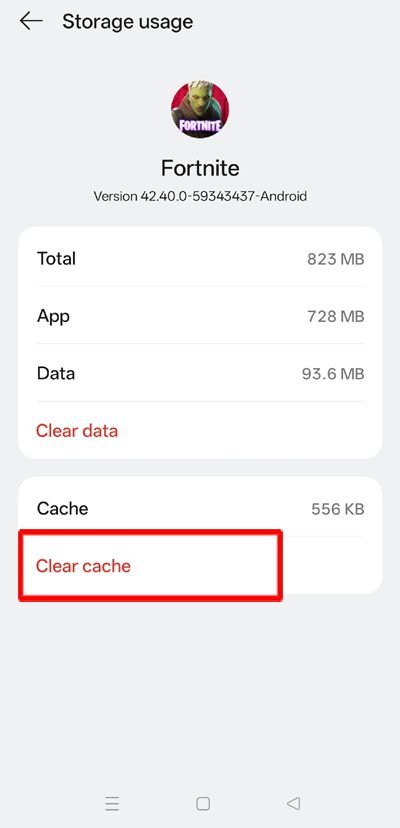
- Go to Settings > Apps (or App Management).
- Find and select Fortnite.
- Tap Storage (or Storage & Cache).
- Tap Clear Cache. (Note: Do not tap “Clear Data” unless you want to re-download game files).
- Open Fortnite again and see if it works properly.
On iOS:
- iOS does not offer a manual “Clear Cache” button for individual apps. Instead, close the game completely and restart your iPhone or iPad. If the problem continues, proceed to check for game updates.
Fix 3: Check Your Phone’s Storage
Fortnite requires significant free storage to process temporary textures and download live hotfixes.
Why it works: When storage space drops below a critical threshold, your phone’s operating system cannot allocate virtual memory for the game, resulting in sudden force-closes. Freeing up space gives the game breathing room to load maps.
On Android:
- Go to Settings > Storage.
- Check how much free space is available (maintain at least 5–10 GB for optimal gaming).
- Remove unnecessary files, videos, or unused apps if storage is low.
On iOS:
- Open Settings > General > iPhone Storage (or iPad Storage).
- Review your available space.
- Utilize iOS recommendations to clear unwanted downloads, large attachments, or apps.
Fix 4: Update Fortnite
An outdated game version will contain bugs that conflict with live server protocols.
Why it works: Epic Games frequently rolls out optimization patches to fix sudden device-specific crash loops. Running the latest version ensures your local game app aligns perfectly with Epic’s live server code.
On Android:
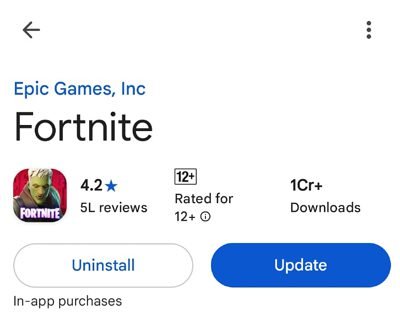
- Open the app source you used to install the game (e.g., Play Store, Epic Games App or Samsung Galaxy Store).
- Check if an update is available.
- Install the update, relaunch Fortnite, and test.
On iOS:
- Open your marketplace (the global App Store or the Epic Games Store app for EU players).
- Check your profile or updates tab for a pending Fortnite patch.
- Install the update and restart the game.
Fix 5: Update Your Phone’s Software
An outdated operating system can conflict with newer versions of the Unreal Engine powering Fortnite.
Why it works: System updates patch internal graphics drivers (GPU drivers) and optimize RAM management protocols. A fully updated OS reduces system conflicts that cause heavy 3D titles to lock up.
On Android:
- Open Settings > System > Software Update.
- Tap Check for updates.
- Install any pending system patches and restart your device.
On iOS:
- Open Settings > General > Software Update.
- Install any available iOS or iPadOS updates.
- Tip: Ensure you are running at least iOS 17, as older versions face severe stability limits with modern Fortnite builds.
Fix 6: Exclude Fortnite from Battery & Memory Throttling (Android Only)
Many modern Android skins feature aggressive built-in device optimization features that force-close heavy apps.
Why it works: By default, Android systems kill background or resource-heavy tasks to preserve battery life. Adding Fortnite to your phone’s exclusion list stops the operating system from abruptly shutting down the game during intense gameplay.
- Go to Settings > Device Care > Memory (or Battery options).
- Find the option for sleeping apps or background management.
- Add Fortnite to the “Never Auto-Sleeping Apps” or “Excluded from Memory Cleaning” list.
Fix 7: Lower In-Game 3D Resolution and Lock FPS
Pushing high frame rates on a mobile device will cause the processor to heat up rapidly or max out graphics memory (VRAM).
Why it works: Dropping the graphical load dramatically lowers device temperature and prevents VRAM exhaustion. Keeping your phone cool eliminates the primary trigger for hardware-level safety shutdowns.
On Android & iOS:
- Launch Fortnite and open the in-game Settings menu.
- Navigate to the Video tab.
- Drop the 3D Resolution slider down to 60%–70% and turn the graphics preset down to Low.
- Cap your frame rate at a stable 30 FPS or 60 FPS rather than pushing for 90/120 FPS.
Fix 8: Disable USB Debugging & Developer Options (Android Only)
Fortnite utilizes highly strict server-side anti-cheat protocols to keep matchmaking fair.
Why it works: Epic’s security checks view custom system permissions like USB Debugging as potential avenues for third-party cheating tools or modifications. Turning this off stops anti-cheat software from forcing an immediate crash on launch.
- Go to Settings > System > Developer Options.
- Locate the USB Debugging toggle.
- Switch it completely OFF.
Fix 9: Check Your Internet Connection
A sudden drop in network data will cause a sync error with Epic’s matchmaking servers.
Why it works: Refreshing your connection cleans out network jitter and bad data routing. Transitioning to a clearer, more stable frequency ensures the game receives smooth, uninterrupted data packets.
On Android & iOS:
- Verify whether your Wi-Fi or mobile data is actively sending data.
- Switch from mobile data to a stable 5GHz Wi-Fi band (or vice versa).
- Toggle Airplane Mode on for 10 seconds, then turn it off to reset your network chips.
Fix 10: Check Fortnite Server Status
Sometimes the issue has nothing to do with your phone.
Why it works: If Epic Games is deploying a backend hotfix or suffering a database outage, checking the live operational dashboard keeps you from wasting hours resetting a perfectly healthy mobile device.
On Android & iOS:
- Navigate to the official Epic Games Status Website.
- Locate Fortnite in the services checklist.
- If a service disruption is listed, you must wait for Epic Games to deploy a server-side fix.
Fix 11: Reinstall Fortnite
If all else fails, a full fresh installation replaces deeply corrupted core game directories.
Why it works: If an essential game file is corrupted or failed to unpack properly during a recent update, no amount of troubleshooting will fix it. A fresh installation wipes out the damaged code directories entirely and redownloads clean copies of all game assets.
On Android:
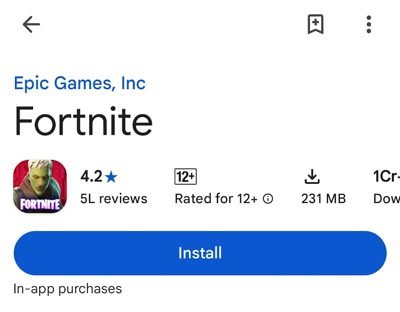
- Uninstall Fortnite from your app drawer.
- Redownload it via the Play Store or the official Epic Games app or your device’s supported store.
- Sign in and test game stability.
On iOS:
- Ensure the game is still available via your regional store layout (such as the native App Store or regional alternatives like the Epic Games Store in Europe) before deleting it.
- Long-press the icon, tap Remove App, and confirm deletion.
- Re-download from your authorized source, sign in, and test.
Proactive Tips to Prevent Fortnite Crashes
To keep Fortnite running smoothly and avoid sudden mid-game crashes in the future, follow these preventative mobile habits:
- Take Off Your Phone Case During Long Sessions: Heavy 3D gaming generates massive internal heat. Removing your case allows your phone to dissipate heat much faster, preventing thermal throttling crashes.
- Turn on “Do Not Disturb” or Gaming Mode: High-priority system interruptions, like incoming phone calls or heavy notification pop-ups, can spike your processor usage and trigger an instant crash.
- Avoid Gaming While Charging: Playing Fortnite while plugged into a fast charger creates a double source of heat, which almost guarantees a high-temperature crash loop.
- Clear the App’s RAM Before Dropping In: Make it a habit to close all background processes or use your phone’s built-in optimization tool right before launching Fortnite to maximize available memory.
- Schedule a Weekly Device Restart: Don’t wait for the game to crash to reboot your phone. Cleanly restarting your phone once a week clears system memory leaks before they cause issues.
- Use 5GHz Wi-Fi Over 2.4GHz Bands: When playing on Wi-Fi, ensure your phone connects to the 5GHz frequency on your router. It has significantly less packet congestion, preventing connection-based drops.
- Turn Off Auto-Downloads for Background Apps: Disable automatic App Store or Google Play updates while you play. Sudden background updates will instantly hog your RAM and crash your match.
Conclusion
Fortnite mobile crashes are usually caused by low system storage, outdated software, or network instability. In most cases, simple troubleshooting steps like restarting your device, clearing the Android game cache, and lowering your graphics settings will resolve the issue.
If you are still facing the Fortnite crashing on Android/iOS problem, double-check your internet connection and verify that the Epic Games servers are running normally. If none of these steps work, your best option is to visit the official Epic Games Support Website for deeper technical assistance.
Frequently Asked Questions (FAQs)
Why does Fortnite keep crashing on Android?
Fortnite typically crashes on Android due to low storage space, outdated software, or RAM exhaustion from background apps. Because Android devices vary wildly in hardware, it can also happen if your phone’s processor doesn’t meet the game’s intensive minimum system requirements.
How can I fix Fortnite crashing on an iPhone or iPad?
First, perform a hard restart of your iOS device to clear out frozen memory processes. Next, ensure your phone is running iOS 17 or later and that you have at least 5–10 GB of free local storage. If crashes happen immediately on launch, check the global App Store or the Epic Games Store app (for EU users) to ensure your game client is fully updated.
What are the minimum system requirements to prevent Fortnite from crashing?
- Android: Requires 64-bit Android on an ARM64 processor, Android OS 10.0 or higher, at least 4GB of RAM, and a modern graphics processor (Adreno 530/Mali-G71 or higher).
- iOS: Requires an iPhone 11 or newer running iOS 17.0 or later.
If your device falls below these hardware benchmarks, it will lack the processing power to handle the modern mobile engine, resulting in automatic desktop crashes.
Why does Fortnite crash immediately on the loading screen?
If the game closes instantly with a black screen or an error report, your device is likely triggering Epic’s anti-cheat software. This occurs if your phone has custom root configurations or has USB Debugging enabled in your phone’s Developer Options. Turn off USB Debugging to bypass this crash loop.
Can clearing the Fortnite cache help resolve crashes?
Yes, but only on Android. Clearing the cache deletes corrupted temporary deployment files that accumulate during live hotfixes. iOS does not offer a manual “Clear Cache” button for individual apps; to achieve the same result on an iPhone, you must completely restart your device or offload the app.
Can playing Fortnite while charging cause it to crash?
Yes. Playing a graphically intensive 3D game like Fortnite generates massive internal heat, and fast charging generates even more. When these combine, your phone will quickly overheat, triggering a built-in safety protocol that kills the heavy app process to protect your phone’s processor from permanent thermal damage.
How can I check if Fortnite’s servers are down?
You can check real-time service health by visiting the official Epic Games Status Website. If the dashboard shows a green “Operational” bar next to Fortnite, the crashing issue is local to your mobile device rather than an Epic Games server outage.
Also Read: Check out our latest Gaming & Troubleshooting Guides

Danny Paul is a tech specialist and avid gamer with over 10+ years of experience resolving complex system errors, software bugs, and platform glitches. He specializes in creating straightforward, actionable troubleshooting guides for Android, iOS, PC gaming, and mainstream social media networks to help users fix issues instantly. In his free time, he loves solving puzzles, playing online games, watching movies, and traveling.