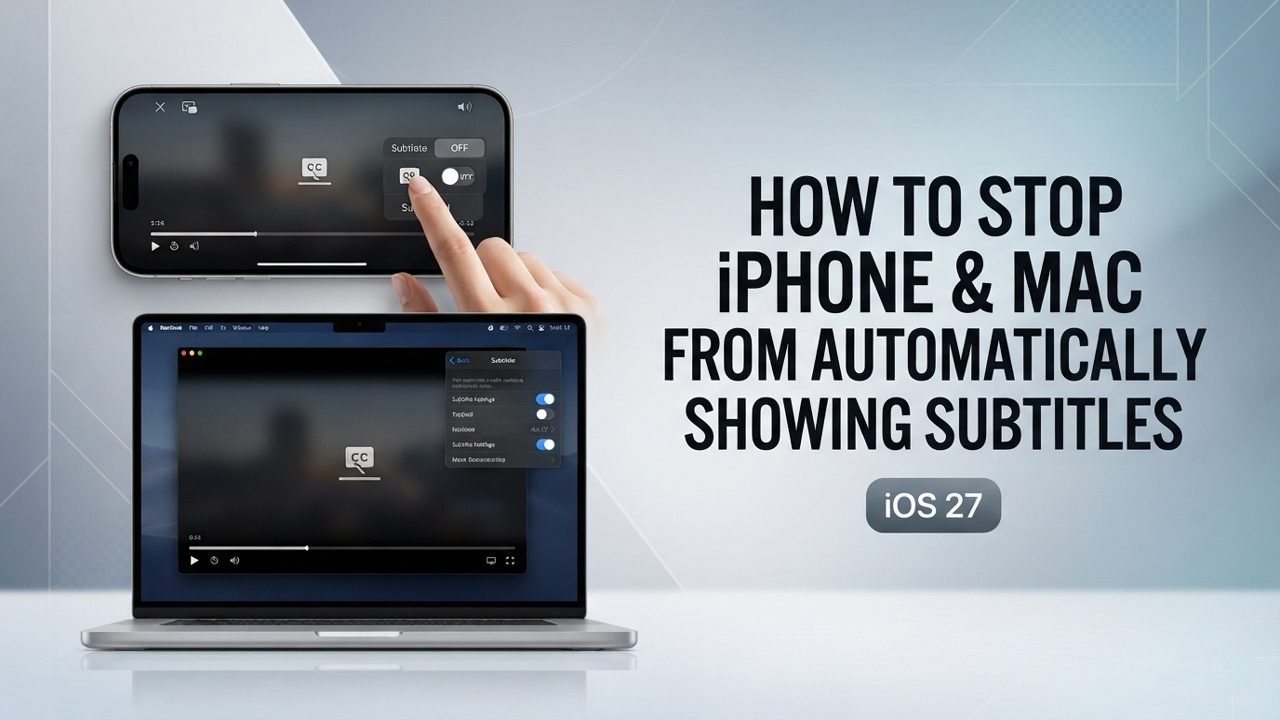
Sometimes, subtitles appear automatically when you watch videos on your iPhone, iPad, or Mac. They can show up when the sound is muted or the video is in another language.
If you notice captions constantly overlaying your videos, you aren’t alone. Fortunately, you can stop your iPhone & Mac from automatically showing subtitles (iOS 27) and turn off this feature for good with a few simple changes in your device settings.
Why Do Automatic Subtitles Appear?
Automatic subtitles can help you follow a video, but sometimes you may not want them. They usually appear for a few common reasons:
- Different language: Subtitles may appear when a video is in another language.
- Muted videos: Your device may show subtitles when the sound is off or muted.
- Skipping back: Subtitles may appear when you rewind a video to relisten to a scene.
- System settings: Automatic subtitle options are turned on by default in your device settings.
Steps to Turn Off Automatic Subtitles While Watching a Video
You can turn off subtitles directly from the built-in video player. This is the easiest way to stop them from appearing in the current app.
- Open a video on your iPhone, iPad, or Mac.
- Tap or click the video to bring up the playback controls.
- Select the Captions (CC) icon.
- Choose Off from the menu.
Note: This turns off subtitles for the current video and future playback within that specific app. If you want to stop automatic subtitles across all supported apps globally, follow the system-level steps below.
Steps to Turn Off Automatic Subtitles on iPhone and iPad
If subtitles keep appearing out of nowhere, you can completely change the automatic subtitle system rules in your OS settings.
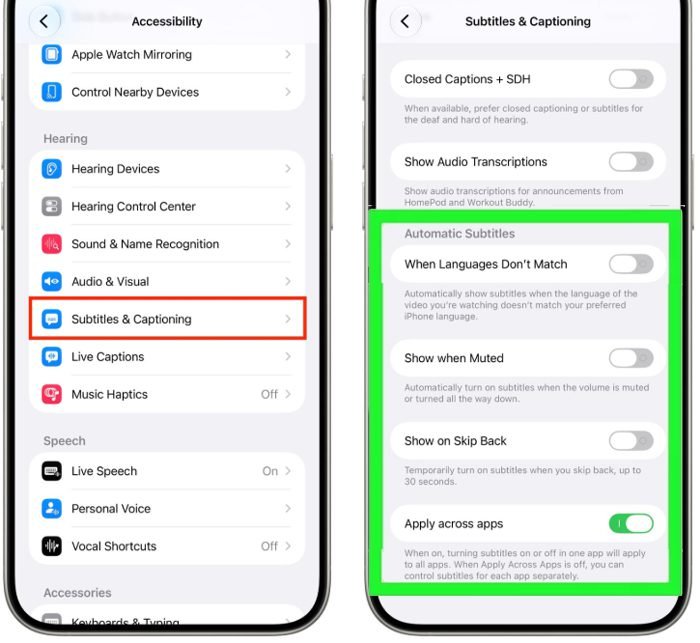
- Open the Settings app.
- Tap Accessibility.
- Select Subtitles & Captioning.
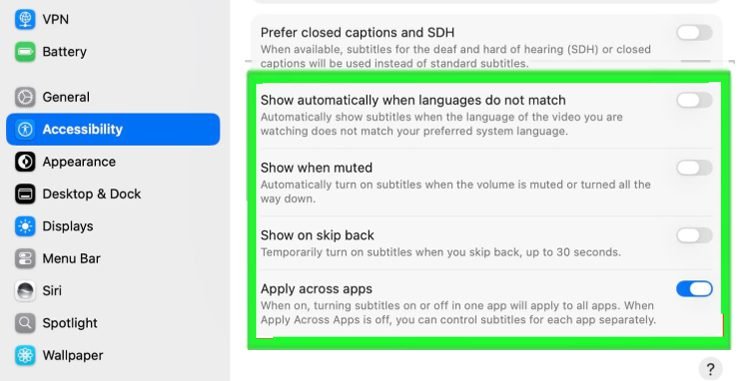
- Locate the Automatic Subtitles section.
- Toggle Off these individual triggers:
- When Languages Don’t Match: Stops the device from automatically translating or generating subtitles if a video is playing in a different language.
- Show When Muted: Stops subtitles from popping up automatically whenever your media sound is turned down or muted.
- Show on Skip Back: Prevents subtitles from temporarily appearing on the screen when you rewind a video.
- Ensure Apply Across Apps is turned On to lock in your “disabled” preferences across all supported default applications (like Safari and Photos).
For an exhaustive look at your phone’s complete media accessibility architecture, you can check the official Apple Support Guide for iPhone Subtitles.
Steps to Disable Automatic Subtitles on Mac
You can quickly adjust these media settings on your desktop or laptop computer as well.
- Click the Apple menu () in the top-left corner of the screen.
- Open System Settings.
- Select Accessibility from the sidebar.
- Click on Subtitles & Captioning.
- Navigate to the Automatic Subtitles section and turn off the switches next to the active triggers.
- Once saved, play a quick video in Safari or the Photos app to verify subtitles no longer trigger automatically.
Still Seeing Subtitles? Check These Settings
If subtitles continue to overlay your screen after changing your automatic settings, check these two areas:
- Turn off Closed Captions + SDH: In the same Subtitles & Captioning menu, ensure the main Closed Captions + SDH switch at the very top is turned Off. This controls standard media captions.
- Check Third-Party Apps: Platforms like YouTube, Netflix, and Amazon Prime use independent subtitle engines. If captions only pop up in a specific app, tap the CC icon inside that app’s video player to turn them off manually.
Tips to Manage Automatic Subtitles on Apple Devices
- Use Siri for a quick fix: If you want to toggle captions instantly without opening menus, activate Siri and say, “Turn off subtitles” or “Turn on subtitles.”
- Keep your applications updated: Because these OS versions are new, keep your apps updated via the App Store to ensure third-party video players integrate smoothly with your system-level preferences.
- Isolate individual triggers: If you only dislike one specific feature (such as subtitles appearing when you mute a video), you can leave that single option turned off while keeping the others enabled.
- Use the quick in-player menu: Tap the standard Captions (CC) icon directly inside any active video window to make immediate, temporary adjustments to your text preferences.
- Identify hardcoded text: Remember that “open captions” (subtitles burned permanently into the raw video file by the video creator) cannot be disabled or hidden using your device’s system settings.
Conclusion
If subtitles keep appearing when you watch videos, you can easily turn off automatic subtitles in iOS 27 and macOS 27 through the native video player or your device’s Accessibility settings.
If the problem continues within a specific third-party app, make sure to check its internal caption settings. For further technical assistance, you can always visit the official Apple Support page.
Frequently Asked Questions (FAQs)
1. Why do subtitles keep appearing on my iPhone?
Your device’s automatic subtitle settings may be turned on by default in the latest update. To change this, check the options under Settings > Accessibility > Subtitles & Captioning and turn off the triggers you do not need.
2. Can I turn off automatic subtitles on Mac?
Yes. Open System Settings, select Accessibility from the sidebar, and click on Subtitles & Captioning to completely customize or disable your automatic subtitle settings.
3. Will these settings work in every app?
These global settings apply across all supported native and default applications when the Apply Across Apps toggle is enabled. However, some independent third-party streaming apps may require you to adjust their internal caption settings separately.
4. Can I turn subtitles back on again later?
Yes. You can re-enable the automatic options in your device’s Accessibility menu at any time, or simply toggle subtitles on manually using the individual video player’s Captions (CC) icon during playback.
5. Does turning off automatic subtitles affect Live Captions?
No. Automatic Subtitles and Live Captions are two entirely separate systems in Apple’s settings menu. Turning off automatic subtitles will only stop the device from displaying text based on your media volume, language, or rewinding. It will not disable or impact your general Live Captions accessibility features.
6. Why do subtitles still appear in the Photos app after turning them off?
If captions are still displaying on your personal videos in the Photos app, ensure the Apply Across Apps toggle is turned On inside your Accessibility settings. Leaving this option enabled forces the Photos app to strictly obey your global “disabled” preferences rather than acting independently.
Further Readings:
- How To Stop Siri AI From Keeping Your Conversation History
- iPhone 18 Pro & Pro Max Vertical Lines: Troubleshooting Steps and Repair Options
- How to Hide ‘Add to Calendar’, Reminders, and Notes Buttons in iOS 27 & macOS Golden Gate

Danny Paul is a tech specialist and avid gamer with over 10+ years of experience resolving complex system errors, software bugs, and platform glitches. He specializes in creating straightforward, actionable troubleshooting guides for Android, iOS, PC gaming, and mainstream social media networks to help users fix issues instantly. In his free time, he loves solving puzzles, playing online games, watching movies, and traveling.