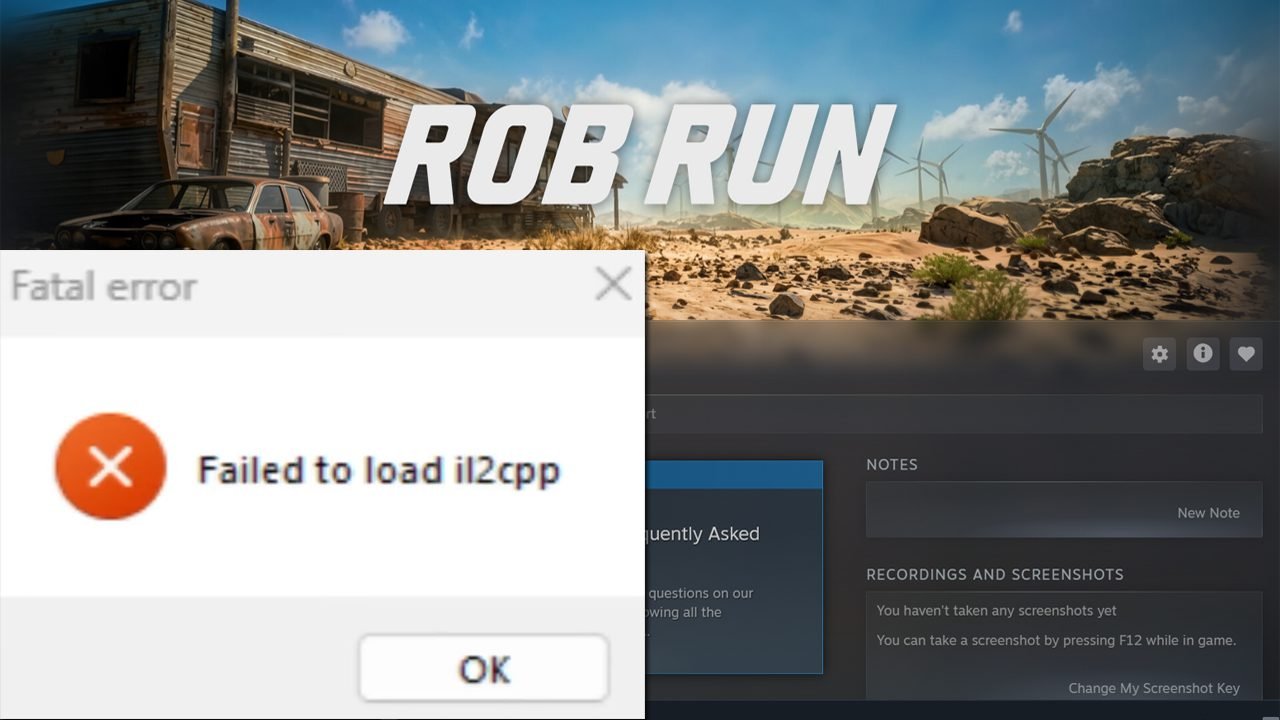
Launching a game only to be met with a sudden crash message can be frustrating, especially when you are ready to jump in and play. If you are seeing the “Fatal Error: Failed to Load il2cpp” pop-up when starting ROB RUN, you are dealing with a common Unity engine initialization issue.
This error usually happens when the game cannot access or execute its GameAssembly.dll file. In most cases, this is caused by corrupted installation files, missing system dependencies, or Windows security tools – such as Windows Defender or Smart App Control – accidentally blocking the game’s core files from running.
Fortunately, you do not need to reinstall your entire system to resolve this crash. Below are the most effective, step-by-step solutions to repair your ROB RUN installation, restore the missing il2cpp components, and get the game running smoothly again.
Step-by-Step Fixes for ROB RUN “Fatal Error: Failed to Load il2cpp”
Work through these solutions in order, starting with quick system checks before moving on to file repairs and security permissions. Test launching ROB RUN after each method.
Fix 1. Restart Your Computer and Install Windows Updates
Temporary background locks or outdated operating system components often prevent Unity’s GameAssembly.dll file from initializing properly.
- Save any open work and perform a full Restart of your PC (avoid using Sleep or Hibernate).
- Once Windows loads back to the desktop, open Windows Settings and navigate to Windows Update.
- Click Check for updates and install all available Windows and security patches.
- Restart your PC again if updates were installed, then launch ROB RUN through Steam.
Fix 2. Manually Replace GameAssembly.dll and Verify Game Files
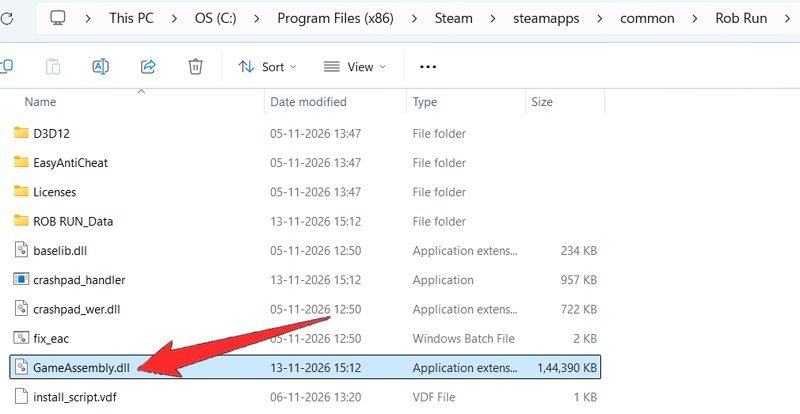
Missing or corrupted il2cpp library files are one of the most common triggers for this fatal error. Because Steam’s verification scan occasionally skips a damaged or quarantined .dll file, forcing a fresh download of GameAssembly.dll works best.
- Open your Steam Library, right-click ROB RUN, hover over Manage, and click Browse local files.
- Look for GameAssembly.dll inside the main game folder. If it is present, delete it (or move it to your Desktop as a backup).
- Go back to Steam, right-click ROB RUN, and select Properties.
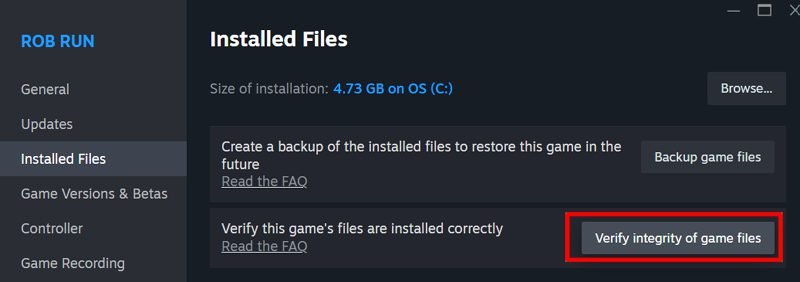
- Switch to the Installed Files tab on the left menu and click Verify integrity of game files.
- Wait for the scan to reach 100% and download a clean copy of GameAssembly.dll, then click Play in Steam.
Fix 3. Run the Built-In fix_eac Repair Tool
ROB RUN relies on Easy Anti-Cheat (EAC) at startup. If the anti-cheat service fails to initialize properly, it can crash the game before the engine finishes loading.
- Right-click ROB RUN in your Steam Library, hover over Manage, and click Browse local files.
- Inside the main game directory, locate the fix_eac file.
- Right-click fix_eac and select Run as administrator, then click Yes on the confirmation prompt.
- Wait a few seconds for the command window to finish running and close automatically, then relaunch ROB RUN from Steam.
Fix 4. Allow the Game Through Windows Protection History
Windows Security may silently block the game executable from accessing protected memory without showing an obvious pop-up alert.
- Open Windows Settings and go to Privacy & security > Windows Security.
- Select Virus & threat protection, then click Protection history.
- Look through the list for any recent entries mentioning Protected memory access blocked or the ROB RUN executable.
- If you find a blocked entry for the game, click on it, select Actions at the bottom, and choose Allow on device.
Fix 5. Whitelist All Game Executables in Controlled Folder Access
To prevent Windows Ransomware Protection or third-party antivirus tools from blocking the game or its anti-cheat client, add all three core executables to your allowed list.
- Open Windows Security > Virus & threat protection.
- Scroll down to Ransomware protection and click Manage ransomware protection.
- Click Allow an app through Controlled folder access, select Yes, and click Add an allowed app > Browse all apps.
- Navigate to your ROB RUN installation folder and add these three files one by one:
- The main ROB RUN .exe file
- start_protected_game.exe
- The EasyAntiCheat_EOS_Setup.exe file located inside the EasyAntiCheat subfolder
(Note: If you use third-party antivirus software such as Avast, Norton, Bitdefender, or McAfee, add these same three files to your antivirus exclusion list.)
Fix 6. Allow All Three Executables Through Windows Defender Firewall
Ensure Windows Firewall is not blocking network or local initialization for the game or Easy Anti-Cheat during startup.
- Open Control Panel and go to System and Security > Windows Defender Firewall.
- Click Allow an app or feature through Windows Defender Firewall on the left sidebar.
- Click Change settings, then click Allow another app… > Browse.
- Navigate back to your ROB RUN folder and add all three executables again:
- The main ROB RUN .exe file
- start_protected_game.exe
- The EasyAntiCheat_EOS_Setup.exe file inside the EasyAntiCheat folder
- Make sure both the Private and Public checkboxes are ticked next to every added entry, then click OK to save.
Fix 7. Confirm Code Integrity Blocks and Check Smart App Control (Windows 11)
On Windows 11, Smart App Control (SAC) frequently blocks newly updated or unsigned .dll files without showing a standard Windows Defender alert. You can confirm this in Event Viewer before adjusting your settings:
- Open the Start Menu, type Event Viewer, and open it.
- Navigate to Applications and Services Logs > Microsoft > Windows > CodeIntegrity > Operational.
- Look for recent error entries with Event ID 3077 that mention GameAssembly.dll. If you see this log, Windows Code Integrity is actively blocking the game.
- To test disabling Smart App Control, search for Smart App Control in the Windows Start Menu and switch it to Off.
Important Warning: If Windows displays a pop-up warning that turning off Smart App Control is permanent and requires reinstalling Windows to re-enable it later, do not turn it off and skip to Step 8. If you do not see that warning, confirm the change, launch ROB RUN, and turn Smart App Control back on after your gaming session.
Fix 8. Repair or Reinstall Microsoft Visual C++ Redistributables
Games built with Unity’s IL2CPP backend depend on Microsoft Visual C++ runtime libraries. If these system files are damaged or outdated, GameAssembly.dll cannot execute.
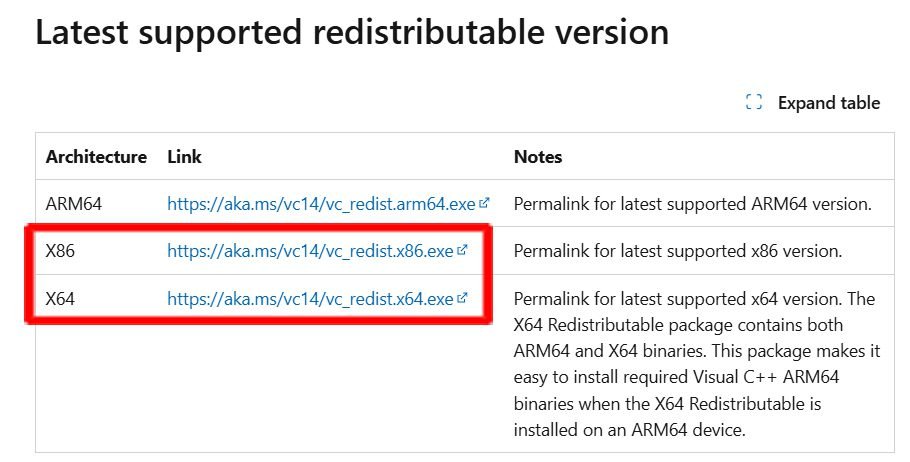
- Visit the official Microsoft Visual C++ Redistributable download page.
- Download both the x64 and x86 installers under the latest supported Visual Studio 2015–2022 section.
- Run each installer. If the package is already installed on your PC, choose the Repair option.
- Restart your computer once both repairs finish and test the game.
Fix 9. Close Conflicting Overlays and Background Apps
Screen overlays and hardware monitoring utilities inject code directly into the game window, which often causes IL2CPP initialization crashes after updates.
- Completely exit background apps such as MSI Afterburner, RivaTuner Statistics Server, Discord (or disable Discord’s in-game overlay), and NVIDIA App / GeForce Experience.
- Remove any third-party mods, reshades, or custom DLL injectors from your ROB RUN folder if you previously installed them.
- Launch ROB RUN cleanly with only Steam running in the background.
Fix 10. Perform a Clean Reinstall on Your Primary C:\ Drive
If ROB RUN is installed on an external USB drive or secondary partition with strict folder permissions, Windows security services may repeatedly block GameAssembly.dll.
- Open Steam, right-click ROB RUN, hover over Manage, and click Uninstall.
- Open your Steam folder directory and delete any leftover ROB RUN files.
- Reinstall the game directly onto your primary C:\ drive (such as C:\Program Files (x86)\Steam\steamapps\common\), then click Play inside Steam.
Final Thoughts
By verifying your local files, whitelisting all three ROB RUN executables, and checking Windows security restrictions, you should be able to clear the “Fatal Error: Failed to Load il2cpp” crash and get back into the game. Because ROB RUN is actively receiving updates, keeping an eye on the official ROB RUN Steam Community Discussions is also a great way to stay informed if a patch-related hotfix is on the way.
Frequently Asked Questions (FAQ)
1. What causes the “Fatal Error: Failed to Load il2cpp” error in ROB RUN?
This error occurs when the Unity engine cannot load or execute the game’s GameAssembly.dll file at startup. It is most commonly triggered by corrupted game files after a patch, missing Microsoft Visual C++ Redistributables, or Windows Security features (such as Smart App Control or Controlled Folder Access) blocking the unsigned .dll file.
2. Is it safe to turn off Smart App Control to fix ROB RUN?
Turning off Smart App Control allows unsigned game libraries to load, but you should proceed with caution. On Windows 11, permanently disabling Smart App Control cannot be undone without a full clean reinstall of Windows. Only disable it if Windows does not show the permanent-reinstall warning; otherwise, whitelist the game’s .exe files in Windows Security instead.
3. Which ROB RUN files do I need to whitelist in Windows Defender and Firewall?
To stop Windows Security from blocking the game, add all three core executables from your ROB RUN installation folder to your Controlled Folder Access and Windows Firewall allowlists:
- The main ROB RUN .exe file
- start_protected_game.exe
- The Easy Anti-Cheat .exe file inside the EasyAntiCheat subfolder
4. Why does ROB RUN crash when I launch it from my desktop shortcut?
Launching RobRun.exe directly from a custom shortcut or the installation folder can bypass Steam’s launch parameters and the Easy Anti-Cheat bootstrapper (start_protected_game.exe). Always click Play directly inside your Steam Library when testing fixes.
5. Does verifying game files delete my ROB RUN save data?
No. Running Verify integrity of game files in Steam only checks and replaces missing or damaged installation files like GameAssembly.dll. Your local progress and Steam Cloud save data remain completely safe.
More ROB RUN Troubleshooting Guides
- How To Fix ROB RUN Not Launching & Crashing on PC
- How to Fix ROB RUN Stuttering, Mouse Lag, and Low FPS on PC
- Fix ROB RUN Server, Multiplayer & E-403 Connection Errors on PC

Danny Paul is a tech specialist and avid gamer with over 10+ years of experience resolving complex system errors, software bugs, and platform glitches. He specializes in creating straightforward, actionable troubleshooting guides for Android, iOS, PC gaming, and mainstream social media networks to help users fix issues instantly. In his free time, he loves solving puzzles, playing online games, watching movies, and traveling.